

Available on all channels
Set AI consumes AI credits each time it generates a response. The number of credits used can vary depending on the selected AI model. See AI credits for credit usage and pricing details.
- Classify a user’s message or intent
- Extract information from a conversation
- Summarize text or a conversation
- Rewrite or transform text
- Generate a value before sending it to an API or another block
Using the Set AI block
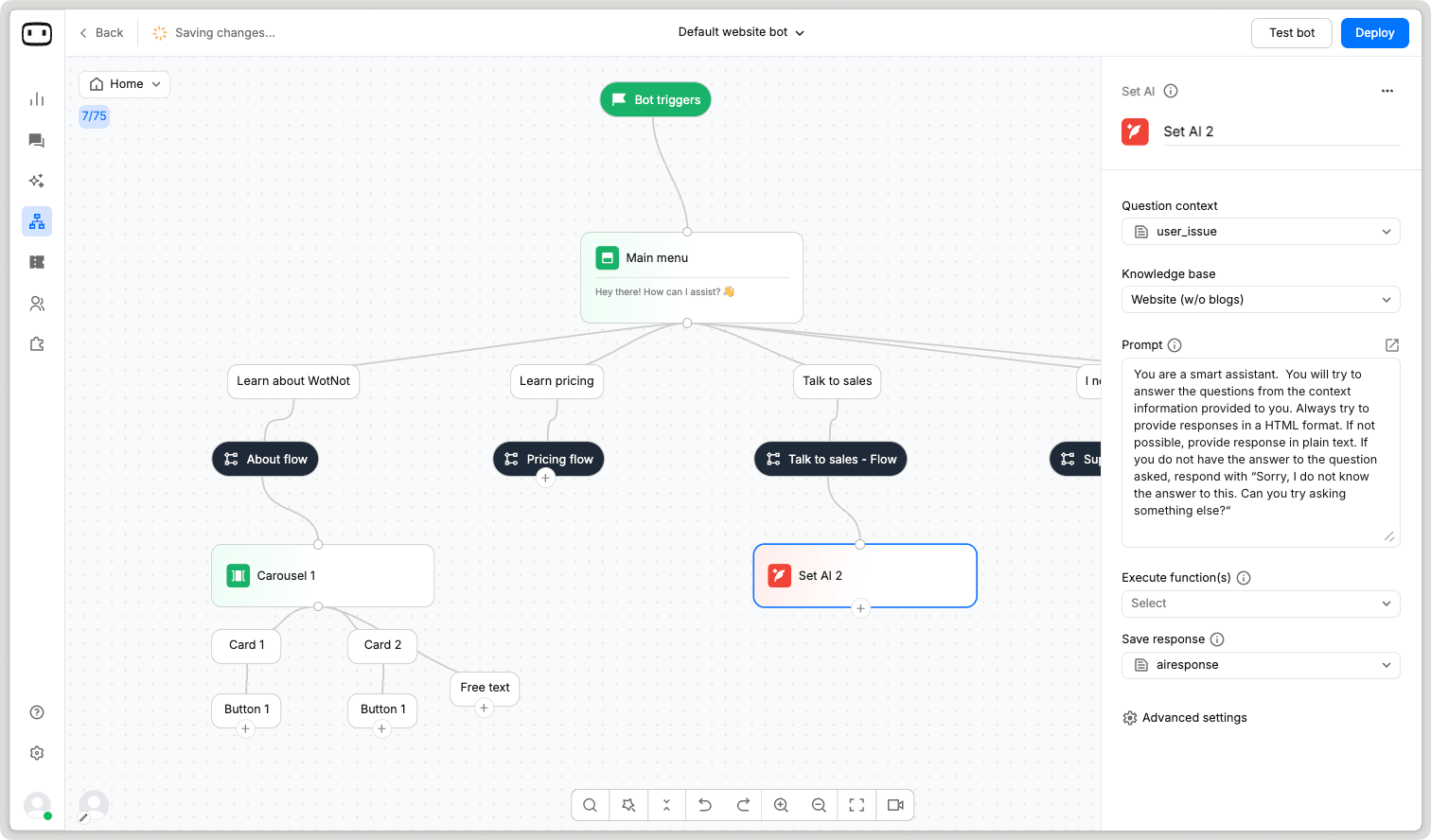
Drag the Set AI block onto the canvas and connect it to the previous block.- Add the Set AI block to your flow.
- Enter a prompt that describes what the AI should generate.
- Select the input variables or conversation context the AI should use.
- Select the variable where the generated output should be stored.
- Define the required output format.
- Configure the model settings if required.
- Connect the Set AI block to the next block.
Configuration
Prompt
A prompt is nothing but an instruction that helps the LLM know what to remember and follow while generating an answer. The more clear, concise and brief your instruction, the more accurate your answers will be from the AI. Things to write in your prompt:- Objective - What is its objective
- Output format - Typically would be HTML/markdown.
- Writing style - How should the answers be written.
- Don’ts - Clear instructions of what to avoid.
- Examples - Examples of question and answer.
Input
Input defines the information passed to the AI when generating the output. You can provide information such as:- User messages
- Conversation context
- Variables
- Other available input data
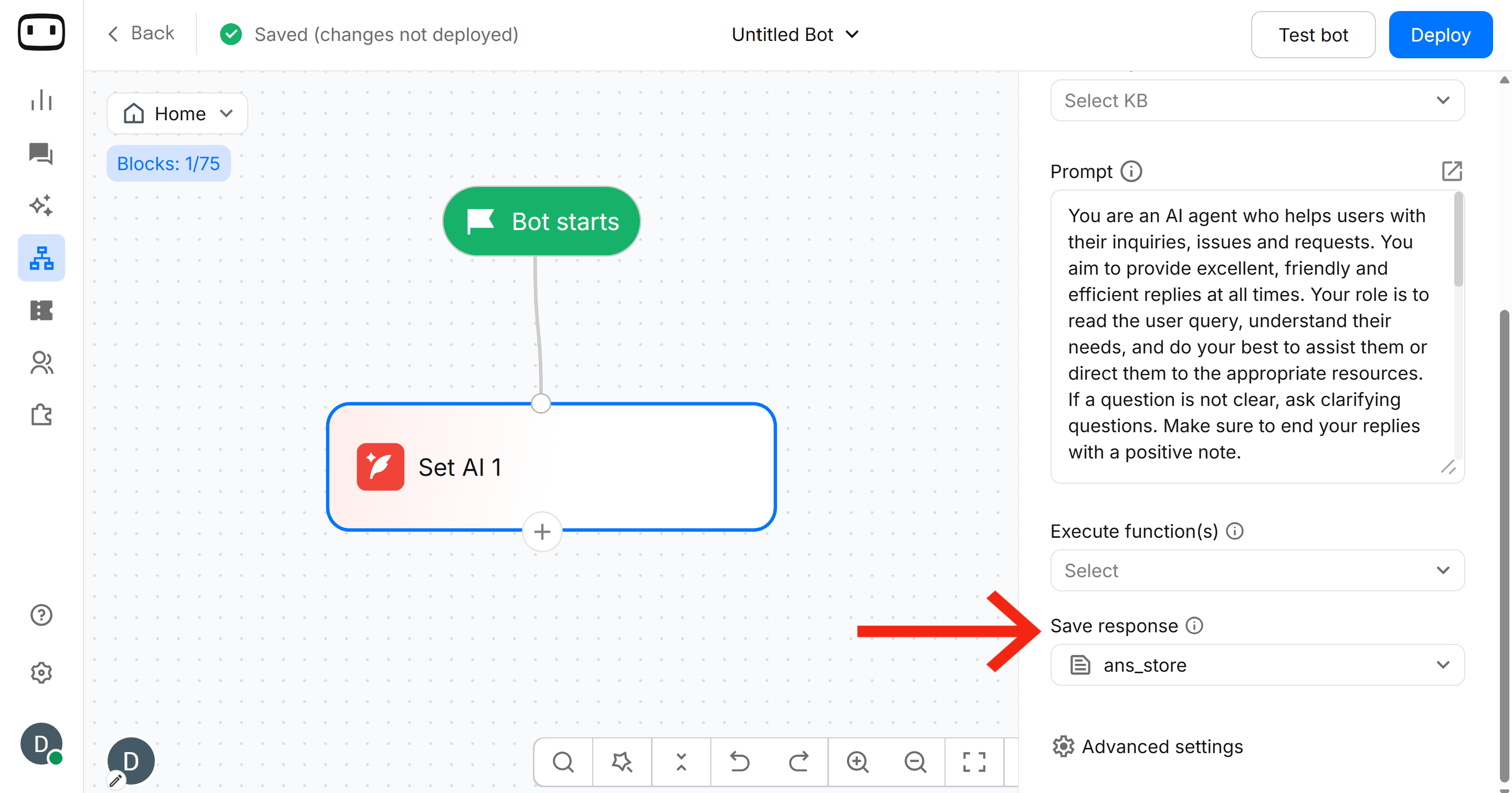
Save to variable
Save to variable determines where the generated output is stored. For example, if you select theintent variable, Set AI stores the generated category in intent.
You can then use the variable in later blocks, such as a Condition block, API call, or message block.
Output format
Use Output format to define the structure of the generated value. For example, you can ask Set AI to return:- A single word
- A classification label
- A number
- A short sentence
- A JSON object
Advances Settings
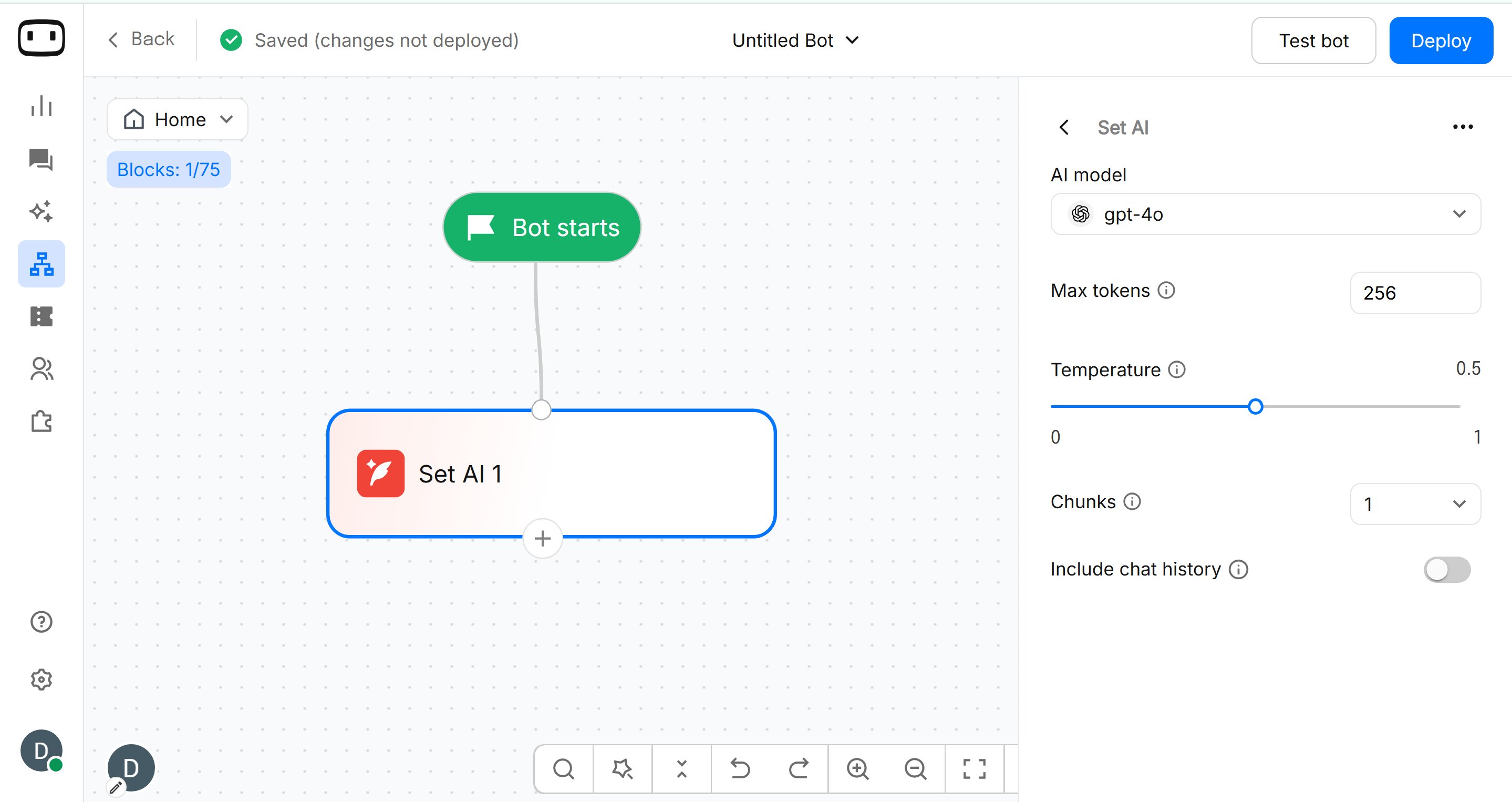
Model settings
Use Model settings to select the AI model and configure available parameters such as temperature. For tasks such as classification and data extraction, use settings that produce consistent results.Max Tokens
A token is a small unit of text that an AI model processes when reading your question, knowledge base content, or generating a response. Example: If a user asks:“What is your refund policy?”The AI breaks the text into smaller pieces called tokens before processing it.
- 1 token ≈ 4 characters but actual token usage may vary depending on the language, words, and AI model.
- Shorter responses use fewer credits, and longer or more complex responses use more. You only pay for what you actually use.
Temperature
Temperature controls how consistent or varied the AI-generated output is.- A value closer to 0 produces more consistent responses.
- A value closer to 1 produces more varied responses.
Chunks
When the AI is asked a question, it first fetches relevant content from the knowledge base, which is then sent to the LLM model to generate an answer. The more relevant content the AI can fetch, the more chances of accurate responses are. The number indicates the number of relevant responses which will be fetched from the knowledge base. Select the number of knowledge base chunks Answer AI should use when generating a response.Include Chat History
Enable Include Chat History to provide the conversation history as context when generating the output. This can be useful when the current user message depends on information from earlier messages in the conversation. For example, if the user first asks about a product and then asks, “What is its price?”, including chat history allows the AI to understand what “its” refers to.Example: Classify a user message
A common use of Set AI is to classify an incoming message and then route the conversation based on the result. For example, you can classify messages into three categories:SalesSupportOther
Step 1: Configure Set AI
Set the prompt to:intent variable.
For example, if the user says:
Sales is then stored in the intent variable.
Step 2: Add a Condition block
After Set AI, add a Condition block and check the value stored inintent.
For example:
- If
intent=Sales→ Continue to the sales flow - If
intent=Support→ Continue to the support flow - If
intent=Other→ Continue to the general flow
Output path
Set AI has a single output path that continues to the next block after the AI finishes processing. The generated value is stored in the selected variable before the flow continues. If the AI does not generate the expected value, validate the variable in a later block before using it for actions that depend on a specific format or value.Variables set
Set AI writes the generated value to the variable selected in Save to variable. For example:
The
intent variable can then be used in subsequent blocks, such as a Condition block, API call, or message block.
The Set AI block does not display the generated value to the user by itself. Use the stored variable in a later block when you want to display or process the output.