

- Conversation Variable
- Contact Variable
- Secret Variable
Used for storing temporary data that is only relevant within a single session.
- Conversation variables are session-specific and do not persist
- Values are reset after the conversation ends
- Ideal for storing temporary inputs like selections, intermediate responses, or flow-specific data
- Helps manage state within a single interaction without affecting future conversations
Data Types of Variables
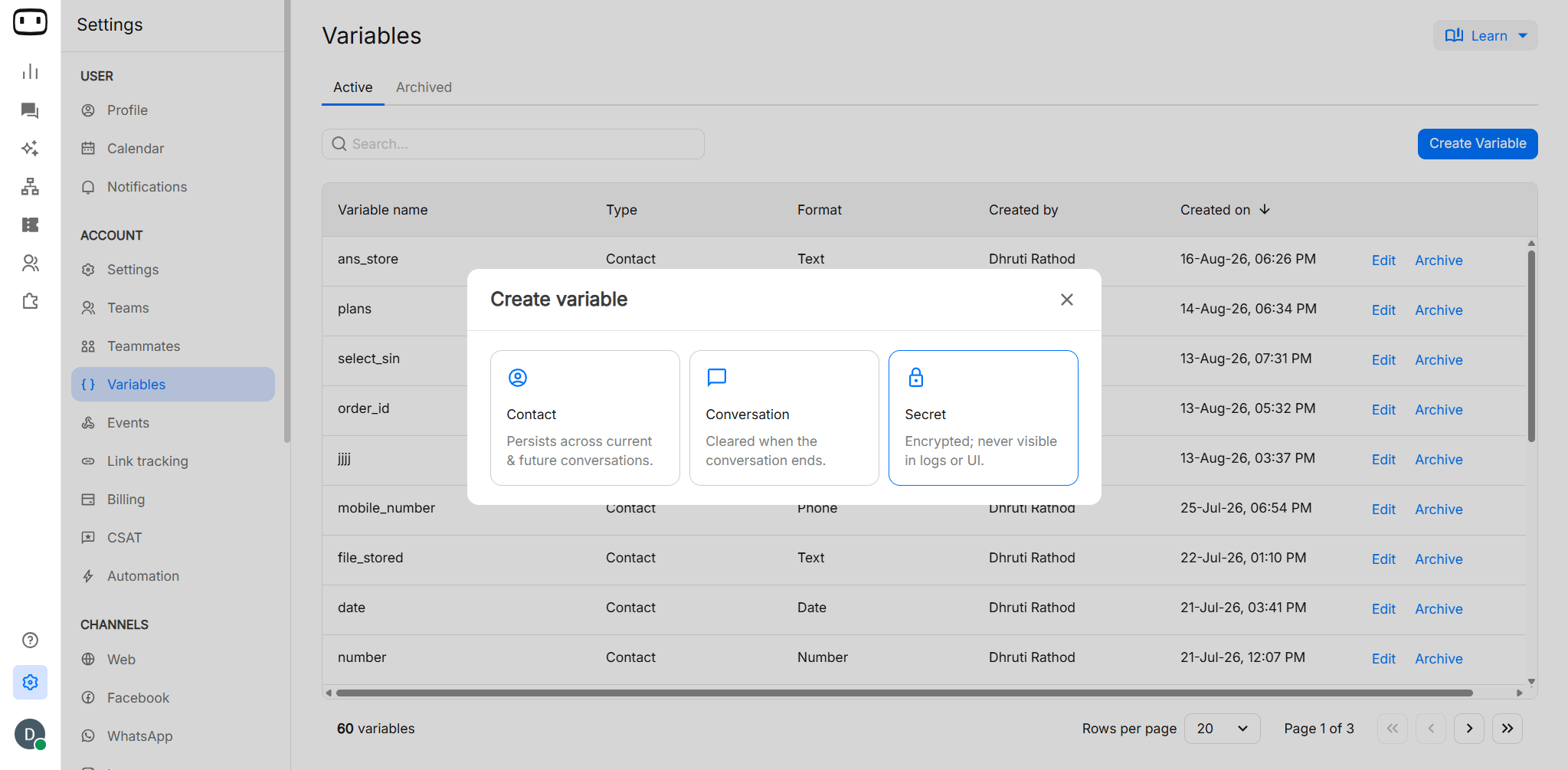
Creating variables
How to Create:From Variable Setting
- Open your bot in Bot Builder.
- Open the Variables panel.
- Click Create Variable.
- Select the appropriate variable type(Contact /Conversation/secret).
- Enter a name, description and type for the variable.
- Review the configuration.
- Click on Create variable.

From the bot builder
- In action blocks that allow you save user input like “Collect Input”, “Buttons” etc. you have the option to create a new variable.
- First, you choose the type of variable(Contact or Conversation), next you provide the details like name, description, type.
- Enter a name, description and type for the variable.
- Review the configuration.
- Click on Create variable.

Setting a Value
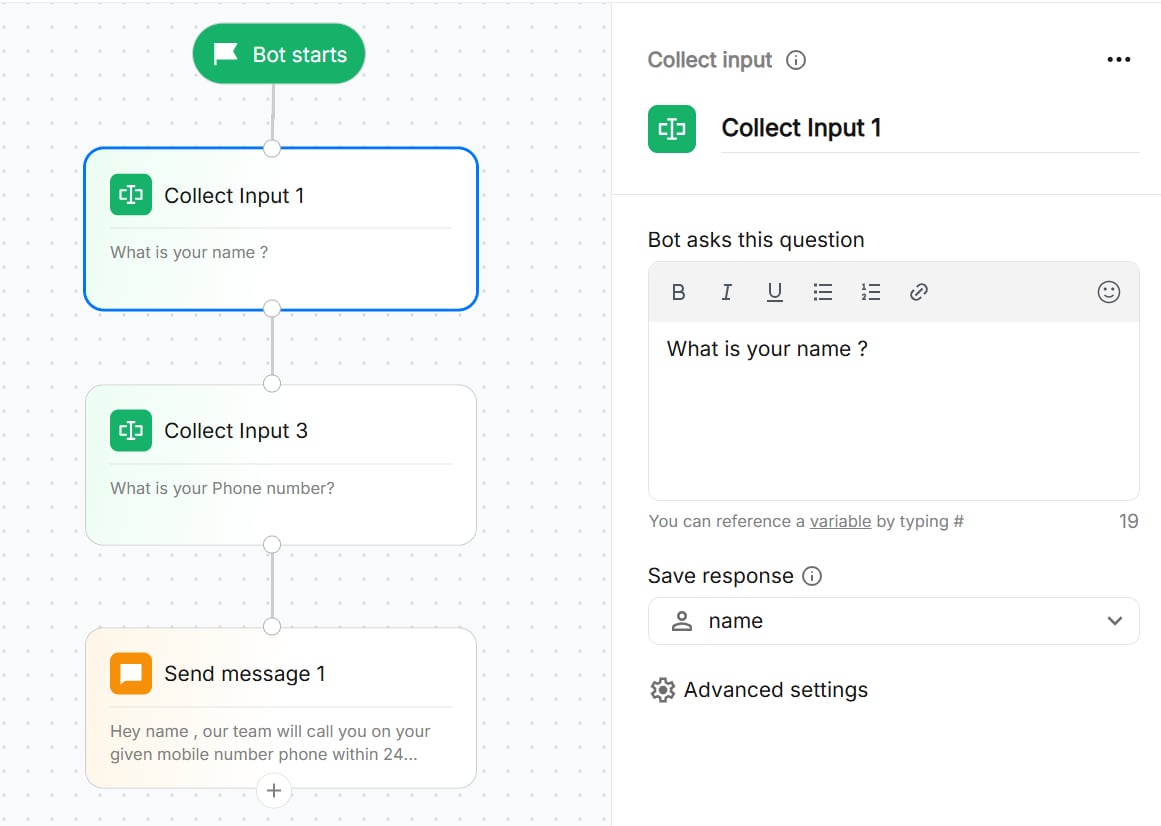
A variable can be populated in four different ways depending on where the value comes from:- Collect input
- Set variable
- API Response
- JavaScript
Use Collect Input when the value comes directly from the user.
- Add a Collect Input block to your flow.
- Configure the question you want to ask the user.
- Select the variable where the response should be stored.
- Configure any required validation.
- Continue the flow after the input is captured.
Using a variable
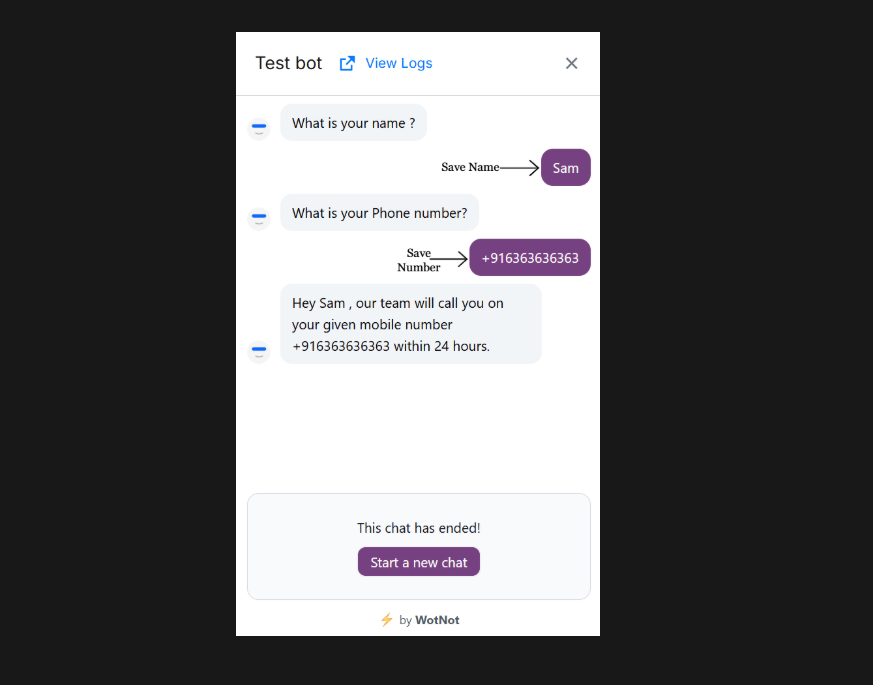
You can invoke a variable by typing # to preview the variable dropdown across the bot builder.- In messages: Display stored values dynamically, such as a customer’s name or order ID.
- In conditions: Use variable values to control which path the conversation takes.
- In API requests: Pass stored or collected values to an API to retrieve or send information.
Editing variables
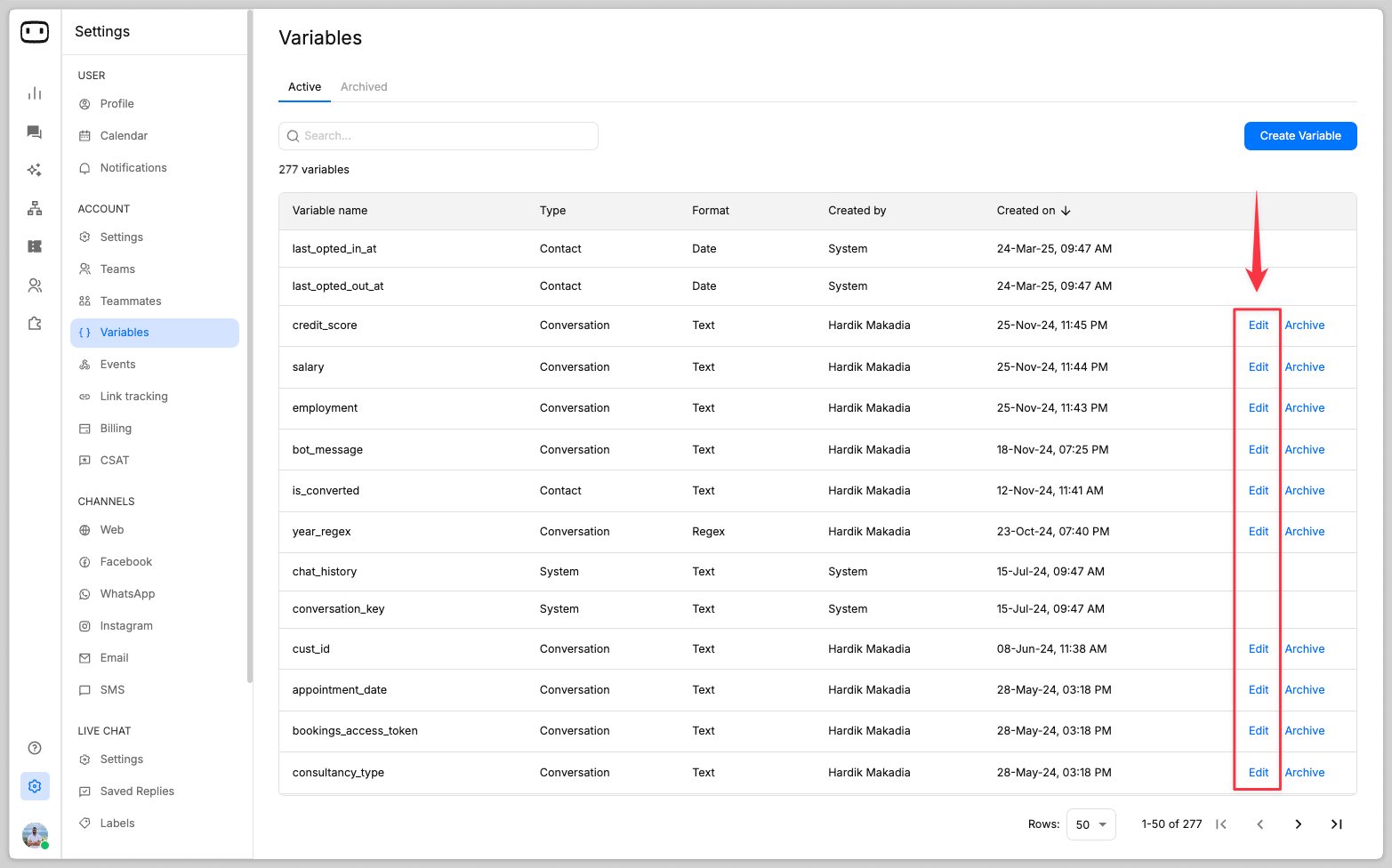
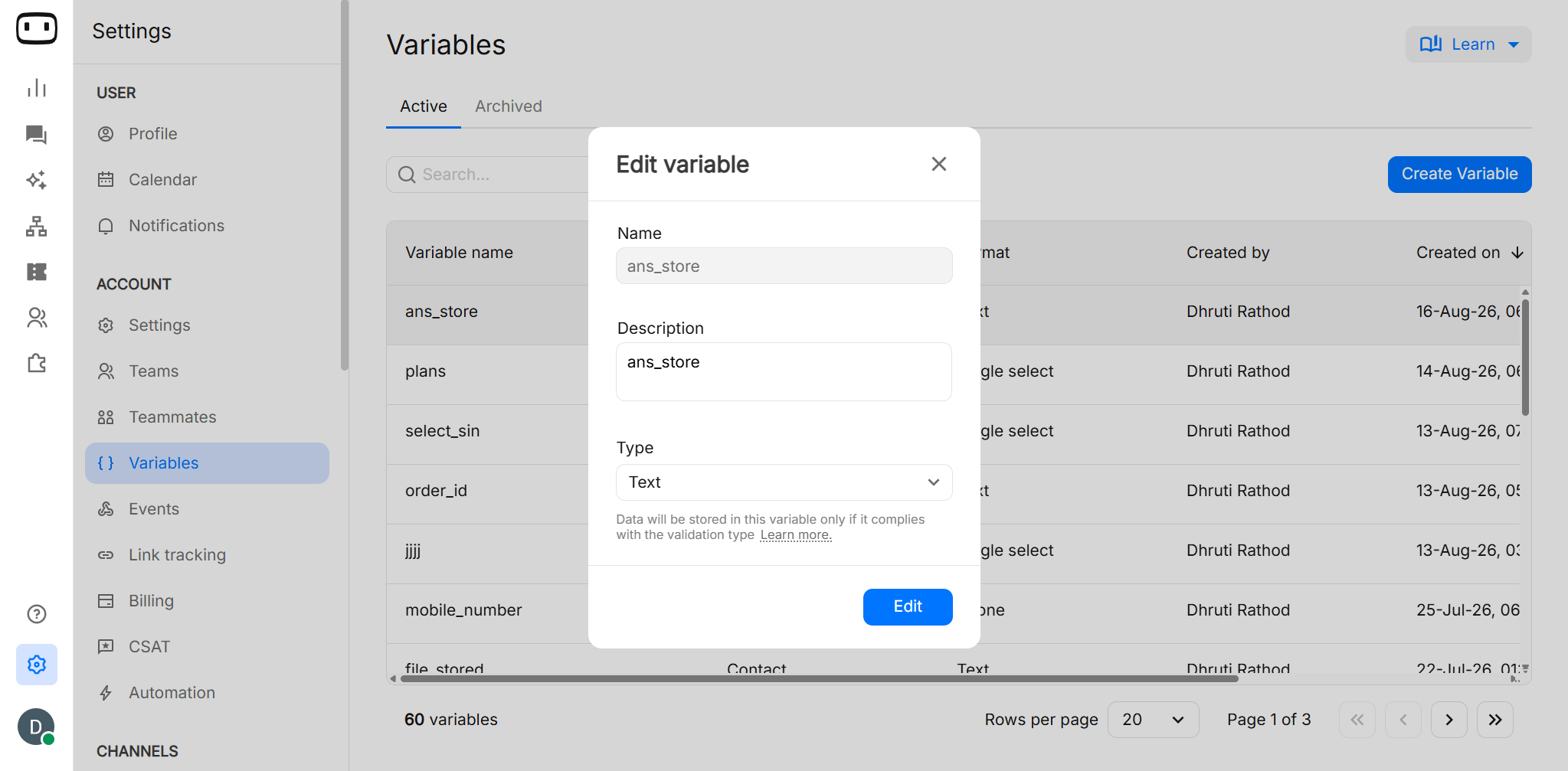
You can update an existing variable when its name, type, or configuration needs to change.- Open your dashboard
- Go to Setting→ Account→ Variable
- Open the Variables panel.
- Find the variable you want to edit and click on Edit.
Deleting variables
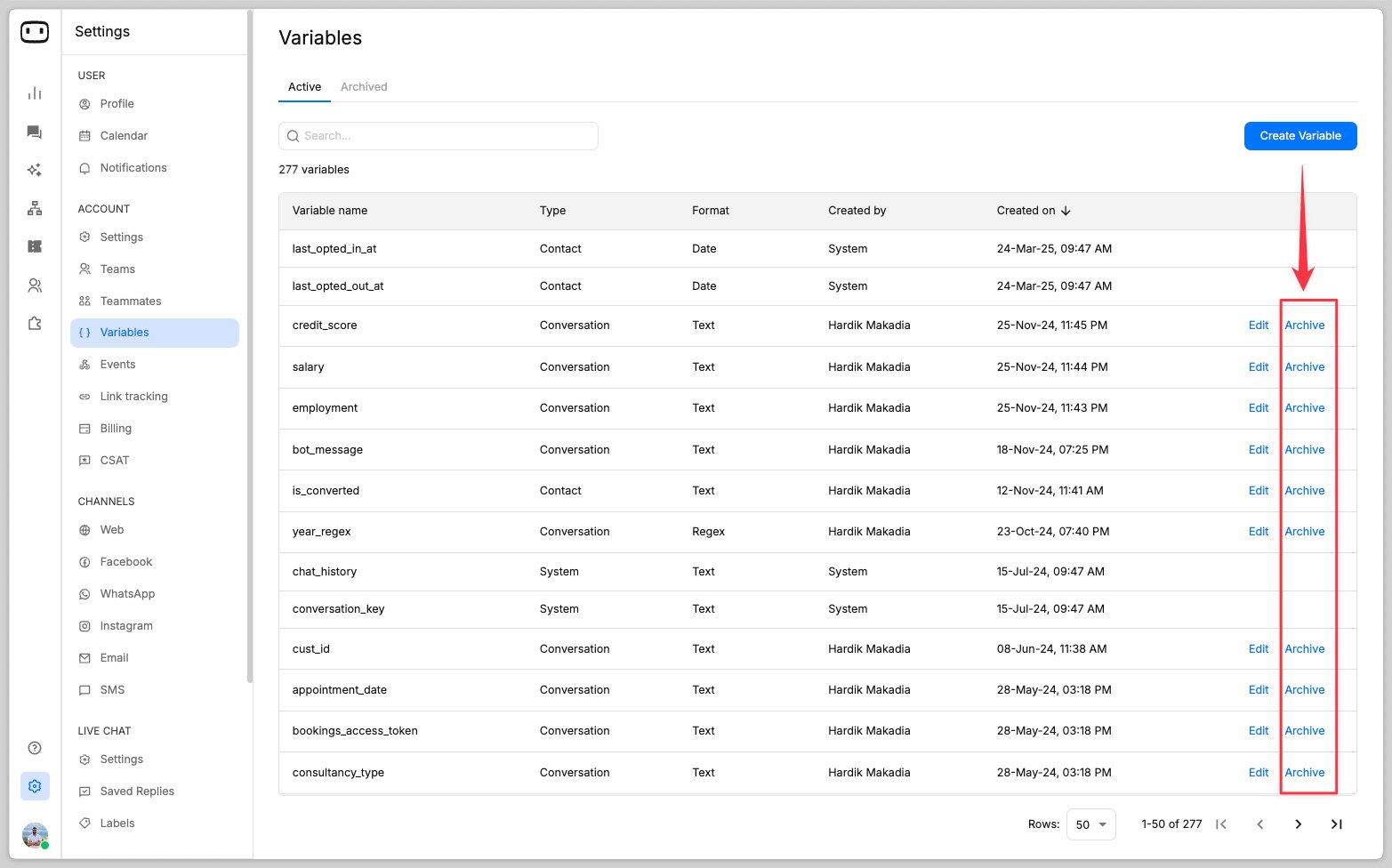
Variables can only be archived and not deleted.
- Open the Variables panel.
- Find the variable you want to remove.
- Click on Archive.
Restoring variables
You can restore variables from the “Archived” tabs, by choosing the ‘Restore’ button on the required variable.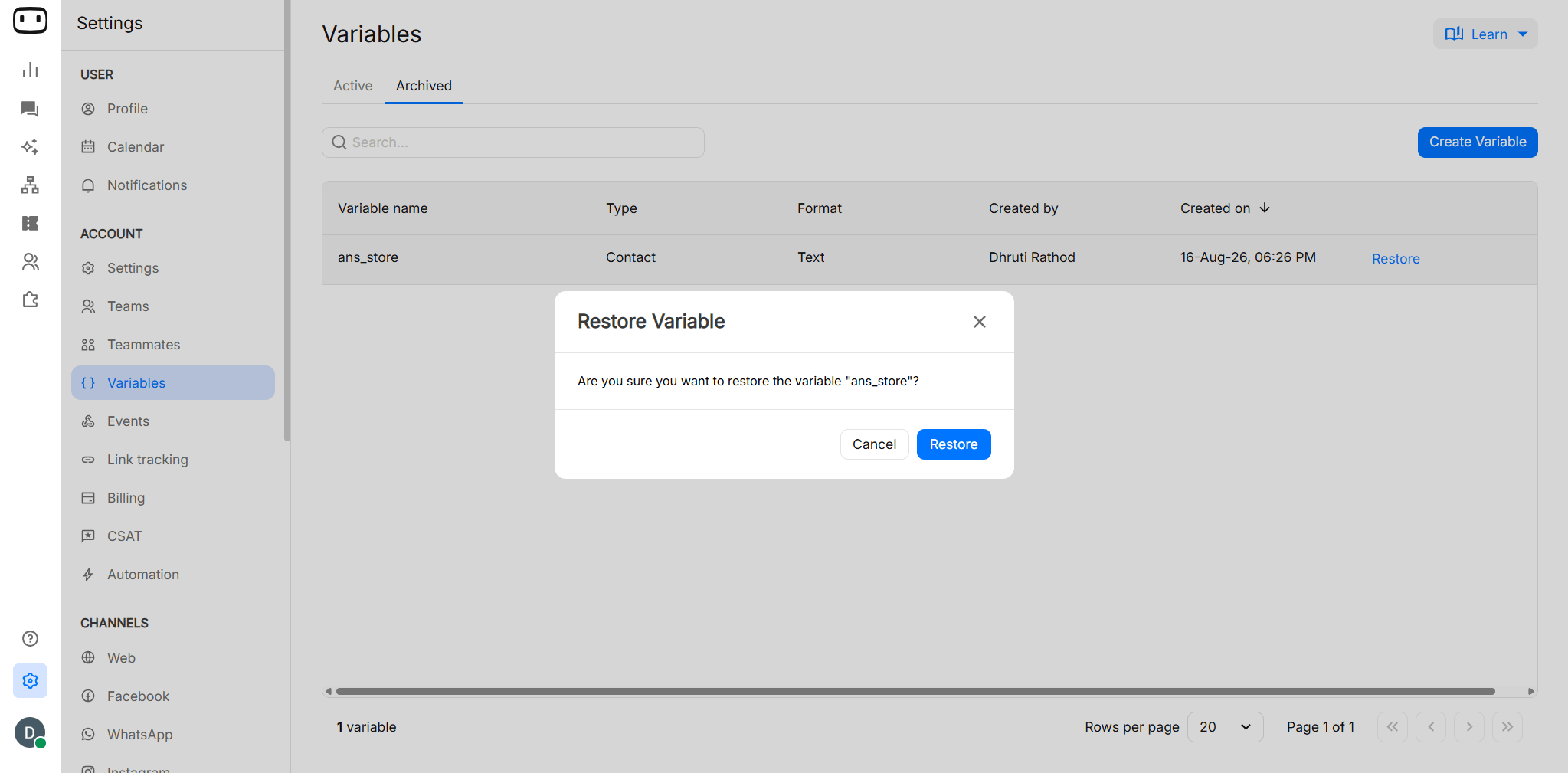
- Changing or deleting a variable can affect every block that already references it. This includes messages, conditions, API requests, JavaScript, and other actions that use the variable.
Adding default value to variables
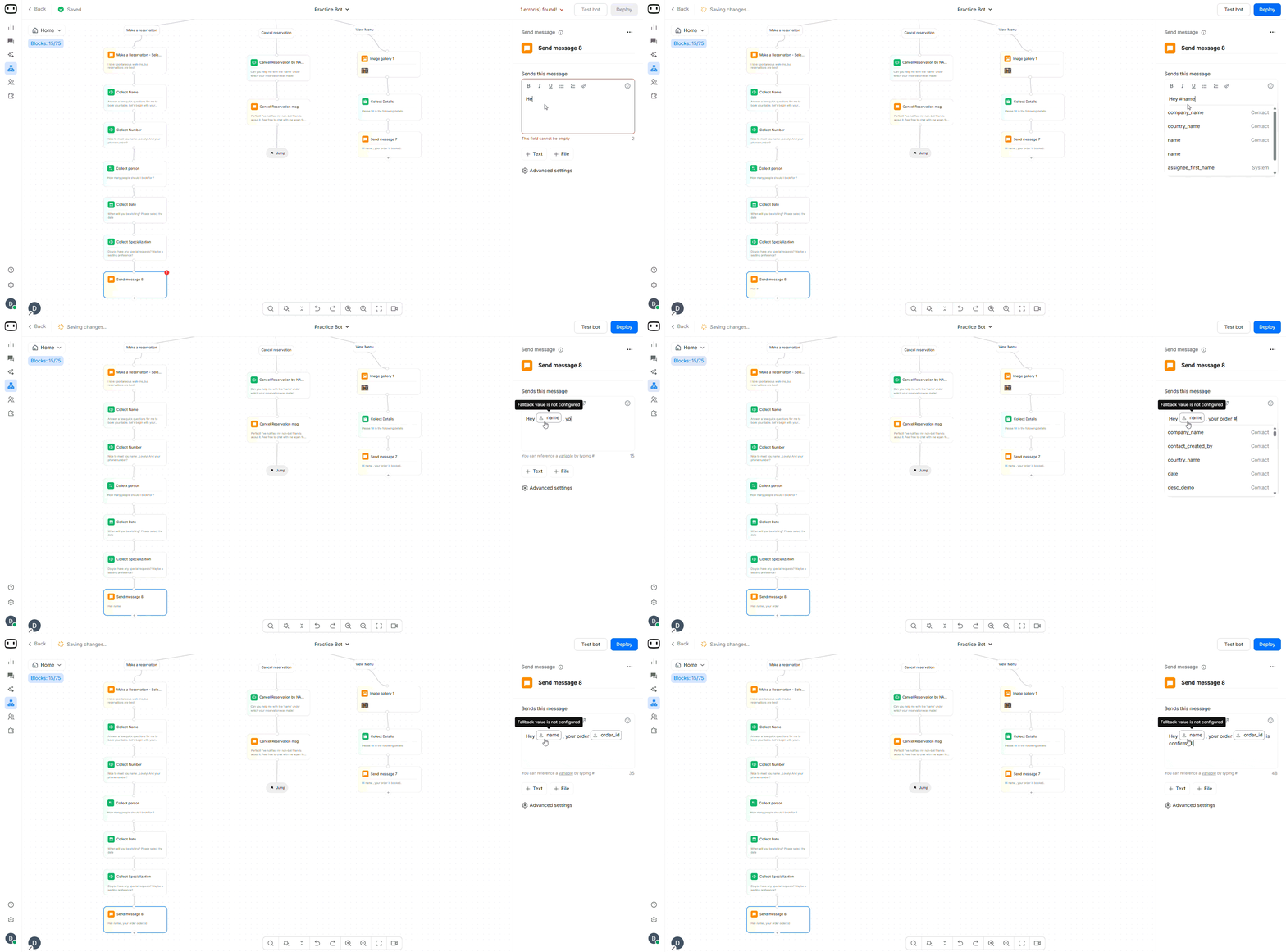
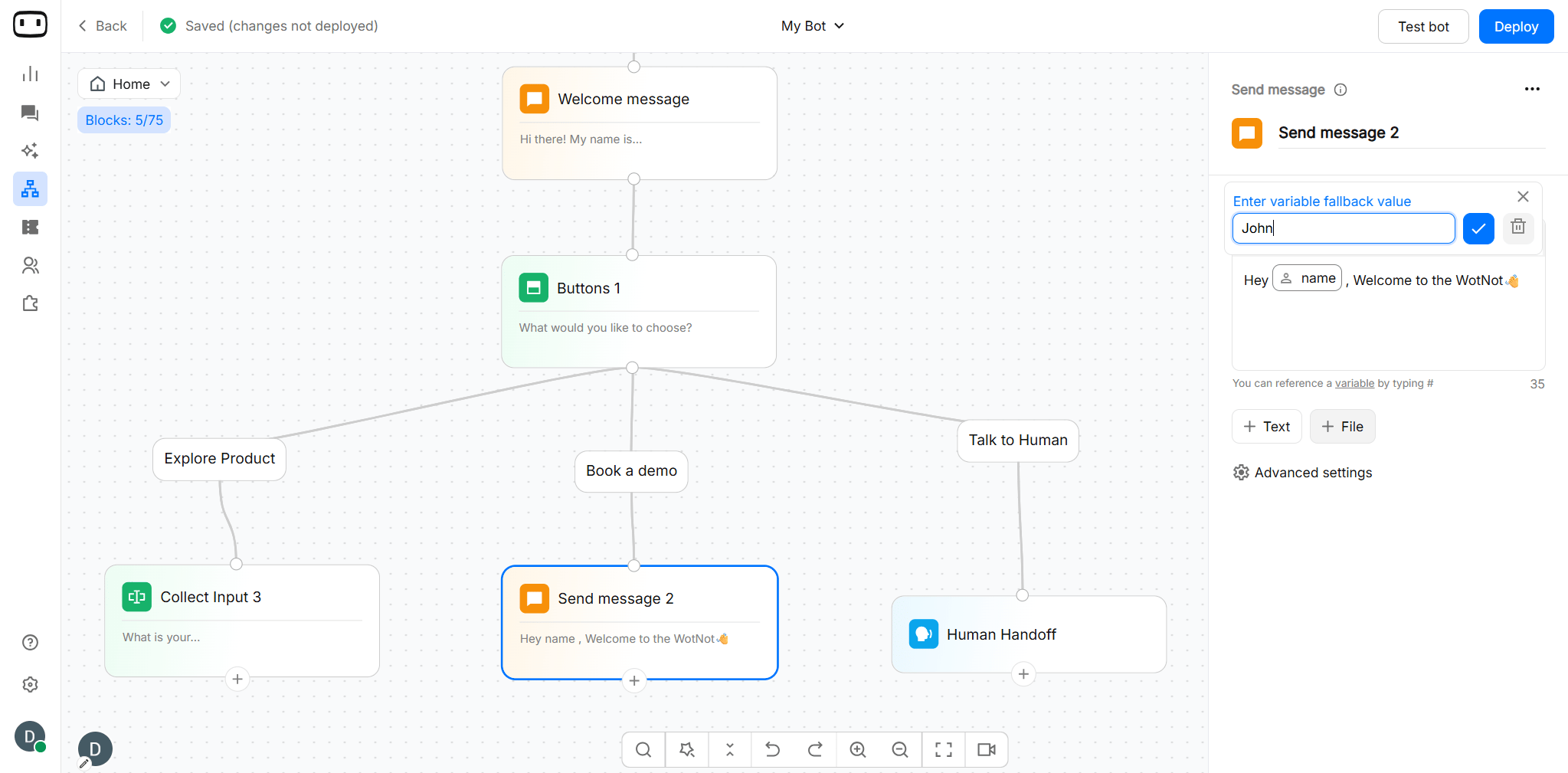
You can add a default value to the variable, so that incase there is no value present a default value can be shown to the user. To add the default value,- Open the bot builder canvas
- Add a variable on any message box
- Click on the variable tag and define the fallback value from the popup.
Customizing error messages in variables
You can customise error messages in variables.- Navigate to Settings > Variables.
- Locate the variable with this format (Number, Boolean, Date, Email, Phone & Regex) used for validation.
- Click “Edit” and edit the error message field.
- Save the changes and test the flow to confirm the new error message is displayed.
Retrieving JSON objects from a variable
If you are storing JSON objects into variables and want to refer a particular field from the JSON object, you can follow the below approach:- Create a TEXT type variable
- Store the JSON object in that variable
- Use # followed by your variable name and append the field you want to refer
- Hit enter so the variable chip is created
Troubleshooting
The variable renders blank in a message
The variable renders blank in a message
If a variable appears empty when displayed in a message, check whether the variable has been populated before the message is sent.Check:
- Whether the variable is assigned a value.
- Whether the Collect Input block successfully captured the value.
- Whether the Set Variable block runs before the message.
- Whether the API response contains the expected field.
- Whether the variable reference is written correctly.
customer_name has not been populated, a message containing {{customer_name}} may not display the expected value.The condition never matches
The condition never matches
If a condition does not follow the expected path, verify the actual value stored in the variable.Check:
- The variable contains a value.
- The value matches the expected format.
- The comparison operator is correct.
- The comparison value matches the variable type.
- There are no unexpected spaces or formatting differences.
100 may not behave the same way as a Text variable containing "100" in every comparison.A value from an earlier flow is not carrying over
A value from an earlier flow is not carrying over
If a variable was populated earlier but is empty later in the conversation, check where and when the value is assigned.Make sure:
- The variable is the same variable throughout the flow.
- The value is assigned before it is referenced.
- Another block is not overwriting the value.
- The flow path actually reaches the block that populates the variable.
- The variable has not been renamed or deleted.
Get a type mismatch when comparing a variable
Get a type mismatch when comparing a variable
A type mismatch usually occurs when the value stored in the variable does not match the type expected by the condition or another block.
- Check the variable type.
- Check the actual value stored in the variable.
- Make sure numeric values are stored as numbers when required.
- Make sure text values are stored in a text-compatible variable.
- If the value comes from an API, check the type returned by the API.
The variable is populated but is not reflected in an API call
The variable is populated but is not reflected in an API call
- Check how the variable is mapped into the HTTP request.
- Confirm that the variable contains the expected value before the API block runs.
- Check the variable reference used in the request.
- Verify that the variable is mapped to the correct request field.
- Check whether the API expects the value in the request body, header, or URL.
- Test the API request and inspect the request payload and response.