

What this report answers
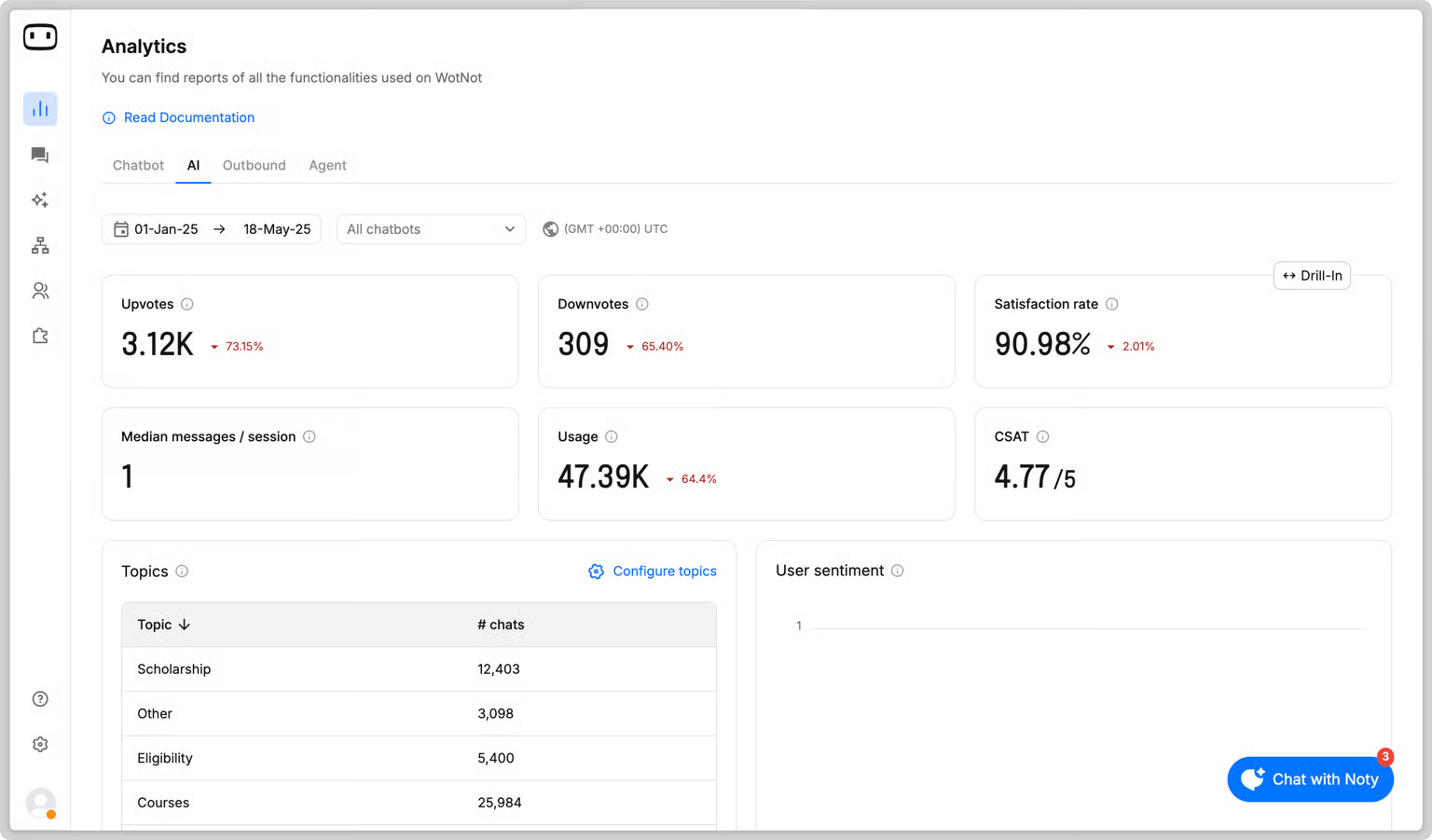
Use the AI Report to understand:- Are users satisfied with AI-generated answers?
- How are users reacting to AI responses?
- How many messages are exchanged in an AI session?
- How many AI credits are your AI Agents consuming?
- What topics are users asking about?
- What sentiment are users expressing in conversations with AI?
- Which areas of your knowledge base or AI configuration may need improvement?
KPIs
Upvotes and Downvotes
These metrics help you understand user satisfaction with AI-generated answers from action blocks such as Answer AI and AI Agent, provided that Collect user feedback is enabled.- Upvotes: Indicate that users found the AI-generated answer helpful.
- Downvotes: Indicate that users found the AI-generated answer unhelpful.
Median messages/session
The median number of messages exchanged between a user and the AI Agent during a single session. This metric helps you understand the typical length of an AI interaction.Satisfaction rate
The percentage of positive reactions among all users who submitted either a positive or negative reaction to an AI-generated answer. Calculation: Satisfaction rate = Upvotes ÷ (Upvotes + Downvotes) × 100CSAT
Customer Satisfaction Score measures satisfaction reported by users who received at least one AI-generated answer. Use this metric to understand how satisfied users are with their experience.Credits usage
AI credit usage helps you understand how many AI credits your AI Agents consume during the selected reporting period.
You can check your available AI credits under Settings → Billing.
For more information, visit the WotNot Pricing page.
Topics
The Topics section categorizes user queries into common topics, helping you understand what users ask about most frequently. You can create topics by providing a title and a description that explains what the topic represents. The description helps the LLM understand which questions belong to that topic.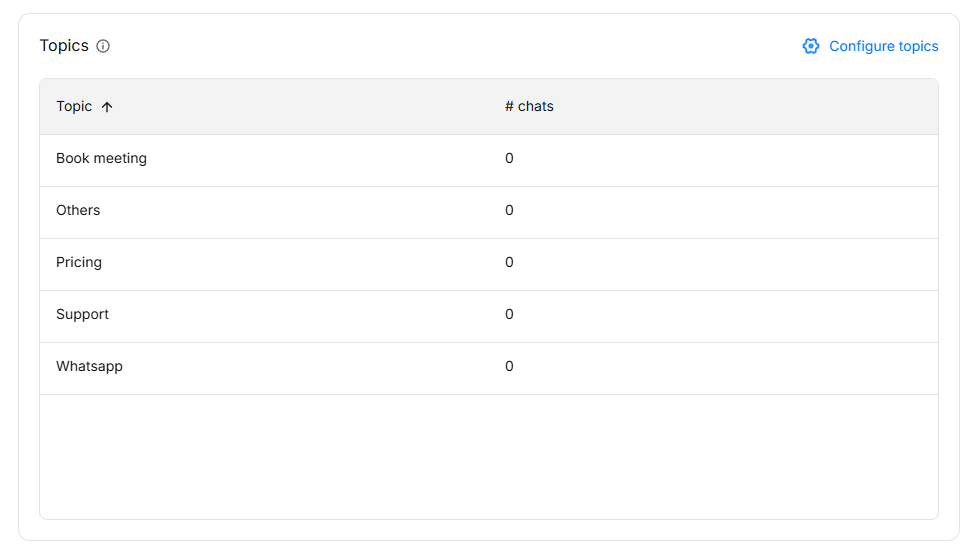
- Click Configure topics in the top-right corner.
- Add a topic title and description.
- Save your topic configuration.
- Retrain all questions so the updated topic configuration can be applied.
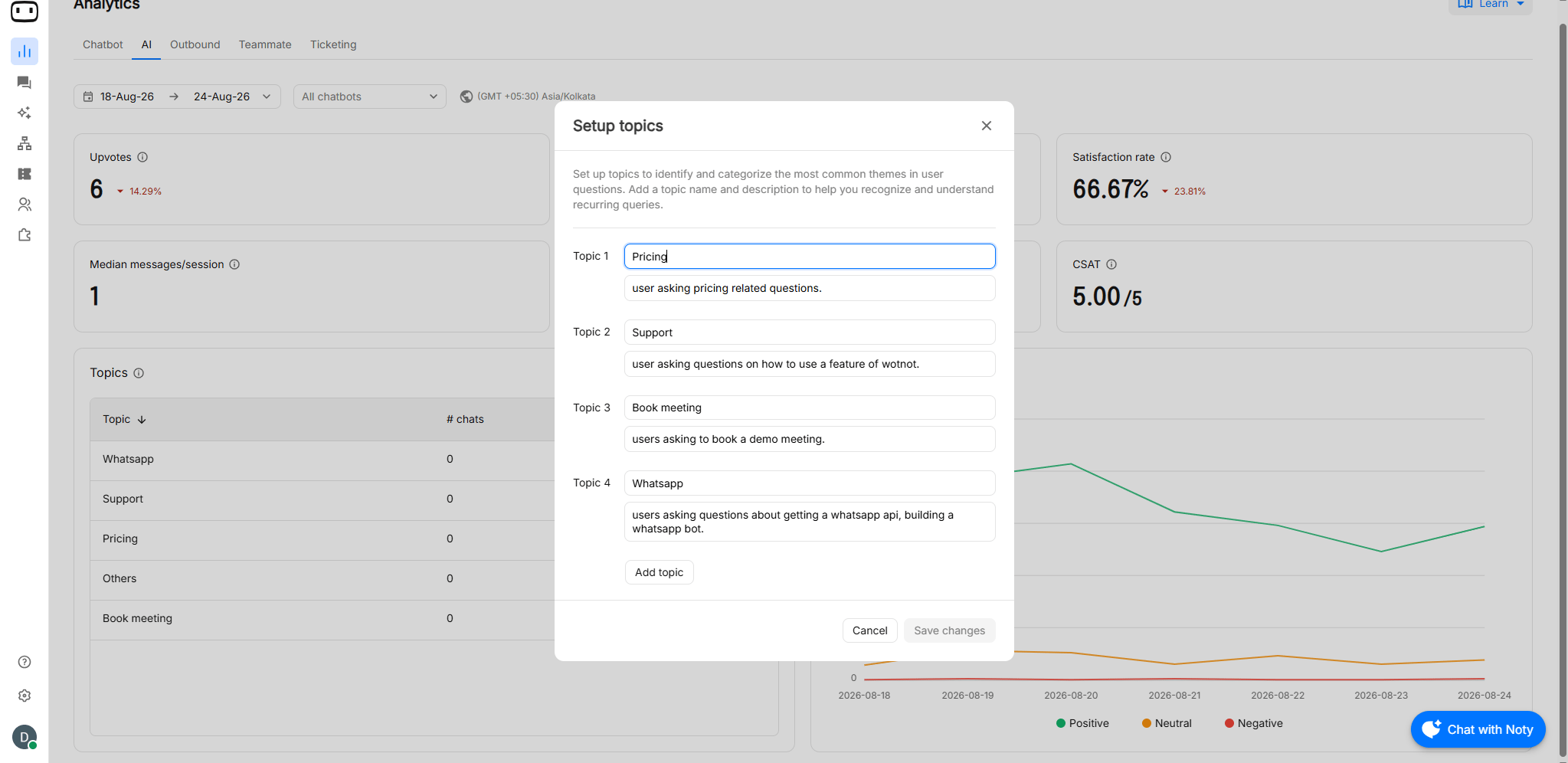
- Topic data is updated every 24 hours.
- Adding a new topic or modifying an existing topic requires retraining all questions before the updated categorization is reflected in the report.
User Sentiment
The User Sentiment section describes the sentiment and emotions expressed by users when interacting with the AI Agent.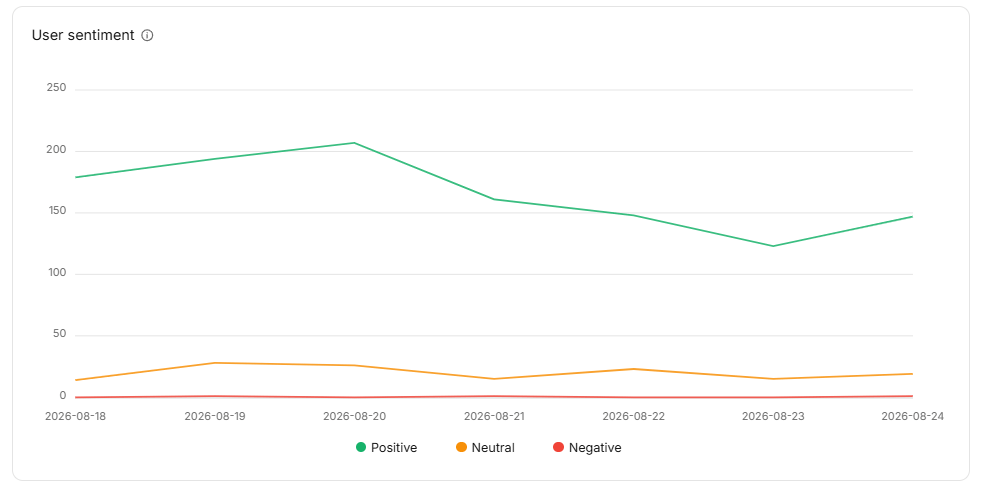
Answer quality
Answer quality helps you understand how users react to AI-generated responses.Reading the report
Review AI coverage and answer quality together instead of evaluating either metric in isolation. For example, your AI Agent may be responding to a high percentage of user questions, but users may still be dissatisfied or escalate conversations to human agents. This indicates that the AI is responding, but its answers may not be resolving users’ questions effectively. Use the following steps to investigate:- Review AI activity to understand whether the AI is responding to the questions it receives.
- Review answer quality using Upvotes, Downvotes, Satisfaction rate, and CSAT.
- Inspect the conversations associated with negative feedback to identify gaps in the answers.
- Improve the knowledge base or AI configuration based on the findings.
- Create Custom Answers for recurring questions where more specific or controlled responses are required.
Drilldown reports
Hover over a KPI and click Drill-down to view the detailed data behind that report.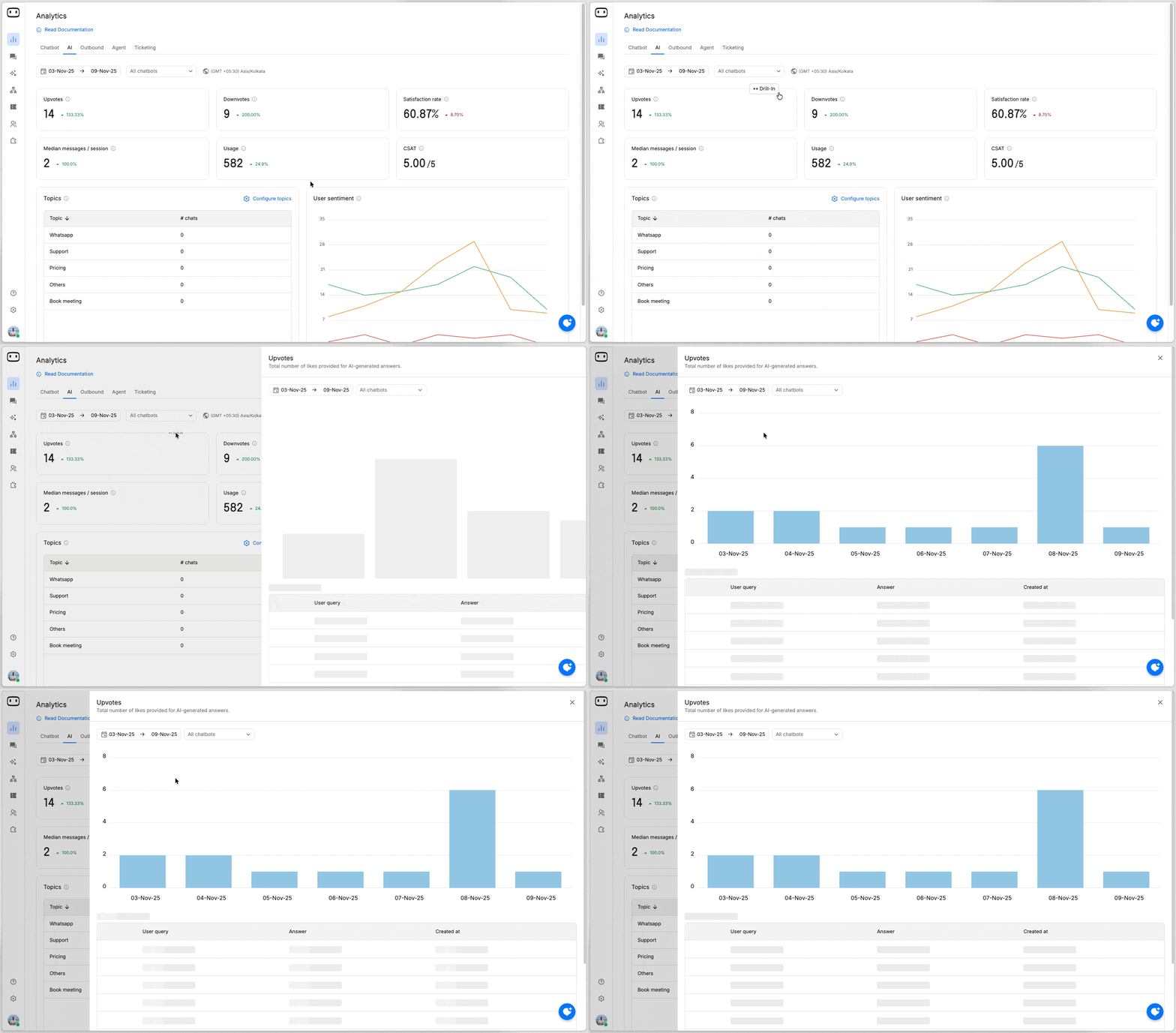
Common confusions
My AI has a high satisfaction rate, but customers are still complaining. Why?
My AI has a high satisfaction rate, but customers are still complaining. Why?
Satisfaction rate is based only on users who submit a thumbs-up or thumbs-down reaction. It does not represent every user who interacted with your AI.Review the underlying conversations and other report metrics, such as Downvotes, CSAT, and User Sentiment, to get a broader view of AI performance.
Why are my feedback numbers changing significantly?
Why are my feedback numbers changing significantly?
Feedback numbers can change significantly when only a small number of users provide feedback. A few additional upvotes or downvotes can have a large impact on the satisfaction rate.Consider the total number of feedback responses when interpreting the results.
Why are my AI credits higher than expected?
Why are my AI credits higher than expected?
The Usage metric shows AI credits consumed by your AI Agents during the selected period.Compare usage with your AI activity and review the AI features being used. You can check your available AI credits under Settings → Billing.
Why don't my topic counts update immediately?
Why don't my topic counts update immediately?
Topic data is updated every 24 hours rather than in real time.If you create a new topic or modify an existing topic, retrain all questions so the updated topic configuration can be reflected in the report.
Why did my topic data change after retraining?
Why did my topic data change after retraining?
Changes to topics require all questions to be retrained. As a result, retraining may change how questions and conversations are categorized under your topics.
What does Median messages/session mean?
What does Median messages/session mean?
Median messages/session is the median number of messages exchanged between a user and the AI Agent during a single session.It helps you understand the typical length of an AI interaction.
Why are some users not included in the satisfaction rate?
Why are some users not included in the satisfaction rate?
Satisfaction rate is calculated from users who submit either a positive or negative reaction. Users who do not provide feedback are excluded from this calculation.
Does the AI Report update in real time?
Does the AI Report update in real time?
Update frequency depends on the metric. Topic data is updated every 24 hours. Check the relevant report and metric behavior when interpreting the latest results.