

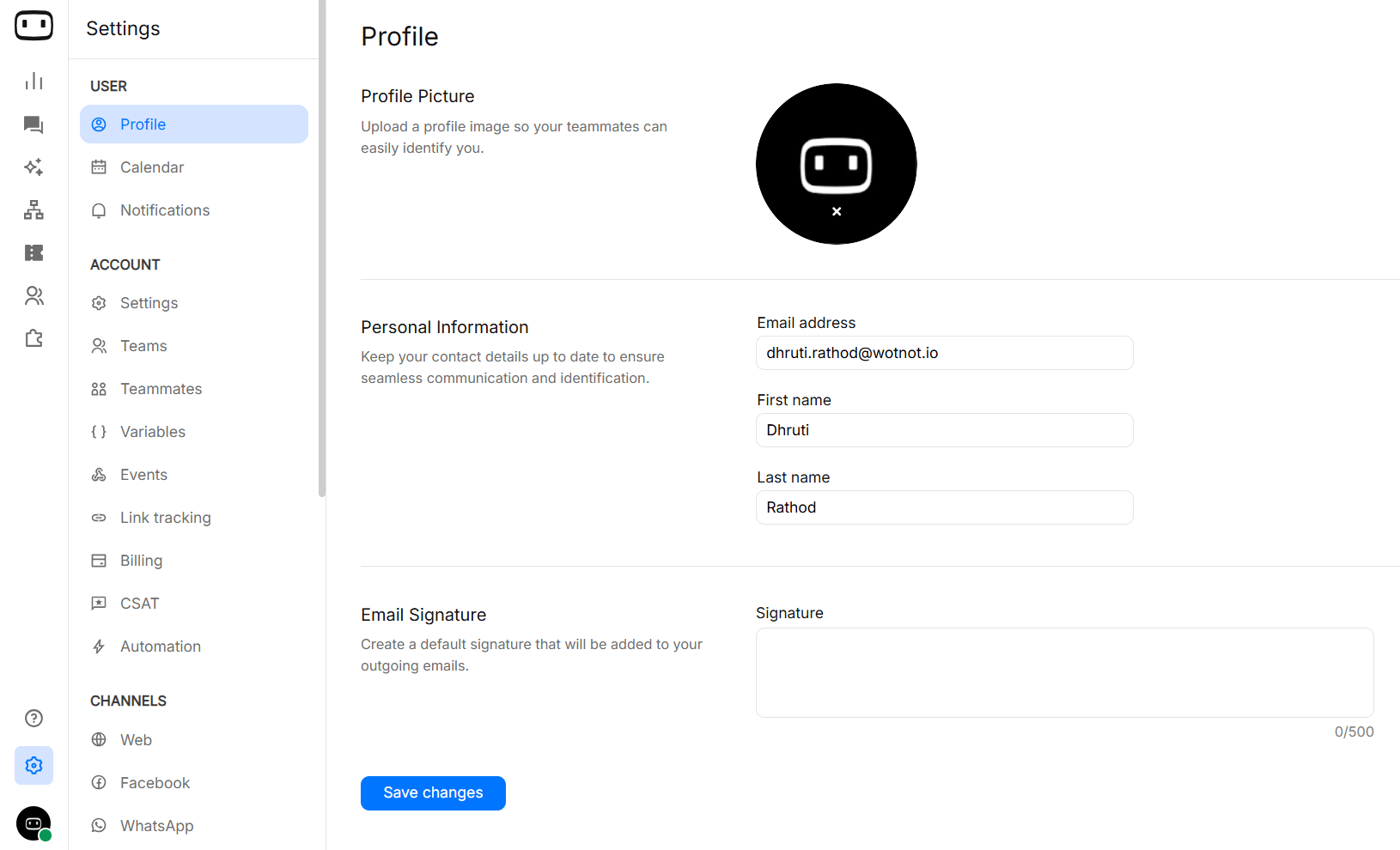
Account details
Account Logo
Upload a logo to personalize your workspace and other account-level branding.Account name
- The display name of your workspace
- Visible across the platform (e.g., reports, dashboards)
Timezone
Sets the default timezone for:- Reports and analytics
- Scheduling and timestamps
Security settings
Two-factor authentication
- Requires users to enter a one-time code along with their password
- Helps prevent unauthorized access even if passwords are compromised
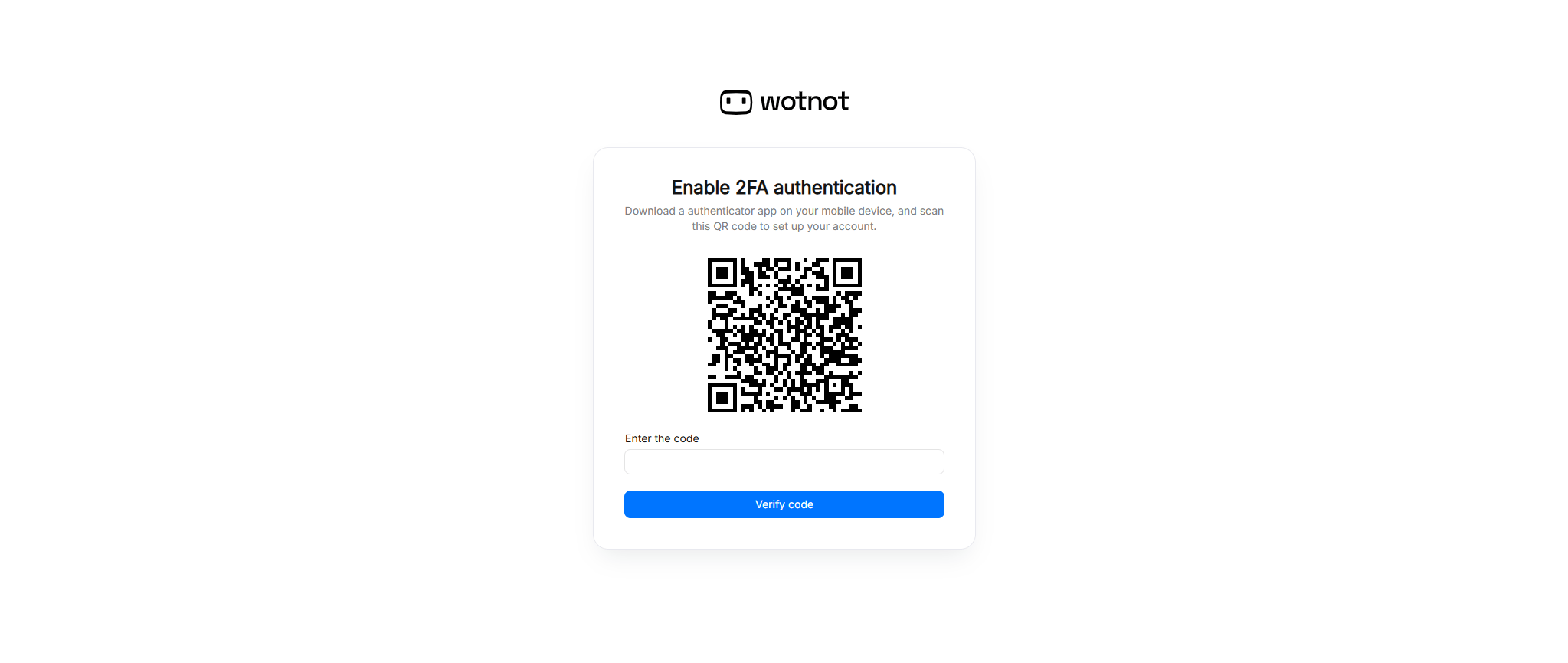
- When enabled, users will be prompted to verify their identity using a code (typically via an authenticator app) during login
- Recommended for all teams
- Essential for accounts handling sensitive customer data
- Goto Settings > Account > Settings
- Select “Security”
- Turn on the “Enable 2FA” switch
Only ADMINS can enable this feature.
SSO Authentication
- Enables Single Sign-On (SSO) for your workspace
- Users can log in using existing credentials from providers like Google, Okta, Azure AD, etc.
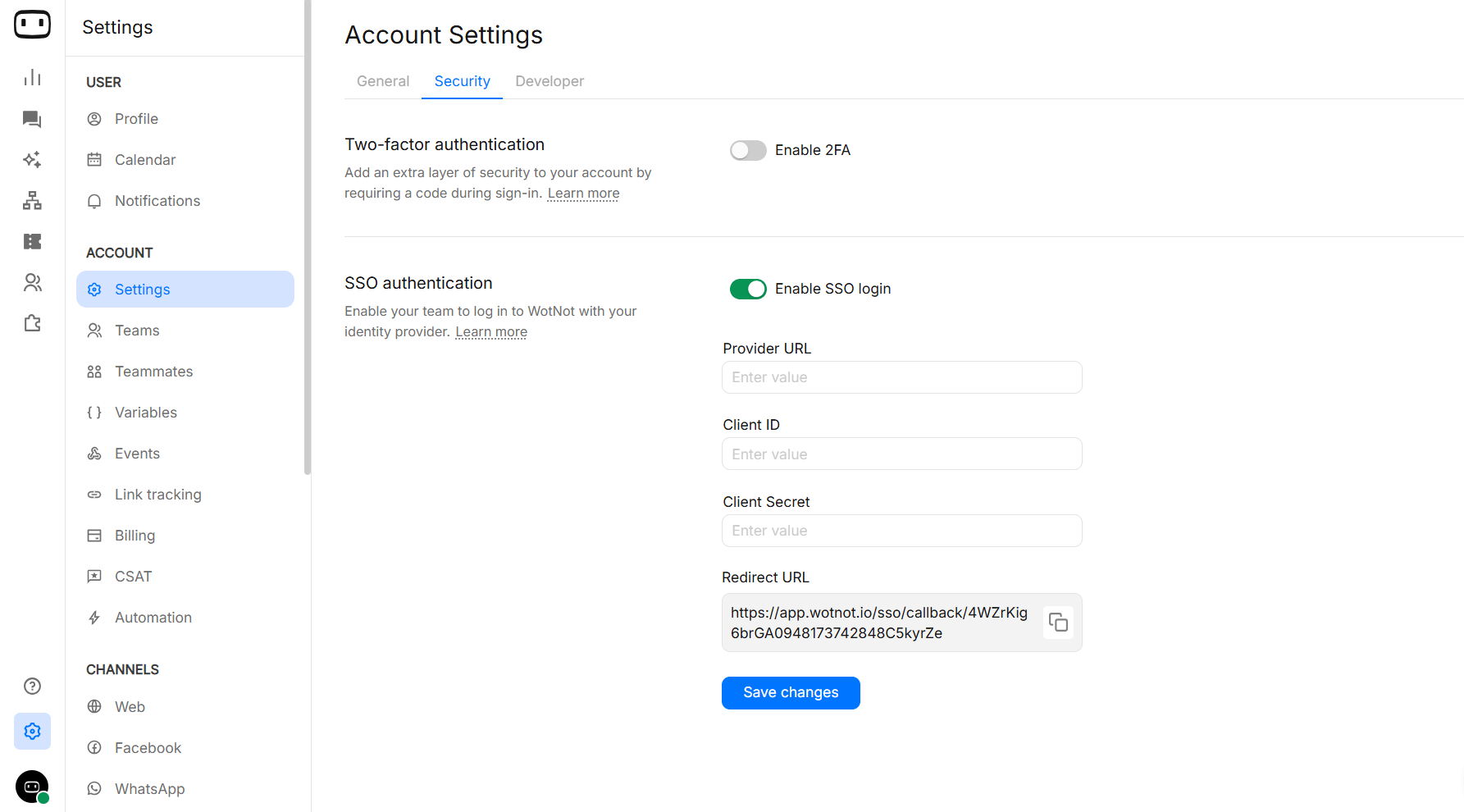
- Go to Settings > Account > Security > SSO
- Enable the SSO login switch
- Fill in the required details
- IDP Provider URL
- Client ID
- Client Secret
- Redirect URL (to be configured in your identity provider)
- Click “Save Changes”

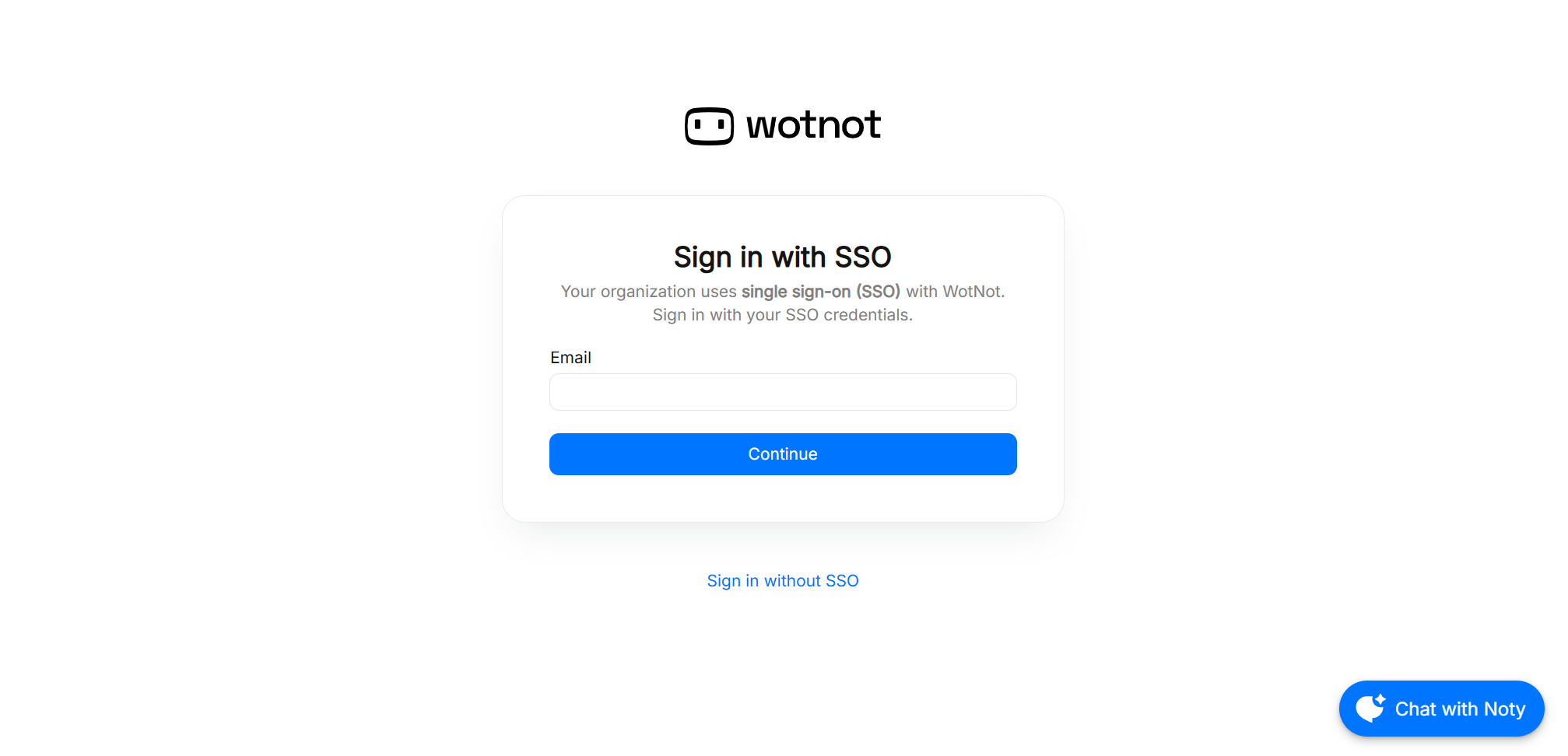
- Enter your email address, and click “Login”. In the background, WotNot will call your identity provider to confirm authentication and if successful, the user will be proceeded to the WotNot platform.
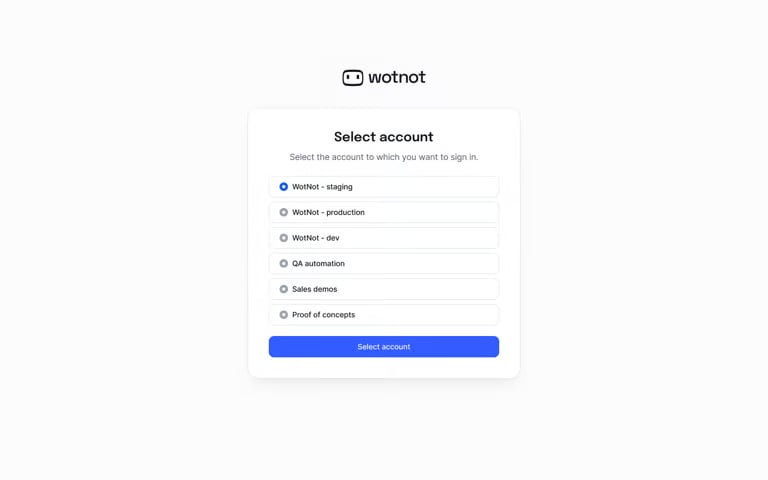
- If the user has access to multiple accounts, user will be asked to select the account they wish to login to.
Password Reset
You can reset your own WotNot password from the login page if you have access to the email address registered to your account.- Open https://app.wotnot.io/login
- Click Forgot Password.
- Enter your registered Email Address.
- Click Send the link.
- Open the password-reset email and click Reset Password.
- Enter and confirm your new password.
Developer settings
The Developer tab provides access to your API token, which is used to authenticate and trigger programmatic actions on WotNot. Go to: Settings → Account → DeveloperAPI Access Token
The API Access Token is used to securely authenticate requests made to WotNot APIs. What it does:- Authenticates API requests made from external systems
- Enables automation and integrations with your workflows
Trigger WhatsApp Campaigns (Webhooks)
You can use the API token to trigger outbound WhatsApp campaigns programmatically using webhooks.
- Send campaign messages to users based on events
- Automate notifications, reminders, and follow-ups
- Integrate with your CRM or backend systems
Invoke Public APIs
Use the token to authenticate requests when interacting with WotNot’s public APIs.
- Create and manage conversations
- Trigger workflows or bots
- Fetch data and automate actions
Data and Privacy
Data retention
Automatically deletes chat and conversation data after a defined period to help with compliance and storage management.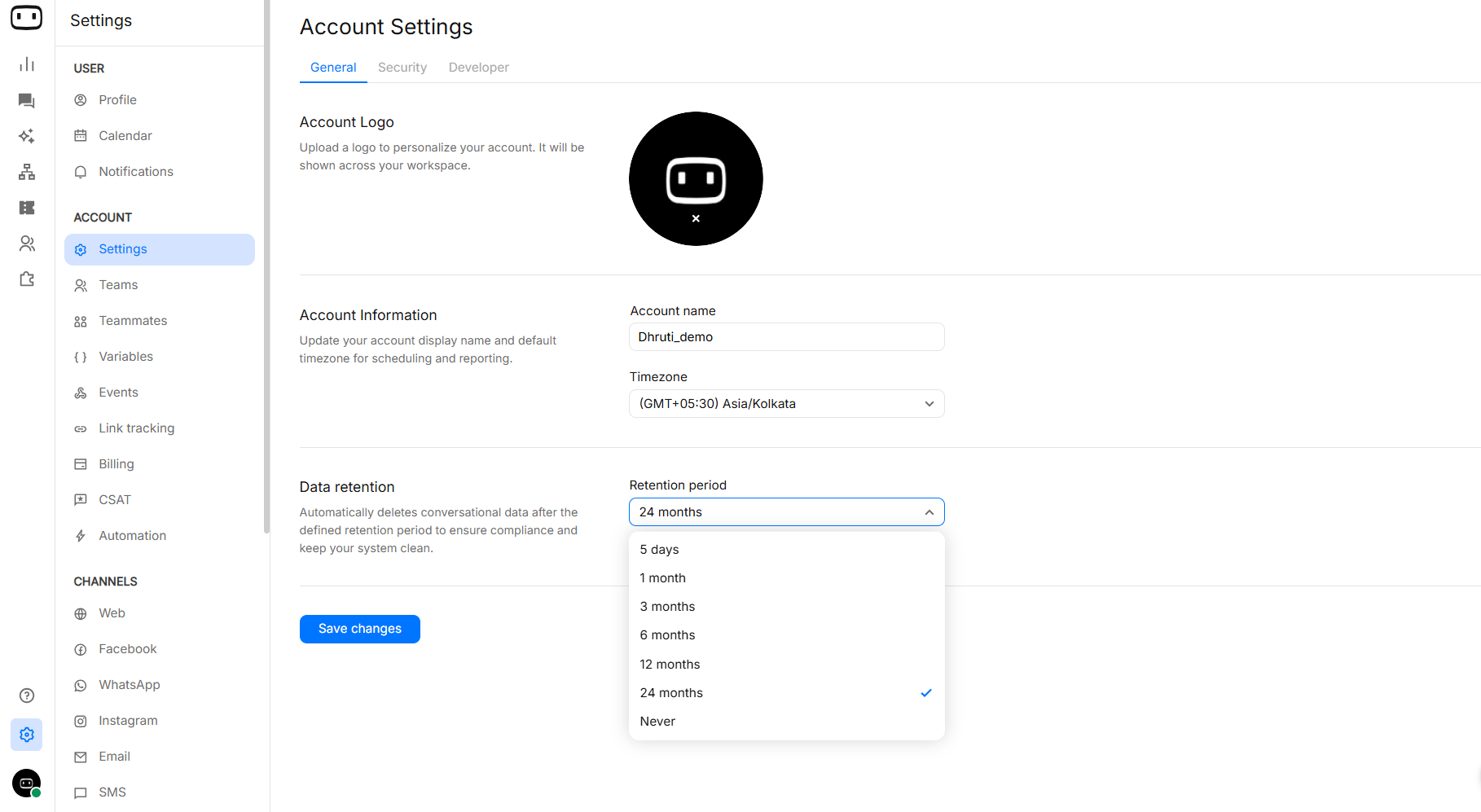
- Once a retention period is set, data older than the selected duration is automatically deleted
- The deletion process runs periodically in the background
- Deleted data cannot be recovered
- Applies to conversational data (chat history, messages)
- Recommended for organizations with compliance requirements (e.g., GDPR, HIPAA)
Data is stored such as:
Data is stored such as:
- Account information
- User and teammate information
- Contact information
- Conversation and chat data
- Bot and agent configuration
- Knowledge-base content
- Campaign data
- Integration data
- Analytics and reporting data
- Technical and device data
- Security and authentication data
- Audit and activity logs
Deleting an account
Deleting a WotNot account permanently removes the account and its associated chat data. To request account deletion:- Create a WotNot support ticket or email support@wotnot.io
- Select an appropriate ticket type and describe your account-deletion request.
- Submit the ticket and wait for confirmation from WotNot Support.
How to cancel subscription, See Billing.
Common questions
Why did my reporting figures change after I changed the timezone?
Why did my reporting figures change after I changed the timezone?
WotNot reporting uses the account timezone when calculating and displaying report KPIs. Changing the timezone can therefore change which date a conversation or other activity is grouped under.
Why isn't my logo appearing where I expected?
Why isn't my logo appearing where I expected?
Account branding and chatbot widget appearance are separate settings.If you are trying to change how the chatbot looks to visitors, check the Chat widget settings rather than the account-level branding settings.
I lost my 2FA device. How can I sign in?
I lost my 2FA device. How can I sign in?
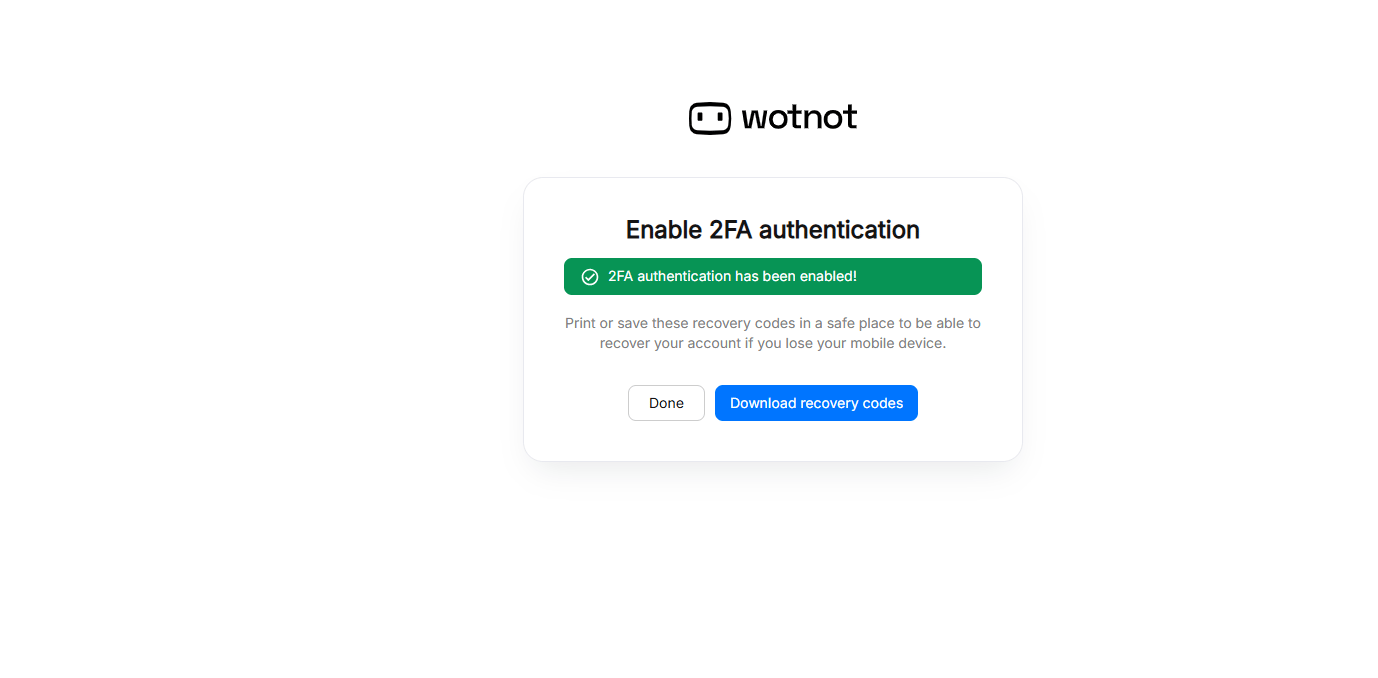
Use the recovery codes generated when 2FA was configured.If you no longer have your recovery codes or cannot access your account, contact WotNot Support for assistance with account recovery.
SSO is configured, but users are still being prompted for a password. Why?
SSO is configured, but users are still being prompted for a password. Why?
After SSO is enabled, WotNot directs users to sign in through the configured identity provider rather than using a WotNot password.Check that:
- SSO is enabled under Settings > Account > Security > SSO.
- The Client ID and Client Secret are correct.
- The IDP Provider URL is correct.
- The redirect URL is configured correctly in your identity provider.
- Users are selecting Sign in with SSO on the WotNot login page.
Does deleting my account cancel my subscription?
Does deleting my account cancel my subscription?
Account deletion and subscription cancellation are separate actions.Deleting your account permanently removes account data, while cancelling a subscription is intended to stop future subscription renewal. If you only want to stop paying for WotNot, use the cancellation option in Billing rather than requesting account deletion.See Billing.
Which role can change account settings?
Which role can change account settings?
Account-level security settings such as 2FA can only be enabled by an Admin.For information about WotNot roles and permissions, see User management.