

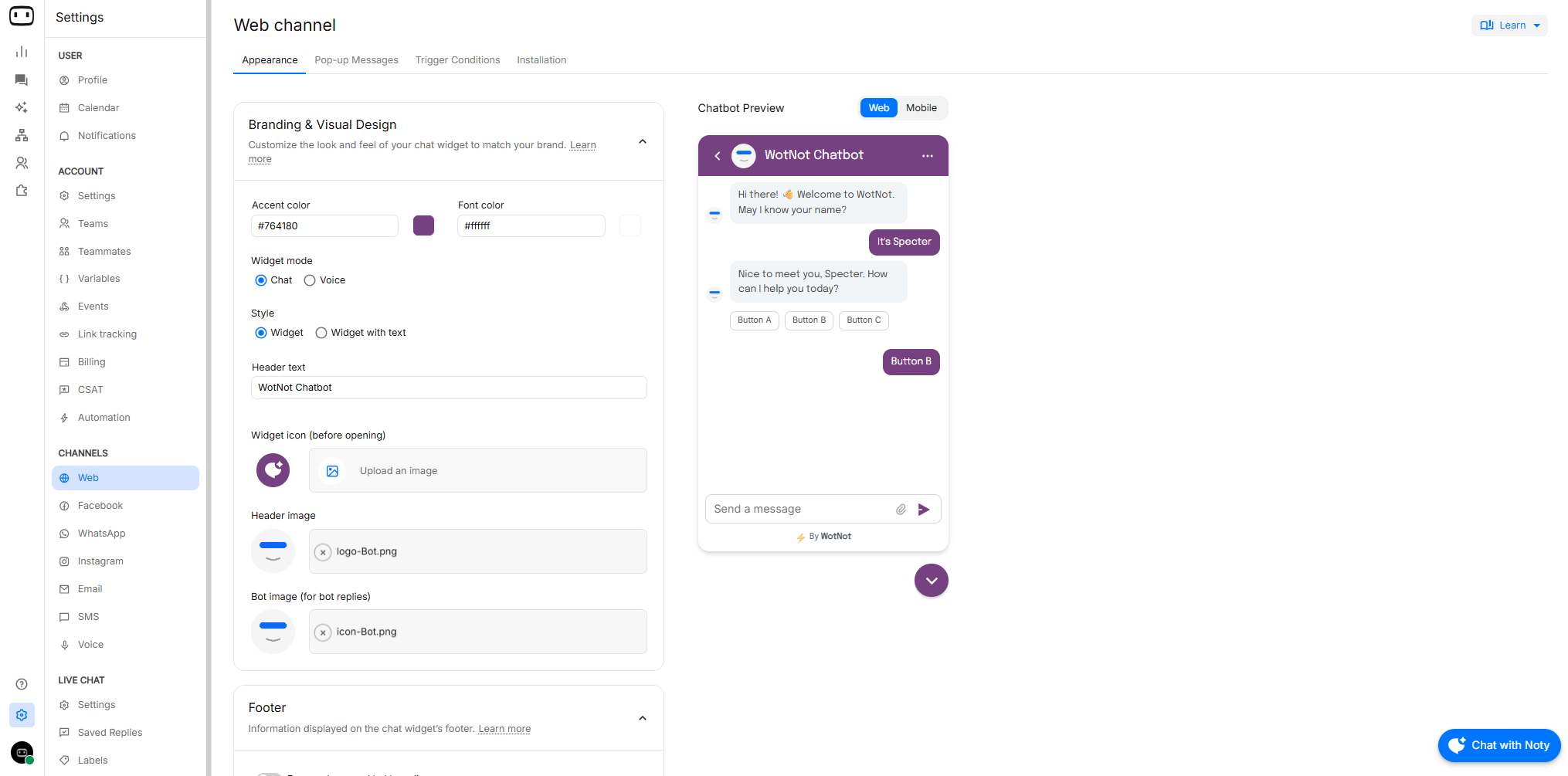
To customize the appearance of the chat widget, you can go to Settings > Channels > Web > Appearance.
Web or voice
The two experiences use different interaction modes, so some settings apply only to text chat while others apply to voice.
Web chat widget
Branding and visual design
Customize the appearance of the widget to match your website and brand.Footer
Information displayed on the chat widget’s footer.The Widget + text style allows you to customize the text displayed next to the widget icon. Keep the text short so it displays correctly across different screen sizes.
Widget behaviour
Control how the widget behaves on your site, including positioning, animation and typing speed.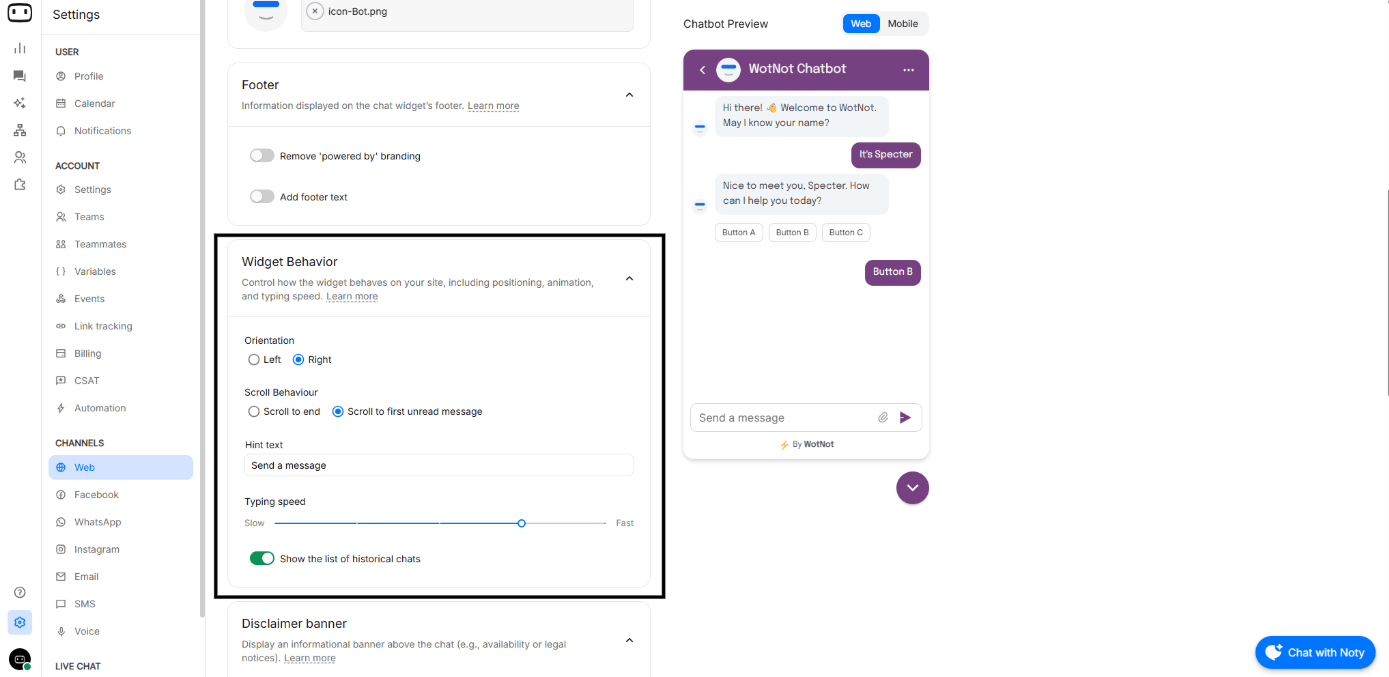
Disclaimer banner
Display an informational banner above the chat (e.g. availability or legal notices) Enabling this will allow user to define the message to be displayed.
Privacy banner
Displays a privacy banner at the start of the chat.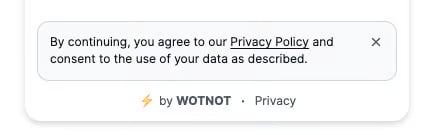
Chat session behaviour
On page refresh- Start new chat : Always start a new chat session when the page is reloaded.
- Retain existing chat : Always retain the chat session where it was when reloaded, or when navigating to another page.
Chat is retained only if the WotNot cookie is stored.
Cookies
When using WotNot’s chatbots on your website, a cookie is placed by default when users begin interacting. You can disable automatic addition of the cookie by going to:- Always added - this means the cookie is always added to the client when a chat session starts.
- Manually added - this means cookie is not automatically added until a JS method is fired.
- Go to Inspect →Application → Cookies
- Search for keyword “cuid” under domain “app.wotnot.io”
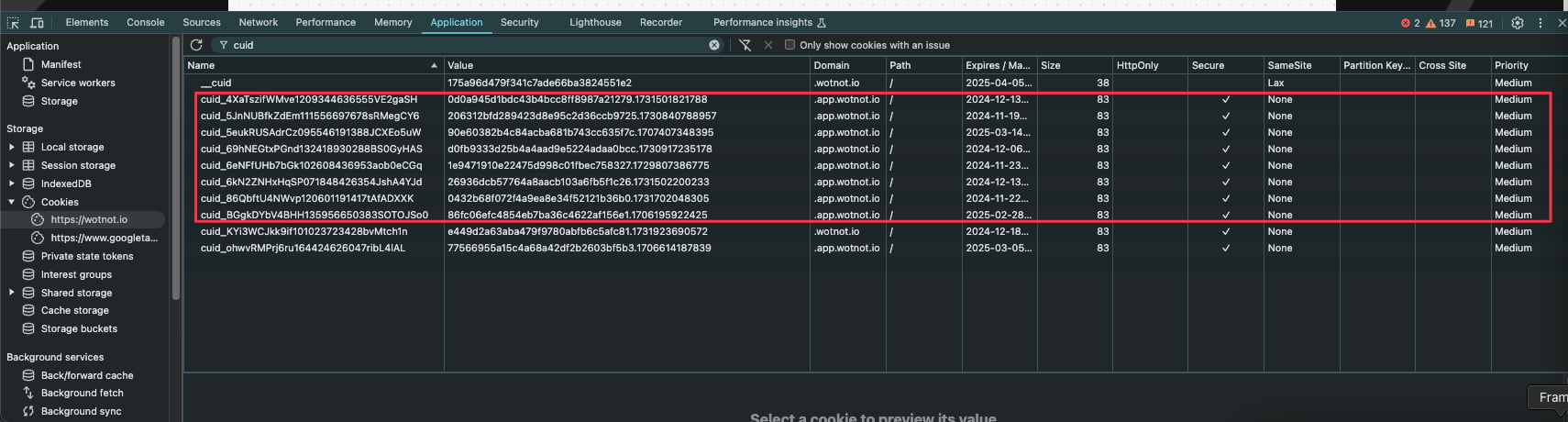
If you use a consent manager, verify the cookie after the visitor gives the required consent. If the cookie is not present, chat retention may not work.For more information about matching visitors to previous conversations, see Related chats.
Sounds and animations
Control how the notification sounds and animation preferences are used.Image dimensions
Following are the action blocks in WotNot that supports using images and gifs:Pop-up messages
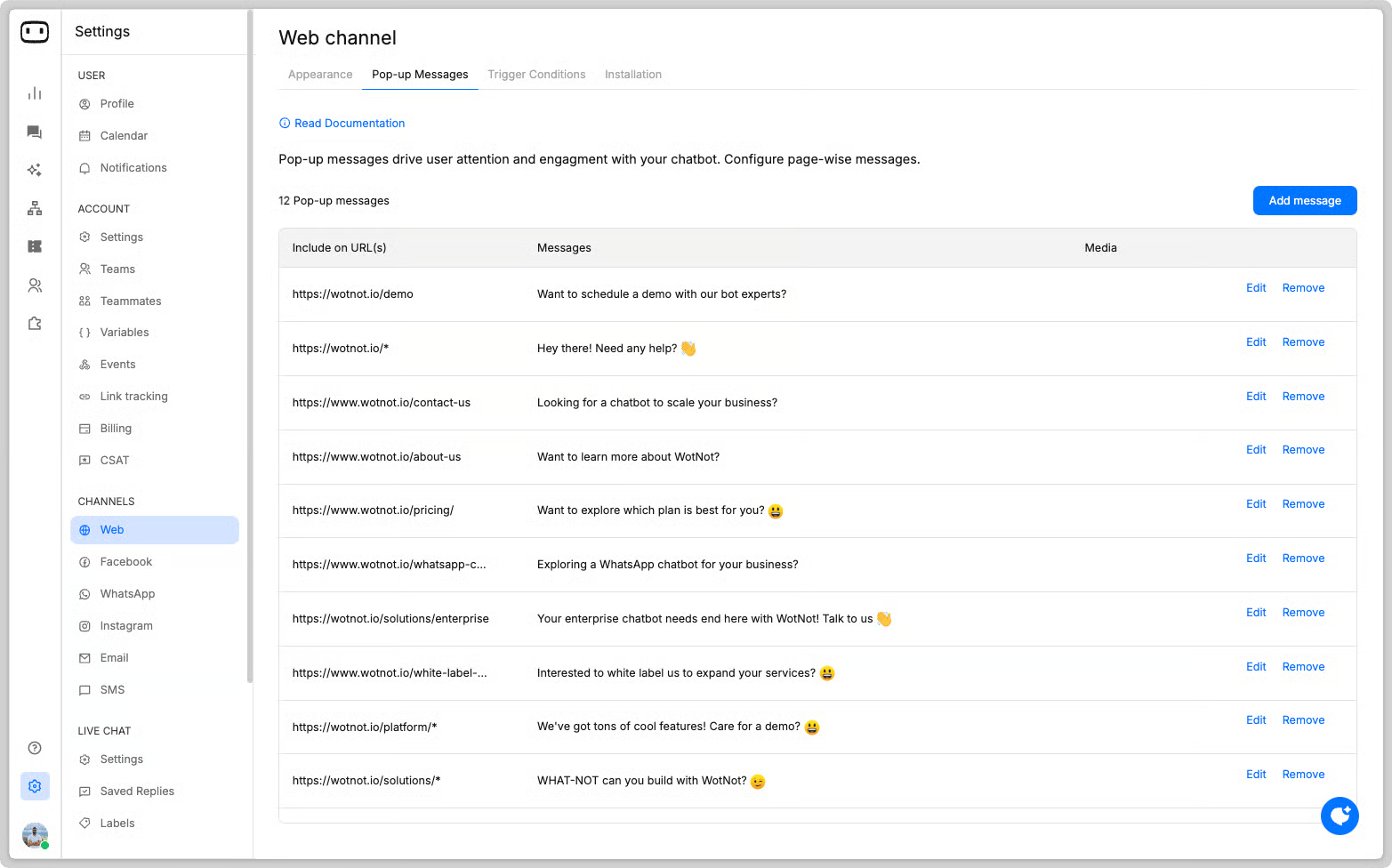
Pop-up messages are small snippets of text shown on the chat widget before opening it. They can be used to attract attention and encourage visitors to start a conversation.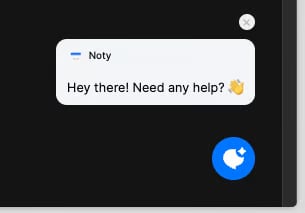
- You can configure different pop-up messages for different pages of your website. A pop-up message can contain either one line of text or media.
Triggering the widget with JavaScript
Javascript functions to display and hide the chat widget on your webpage. Execute the following Javascript functions to trigger the chat widget on your web page.Advanced customisation with custom CSS
You can customize the CSS of the chat widget to suit your needs. You can add custom CSS from: Settings > Channels > Web > AppearanceAvailable on PREMIUM plan and above.
Common CSS customizations:
- Change the background for the Chat Widget : To modify the chat widget icon’s background, use the following CSS:
- Adjust the Chatbot Size (Consistent on Web & Mobile) : To ensure the chatbot doesn’t take up the entire screen, you need to add the chat bubble code using widget-container-id and apply the following styles to the root element using a media query:
- Responsive chatbot sizing : To adjust the chatbot size for mobile screens, use this media query:
- Reduce the bot size through CSS below
Voice chat widget
The voice chat widget allows visitors to talk to an agent instead of chatting through text.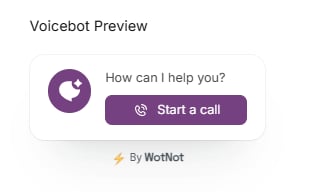
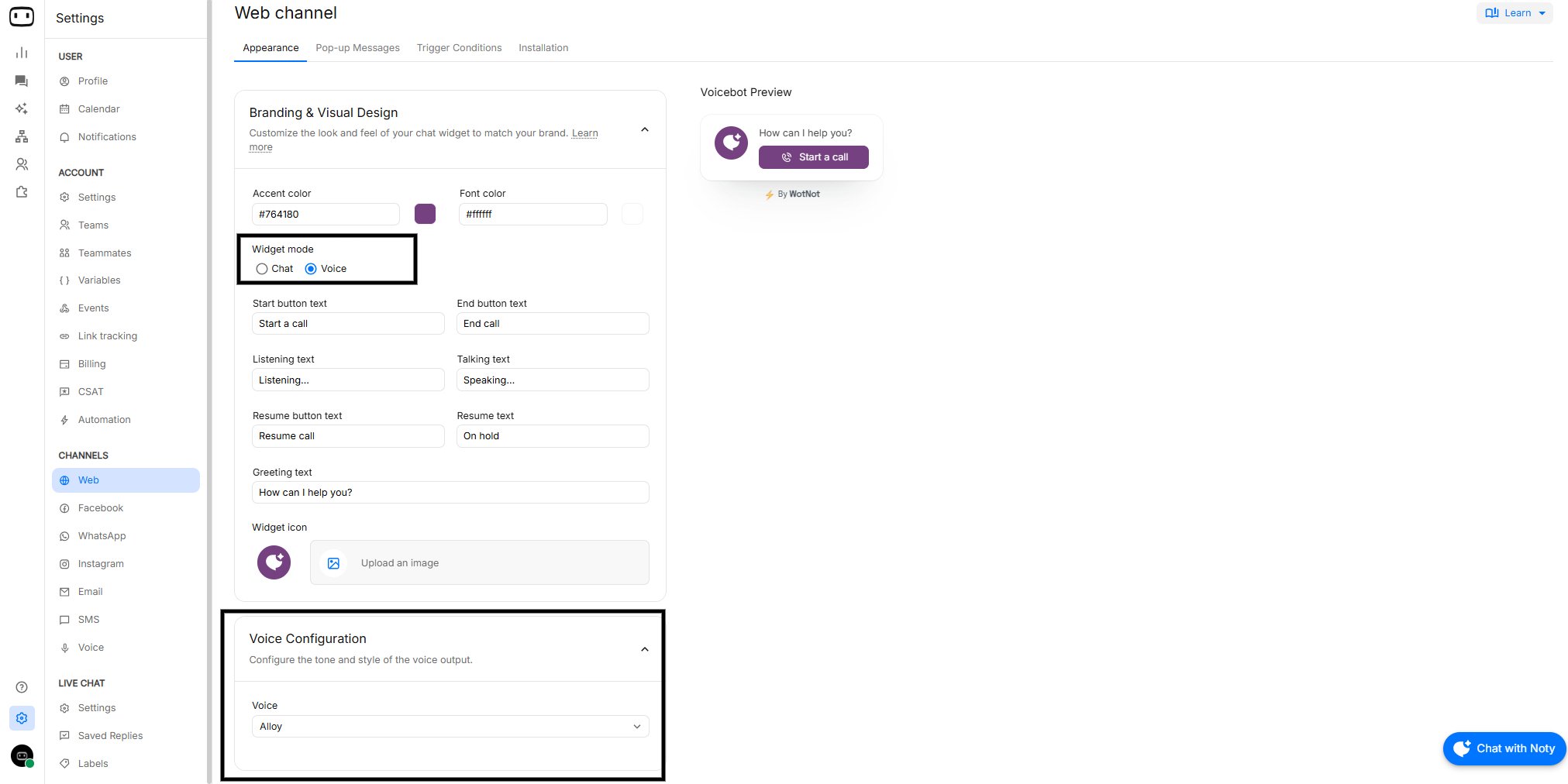
- Go to Settings
- Navigate to Channels > Web > Appearance
- Under Branding & Visual desing, choose the Widget mode as VOICE
- choose from a variety of voice options on how you want your voice agent to sound.
Provisional structure
Because voice mode uses the visitor’s microphone, the browser may ask the visitor to grant microphone access. If microphone access is denied, the visitor cannot use the voice experience until permission is granted in the browser. For voice-agent connection and channel configuration, see Voice channel.Troubleshooting
Widget styling does not match the configured accent colour
Widget styling does not match the configured accent colour
Check whether custom CSS is overriding the configured accent colour. Also inspect your website’s CSS for rules that target the widget or its parent elements.If the issue occurs only after adding custom CSS, temporarily remove the custom CSS to identify whether it is causing the conflict.
Chat is not retained when visitors move between pages
Chat is not retained when visitors move between pages
Check the Chat session behaviour setting first.If Retain existing chat is selected, verify that the WotNot cookie is actually stored in the browser. Go to Inspect > Application > Cookies and search for Chat retention will not work until the WotNot cookie is available.
cuid under app.wotnot.io.If your cookie setting is Manually added, make sure your consent flow calls:Images appear stretched or cropped
Images appear stretched or cropped
Check the image dimensions and file size before uploading the image.Images that are larger than the available display area may be cropped. Also make sure the image uses an appropriate aspect ratio and does not exceed the 5 MB file-size limit.
Custom CSS stopped working
Custom CSS stopped working
Check whether the widget’s CSS classes or markup have changed.Custom CSS depends on the widget’s underlying classes, so a WotNot release that changes the widget structure may require your CSS to be updated.
JavaScript methods are not triggering the widget
JavaScript methods are not triggering the widget
Make sure the WotNot widget script is installed and has loaded before your JavaScript calls run.If you are using a custom button or event handler, verify that the function is executed in the visitor’s browser after the widget has loaded.See Web channel for widget installation.
Microphone permission is denied for the voice widget
Microphone permission is denied for the voice widget
Check the browser’s microphone permissions for your website.The visitor must allow microphone access for the voice widget to work. If permission was previously denied, update the browser’s site permissions and try again.
Powered by WotNot branding is still visible
Powered by WotNot branding is still visible
Removing the Powered by WotNot branding is available on the Premium plan and above.If your account is not on an eligible plan, the branding cannot be removed from the widget