

Available on the Premium plan & above.
Before you start
Before publishing a voice agent, make sure you have:- A supported voice provider and phone number.
- A voice agent configured in Bot Builder.
- A flow designed for spoken conversations.
- Tested prompts and responses that are short and easy to understand when heard aloud.
Telephony
WotNot currently supports Twilio and SIP as the voice channel provider. You can obtain a phone number from it and connect it to WotNot. To configure your voice number:- Go to Settings → Channels → Voice.
- Enter your service provider details.
- Configure the voice settings.
- Save the configuration.
Web-based calling
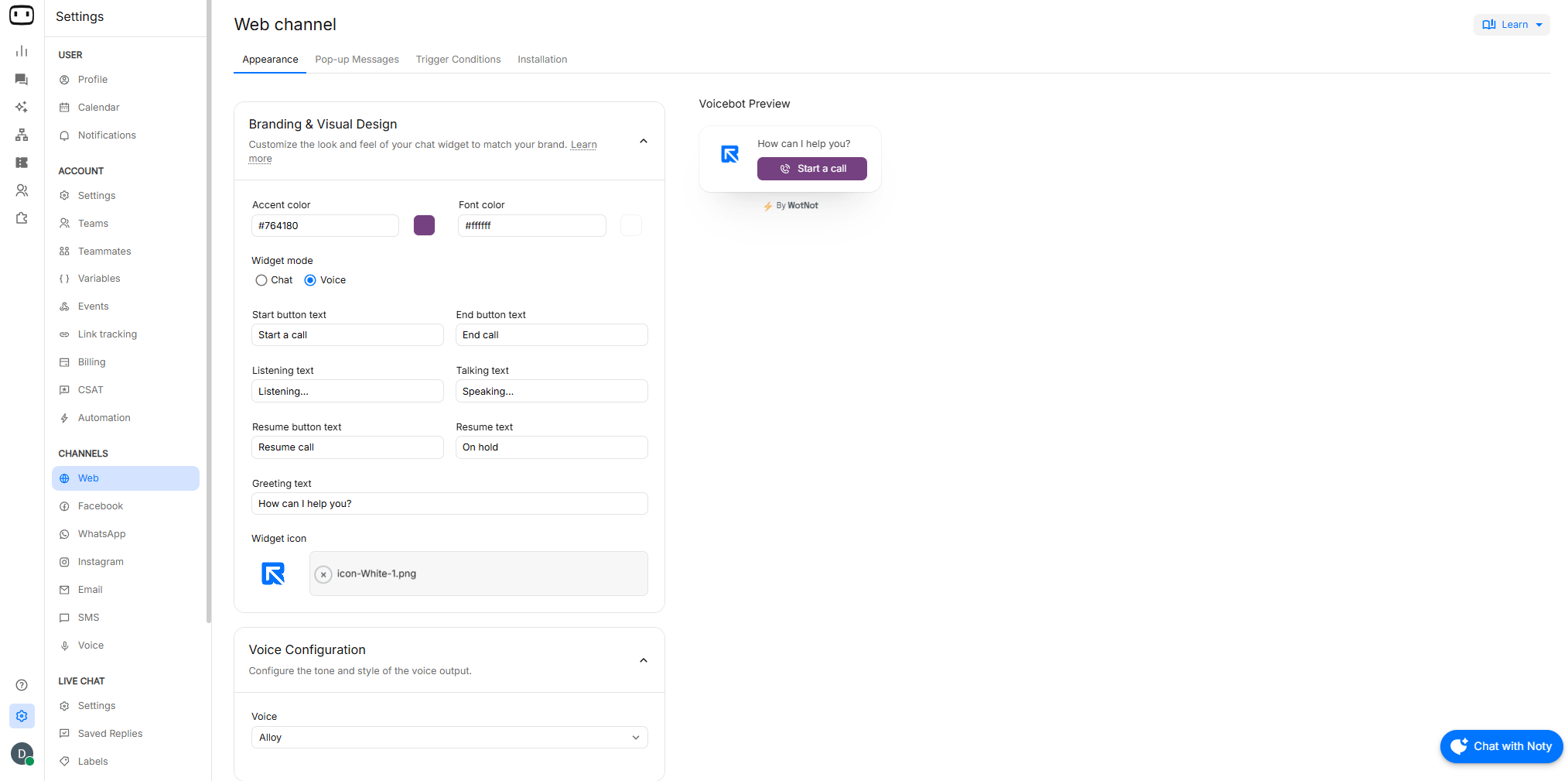
You can also allow users to talk to your agent from your website using the Voice chat widget. To enable Voice mode:- Go to Settings → Channels → Web → Appearance.
- Under Branding & Visual design, set Widget mode to VOICE.
- Configure the voice options and default messages.
Connecting a number
Provider Setup
To launch the chatbot you built for “Voice” channel, follow these steps:1
Configure your voice phone number
First, we will connect the phone number on which all incoming calls will be handled by the agent.Go to Settings > Channel > Voice and configure your phone number from Twilio by entering the: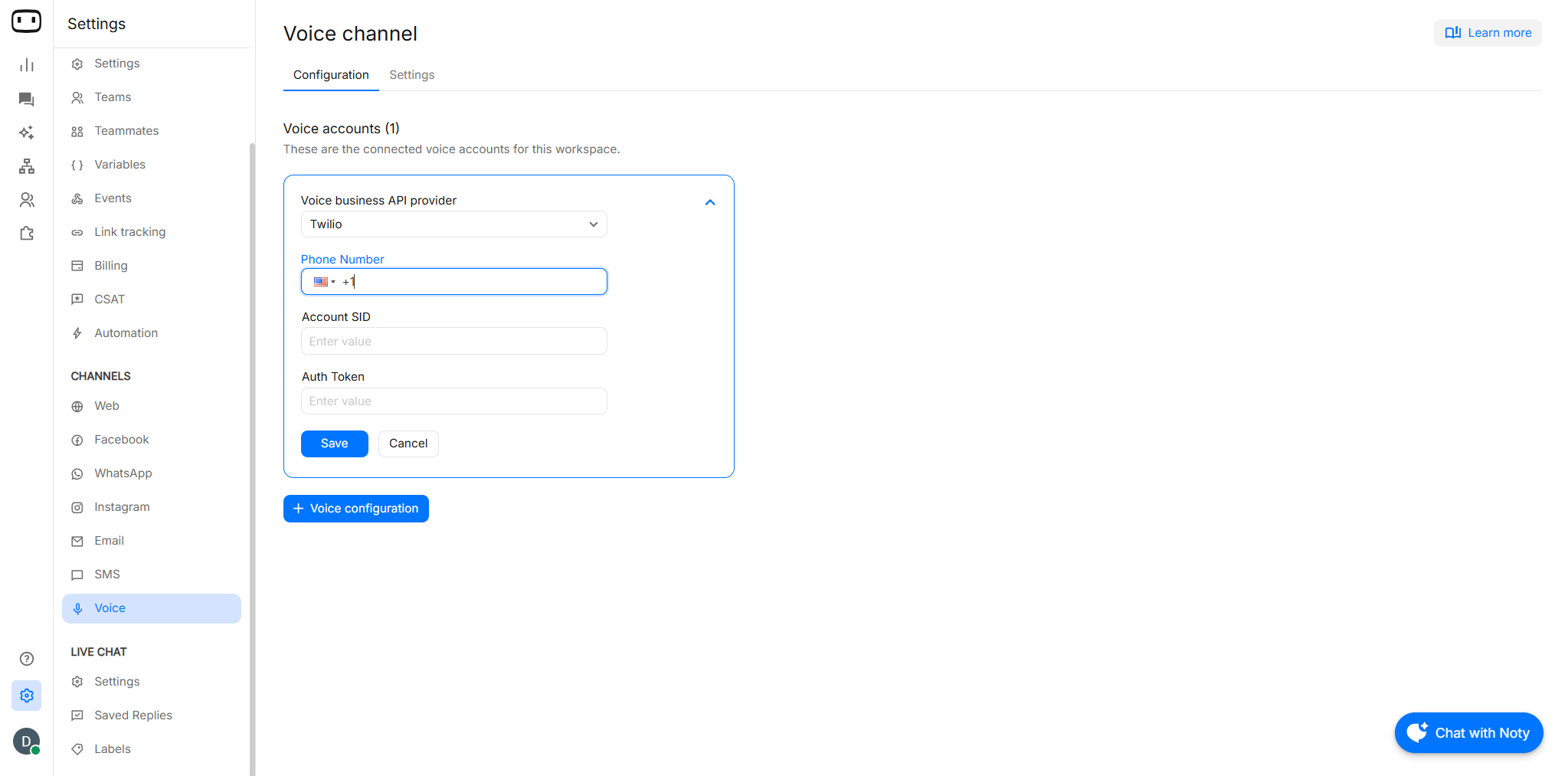
Twilio numbers
- Phone number
- Account SID
- Auth token
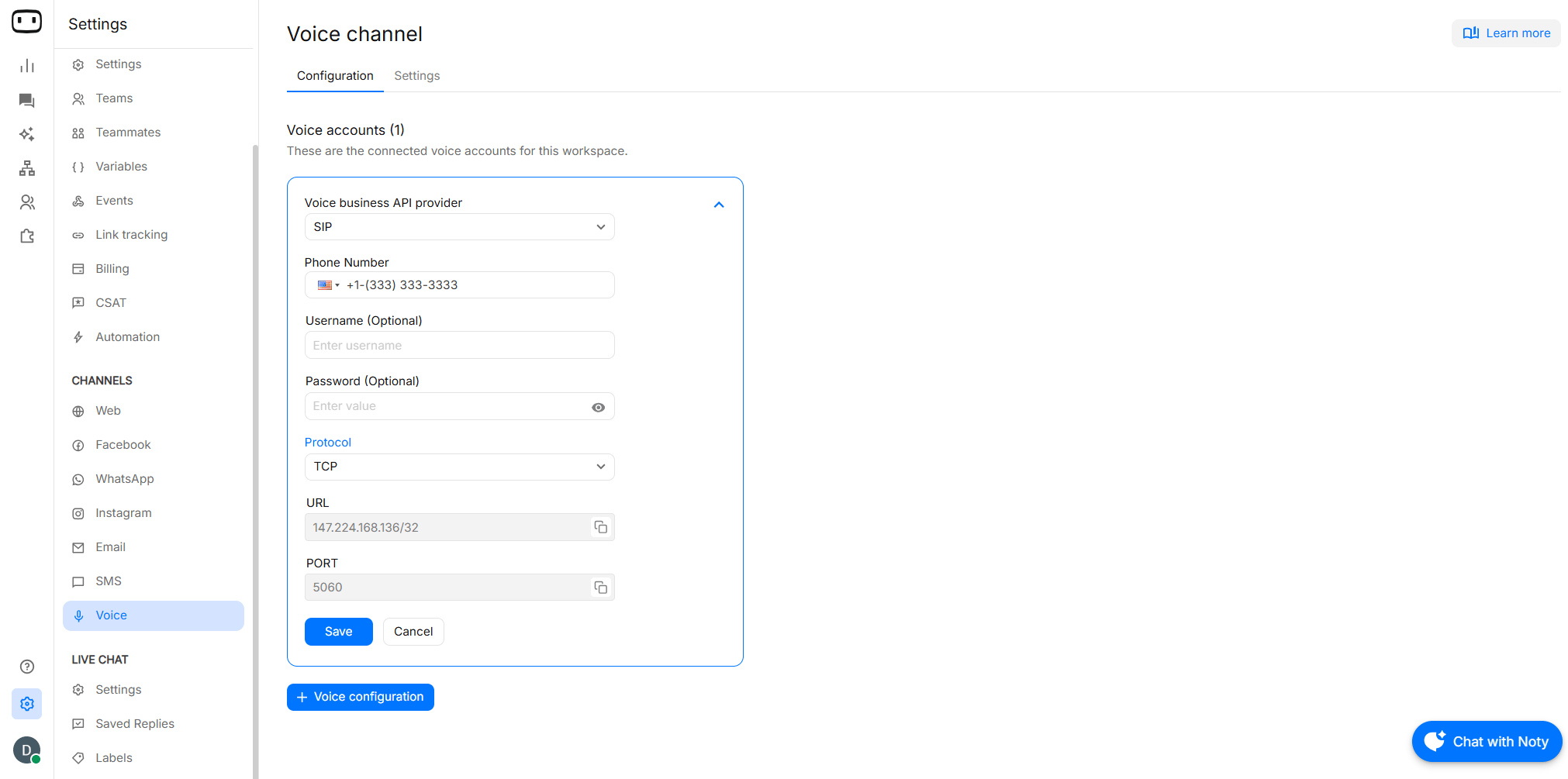
SIP trunk
- Phone number
- Username / Password (optional)
- Protocol
- URL
- Port
Routing calls to an agent
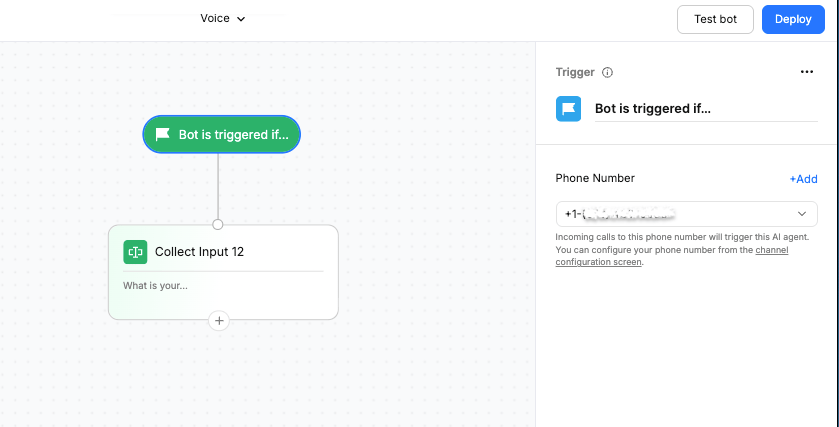
After connecting the phone number, select the agent that should handle incoming calls.- Open Bot Builder and open the voice agent you want to publish
- Open the Trigger block.
- Select the number from the dropdown.
- The agent assigned to this number will handle customer calls.
Configuring the voice
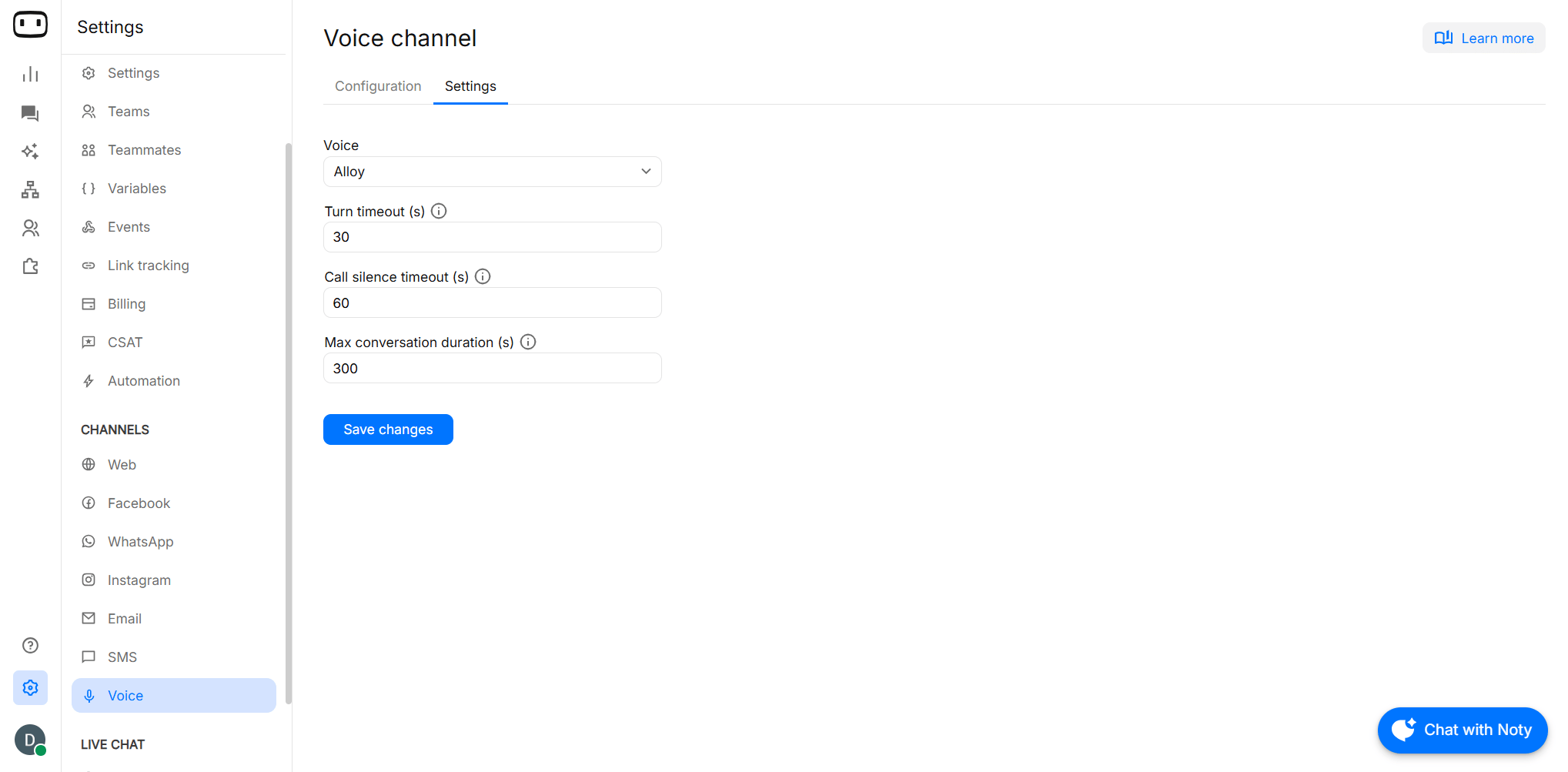
Voice selection
Choose the voice that your agent uses when speaking to callers. Go to Settings → Channels → Voice→ Settings→ select the voice that best fits your use case. When selecting a voice, test it with the type of content your agent will normally speak. A voice that sounds goodTurn timeout (s)
The amount of time the AI agent will wait for a user reply before moving on to the next step in the chat flow. During testing, check:- Whether the agent detects that the caller has started speaking.
- Whether the agent stops or continues speaking after an interruption.
- Whether the caller’s new response is correctly recognized.
- Whether the conversation resumes from the correct point. Callers may start speaking before the agent has finished responding. Test how the
Call silence timeout (s)
The duration of user silence after which the call will automatically disconnect.Max conversation duration (s)
The maximum duration allowed for a conversation with the AI agent.Speech settings
Voice conversations work best when the agent speaks naturally and uses short sentences. When configuring prompts and responses:- Avoid unnecessary filler.
- Keep sentences short.
- Spell out or explain uncommon abbreviations when needed.
- Avoid excessive punctuation or formatting intended for visual reading.
- Test product names, company names, technical terms, and abbreviations.
- Use pronunciation-friendly wording when the voice repeatedly mispronounces a term.
Latency
Latency is especially noticeable in voice conversations. A caller hears every delay between finishing their sentence and hearing the agent respond. A voice turn typically involves several stages: Caller speech → Speech recognition → Agent processing → Knowledge/API calls → Language model → Speech synthesis → Agent response A delay at any stage can result in noticeable silence. Reduce unnecessary processing: Design the flow to minimize work that must happen before the agent can respond. Consider these practices:- Keep prompts short and focused.
- Avoid unnecessarily long agent responses.
- Reduce the number of sequential integration or API calls.
- Avoid multiple dependent calls when the same result can be obtained in one operation.
- Use a scripted response when the answer is fixed instead of performing a knowledge base lookup.
- Keep knowledge base searches focused on cases that actually require dynamic information.
- Avoid asking the caller to repeat information unnecessarily.
- Test external integrations for response time before using them in a live voice flow
Publishing the agent
Once the phone number, agent, and flow are configured, publish the agent.- Open the voice agent you want to publish.
- Open the Trigger block and confirm that the correct voice phone number is configured.
- Review the flow and confirm that responses are suitable for spoken conversations.
- Check that integrations, functions, and other required blocks are configured correctly.
- Click Deploy to publish the agent.
- Call the configured phone number and test the published agent.
Testing
Always test a voice agent by placing a real call before sharing the number with users. During the call, check the following:- Latency
- Speech recognition
- Pronunciation
- Pronunciation
- Silence and timeouts
Transcripts and handover
Voice transcripts
After a call, use the available conversation records and transcripts to review what happened during the interaction. Review transcripts when troubleshooting:- Incorrect recognition.
- Missing information.
- Unexpected agent responses.
- Repeated questions.
- Failed handovers.
- Long or incomplete conversations.
Handover to a human
As human handover is not available for the voice call, provide an alternative such as collecting the caller’s details, creating a support request, or directing the caller to a supported channel.Troubleshooting
Calls not connecting
Calls not connecting
Check the following:
- Confirm that the phone number is correctly connected to the Voice channel.
- Verify that the Twilio configuration is correct.
- Confirm that the correct agent is connected to the phone number.
- Make sure the agent has been deployed.
- Try calling the number again after saving the configuration.
Long pauses between turns
Long pauses between turns
Long pauses can occur when the voice pipeline is waiting for speech recognition, agent processing, an integration response, or speech synthesis.Try the following:
- Shorten the agent’s responses.
- Reduce sequential API or integration calls.
- Avoid unnecessary Knowledge Base lookups.
- Use a scripted response for fixed information.
- Review the logs to identify slow processing steps.
Agent mishearing names, numbers, or email addresses
Agent mishearing names, numbers, or email addresses
Test the input using different pronunciations and speaking speeds.For important values:
- Ask the caller to repeat the information when confidence is low.
- Confirm critical numbers or email addresses before using them.
- Avoid combining several pieces of information into one question.
- Use separate turns for important fields.
Agent talking over the caller
Agent talking over the caller
Test the conversation while interrupting the agent.If the agent continues speaking while the caller is trying to respond:
- Review the interruption behavior.
- Shorten the agent’s responses.
- Give callers clear opportunities to speak.
Call dropping mid-conversation
Call dropping mid-conversation
Check the configured Call Silence Timeout and Max Conversation Duration settings.A call may end when the configured silence timeout or maximum conversation duration is reached.
Transcript missing or incomplete
Transcript missing or incomplete
Check whether the call was successfully connected and whether the conversation was recorded correctly.If only part of the conversation appears:
- Compare the transcript with the actual call.
- Review the conversation logs for errors or interruptions.
- Confirm that the call was not disconnected unexpectedly.