

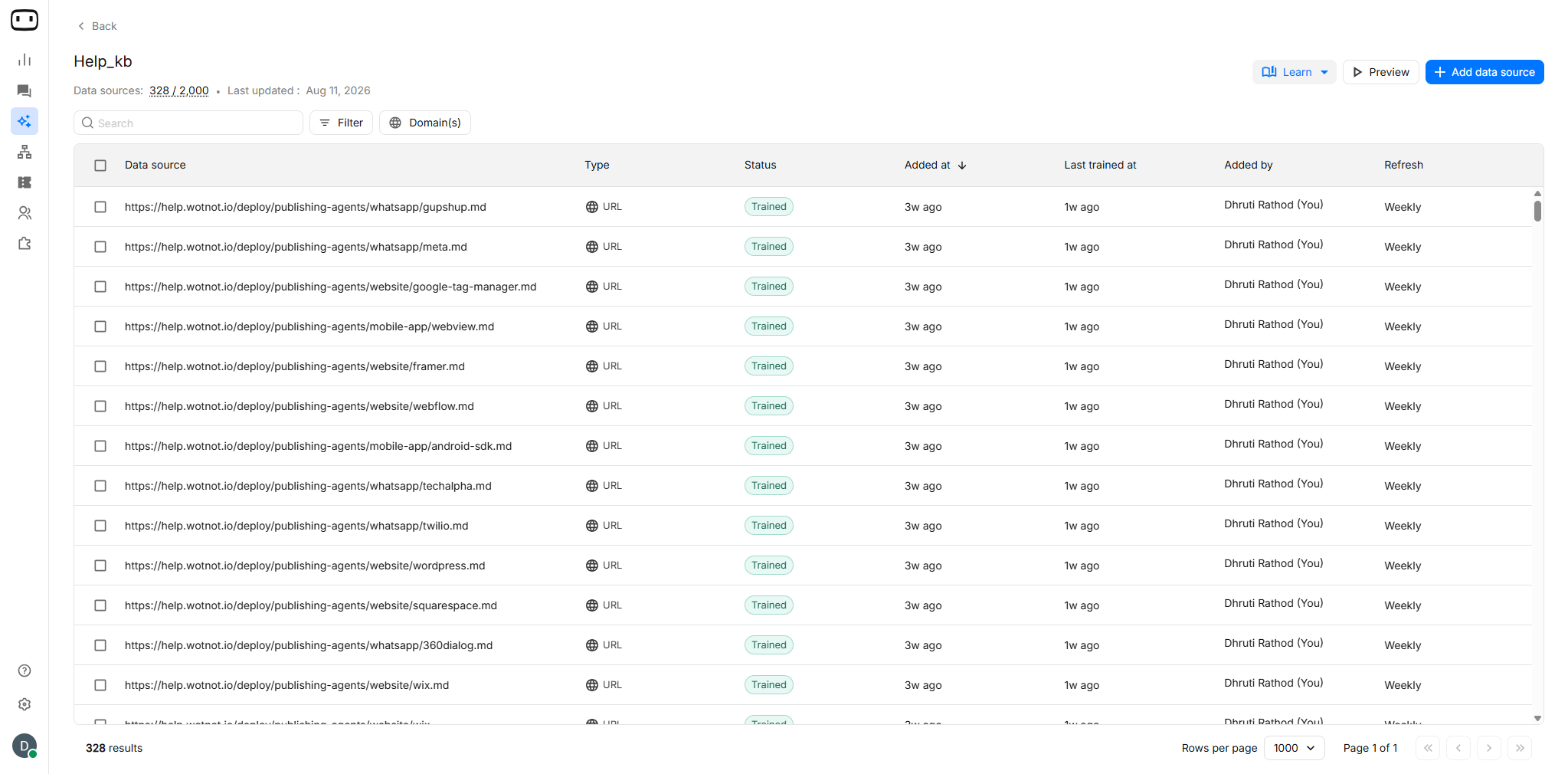
Adding a Source
A knowledge base can contain three types of data sources: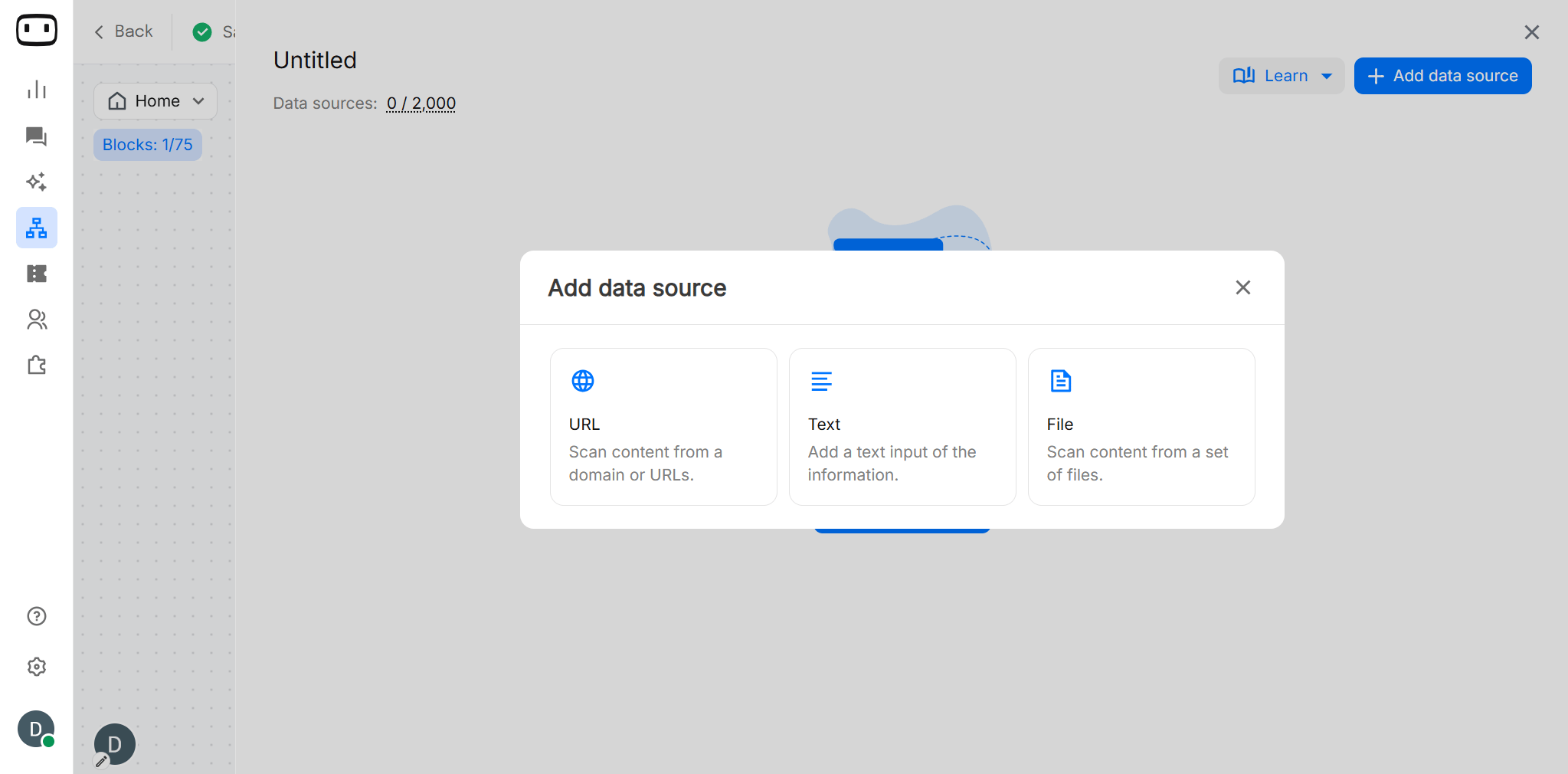
URL/Web
Use Web sources when your business information is already available online. You can add an entire domain or specific webpages and configure how often the content should be refreshed.Adding a Domain
Add a domain when you want WotNot to crawl multiple pages from a website automatically. To add a website source:- Open your AI Agent and navigate to the Knowledge Base section.
- Select Website URL as the source type.
- Enter the website domain, such as https://wotnot.io, or the sitemap URL you want to add.
- Save the source and start training the knowledge base.
- Once training is complete, review the pages discovered by the crawler.
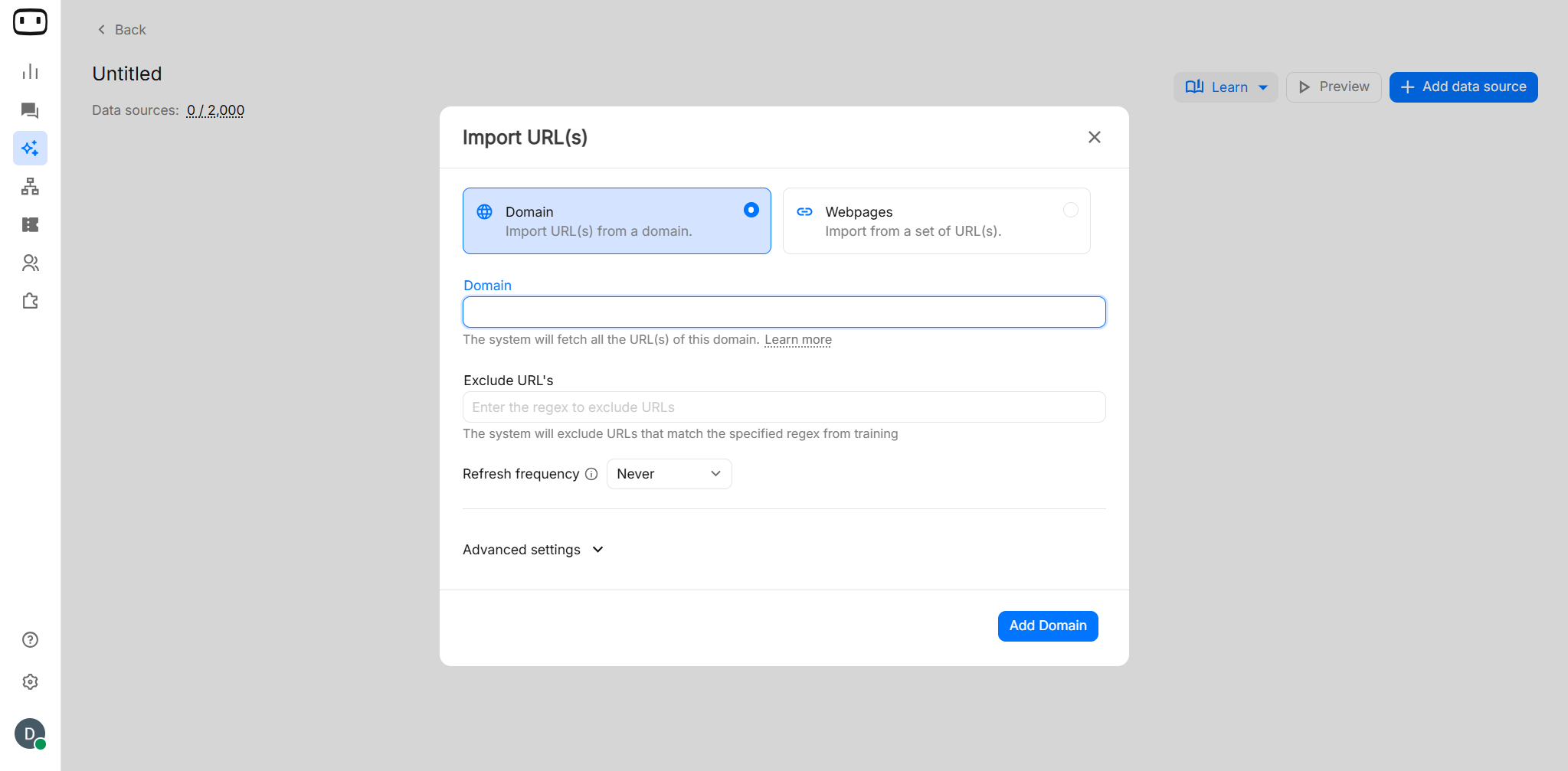
Advanced Crawling Criteria
If the crawler does not pick up the expected content, try adjusting the following settings:- Wait Time: Adds a delay before crawling so the page has time to load.
- Wait CSS: Waits for a specified CSS selector to appear before crawling.
- Execute JavaScript: Enables JavaScript execution so dynamically loaded webpage content can be extracted.
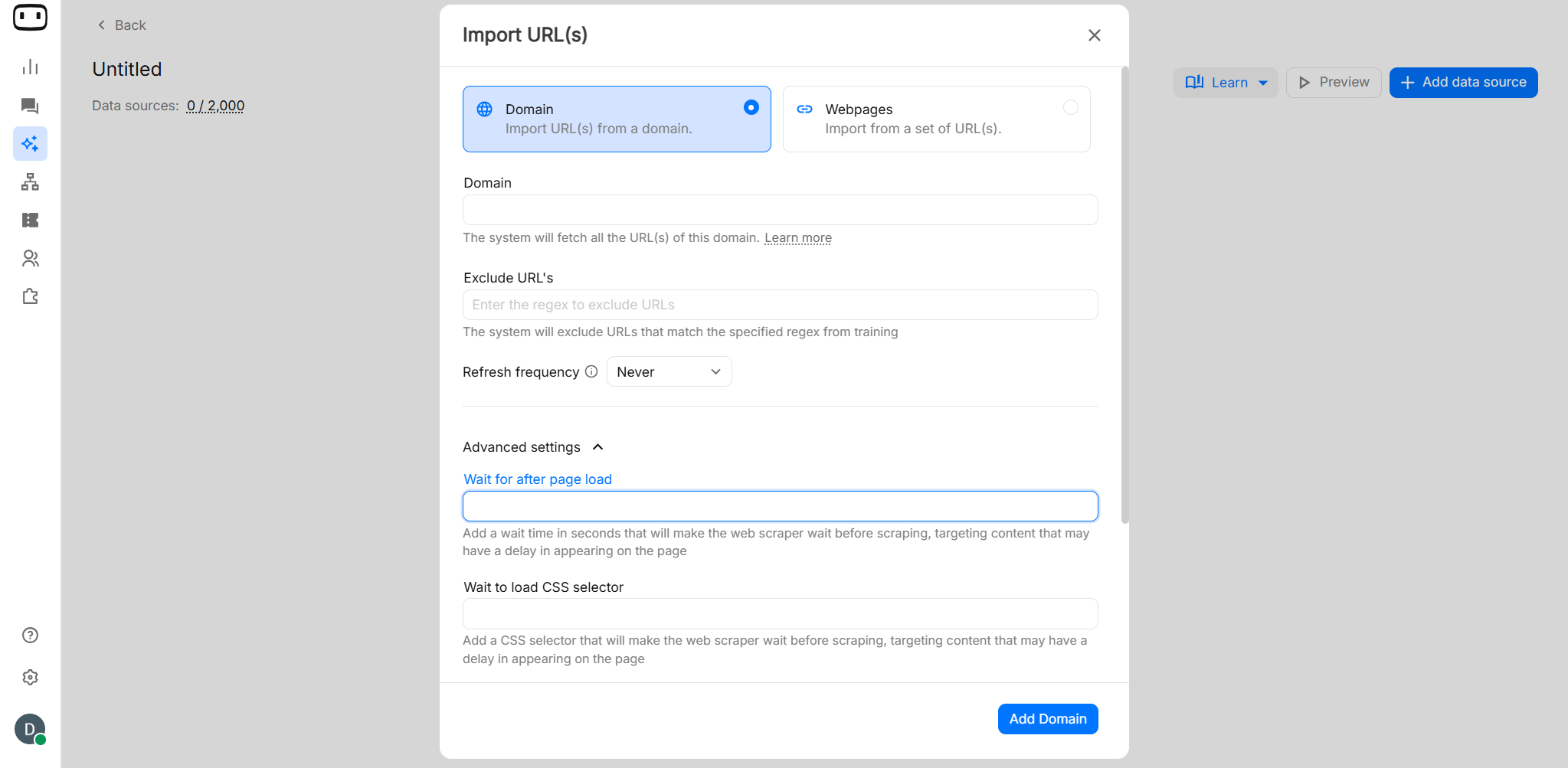
Adding a Webpage
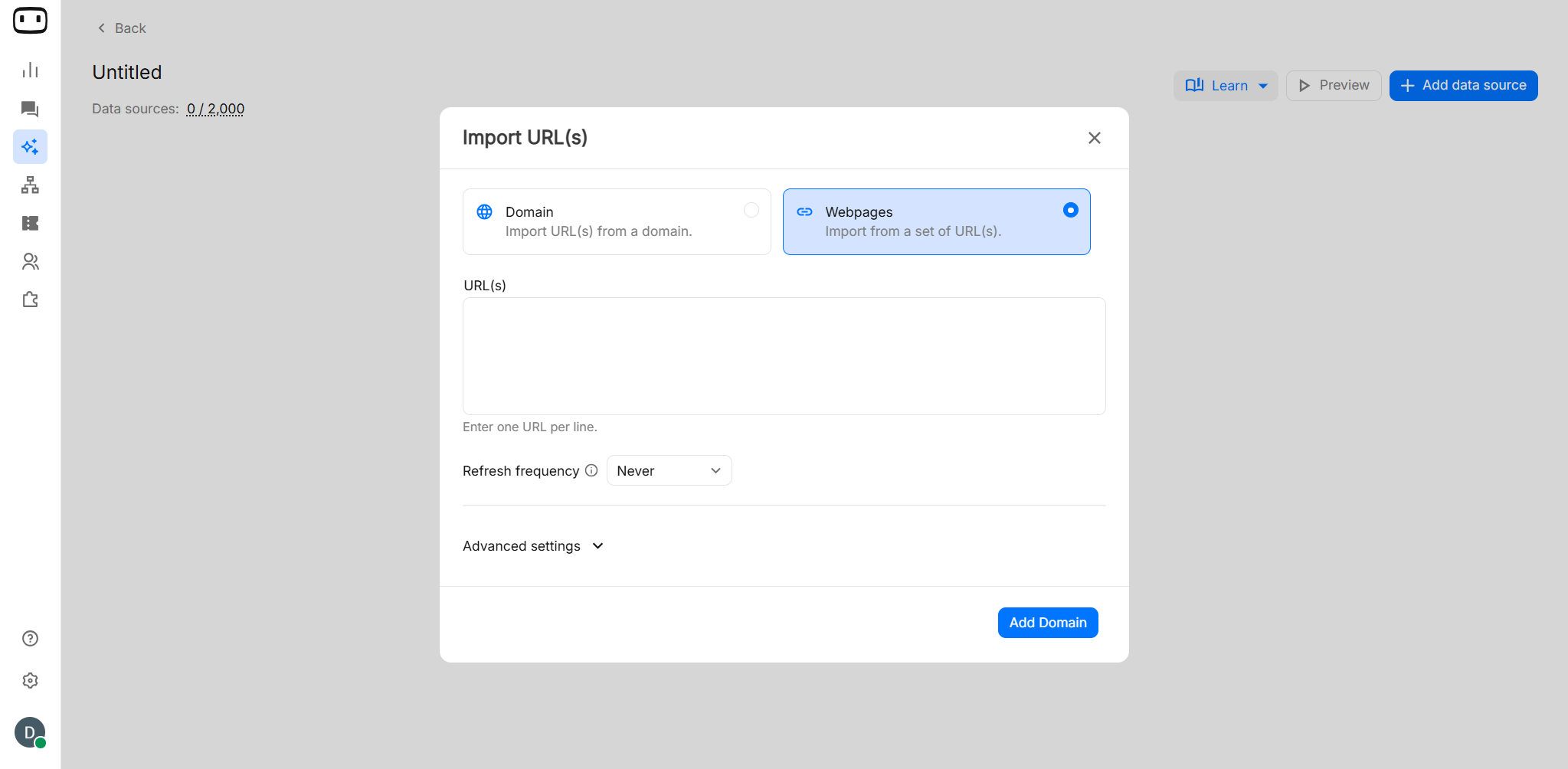
Use individual webpages when you want to control exactly which URLs are added to the knowledge base.- Select the option to add individual webpages.
- Enter the exact webpage URLs you want to train.
- Save the source and start training.
Preview and Metadata
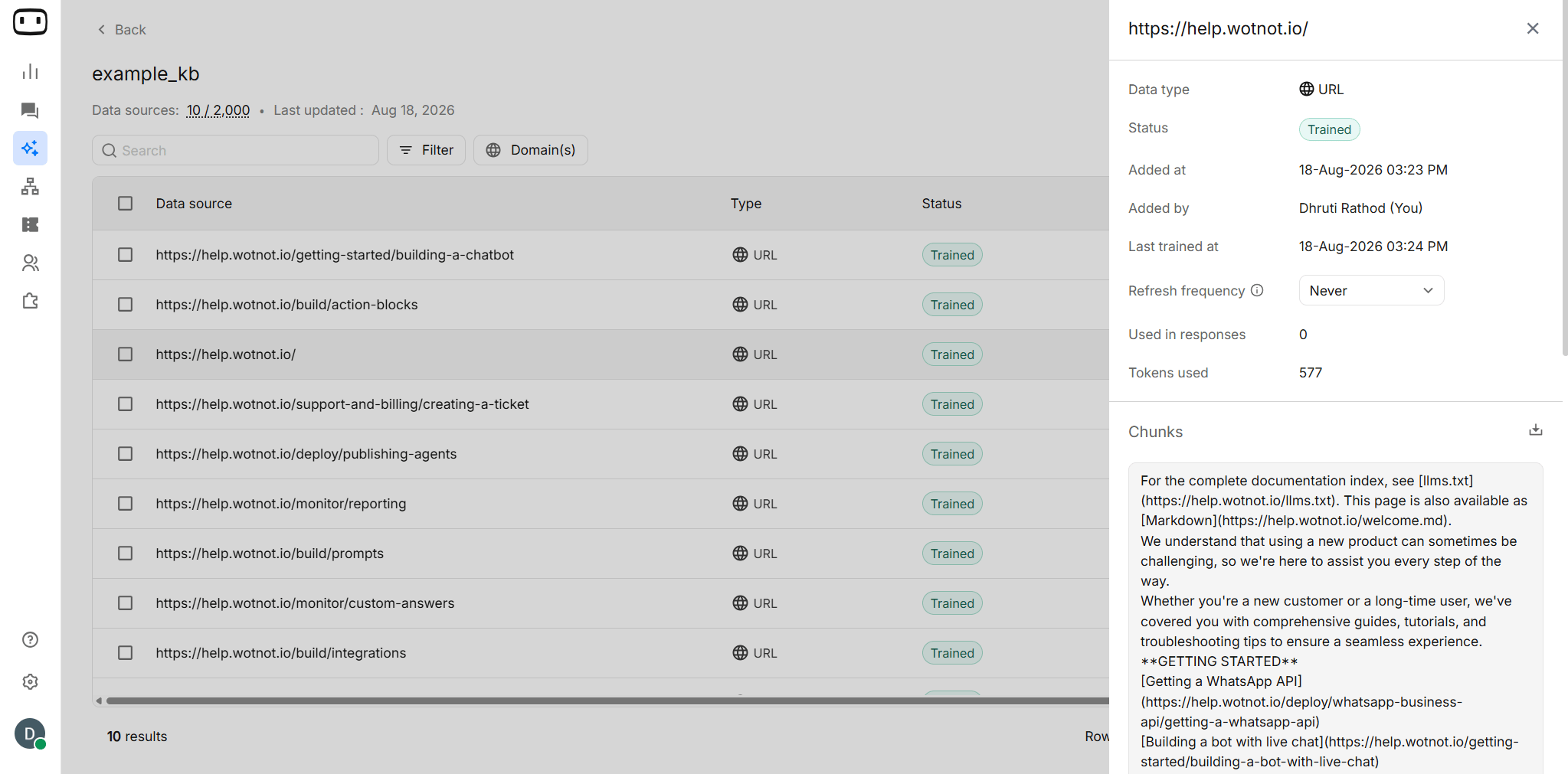
After a web source has been trained, select the source to view its details. You can:- View when the source was added or last updated.
- Check its configured refresh frequency, where applicable.
- Open the source to inspect the chunks created from the imported content.
- Verify that the expected information has been processed correctly.
Refresh Frequency
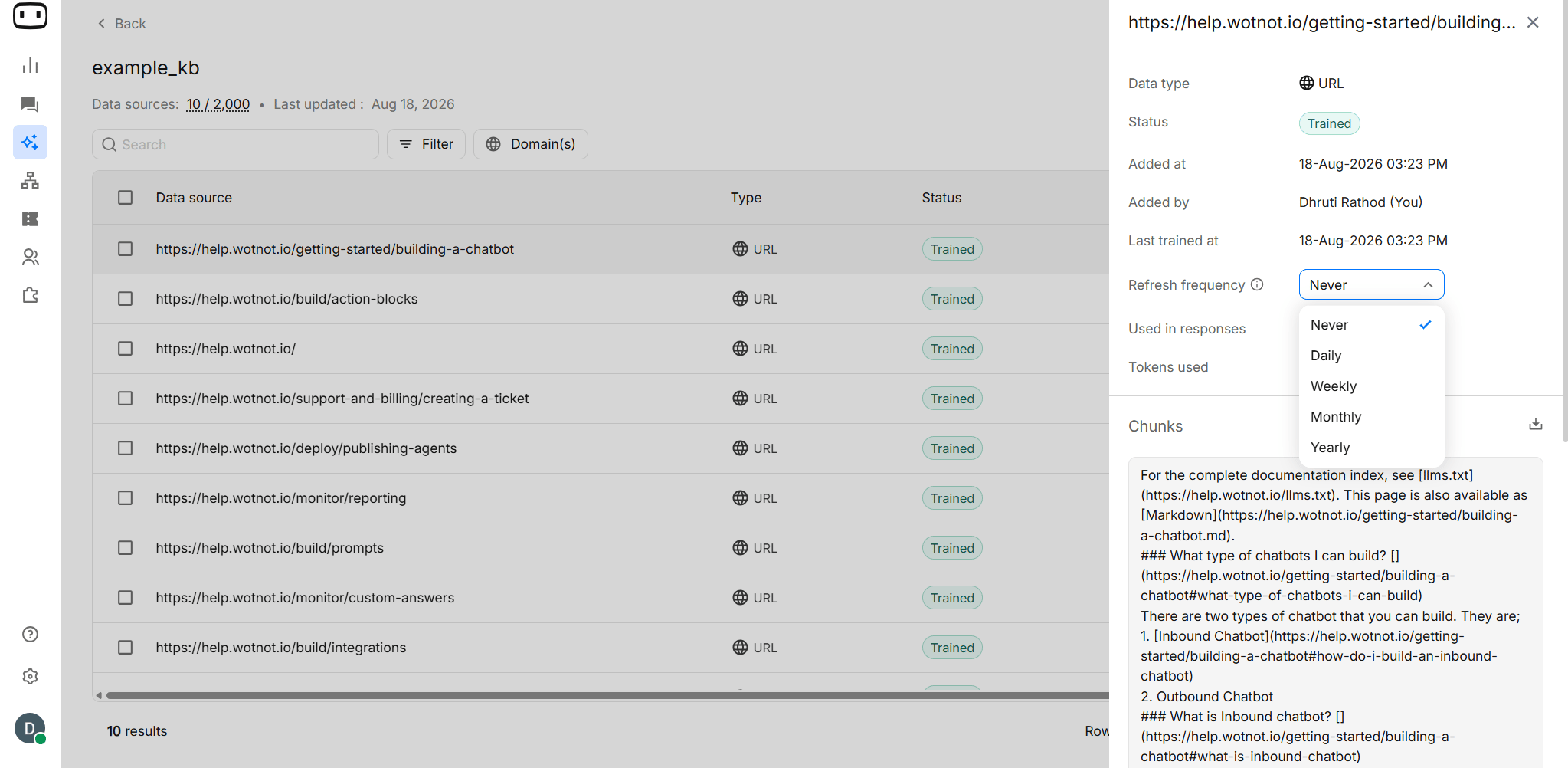
Website content can change over time. Instead of manually retraining the knowledge base every time a website changes, you can configure an automatic refresh frequency for a domain. To configure automatic refresh:- Open the Knowledge Base section of your AI Agent.
- Select the website source for which you want to configure automatic refresh.
- Open the Refresh Frequency settings.
- Choose the required refresh interval from the available options.
- Save your selection to enable automatic refresh for the source.
- Automatic refresh is supported for website URL sources. File and Plain Text sources must be retrained manually when their content changes.
- Frequent refreshes may affect AI credit usage, depending on the processing required.
Refresh Domain
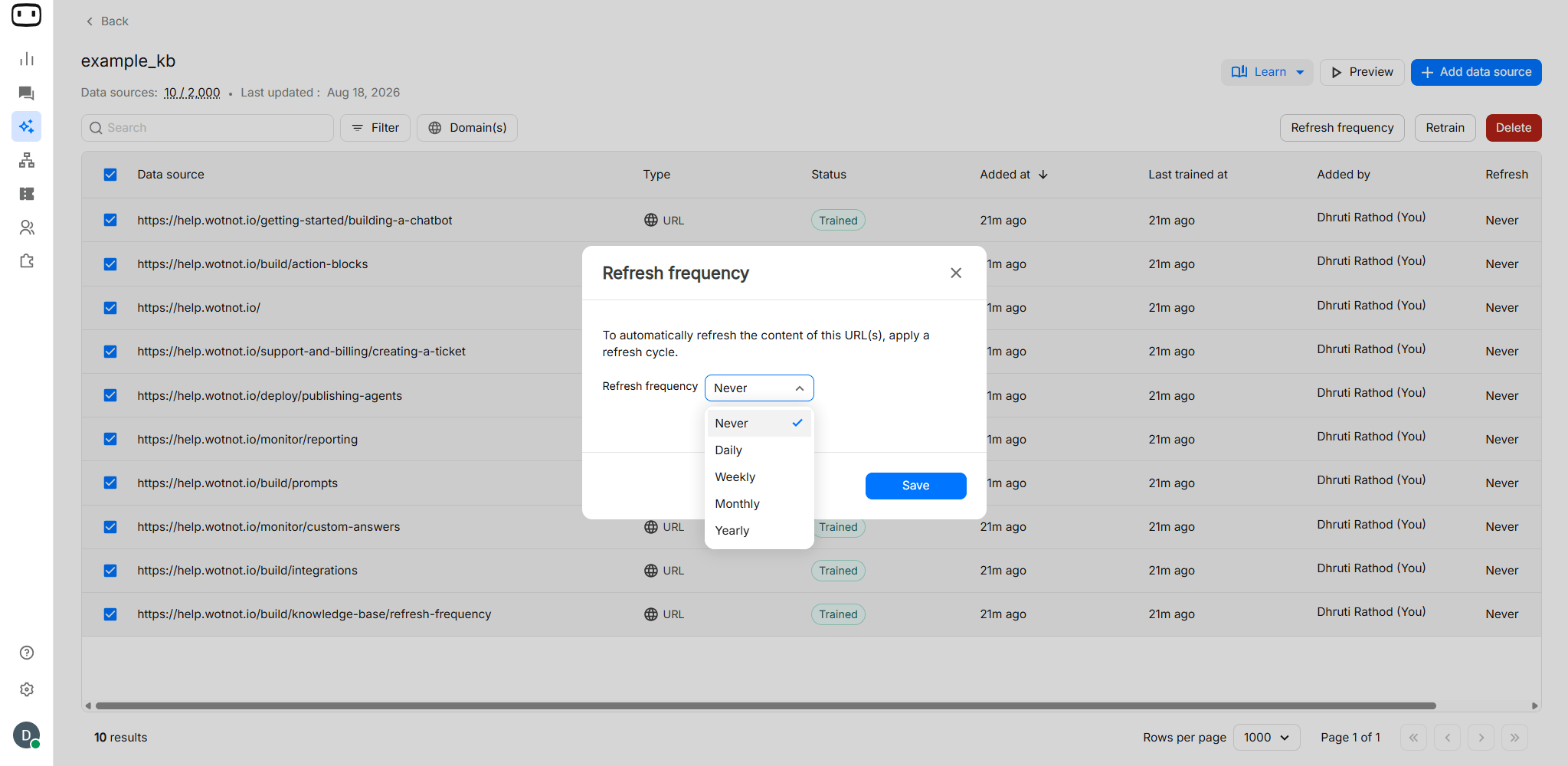
If you have trained your knowledge base using a domain, you can configure or change its refresh frequency by clicking the Domain(s) button. Changing the frequency at the domain level applies to all child URLs fetched from that domain. However, changing the refresh frequency of an individual child URL does not affect the parent domain’s settings.
Retraining a Source
Training creates the version of the source that the AI Agent uses when retrieving information. If the original source changes, the knowledge base will not automatically reflect those changes unless automatic refresh is configured. Retraining ensures that the AI Agent has access to the latest information from your sources. To retrain a source:- Open the Knowledge Base section of your AI Agent.
- Select the source that contains the updated information.
- Trigger the Retrain process to fetch and process the latest content.
- Wait for training to complete and verify that the source has been updated successfully.
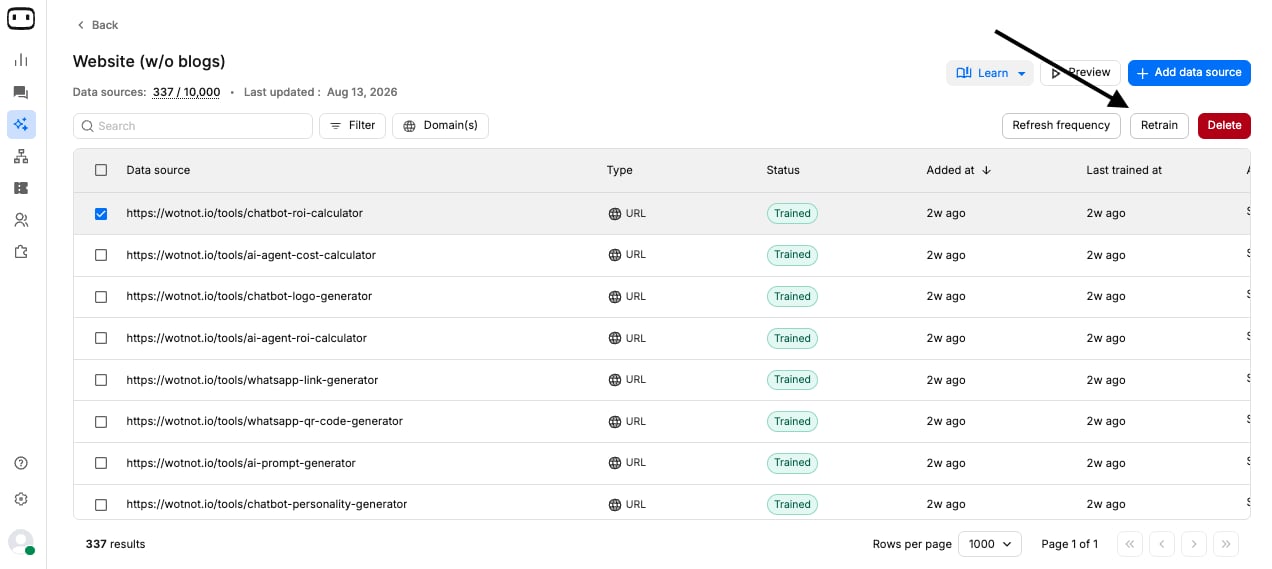
Retraining may be required when your source content changes, a source is added or removed, or your AI Agent starts providing answers based on outdated information.
Deleting a Web Source
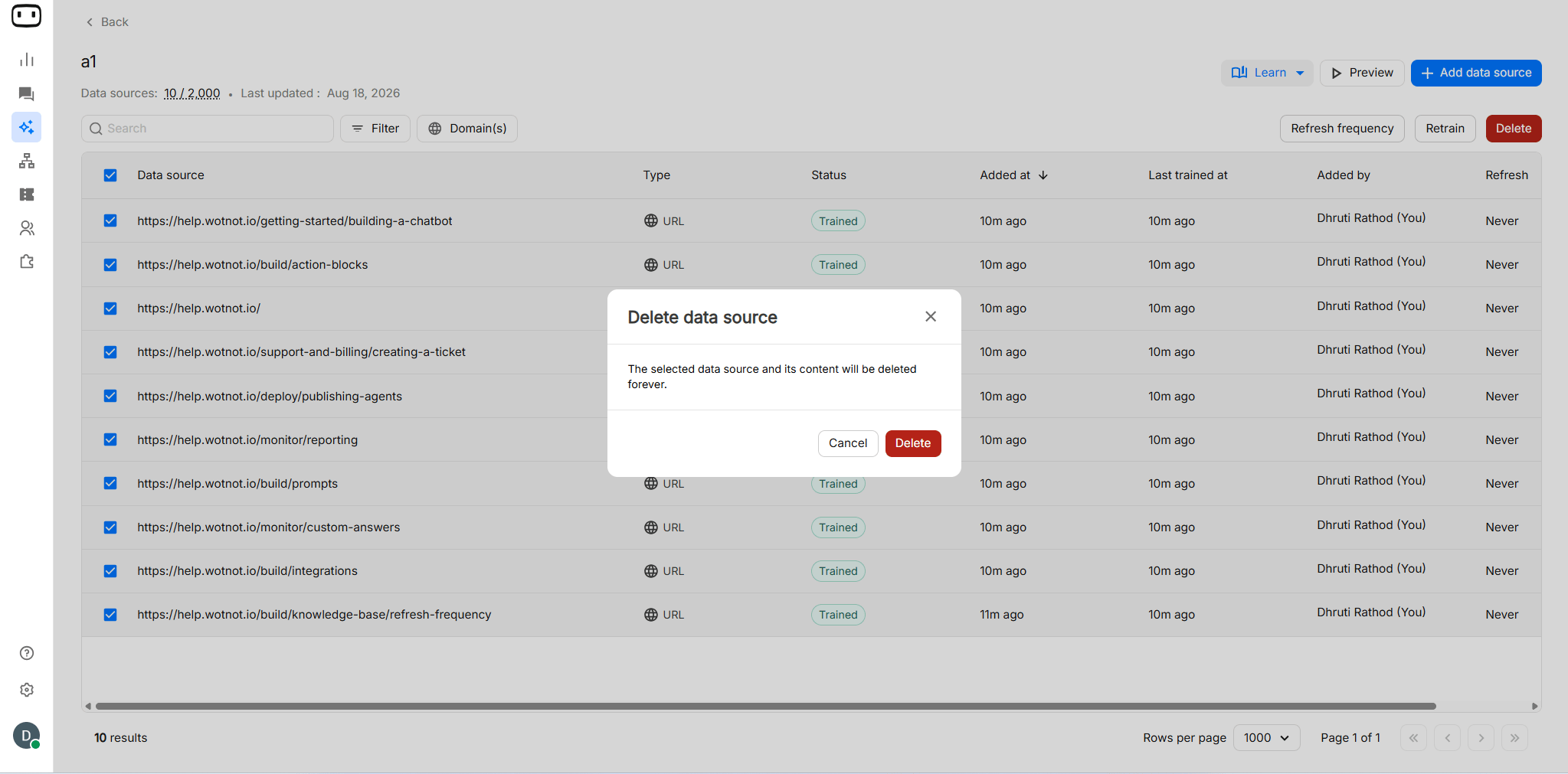
To delete a web source:- Open the Knowledge Base section from the left navigation bar.
- Open the relevant knowledge base.
- Select the checkbox next to the webpages you want to delete.
- To delete the entire web source, select the Data Source checkbox, where available.
File
Supported File Types
The following file types and limits are supported:- File types: TXT, PDF, DOC, DOCX
- Maximum file size: 25 MB
- Maximum file count: 100
Uploading Files
To upload files:- Open the Knowledge Base where you want to add the files.
- Select File as the data source type.
- Select one or more supported files and upload them.
- Click Add Files to process the contents of the uploaded files.
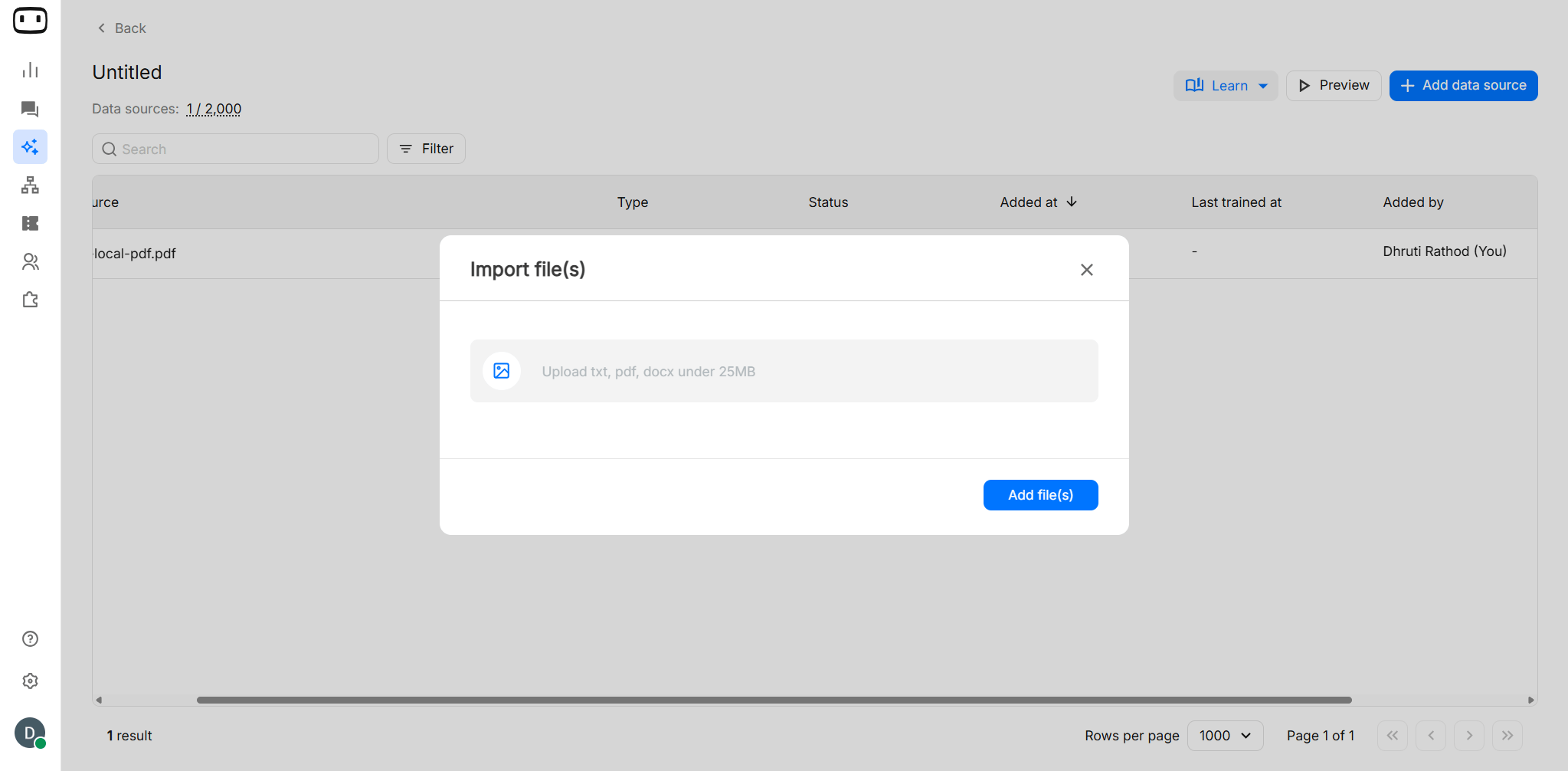
Ensure that uploaded files contain usable information in a supported format. For example, a PDF should contain selectable text if you want that text to be used when answering questions.
Preview and Metadata
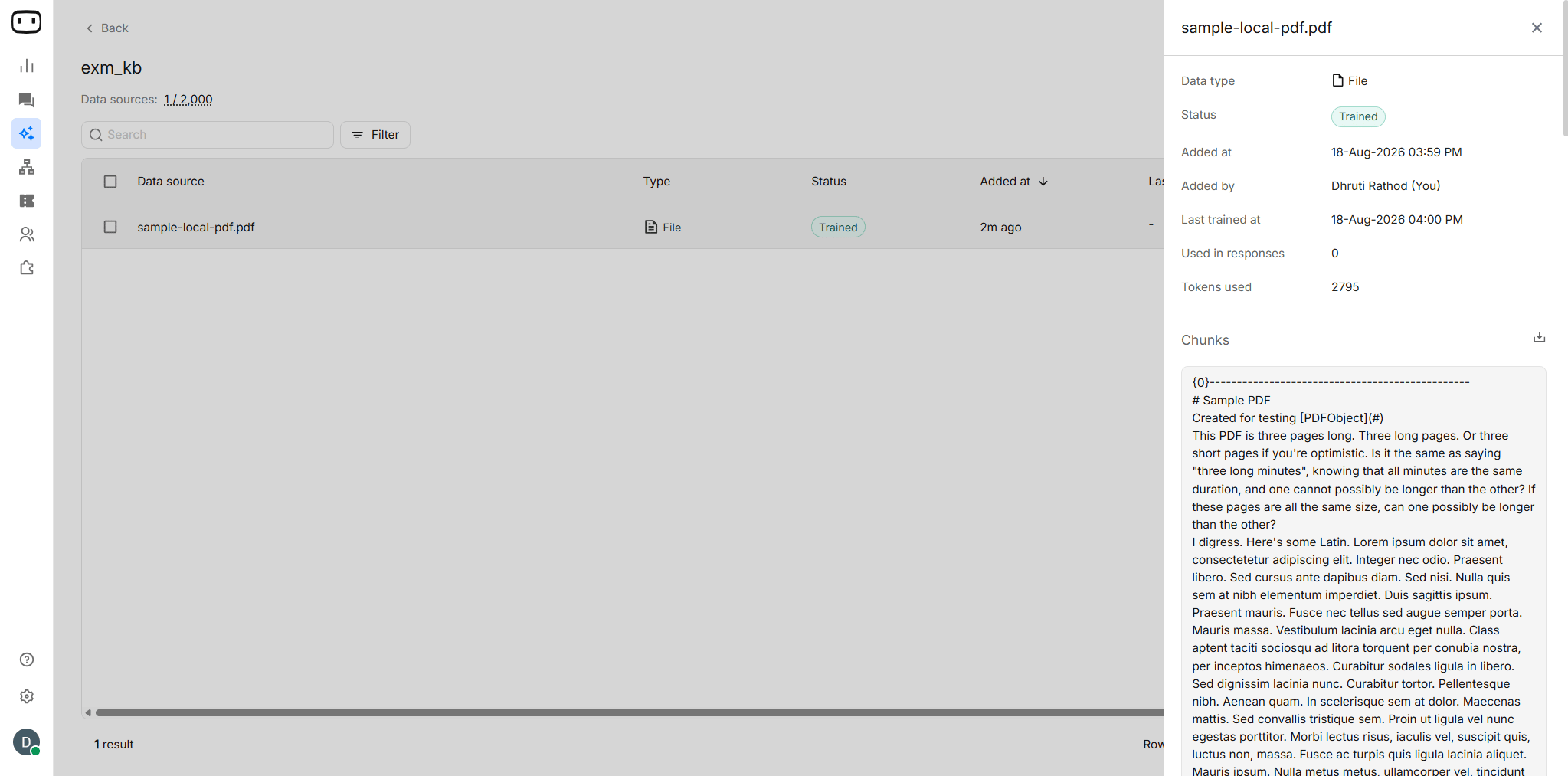
After a file has been trained, select the file source to view its details. You can:- View information about the source.
- Open the source to inspect the chunks generated from the file.
- Verify that the information you expect the AI Agent to retrieve was processed successfully.
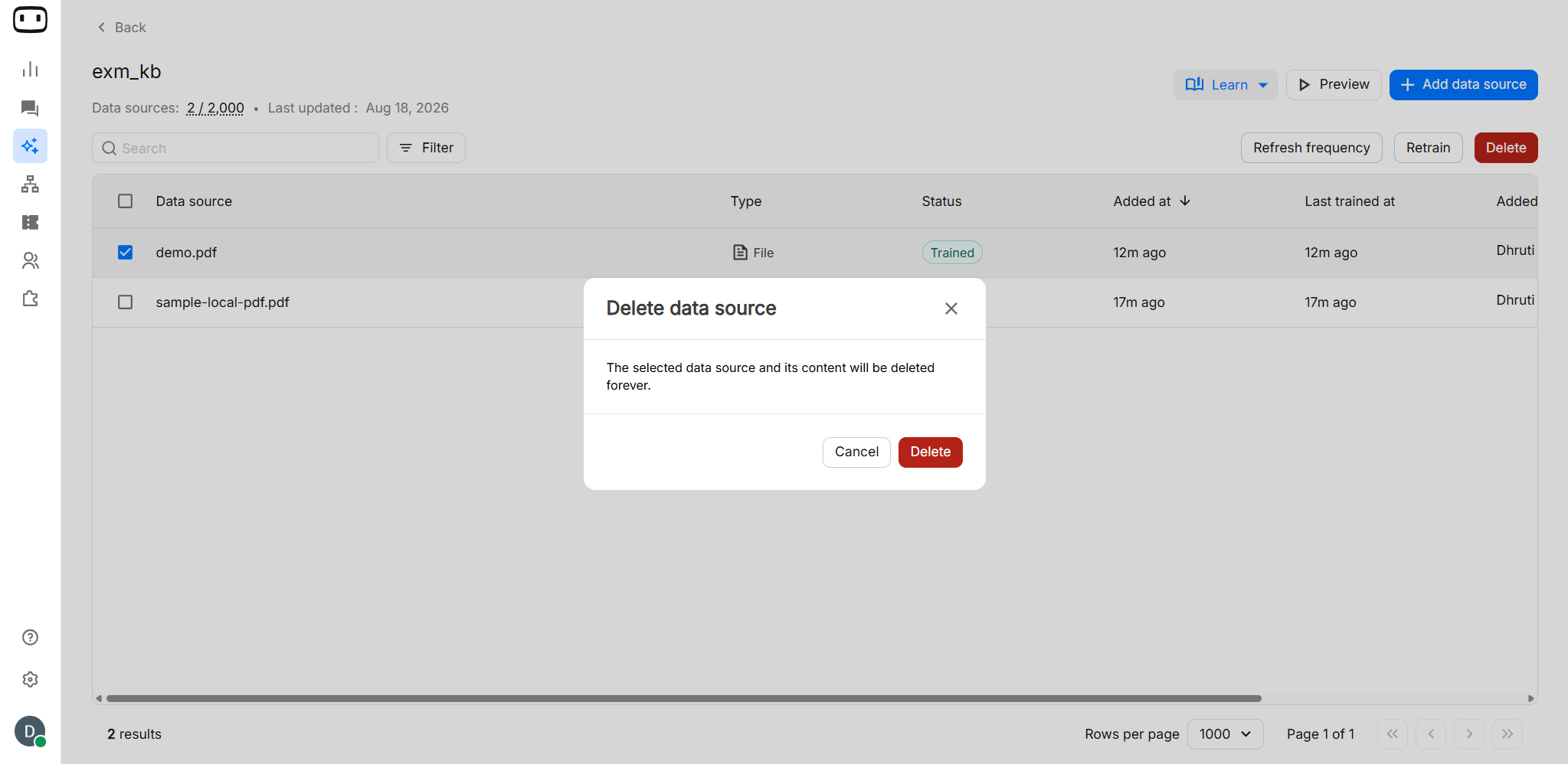
Deleting Files
To delete a file:- Open the Knowledge Base section from the left navigation bar.
- Open the relevant knowledge base.
- Select the checkbox next to the file you want to remove.
Text
Use a Plain Text source when you have a small amount of information that you want to add directly to the knowledge base.Adding Text Snippets
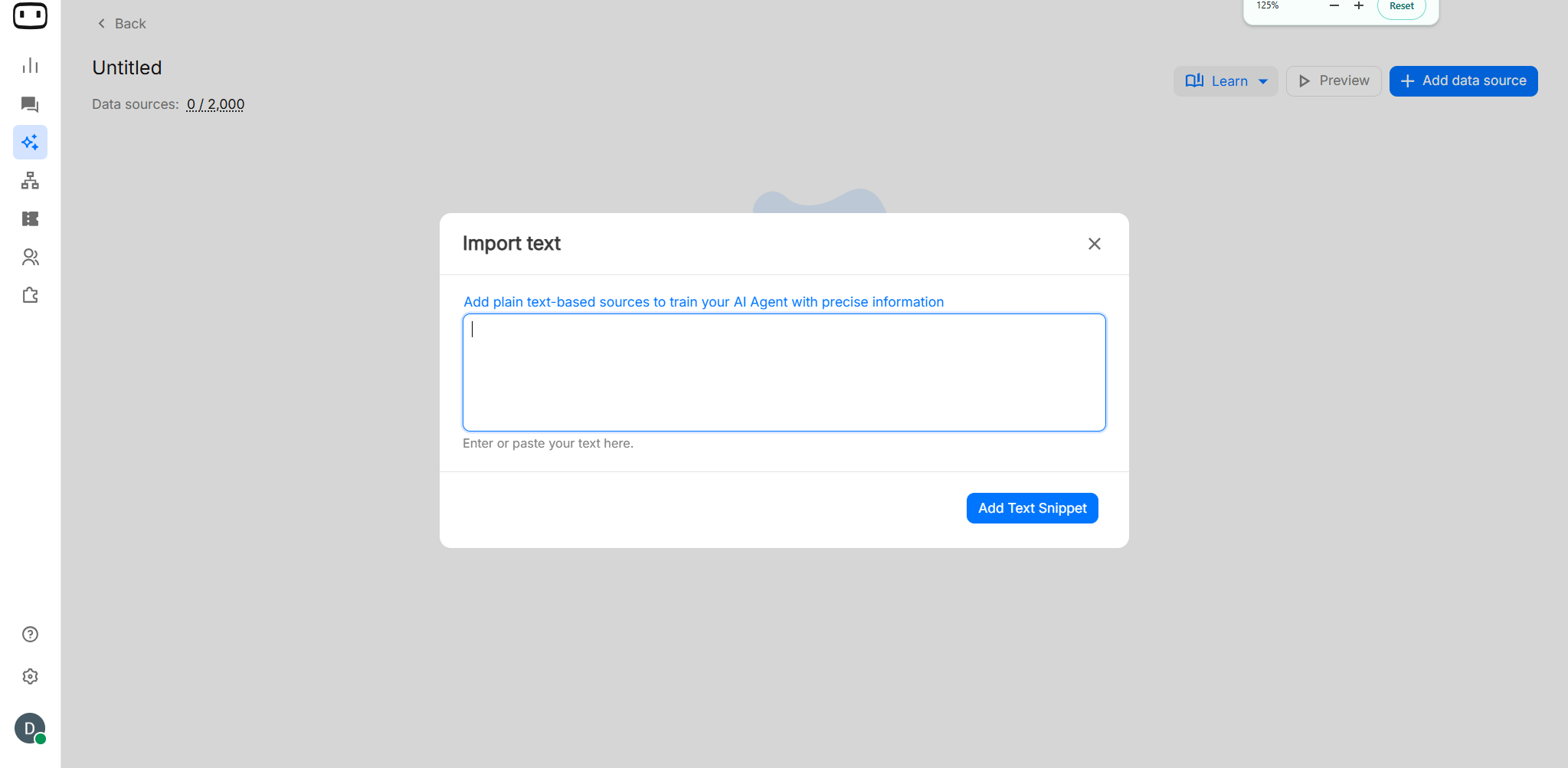
- Open the Knowledge Base section.
- Select Text as the source type.
- Enter or paste the information you want your AI Agent to use.
- Click Add Text Snippet to save the source and train the knowledge base.
Custom JSON databases are not directly supported as knowledge base sources. You can convert JSON data into a
.txt file and upload it for training.After training, connect the knowledge base to your AI Agent and test its responses to verify that the information is retrieved accurately.Preview and Metadata
After training a text snippet, select the source to view its details.- Check the source information.
- Open the source to inspect the chunks created from the text.
- Verify that the important information is present in the trained content.
Deleting Text Snippets
To delete a text snippet, open the relevant knowledge base and select the text source you want to remove.Viewing Sources
After adding a data source, check its status and details to confirm that it has been trained successfully and that the expected content was processed.1
Check the source status
Review the list of sources in your Knowledge Base. Each source displays a status indicating its current training state:
- In Progress: The source is currently being processed.
- Trained: The source has been processed successfully and is available to the AI Agent.
- Failed: The source could not be processed successfully and may require further investigation or retraining.
2
View the source details
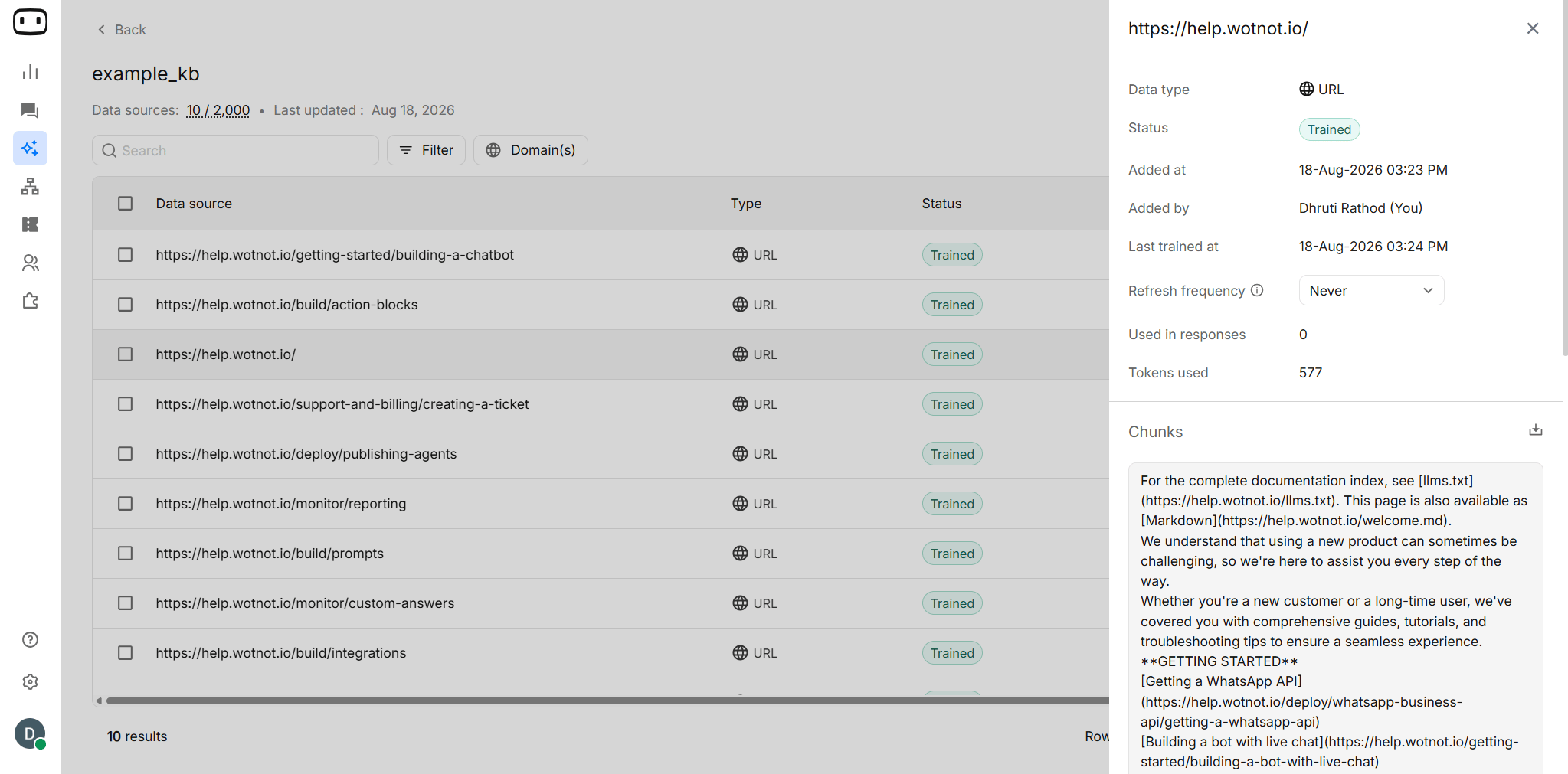
Select a data source to view its details, including when it was added, who added it, its refresh frequency, tokens used, and chunks.
3
Check the pages or chunks processed
In the source details, open the Chunks section to verify that content was successfully extracted from the source.Chunks are smaller sections of content extracted from the source. They help the AI Agent retrieve relevant information when generating a response.If the source shows Trained and contains the expected chunks, the content has been processed and is available to the AI Agent.
Testing the Knowledge Base
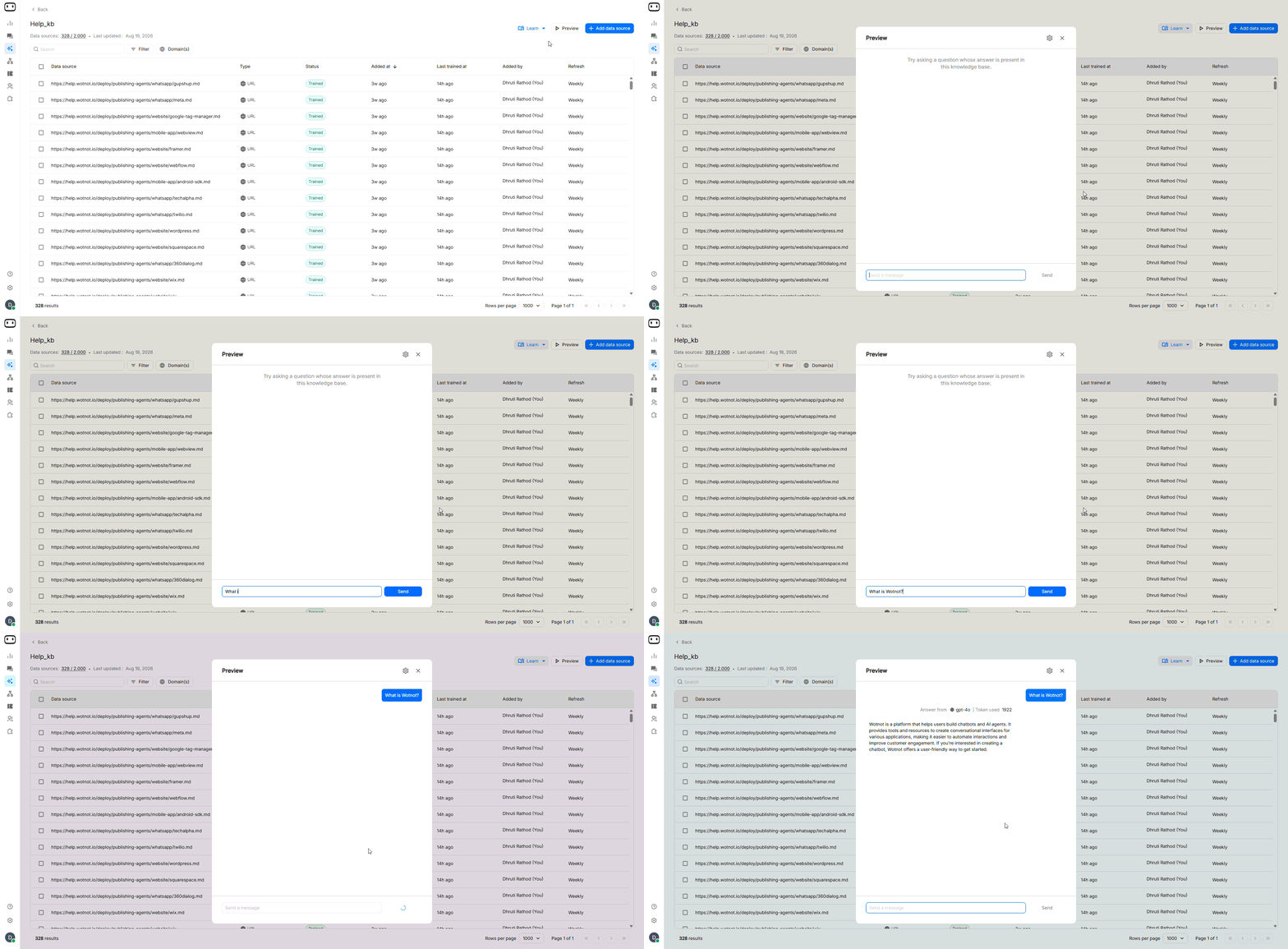
Test the knowledge base before relying on it in a live AI Agent. The goal is to confirm that the information has been trained correctly and can be retrieved when a user asks a relevant question.1
Prepare test questions
Create a short list of questions based on the information added to the knowledge base. Include questions that resemble how your customers actually ask for information.
2
Ask questions using the connected AI Agent
Use your connected AI Agent to ask the test questions and check whether the expected information is returned.
3
Check the retrieved source
Review which knowledge base content or chunk was used to answer each question. This helps you determine whether the correct source was retrieved.
4
Fix and retrain
If the expected information is missing, incorrect, or outdated, update the source and retrain the knowledge base before testing again.
Troubleshooting
The AI Agent says it does not know the answer, but the information exists in the knowledge base
The AI Agent says it does not know the answer, but the information exists in the knowledge base
- Verify that the source has completed training successfully and that the relevant content was processed into usable chunks.
- If the source was recently updated, retrain the knowledge base to ensure the latest information is available.
- Review the AI Agent’s prompt. The knowledge base provides the information, while the prompt controls how the AI Agent uses and presents that information.
The AI Agent is providing outdated information
The AI Agent is providing outdated information
- The knowledge base does not automatically reflect changes to the original source unless automatic refresh is configured.
- For website sources, check the configured Refresh Frequency or trigger a manual retrain.
- For file and Plain Text sources, update the source and retrain the knowledge base manually.
The website source only picked up one page
The website source only picked up one page
- If you added a specific webpage URL, WotNot may only process that particular page.
- To include multiple pages, use the appropriate website or domain source and review the pages discovered during crawling.
- If your website uses dynamically loaded content, check the available crawling settings to ensure the required content can be extracted correctly.
The PDF was ingested but contains no usable text
The PDF was ingested but contains no usable text
- Check whether the PDF contains selectable text or consists of scanned images.
- If the PDF is image-based, OCR may be required to extract the text before uploading it to the knowledge base.
- Verify that the extracted content is readable and retrain the knowledge base after replacing the file.