

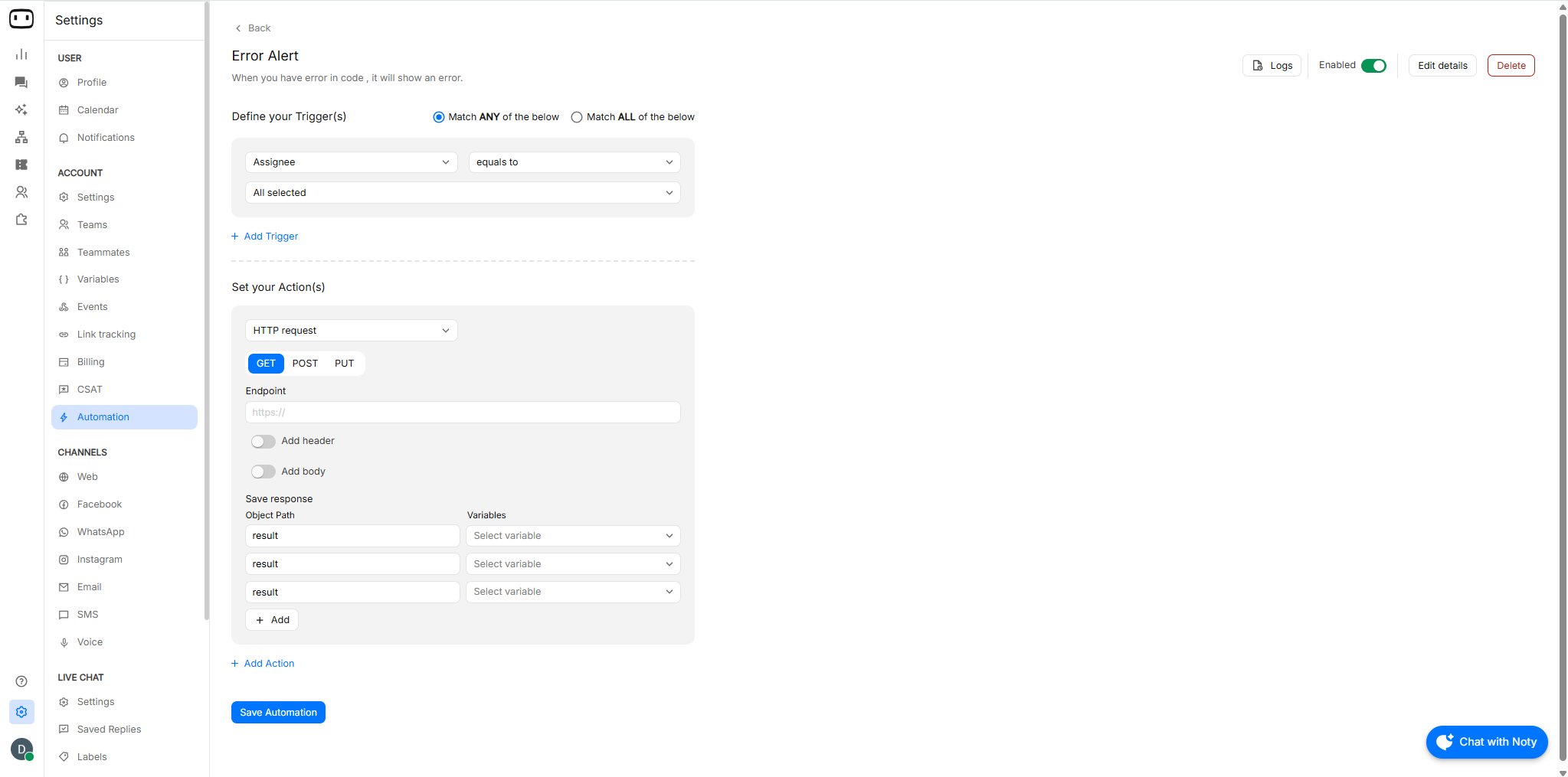
Available on all channels.
When to use an automation
You can use automations to:- Add chat transcript to your CRM after chat ends
- Notify your team when SLA is breached
- Send slack notifications when a variable changes to X
- Send an email to the visitor after chat ends
- and more…
Triggers
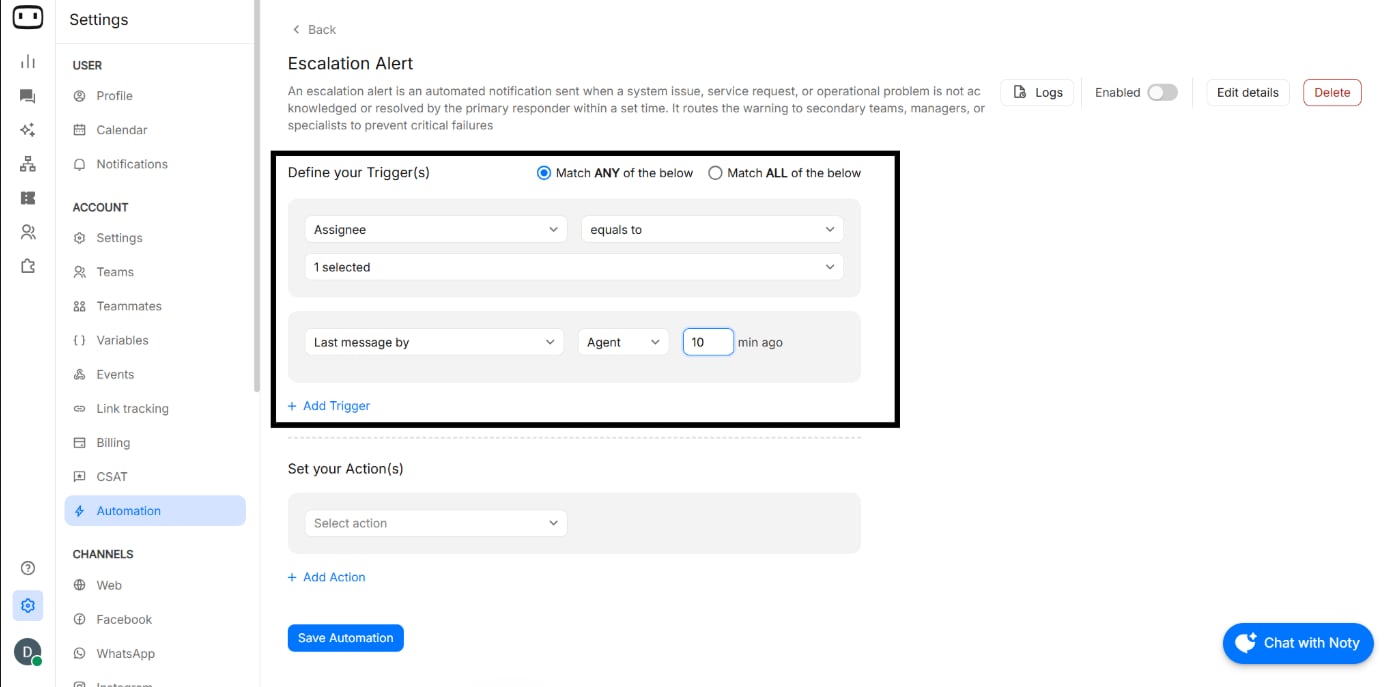
A trigger defines the event or condition that starts an automation.An automation starts only when its configured trigger criteria are met.
- You can configure multiple trigger conditions for an automation. Choose whether ALL conditions or ANY conditions must match before the automation runs.
Actions
An action defines what WotNot does after the trigger criteria are satisfied.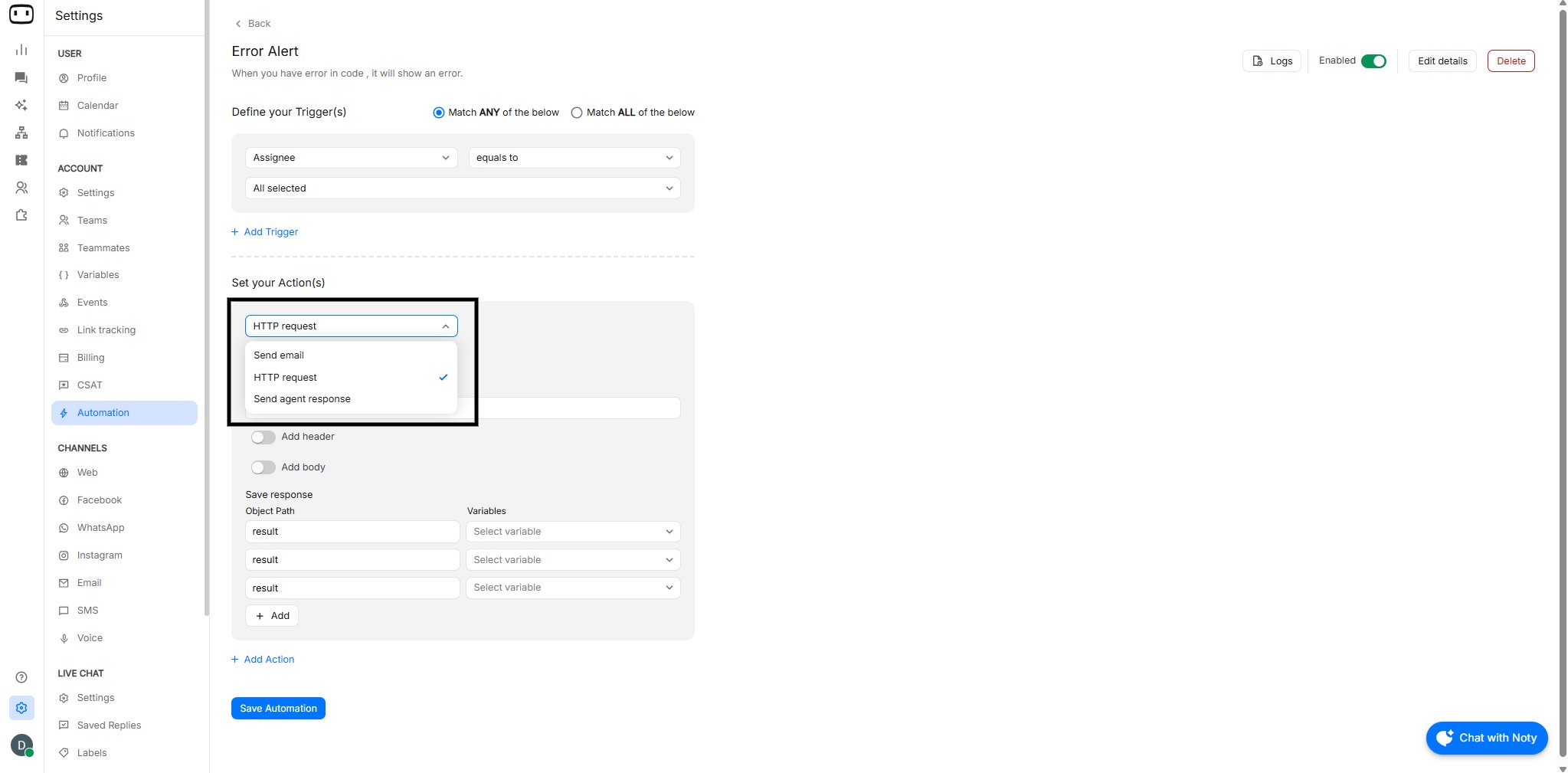
Conditions
Conditions let you control when an automation should run. You can add multiple trigger conditions and choose how they should be evaluated:- ALL — every configured condition must be satisfied.
- ANY — at least one configured condition must be satisfied.
- The conversation status changes to closed, AND
- A specific variable contains a particular value.
Creating an automation
1
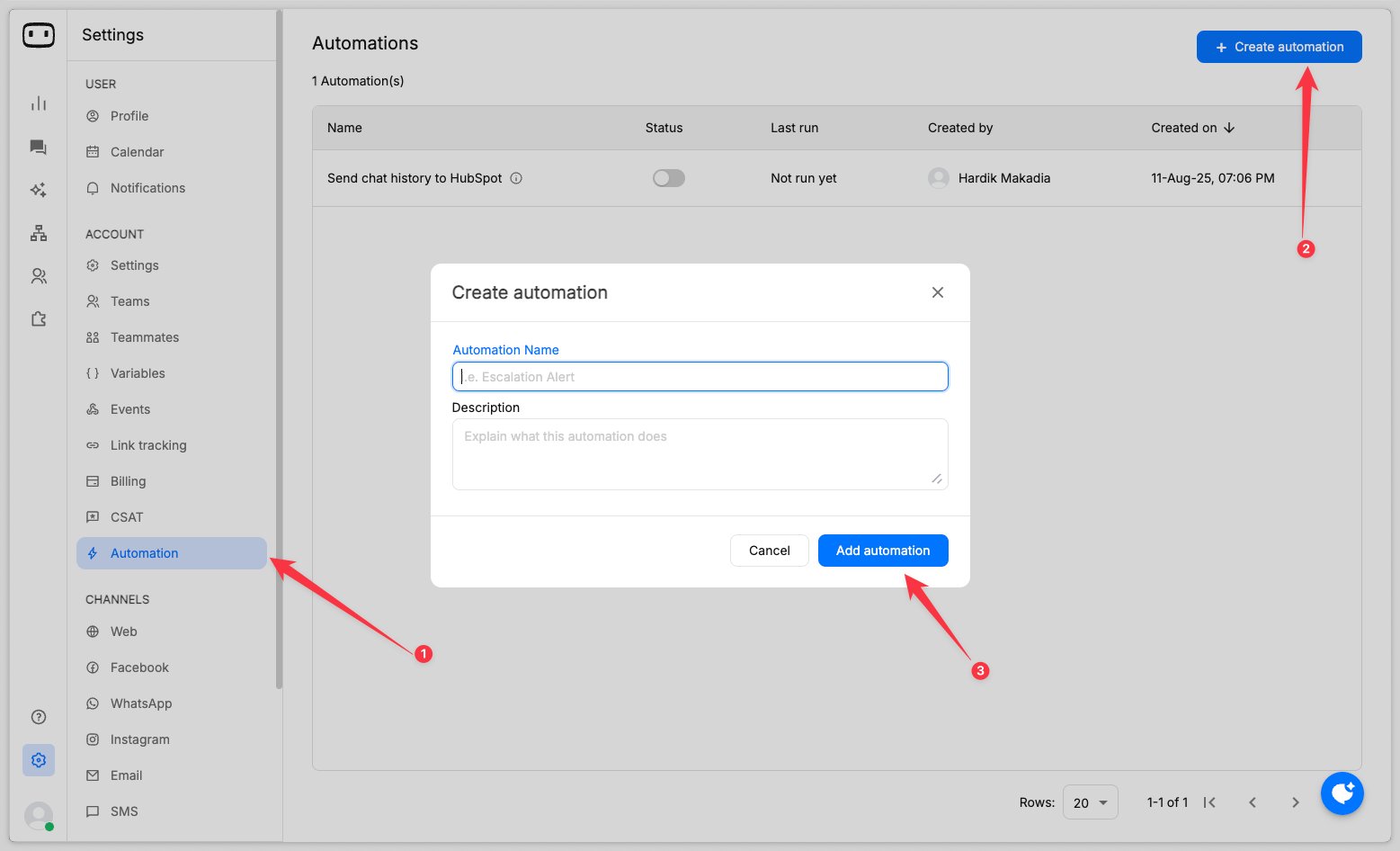
Open Automations
Go to Settings → Account → Automations.
2
Create an automation
Create a new automation and provide the required details.
3
Configure the trigger
Select a trigger such as Assignee change, Conversation status, or Variable value.
4
Add trigger conditions
Configure the values that determine when the automation should run. If you add multiple conditions, choose whether ALL or ANY conditions must match.
5
Configure the action
Select the action you want WotNot to perform, such as Send an email or HTTP Request or send agent response, and configure its required settings.
6
Activate the automation
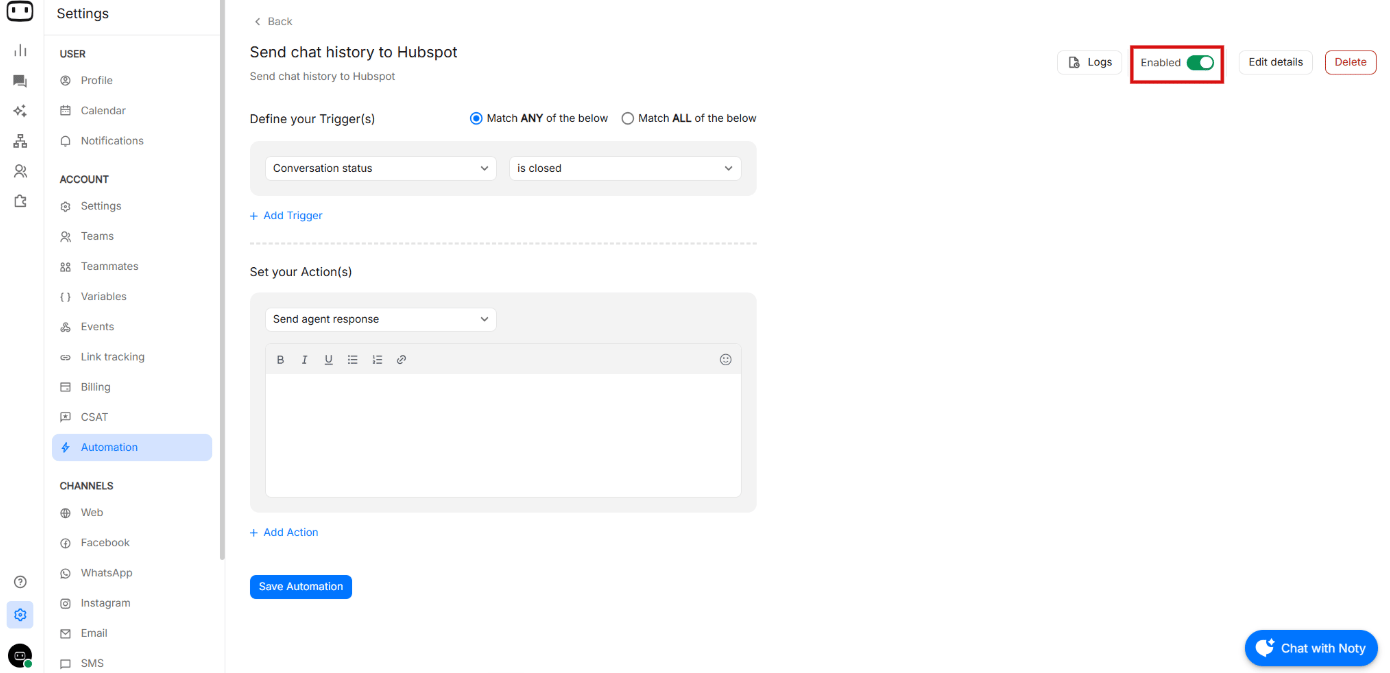
Enable automation. The automation will now run whenever its trigger criteria are met.
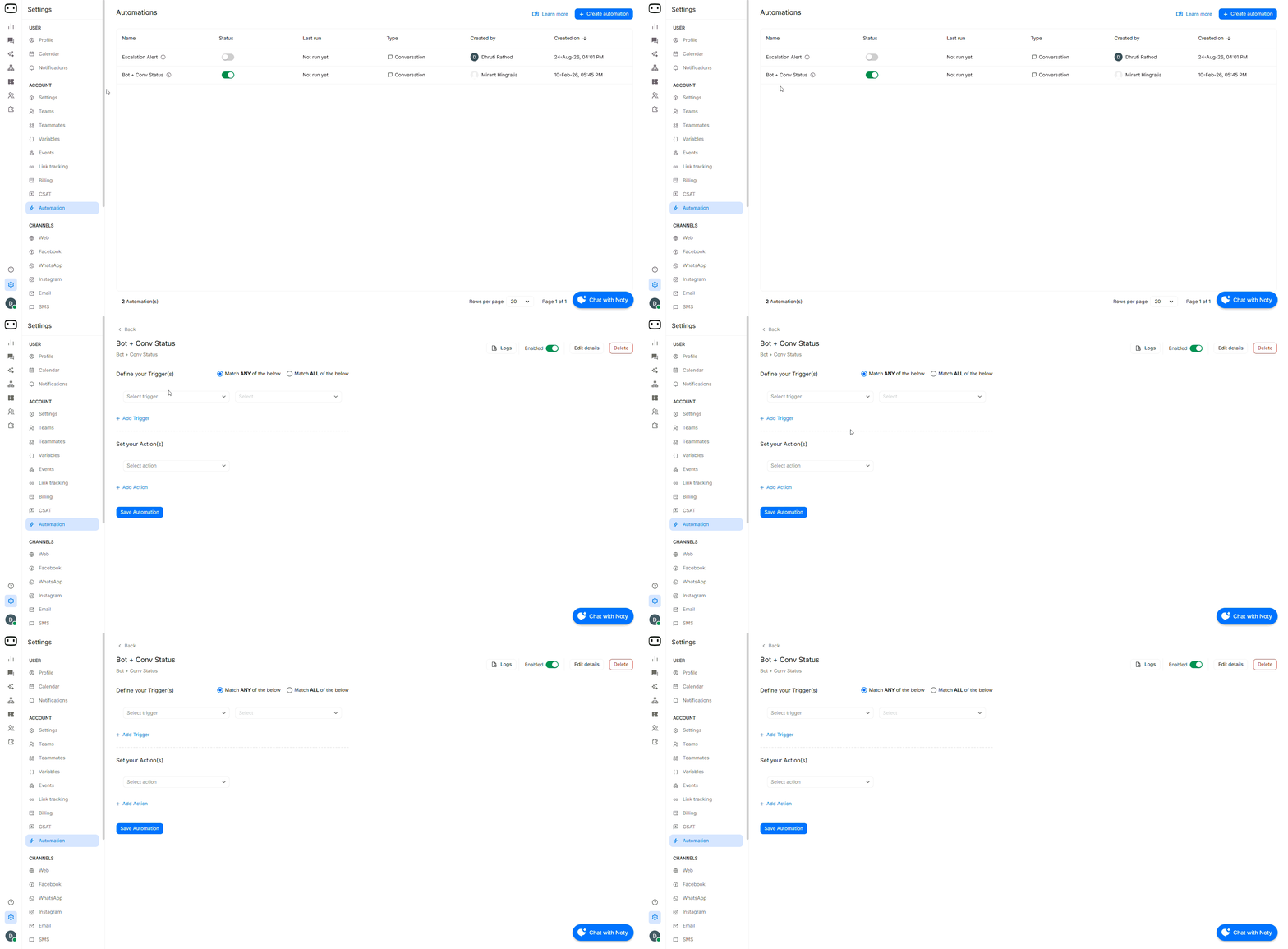
An automation must be activated before it can run. Saving an automation without activating it does not make it active.
Activate your automation
Finally, switch the automation on to make it active and start running whenever the trigger conditions are met. You can check the last run status from the automation dashboard.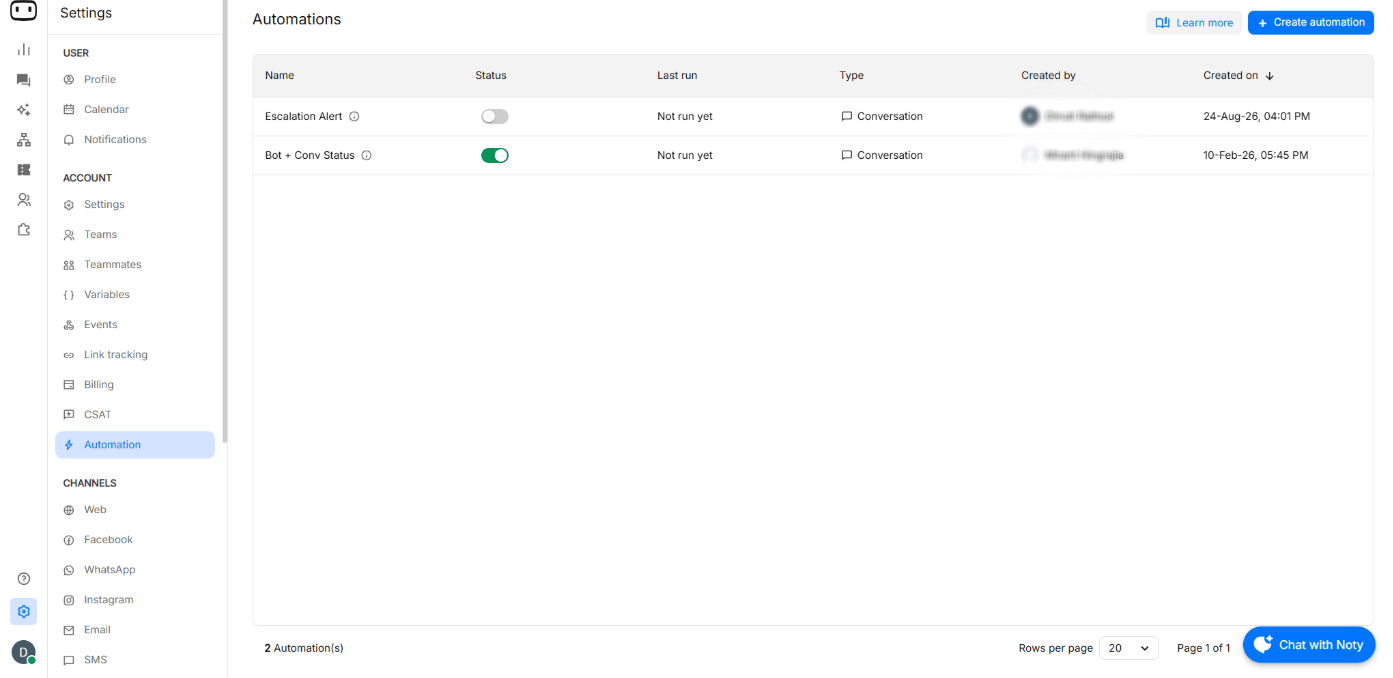
Logs
Logs are records of automations that happen within WotNot while a bot or conversation is running.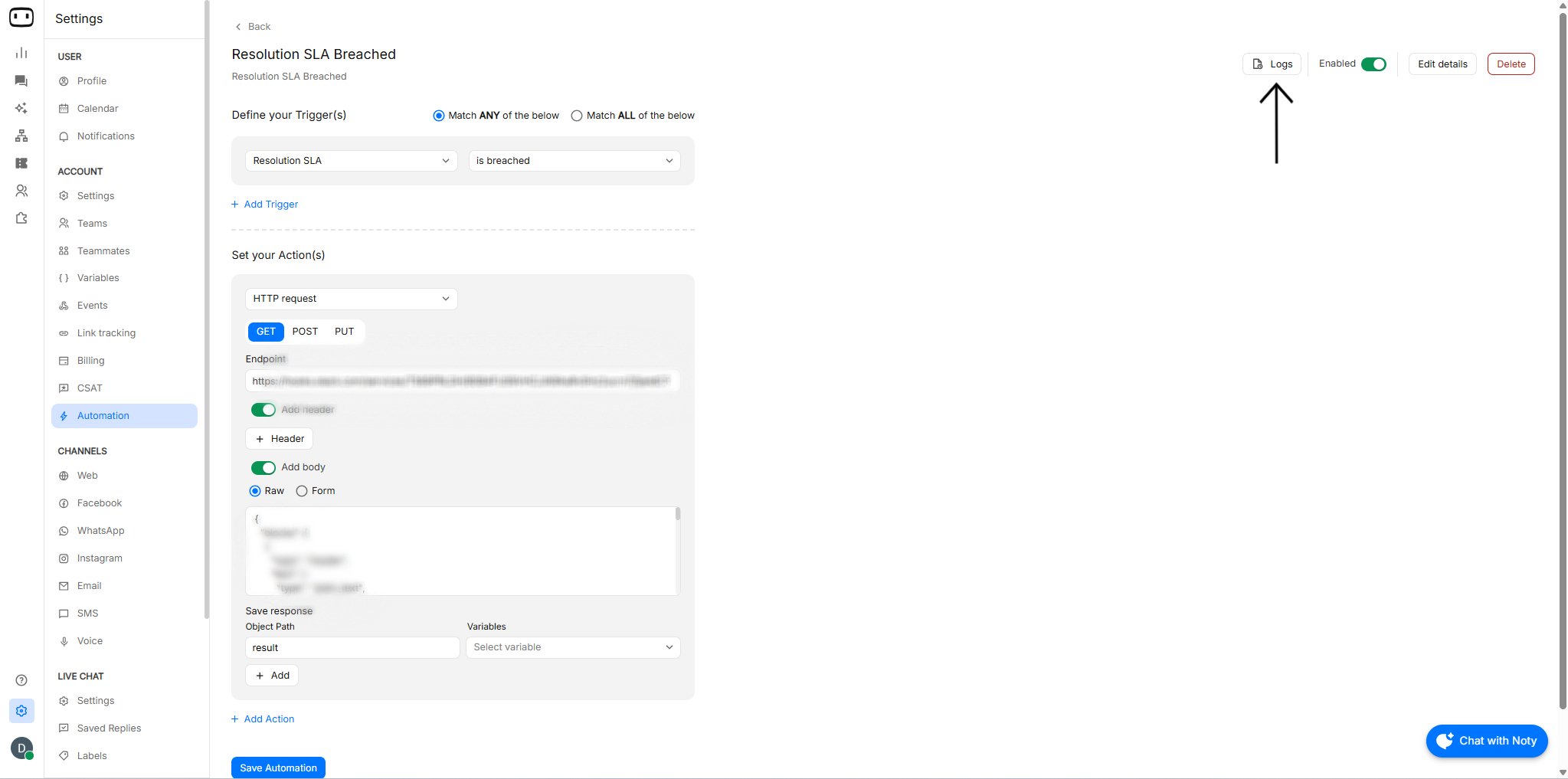
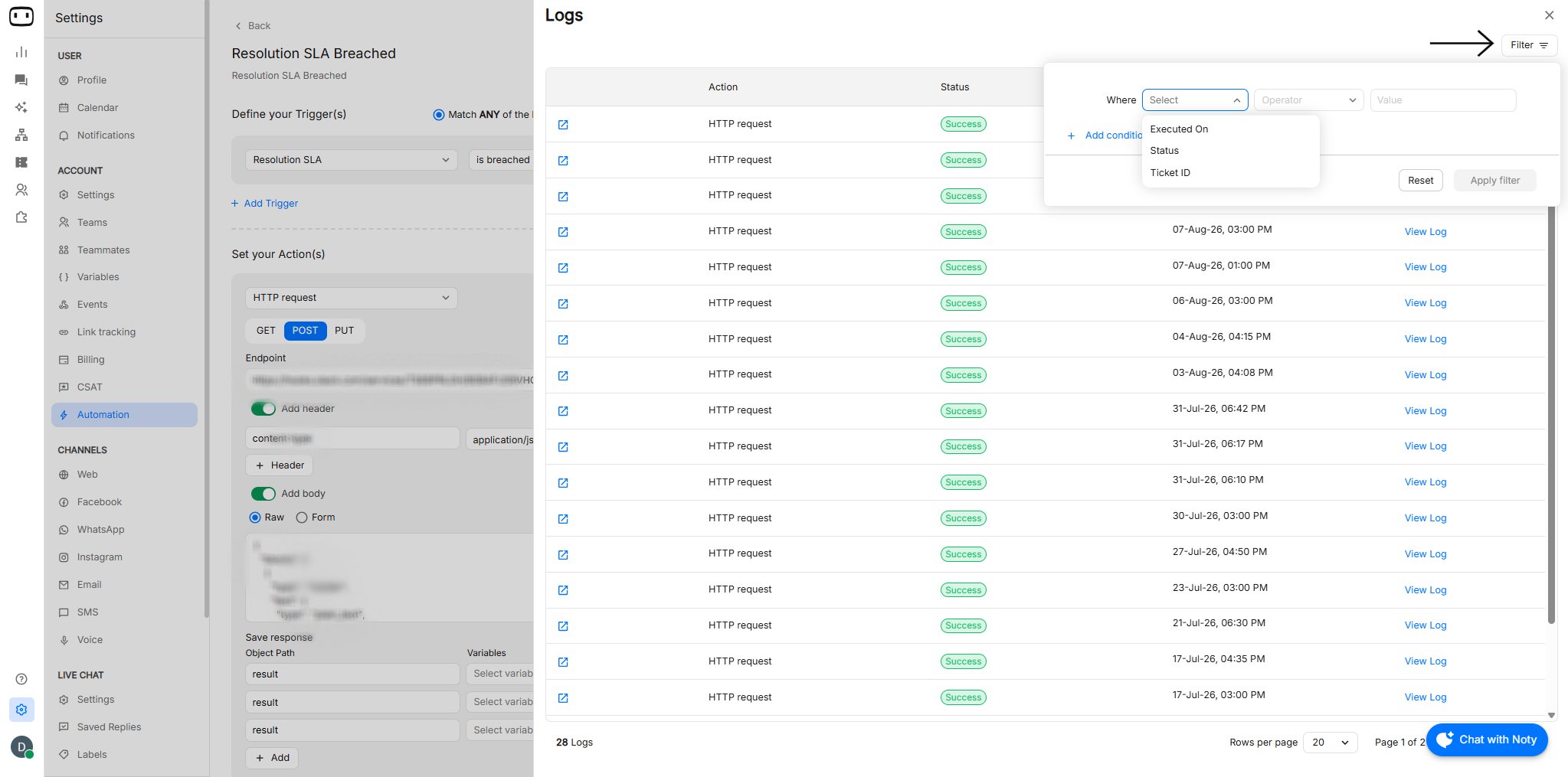
- Simply click “Logs” to see the complete history of your automation runs.
- You can check the Logs and apply a filter.
- Each log includes the related Chat or Ticket, run status, execution time, and detailed payload and response information — making it easier to monitor automations and troubleshoot issues.
Order of execution
When you have multiple automations, more than one automation can match the same event if its trigger criteria are satisfied. Keep your automation rules specific to avoid unintended actions.- For example, if two automations listen for the same conversation status change, both can potentially match the event if their conditions are satisfied.
Troubleshooting
My automation is not firing
My automation is not firing
Check the following:
- Make sure the automation is active.
- Verify that the configured trigger actually occurred.
- Check the trigger values and conditions.
- If multiple conditions are configured, verify whether ALL or ANY is selected.
- Test the automation with a conversation that clearly meets the configured criteria.
My automation is firing more than once
My automation is firing more than once
Check whether the trigger event can occur multiple times for the same conversation.For example, an assignee can change more than once or a variable can change to the configured value more than once. Review your trigger conditions and make them more specific if the automation should run only for a narrower set of conversations.
My automation is firing for the wrong conversations
My automation is firing for the wrong conversations
Review the trigger conditions and make sure the configured values match your intended audience.If you have multiple conditions, check whether ANY is selected when you actually need ALL. Using ANY can cause the automation to run when only one of the conditions matches.
My action is not working
My action is not working
Check the action configuration.For Send an email, verify the recipient and email configuration.For Fire an API, verify the endpoint and request configuration. Also confirm that the external API accepts the request sent by WotNot.
My automation conflicts with a live chat assignment rule
My automation conflicts with a live chat assignment rule
Automations and live chat assignment rules solve different problems. Assignment rules determine how conversations are assigned, while automations perform configured actions when their trigger criteria are met.If an automation depends on an assignee change, verify that your assignment rules are not repeatedly changing the assignee and unintentionally triggering the automation multiple times.