

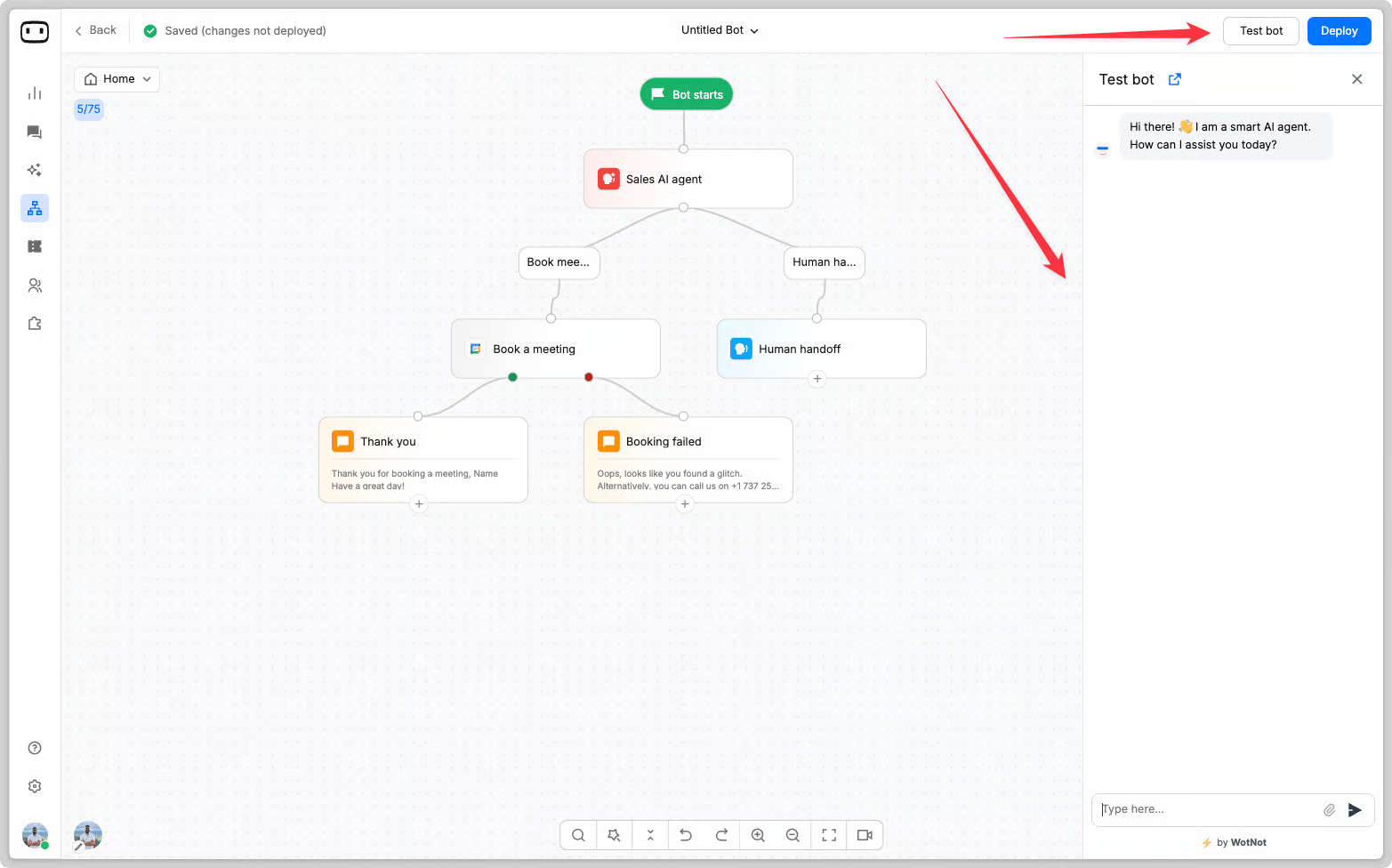
Testing is available across channels, but preview simulates the web chat experience. Channel-specific behavior, such as WhatsApp buttons, SMS formatting, media handling, and character limits, may not be fully reproduced in preview. Always test on the actual channel before going live.
How testing works
What preview does and doesn’t cover
Preview lets you run your agent directly from the builder without deploying it to production. It uses the current draft of your flow, so you can test changes before publishing them. Preview is useful for checking:- Conversation flow and routing
- Messages and responses
- Conditions
- Variables and their values
- Interactive elements supported by the preview
- AI Agent responses
- Knowledge base responses
- Function execution
- Flow behavior after making changes
- Channel-specific buttons and interactive elements
- Message formatting
- Media rendering
- Character or message-length limits
- Channel-specific templates
- Channel-specific delivery behavior
- WhatsApp-specific buttons and templates may render differently.
Draft versus published
Preview runs the current draft of your agent. This means you can test changes before they are published. When you are satisfied with the changes, publish the agent to make the current version available to users. For more information about drafts, publishing, and managing versions click hereTest data and side effects
Be careful when testing flows that connect to external systems. For example, if your agent contains integrations that:- Create a Salesforce lead or contact
- Create a Zendesk ticket
- Add a row to Google Sheets
- Create or update a CRM record
- Send an email or SMS
- Trigger an external API
- Use test data instead of real customer information.
- Use a test CRM record or test account where possible.
- Check the integration configuration before running the flow.
- Avoid testing actions that could send messages to real customers.
- Review the integration result in the external system after testing.
Previewing an agent
Opening Preview
You can open Preview directly from the bot builder and test the current draft of your agent.- Go to Bot Builder
- Open the Bot you want to test.
- Make sure your latest changes are saved.
- Click on Test Bot

Preview uses the current draft of the agent. You do not need to publish the agent every time you want to test a change.
Restarting a conversation
Restart the conversation when you want to test the flow again from the beginning. Starting a new conversation is also useful when you have changed the flow or want to verify that the same input produces the expected result.Testing a specific point in the flow
You do not always need to replay a long flow from the beginning. To test a specific part of your agent, hover over the action block where you want to start testing and click Test. This lets you skip blocks that are already working and focus on the part of the flow you have changed.
Sharing a test link
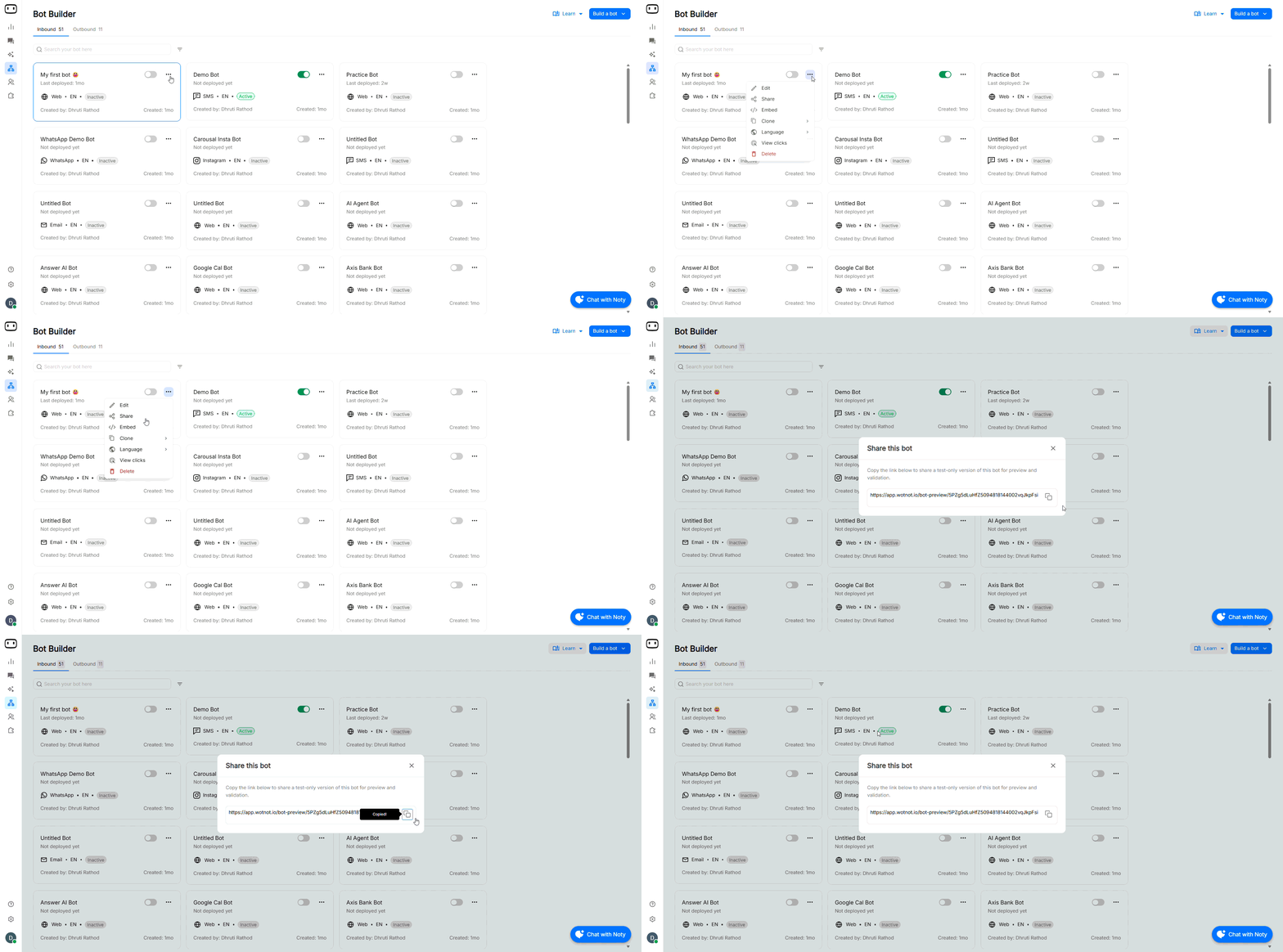
A test link can be useful when you want a colleague or other stakeholder to review an agent without giving them access to the bot builder.- Go to Bot Builder.
- Go to the Agent whose link you want to share
- Click the Menu icon.
- Select Share.
- Copy the generated link.
- Share the link with the person you want to test the bot with.
Who can open the link
The Preview URL can be shared with others for testing and review. The person opening the link can access the agent through the Preview experience without needing access to your WotNot workspace.Chat logs
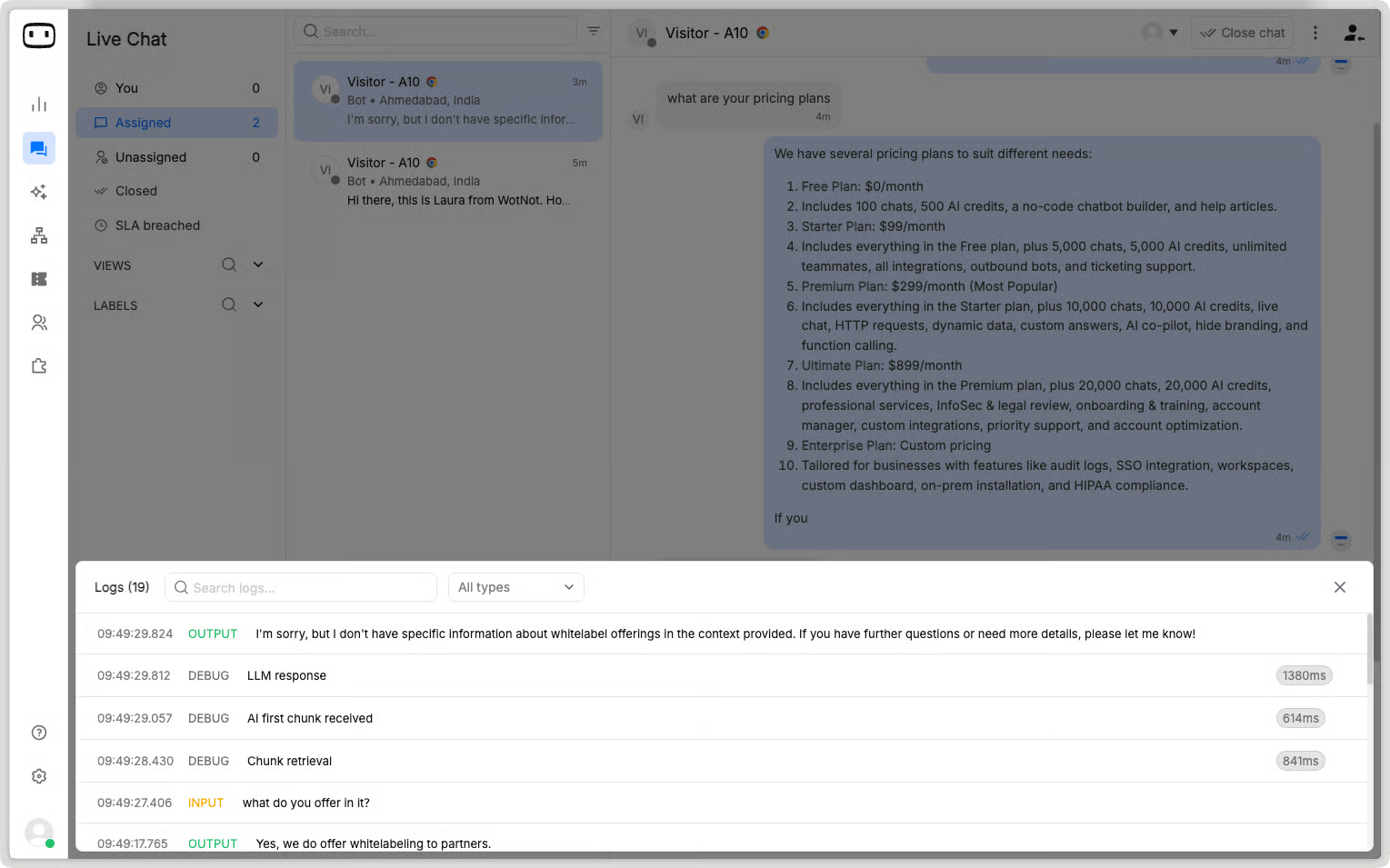
Chat logs provide detailed information about conversations with your agent and help you understand what happened during a test or live conversation.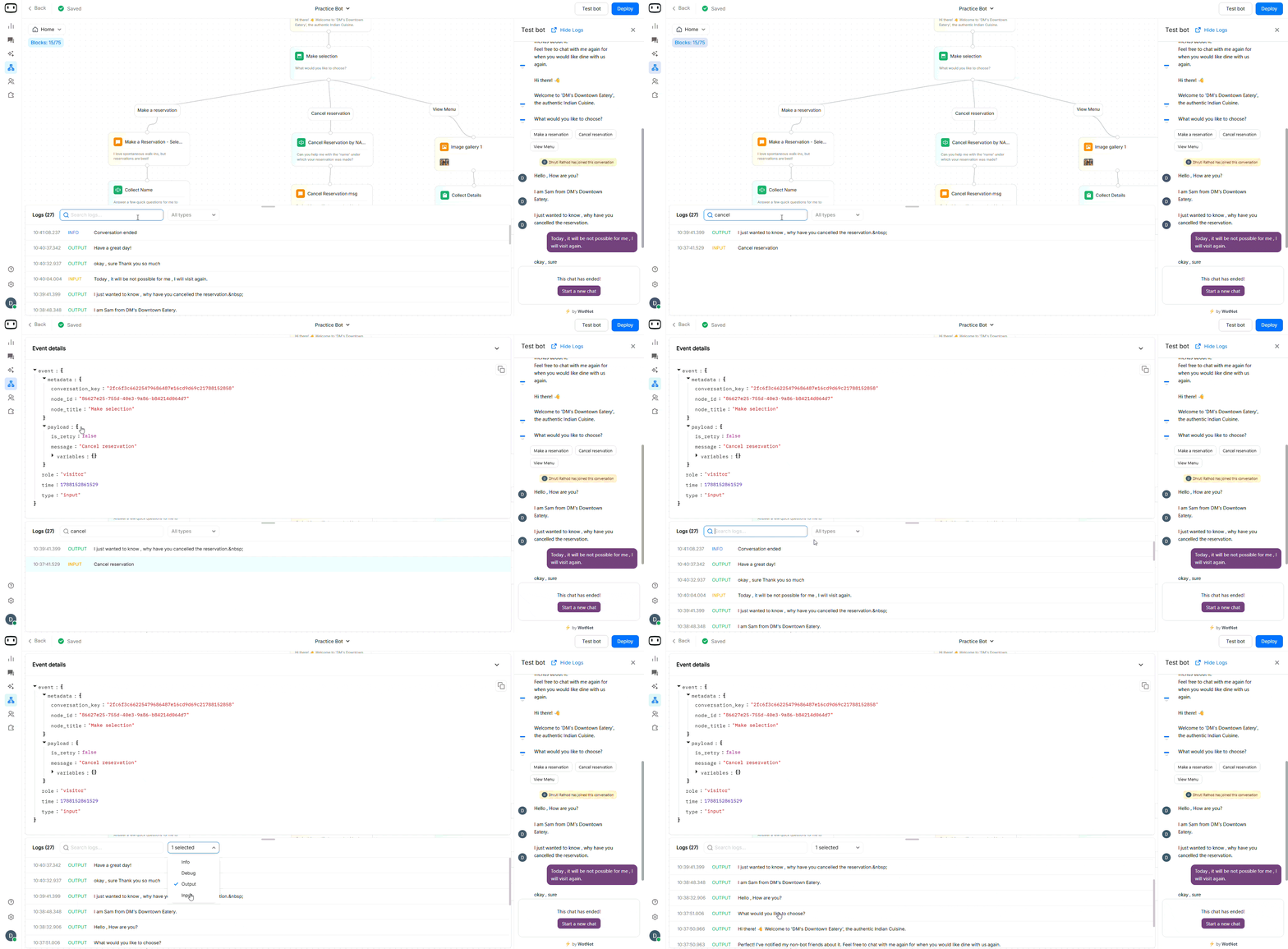
- Test Bot page: Click View Logs to see a chronological record of each message exchange while testing your bot.
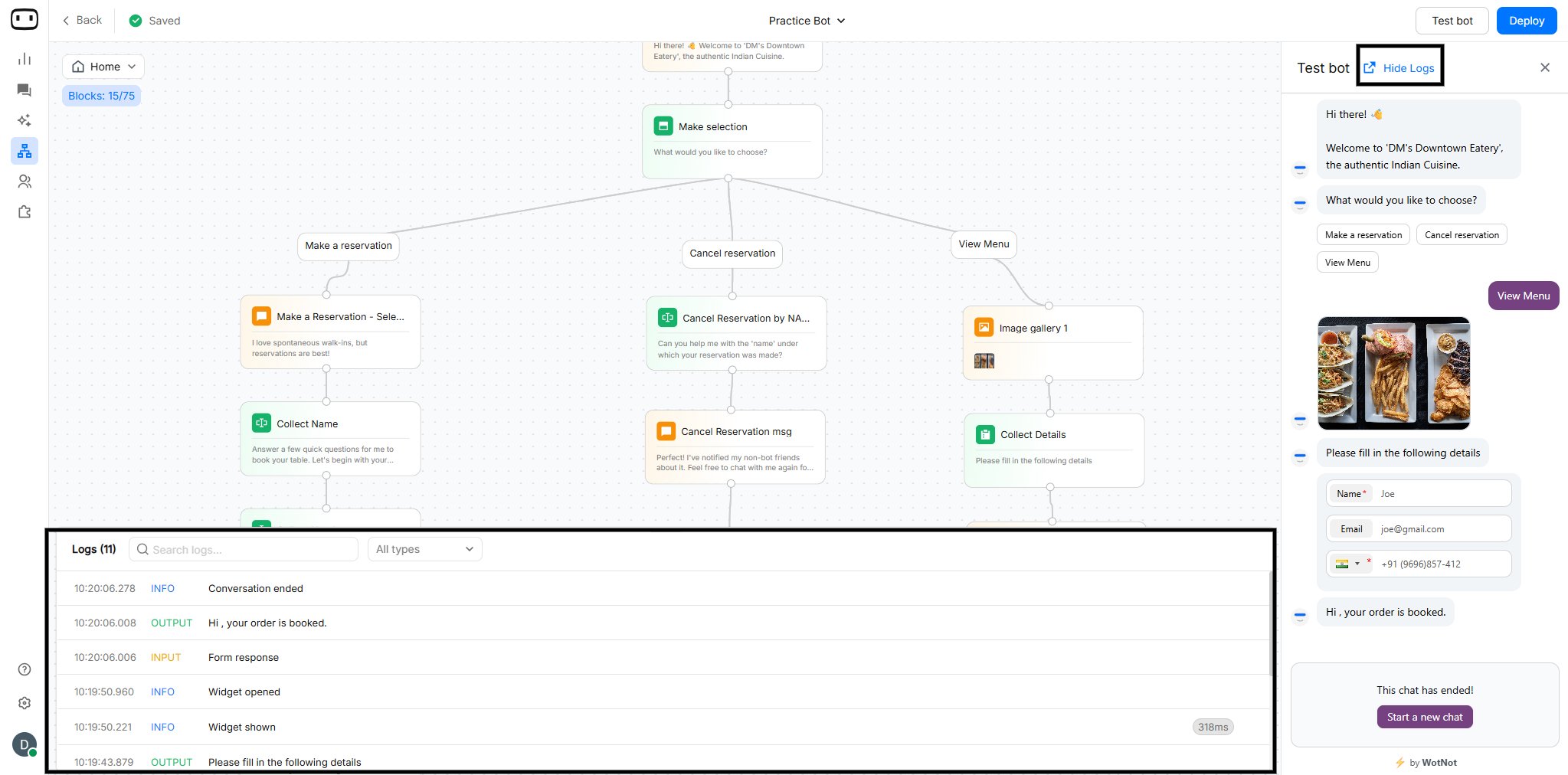
- Live Chat page: Click context menu > View logs to view real-time logs for ongoing or completed conversations with users.
What a log contains
Depending on the conversation and the features used by the agent, a chat log can contain information such as:Finding a conversation
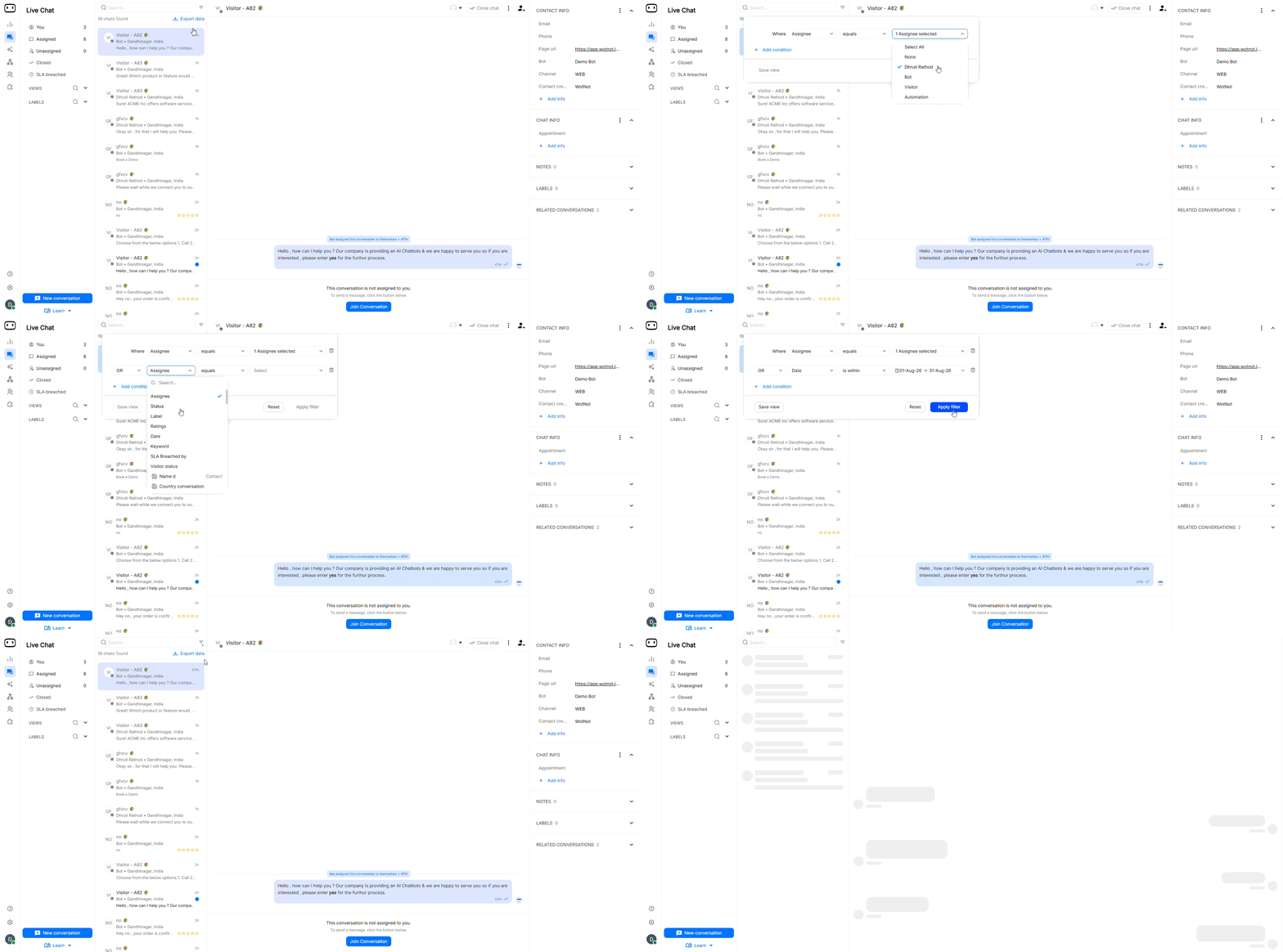
You can use the available conversation information to identify a specific test, reproduce a customer issue, or investigate an unexpected flow.- Open your dashboard
- Go to Live chat
- See chats in Assigned
- Use sorting and filters to find specific conversations within the selected view.
- Click the filter icon next to the search icon.
- Select the condition and specify the value.
- Click Add condition to add another condition, if needed.
- Select AND or OR from the dropdown to combine the conditions.
- Click Save view.
- In the new card that appears, enter a name for the view.
- Click APPLY FILTER to save the view.
- Remove the filters when you want to return to the full list for the selected view.
Reading a log to debug a flow
Chat logs are especially useful when a conversation does not follow the path you expected. For example, suppose your flow contains a Condition block:- What value was stored in the variable.
- Which condition was evaluated.
- Which branch was selected.
- Which block executed next.
- Whether an integration or variable update changed the expected behavior.
Retention
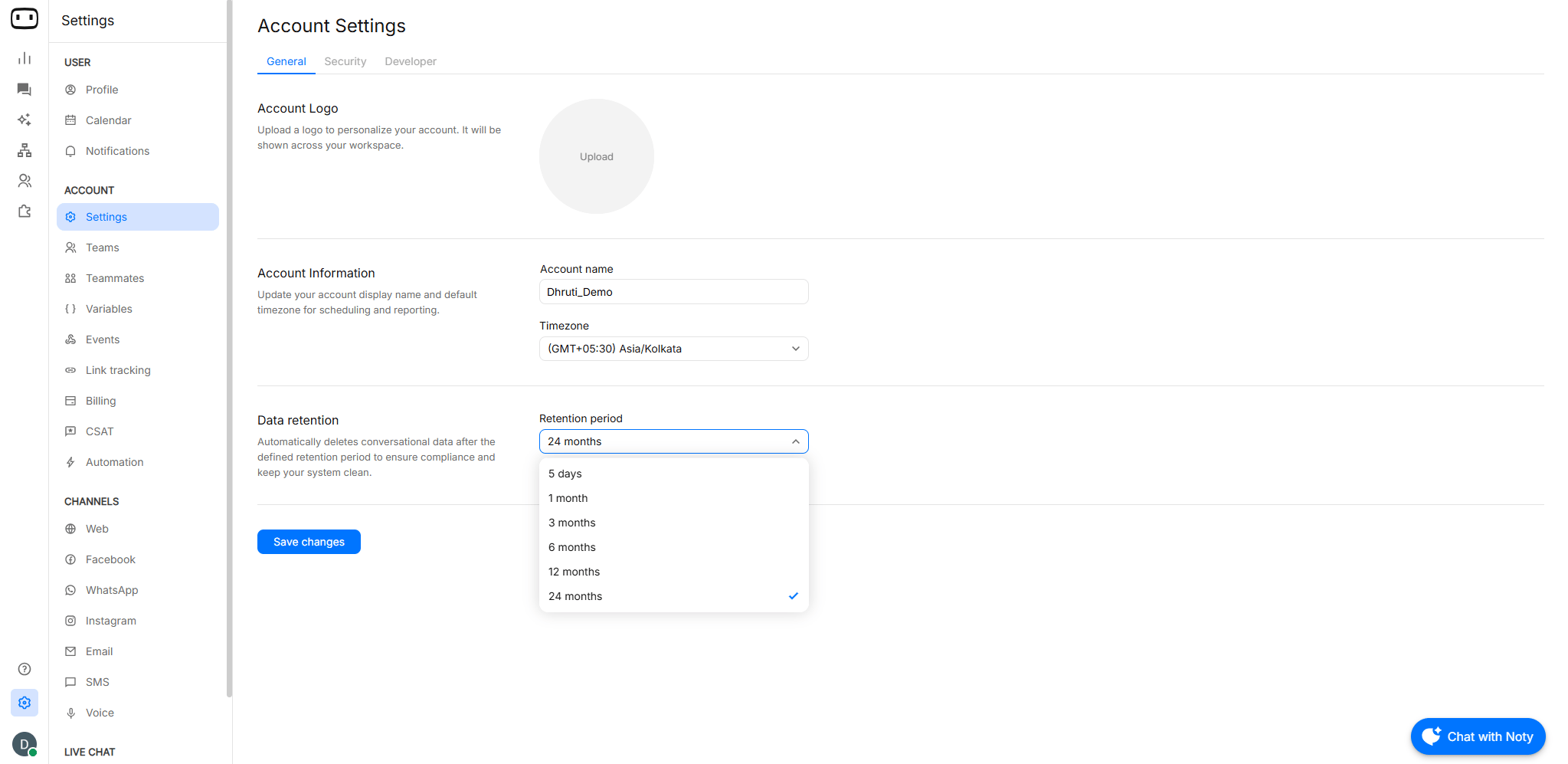
By default, testing chat logs are not retained and are automatically deleted after 24 hours. Live conversation chats may be retained in the backend for up to 24 months. Go to Settings → Account→ Settings → General → Data retention → Select period from dropdown → Click on Save ChangesThis feature is available in Premium plan and above.
Testing on a live channel
Why Preview isn’t enough
Preview is useful for validating your conversation logic, but a live channel can behave differently. Before launching an agent, test the actual channel to verify:- Interactive elements and buttons
- Message formatting
- Media handling
- Character limits
- Templates and channel-specific requirements
- Delivery behavior
- Channel-specific integrations
Per-channel testing tips
Use the relevant channel documentation when testing an agent on a live channel.Test templates, buttons, media, and delivery behavior on an actual WhatsApp number.
SMS
Check plain-text formatting, character limits, message segments, and delivery.
Web Widget
Verify the experience customers will see through the web widget.
Test email formatting, links, attachments, and delivery.