

TEAMMATES
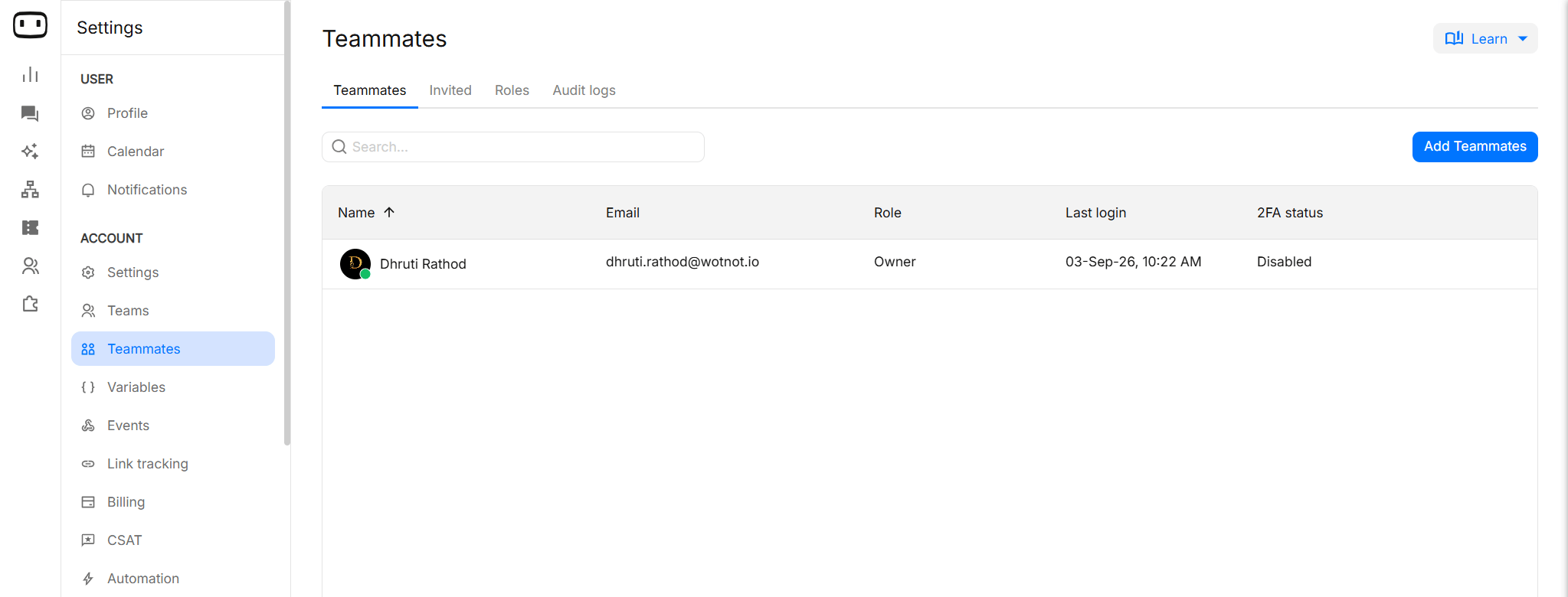
WotNot allows you to add unlimited teammates to your account. Adding teammates does not increase the number of agent seats on your plan. This makes it easy to invite the people who need access without having to manage additional seat costs.
Adding a user
Add teammates to your WotNot account and control what they can access through their assigned role.Inviting teammates
Users that have access to your WotNot account. Every user having access to a WotNot account is called a teammate. You can have unlimited teammates in your WotNot account. Each teammate can have the following roles:- OWNER - The user who created the account.
- ADMIN - The user has access to all account features.
- AGENT - The user only has access to live chat.
- Log in to your WotNot account.
- Go to Settings > Account > Teammates.
- Click Add teammates.
- Enter the teammate’s email address.
- Choose the role you want to assign to the teammate.
- Click Add Teammate.
Pending and expired invitations
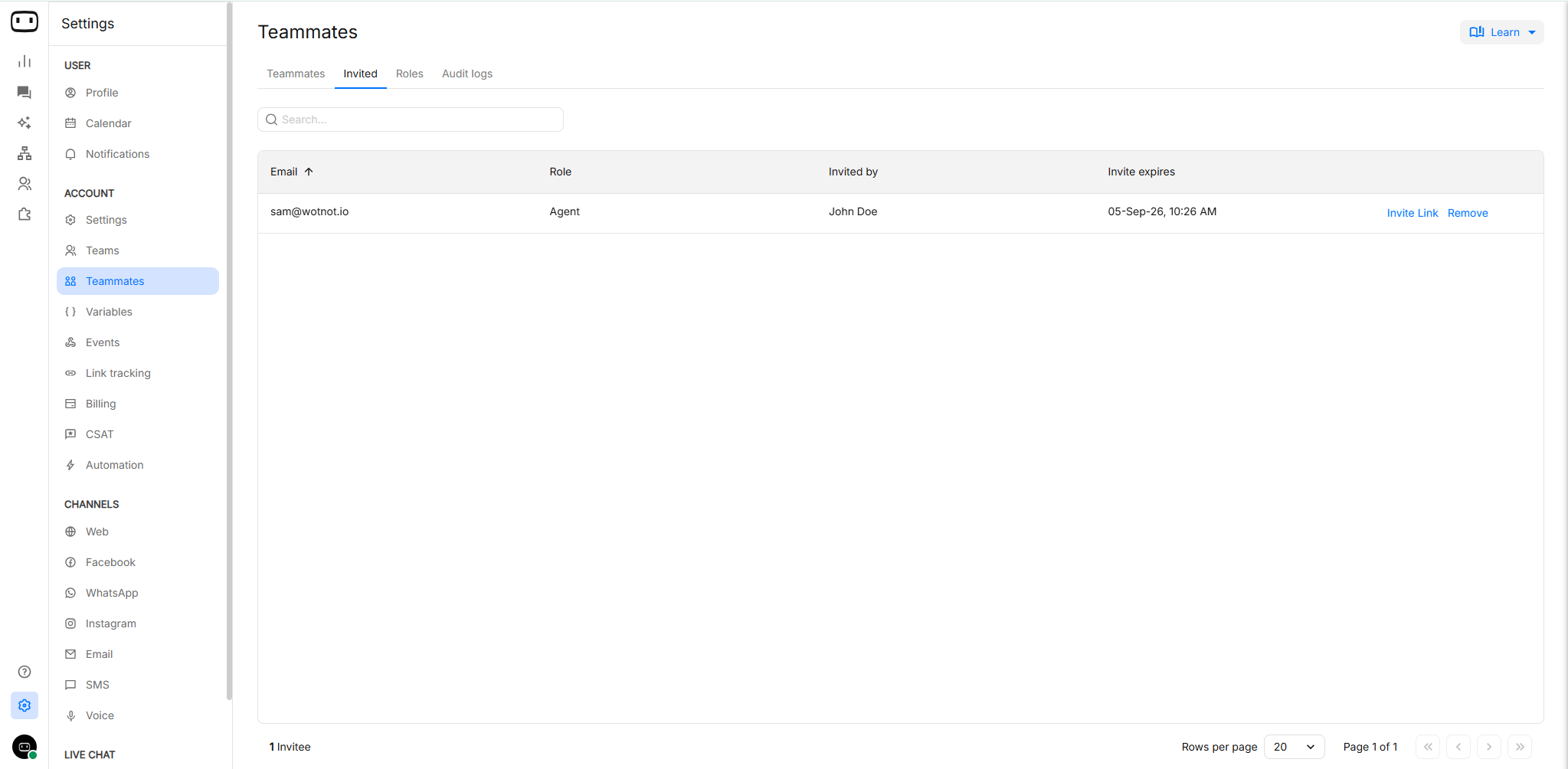
You can review invitations that have not yet been accepted from the teammates or users screen. For a pending invitation, you can:- Resend the invitation.
- Revoke the invitation.
- Go to Settings > Account > Teammates.
- Find the teammate whose invitation is still pending.
- Open the available actions for the invitation.
- Choose Invite Link to send the invitation again or Remove to cancel it.
Removing teammate
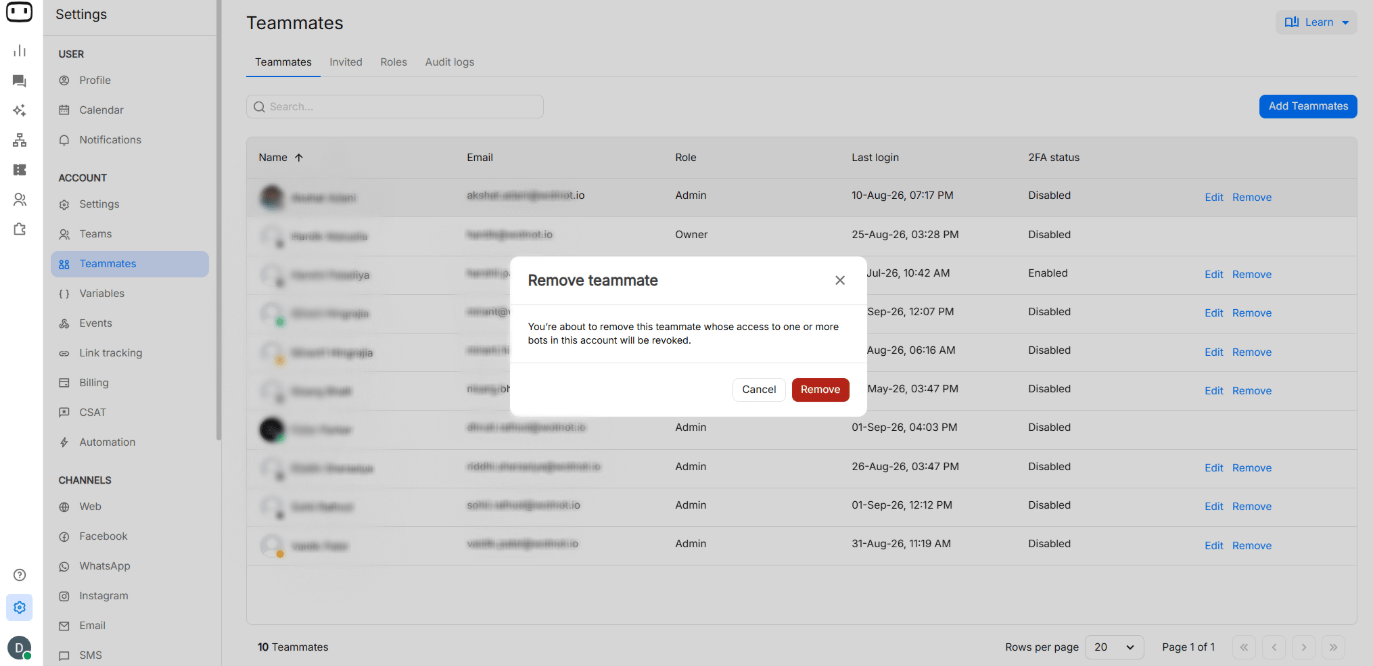
To remove a teammate from your WotNot account, follow these steps:- Login to your WotNot account
- Go to Settings > Teammates
- Click Remove on the teammate you want to remove
Roles
Roles determine what a teammate can access and what actions they can perform in your WotNot account.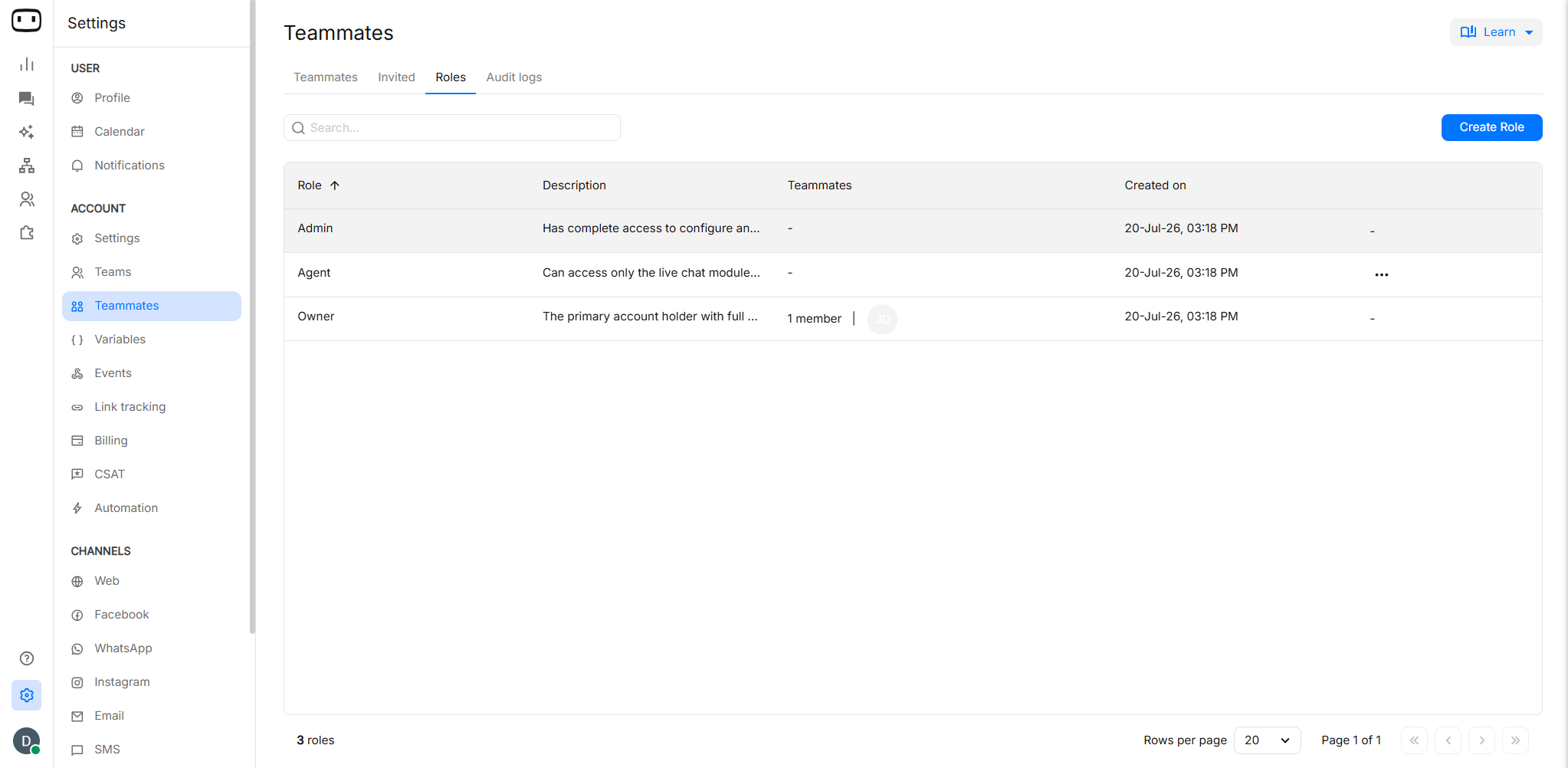
Available roles
| Role | What it’s for | Typical use |
|---|---|---|
| Owner | Owns the WotNot account and manages the account at the highest level. | Account owner or primary administrator |
| Admin | Provides access to all account features. | Internal administrator or operations lead |
| Agent | Provides access to live chat. | Customer support or sales agent handling conversations |
| Custom role | Provides only the permissions selected when the role is created. | Marketers, developers, contractors, or other specialised users |
What each role can do
Choosing a role
- Chat agent: Use Agent when the user primarily needs to handle live conversations.
- Marketer: Use a Custom role with reporting and the specific bot or content permissions they need instead of giving them full administrator access.
- Bot builder or contractor: Use a Custom role with the permissions required to build or manage bots. Avoid giving external users account-level permissions they do not need.
- Administrator: Use Admin only when the person needs broad access across the account.
- Account owner: Keep Owner access limited to the person responsible for the WotNot account.
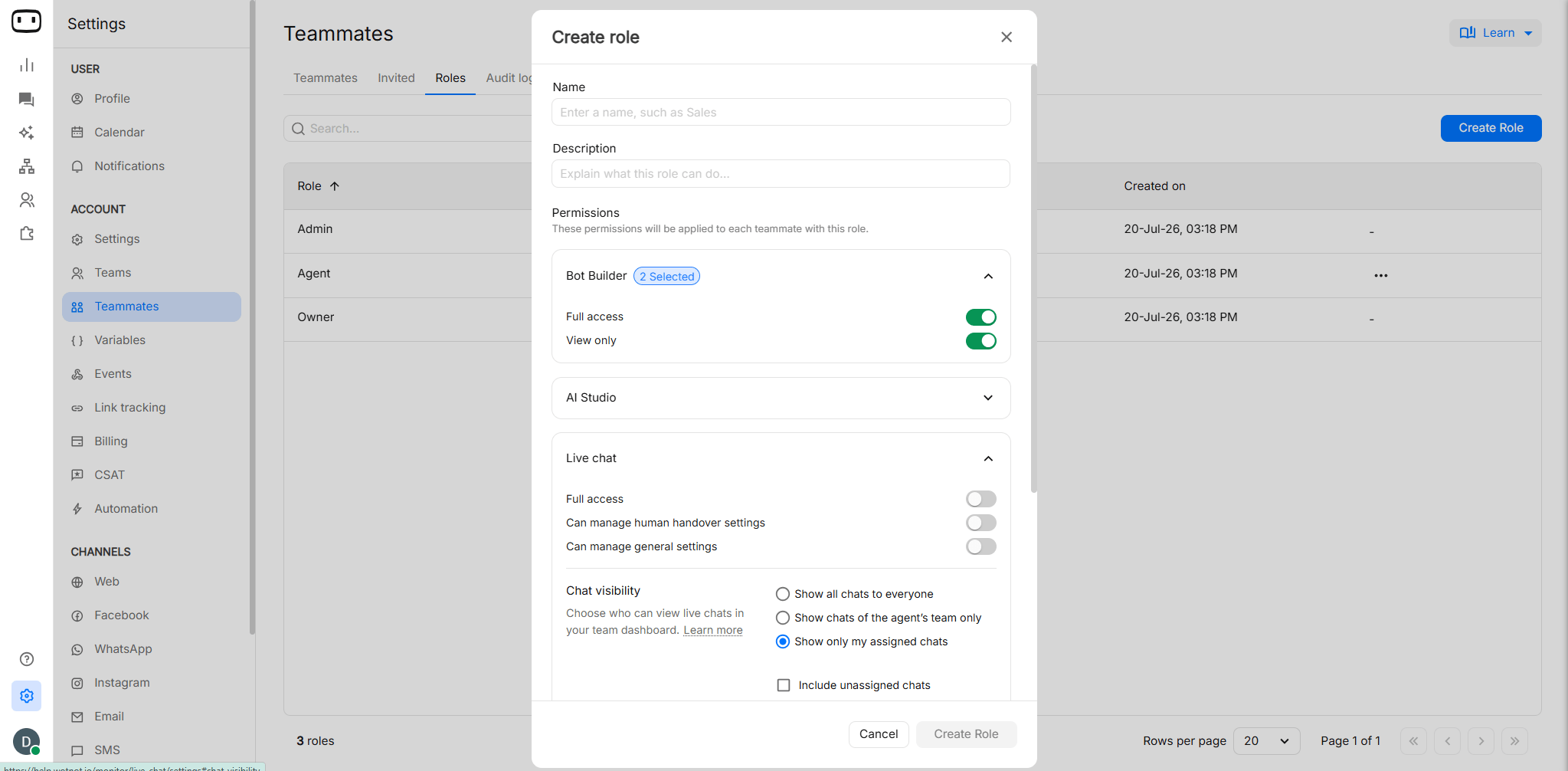
Creating custom roles
You can create custom roles, by:- Go to Settings > Account > Teammates > Roles > Create Role.
- Defining a name and description for the new role
- Choosing the permissions that are to be granted to this role
- Once the role is created, you can go to the ‘Teammates’ page and click ‘Edit’ to change the role.
Changing someone’s role
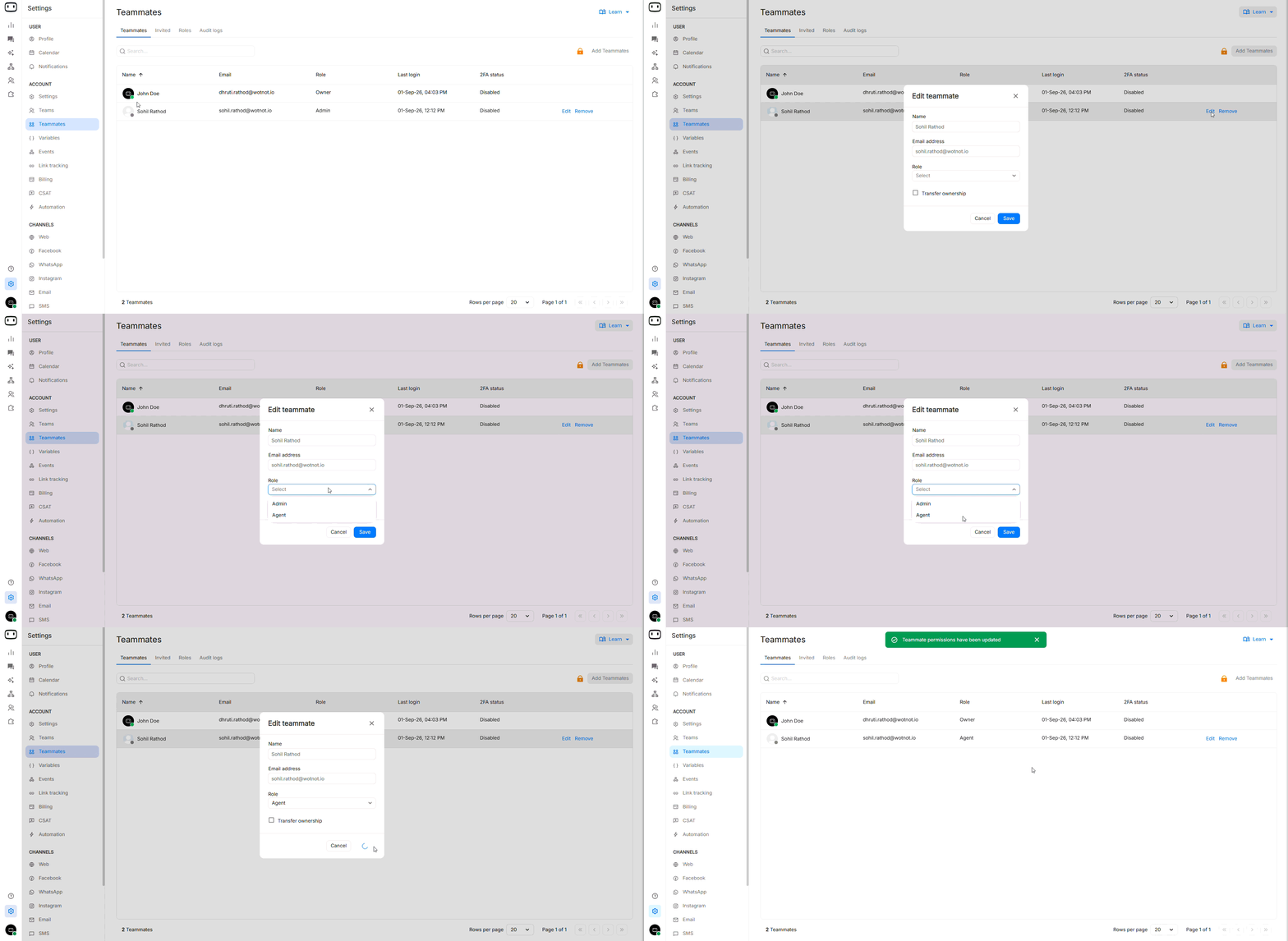
- Go to Settings > Account > Teammates.
- Find the teammate whose role you want to change.
- Click Edit.
- Select the new role.
- Save the changes.
Audit log
Available on the PREMIUM plan and above.
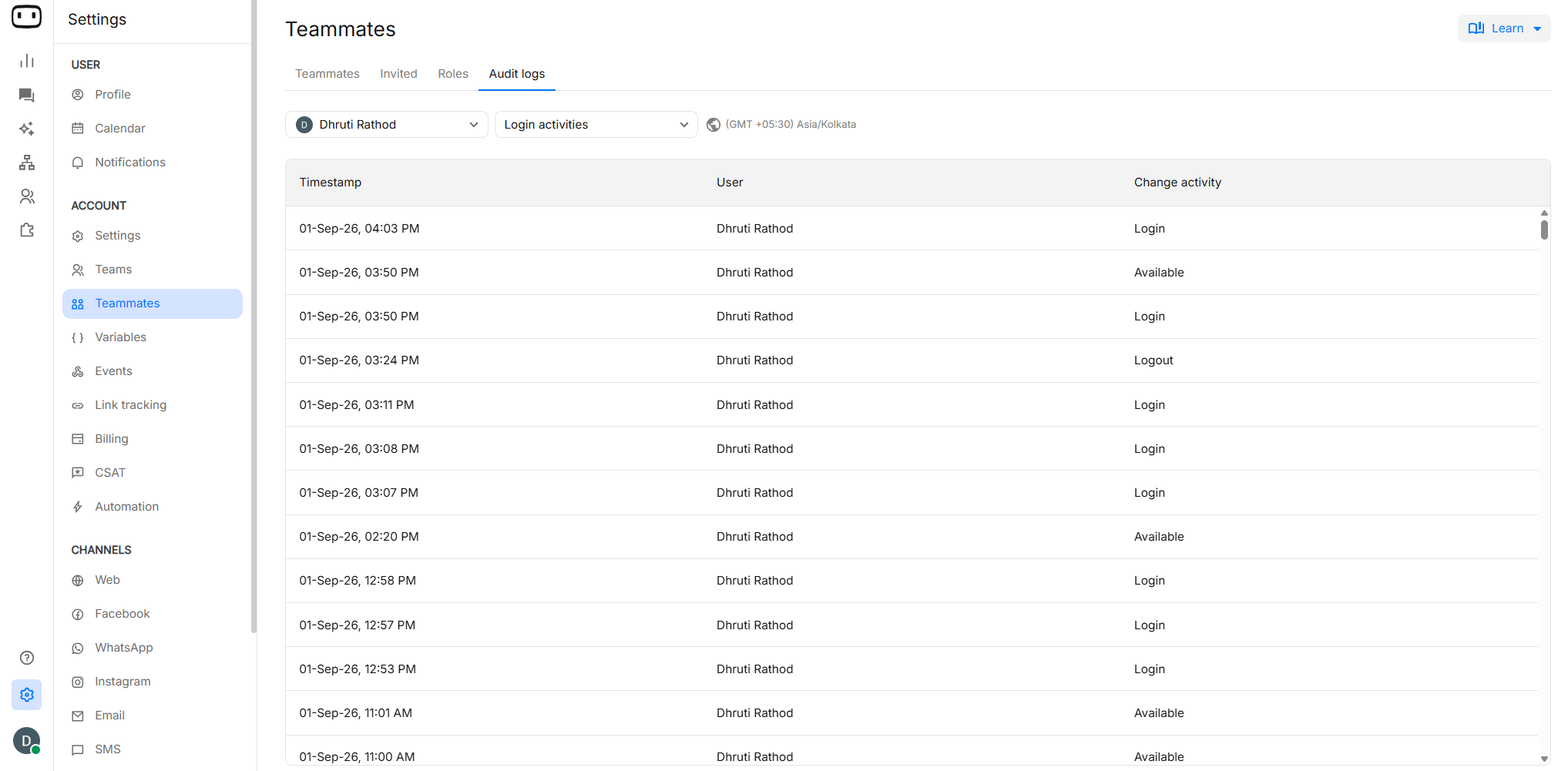
Login activities
Login activities made by users like:
Login activities made by users like:
- Sign up(1st time login)
- Login
- Logout
- Available
- Marked offline
Live chat activities
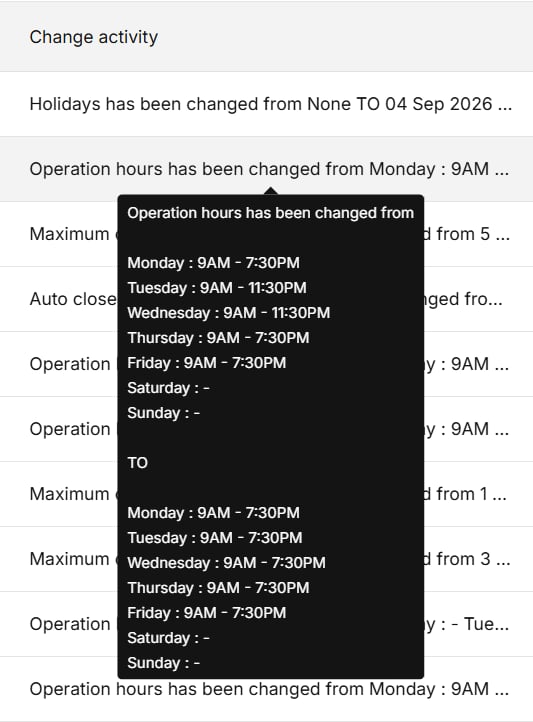
- Configurations updates made on the live chat settings page
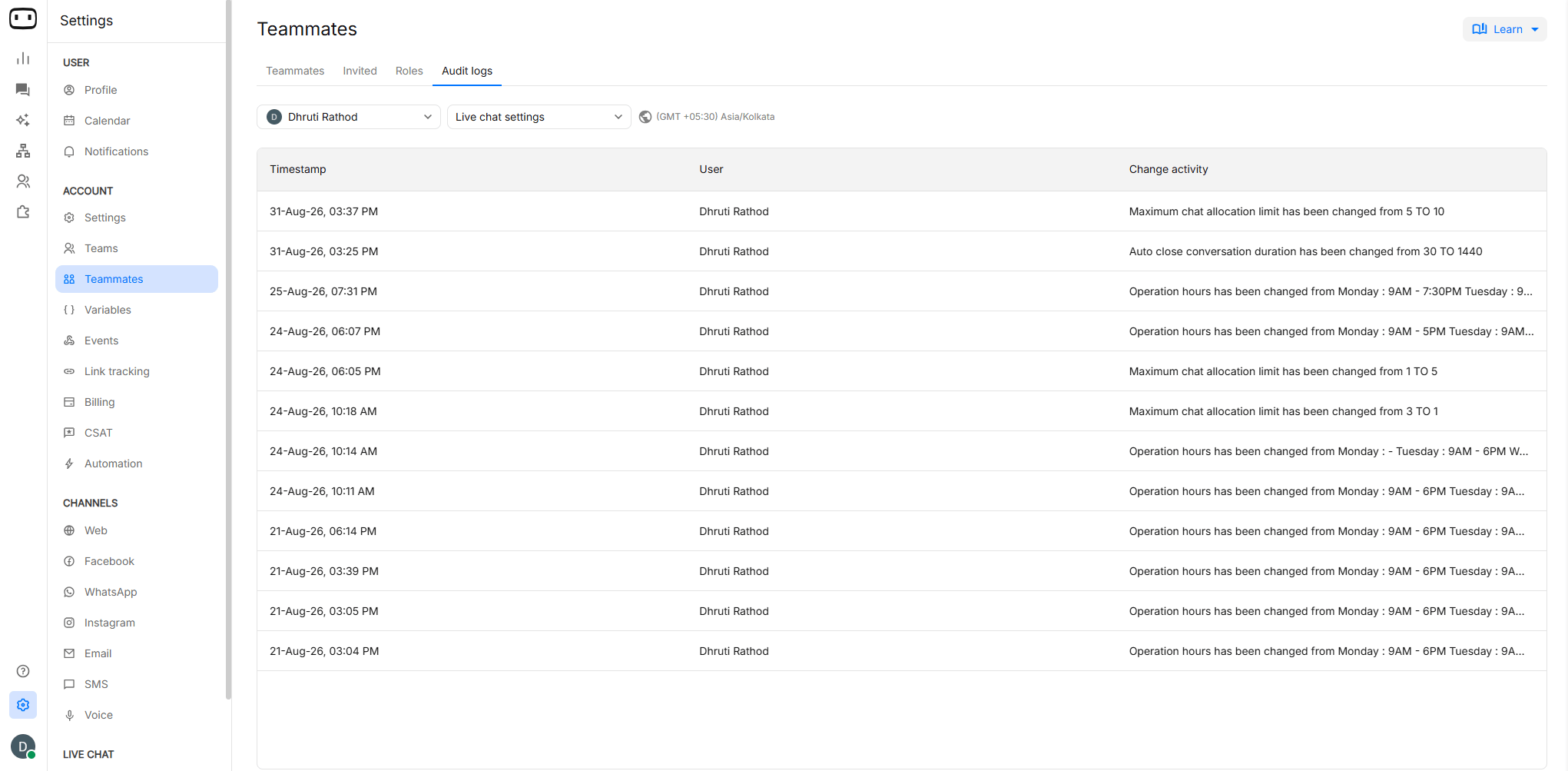
- If the change description is too long to display fully, hover your cursor over the line. A pop-up will appear showing the complete change description.
Teams
Teams in WotNot allows you to group the agents or the users as per their departments in-order to meet the primary objective With WotNot, you can create a team of users dedicated to supporting customers after a purchase or helping visitors understand your products and services so they can make informed purchase decisions.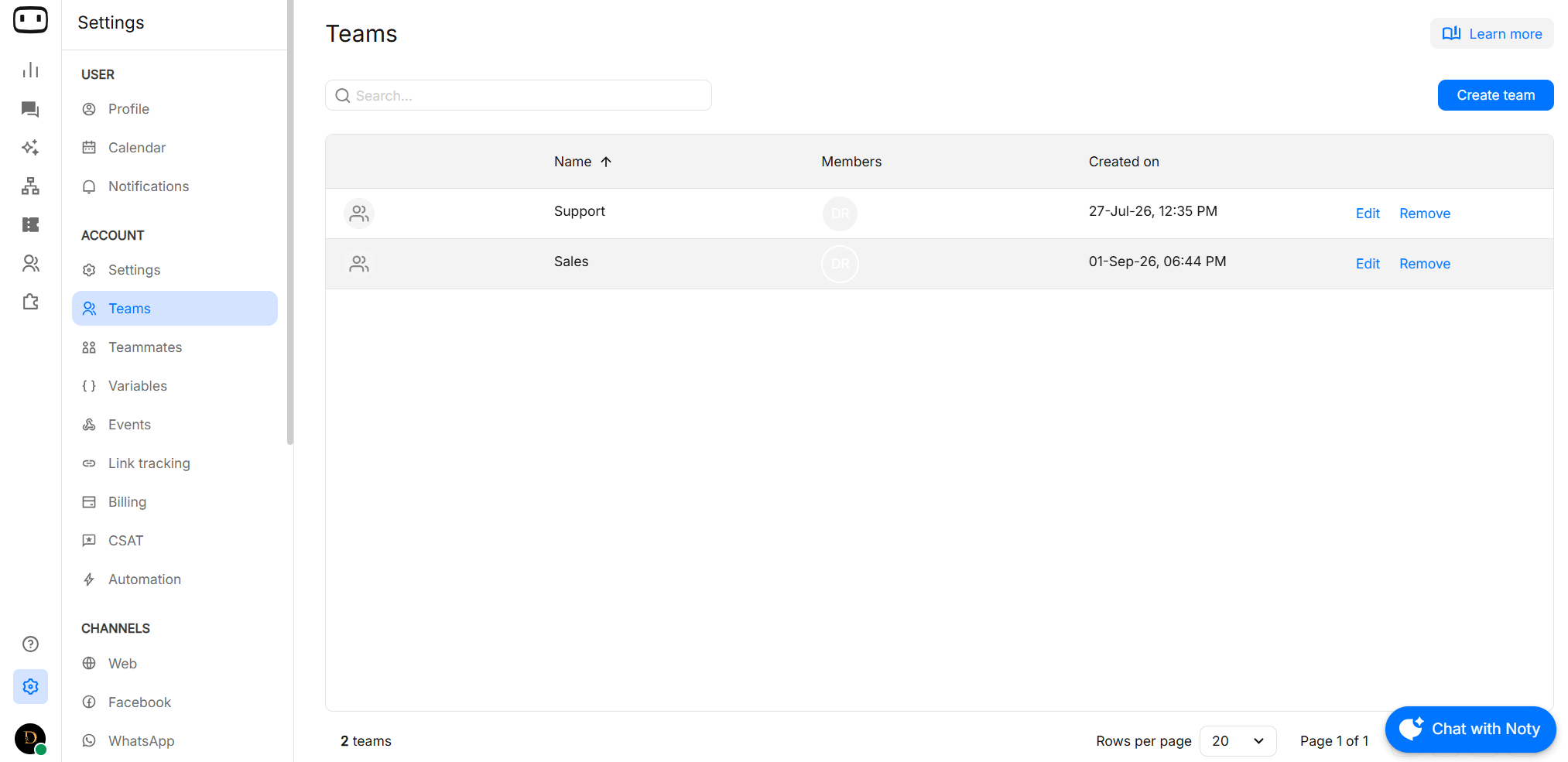
What a team is for
The benefits of having different teams is that it helps users with Human Handover by automatically assigning conversations to the right team member in order to address the problem visitor or customer is facing.Creating a team
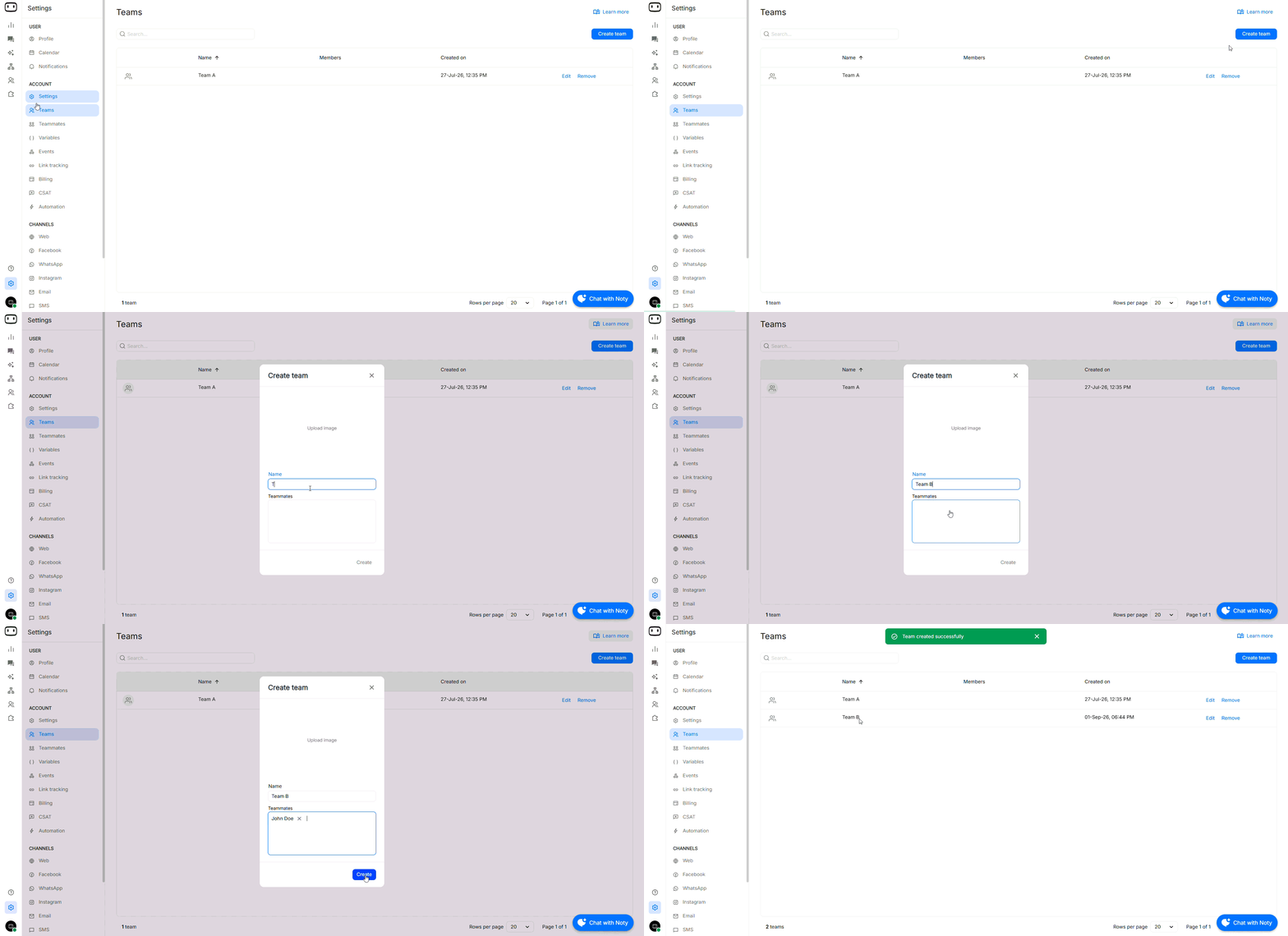
To create a team in WotNot, you can follow the following steps;- Go to Settings→ Account→ Teams
- Click on Create Team at the top right corner
- Configure the following;
- Upload Image:
Based on your preference, you can upload the image that will be assigned to the team. This is optional. - Team Name:
Define the name of the team - Teammates:
Select the users who will be part of this team. The list of teammates who are already added in the account will be displayed here
- Click on Create to create the team
Adding and removing members
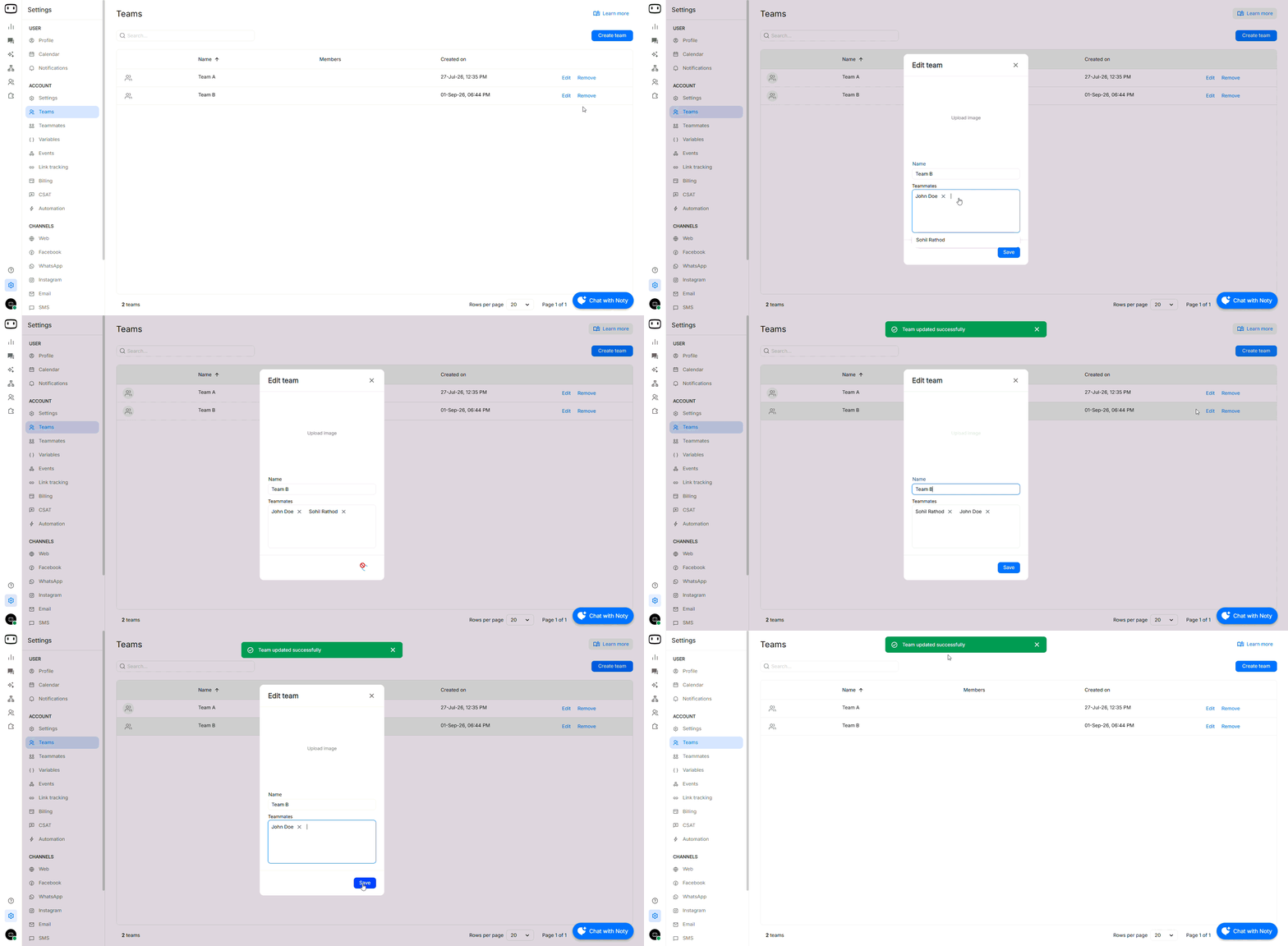
You have the ability to manage the existing team i.e you can either add or remove the members from the team or delete the team as per your preference. How do I modify the team? In-order to edit the existing team, you can follow the following steps;- Go to Settings→ Account→ Teams
- Click on Edit against the team you would like to modify
- Based on your preference, you can either remove the team member from the team or can add a new member in the team
- Configure the following operations also:
- Change Image:
In case you have not added the image, you can upload the image to assign it to the team or you can update the existing one based on your preference - Change Team Name:
You can also change the existing name of the team as per your preference
Deleting a team
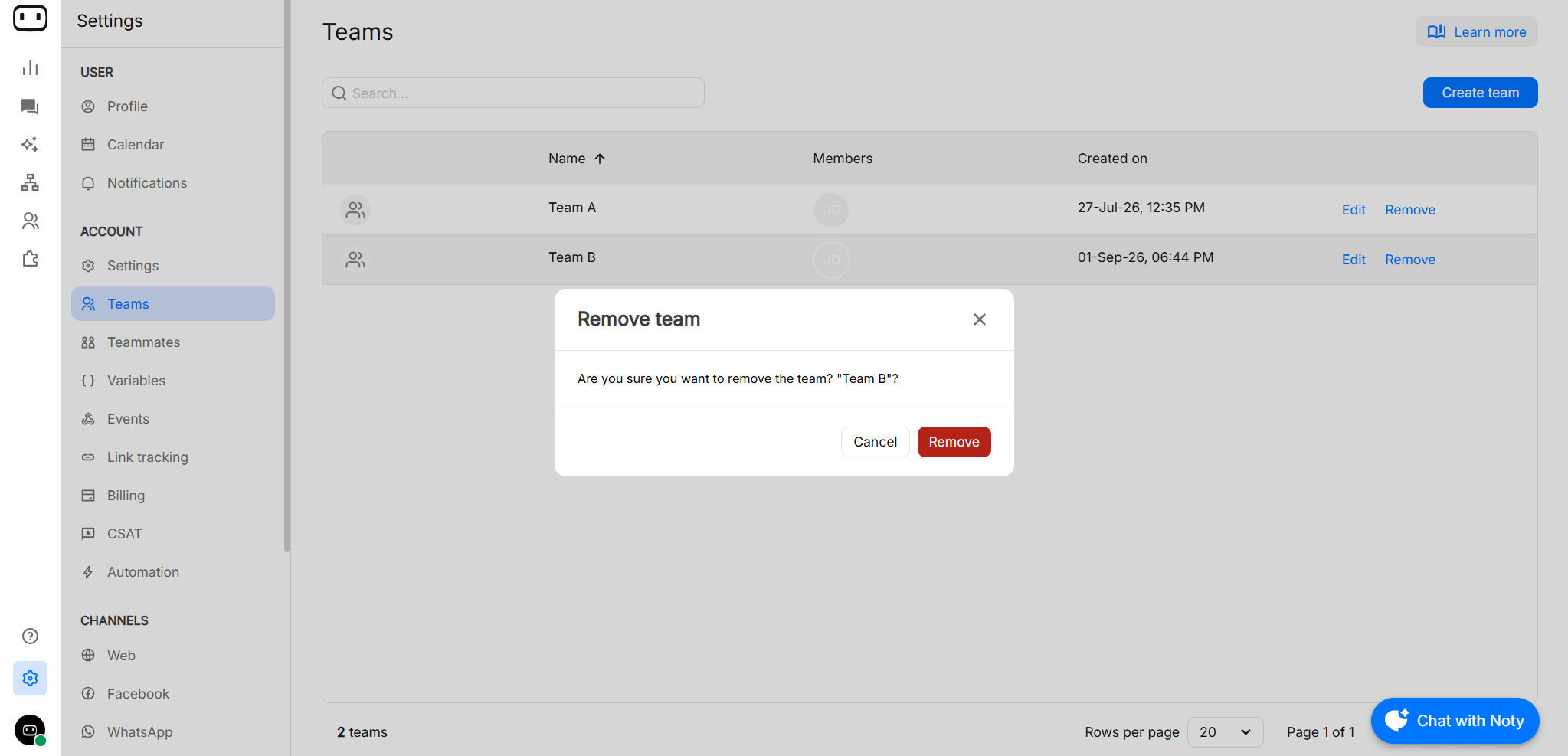
Deleting a team with WotNot is pretty simple. You can follow the following steps to delete the team;- Go to Settings → Account → Teams
- Click on Remove against the team you would like to delete
- Provide the confirmation by clicking on Remove again
Once the team in WotNot is deleted, it will be deleted permanently and cannot be retrieved back.
How teams are used elsewhere
Team membership affects more than how users are organised. Teams can be used for conversation routing and reporting.Talk to human
Use teams as assignees in human handover assignment rules. Conversations can be routed to a team instead of a specific agent.
Live chat assignment
Configure assignment rules so conversations are routed to the appropriate team or agent.
Agent report
Use team information to filter and analyze agent activity in reporting.
Common questions
Why didn't I receive my invitation?
Why didn't I receive my invitation?
Check the recipient’s spam or junk folder first. Also verify that the invitation was sent to the correct email address.If the email address is already associated with another WotNot account, check whether the user is attempting to access the correct account.If the invitation has expired, resend the invitation from the Teammates screen.
Why can't a user see a feature their role should allow?
Why can't a user see a feature their role should allow?
First, verify the role assigned to the user from Settings > Account > Teammates.If the user has a custom role, check the permissions configured for that role. Custom roles are permission-based, so two custom roles may provide different access.If the role was recently changed, confirm whether the user needs to sign out and sign in again for the updated permissions to take effect.
Why are a removed user's chats still showing as assigned to them?
Why are a removed user's chats still showing as assigned to them?
Removing a user does not necessarily mean that existing conversation records are immediately reassigned.For active conversations, check your live-chat assignment configuration and reassign conversations if required.
Someone changed a live bot and we don't know who. How can we find out?
Someone changed a live bot and we don't know who. How can we find out?
Use the Audit log to investigate account activity.Filter the log by the approximate date and time of the change, then review the recorded user and action.If the change is not present in the audit log, the action may not be one of the events recorded by WotNot.See Audit log for more information.
Why aren't chats routing to my team?
Why aren't chats routing to my team?
Check that:
- The expected teammates are members of the team.
- The team is selected as an assignee in the relevant human handover or assignment rule.
- The assignment rule is enabled and appears in the correct order.
- Team members are available to receive conversations.
- The conversation meets any conditions configured for the assignment rule.
Does adding users cost more?
Does adding users cost more?
No. WotNot supports unlimited teammates, so adding teammates does not increase the number of agent seats on your plan.You can therefore invite colleagues who need access without treating each additional teammate as a separate paid seat.
Can one teammate belong to multiple teams?
Can one teammate belong to multiple teams?
If multiple-team membership is supported, a teammate can be added to each team relevant to their responsibilities. This is useful when the same agent supports multiple departments or routing queues.
Can I create a custom role instead of giving someone Admin access?
Can I create a custom role instead of giving someone Admin access?
Yes. WotNot supports custom permission roles. You can create a role, define its name and description, and select the permissions that should be granted to that role.Go to Settings > Account > Teammates > Roles > Create Role to create a custom role.