

This report covers human agents in Live chat. For chatbot and AI Agent performance, see the Chatbot Report and AI Report.
The Agent Report requires Live chat. Live chat and human handover are available on the Premium plan and above.
What this report answers
Use the Agent Report to understand:- How many conversations are agents handling?
- How quickly are agents responding?
- How often are conversations transferred?
- How long do conversations remain active?
- How satisfied are customers with the support they receive?
- How often are agents breaching the configured SLA?
KPIs
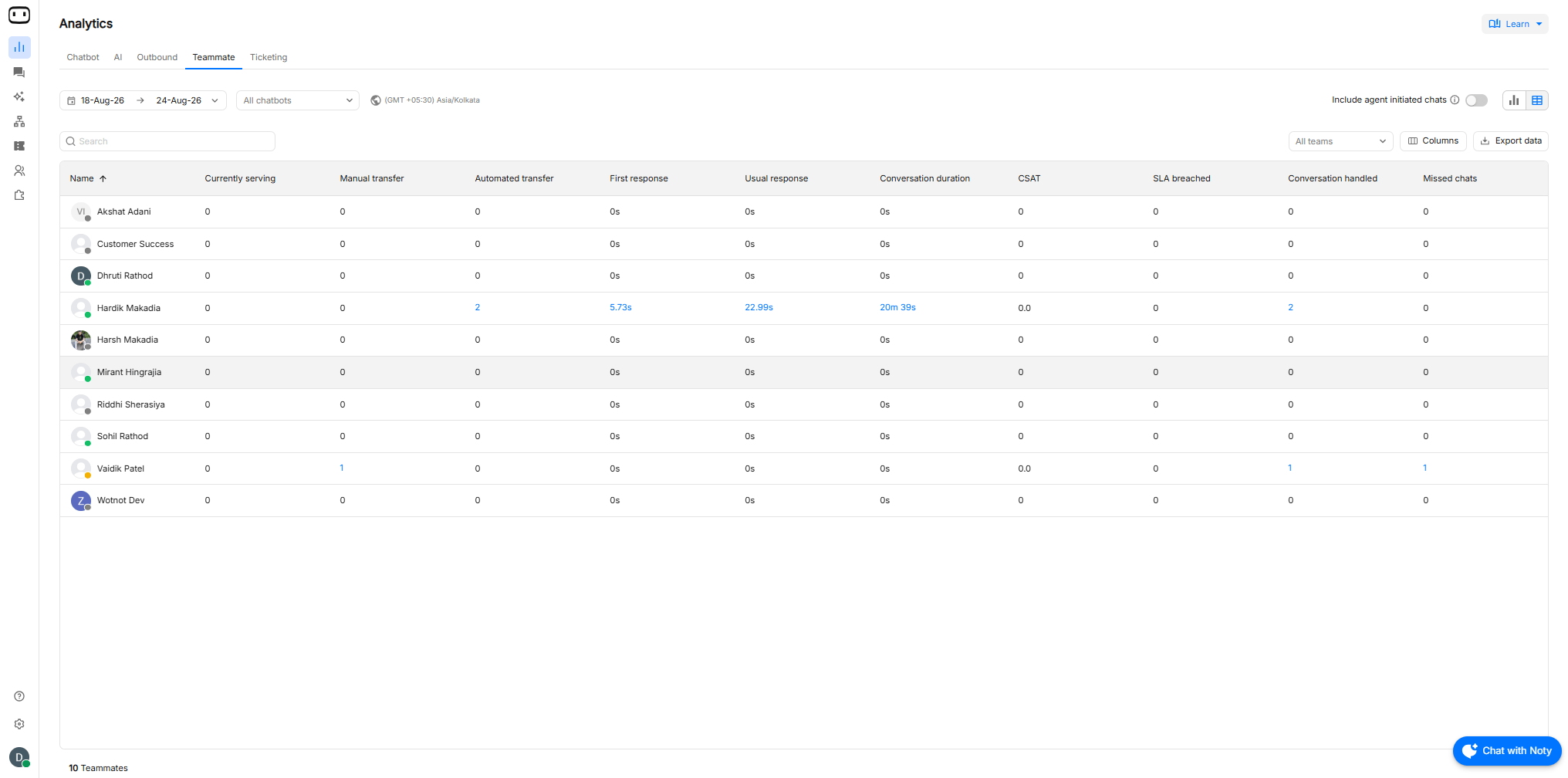
View KPIs related to your teammates performance when using the live chat feature to manually speak with your customers and users. This report displays all KPIs in two views:- Overview — i.e. high-level review of the performance.
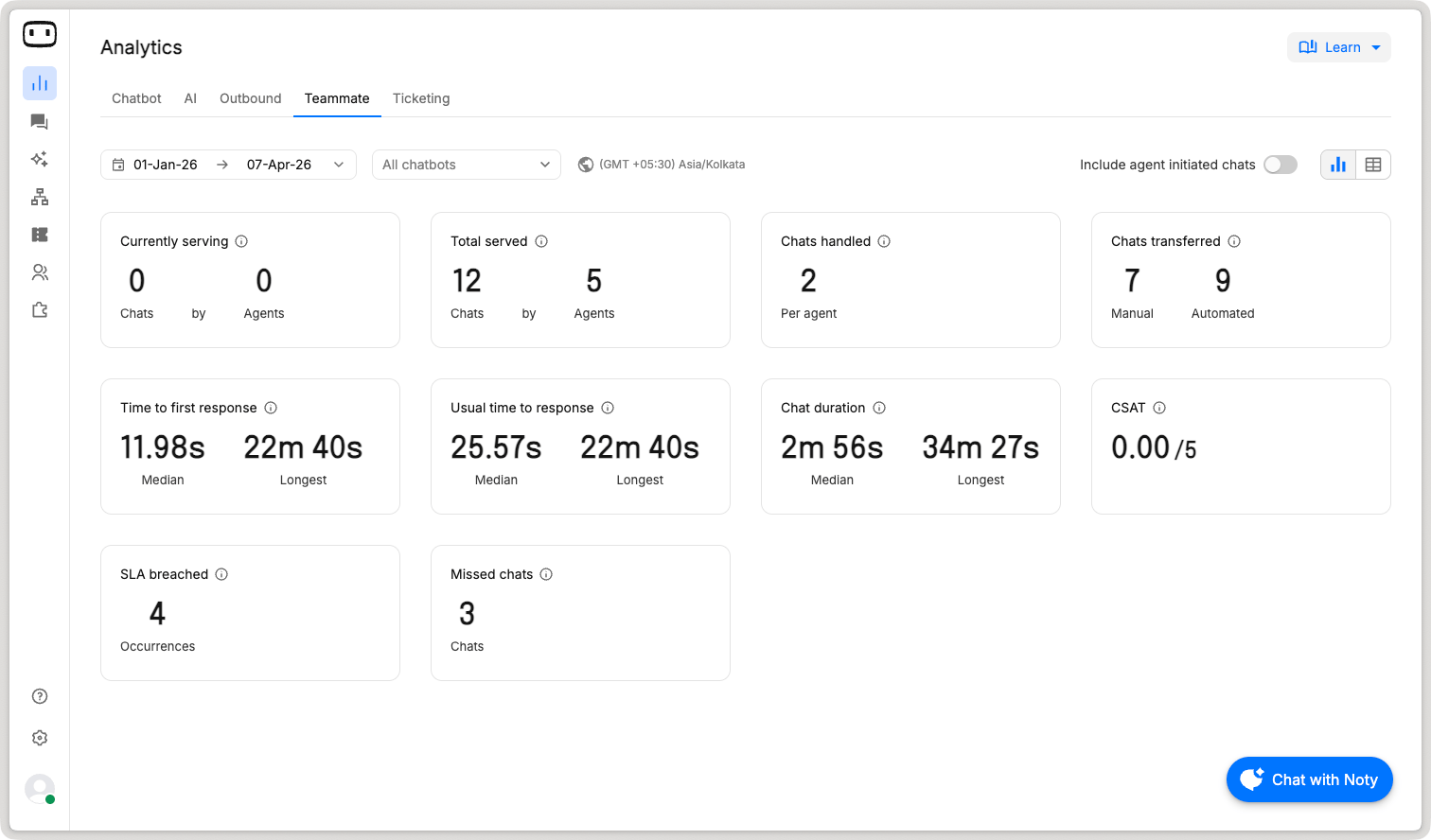
- Teammate view — i.e. individual teammate overview.
Volume Metrics
Currently serving
The total number of chats currently assigned to all your agents. Data does not auto-refresh, reload your page to view refreshed numbers.Total served
The total number of chats that were assigned to agents in the specified date range.Chats handled
Average number of chats assigned to all agents in the specified date range. Only agents with least one chat assigned are considered. Drill-down view: Shows a heatmap of chats handled across day and time of week.Chats transferred
This KPI tracks all assignee changes occuring in a conversation.- Manual — When A reassigns the chat to B.
- Automated — When the chat is reassigned from A to B due to no response.
Response time metrics
Time to first response
The time taken by an agent assigned to a chat to send the first response.We showcase both the Longest time to took to send the first response and the Median amount of time it took to send the first response. Drill-in view: Shows a trend graph of how first response time fares across the specified date range.
Usual time to response
The time taken by an agent to send a response to every message sent by the user.We showcase both the Longest time to took to send a response and the Median amount of time it took to send a response. Drill-down view:
- Trend graph — showing how the usual time to respond to each user message fares over the specified date range.
- Heatmap — shows a heatmap of the usual response time across time and day of the week.
Resolution Metrics
Chat duration
The total time elapsed in a conversation the moment a chat was assigned to an agent till the chat ended either by the agent manually or automatically due to a session time-out.We showcase both the Longest duration for a conversation and the Median duration of a conversation. Drill-in view: Shows a tabular view of how many chats fall under the duration ranges: < 5, 5 - 10, 10 - 15, 15- 30, >30 mins.
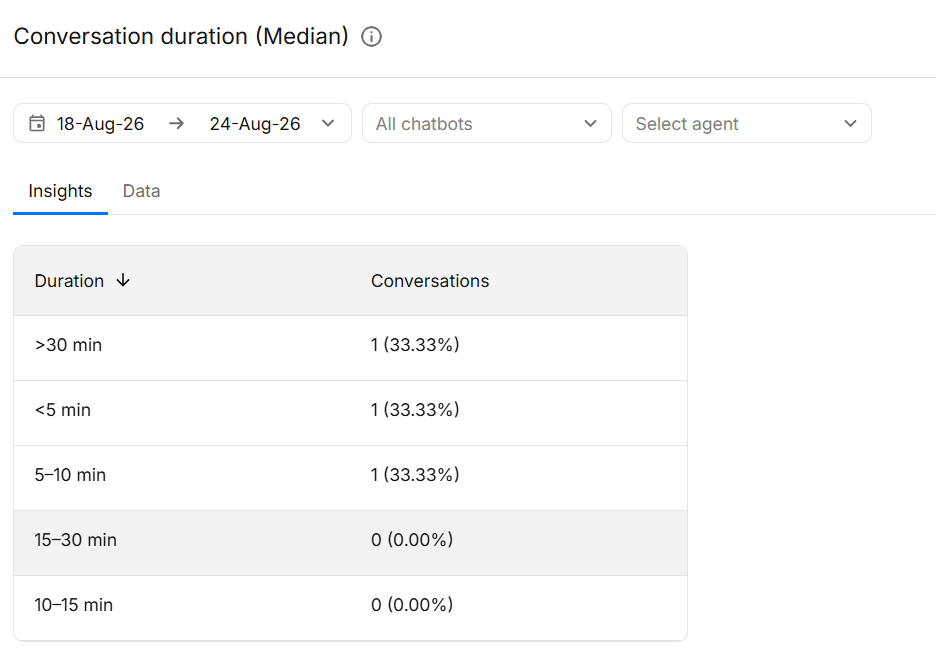
A conversation can be closed automatically when the configured session duration expires. Therefore, a closed conversation does not necessarily mean that an agent manually resolved it.
CSAT
At the end of the chat, the system asks the user to submit their feedback for that conversation in the form of a 5-star rating scale. The average of all CSAT scores submitted is displayed.SLA metrics
Total number of times the SLA was breached by the agents, in responding back to user messages. For example, if the SLA is 2 mins:- if the agent responds back after 3 minutes — it is a SLA breach.
- if the agent responds in 1 minute — no SLA breach.
Missed chats
Total number of chats that were assigned to agents, but the agents failed to respond back to the user. Overall view — includes each occurance of missed chats i.e. 1 chat can also have 3 missed chats if three assigned agents failed to respond back. Teammate view — Shows individual occurance to each teammate. You can also drill-in on this KPI to view each individual occurance that were missed.Reading the report
Use the agent-level view to compare individual workloads and response performance. For example, an agent may have a high number of conversations but a slow first response time. This does not automatically mean the agent is underperforming. Check whether:- The agent is receiving more conversations than others.
- Conversations are being assigned to them disproportionately.
- The agent is handling longer or more complex conversations.
- Conversations are being transferred to them after another agent has already interacted with the visitor.
Using this report fairly
Agent Report figures are useful for identifying trends, but they should not be treated as a complete measure of individual performance. Consider factors such as:- Conversation complexity
- Differences between channels
- Part-time or different working schedules
- Conversations transferred between agents
- Conversations inherited after another agent has already responded
- Automatically closed conversations
Drill-in view on metrics
Hover over any KPI and click the “Drill-down” button to see a detailed preview behind that KPI. Detailed previews shows the raw data of all chats that contribute to that KPI and some advanced charts to showcase insights/trends of the KPI over the specified date range.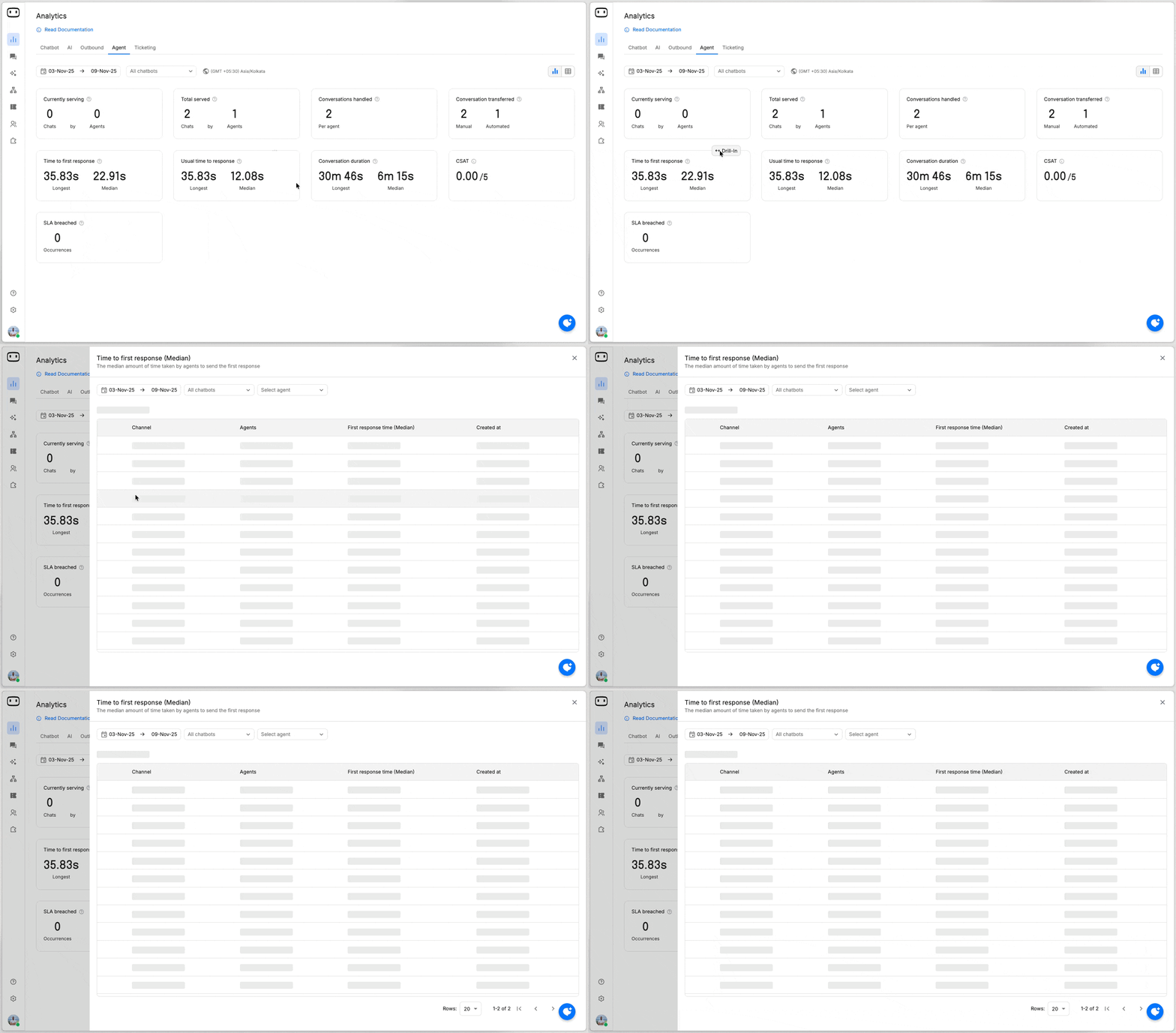
Common confusions
Why is the response time higher than expected?
Why is the response time higher than expected?
Time to first response is measured from the time the conversation is assigned to the agent. Usual time to response measures the time taken to respond to each visitor message. These are different measurements, so they can show different values.
Why are automatically closed chats included in conversation duration?
Why are automatically closed chats included in conversation duration?
Conversations can automatically close when the configured session duration expires. Conversation duration includes both manually ended and automatically closed conversations.
Why do the report figures differ from an agent's own view?
Why do the report figures differ from an agent's own view?
The report is calculated for the selected date range and account timezone. It can also include transferred conversations and conversations that were automatically closed.
Why are transferred chats included in an agent's numbers?
Why are transferred chats included in an agent's numbers?
The report tracks changes in conversation assignees. Transfers can happen manually or automatically when an agent does not respond within the configured wait time.
Why are SLA breaches recorded?
Why are SLA breaches recorded?
An SLA breach occurs when an agent does not respond within the SLA configured in Settings → Live chat → SLA. For example, with a 2-minute SLA, a response after 3 minutes counts as a breach.