

Available on the PREMIUM plan and above.
Custom answers are designed to correct specific AI responses. If the AI does not have the required information, update your Knowledge Base instead. If the AI has the correct information but follows the wrong tone or behavior, update your Prompt.
When to use a custom answer
Using AI to generate responses can sometimes be right or wrong. Usually, this happens because- Your knowledge base has incorrect or duplicate information
- The prompts used are not specific/brief for the AI
How custom answers work
Custom answers let you review AI-generated responses and replace them with a response you define. Once saved, WotNot adds the customized question-and-answer pair to the Knowledge Base as a Text source, allowing the AI to use your defined response when answering similar questions.Creating a custom answer
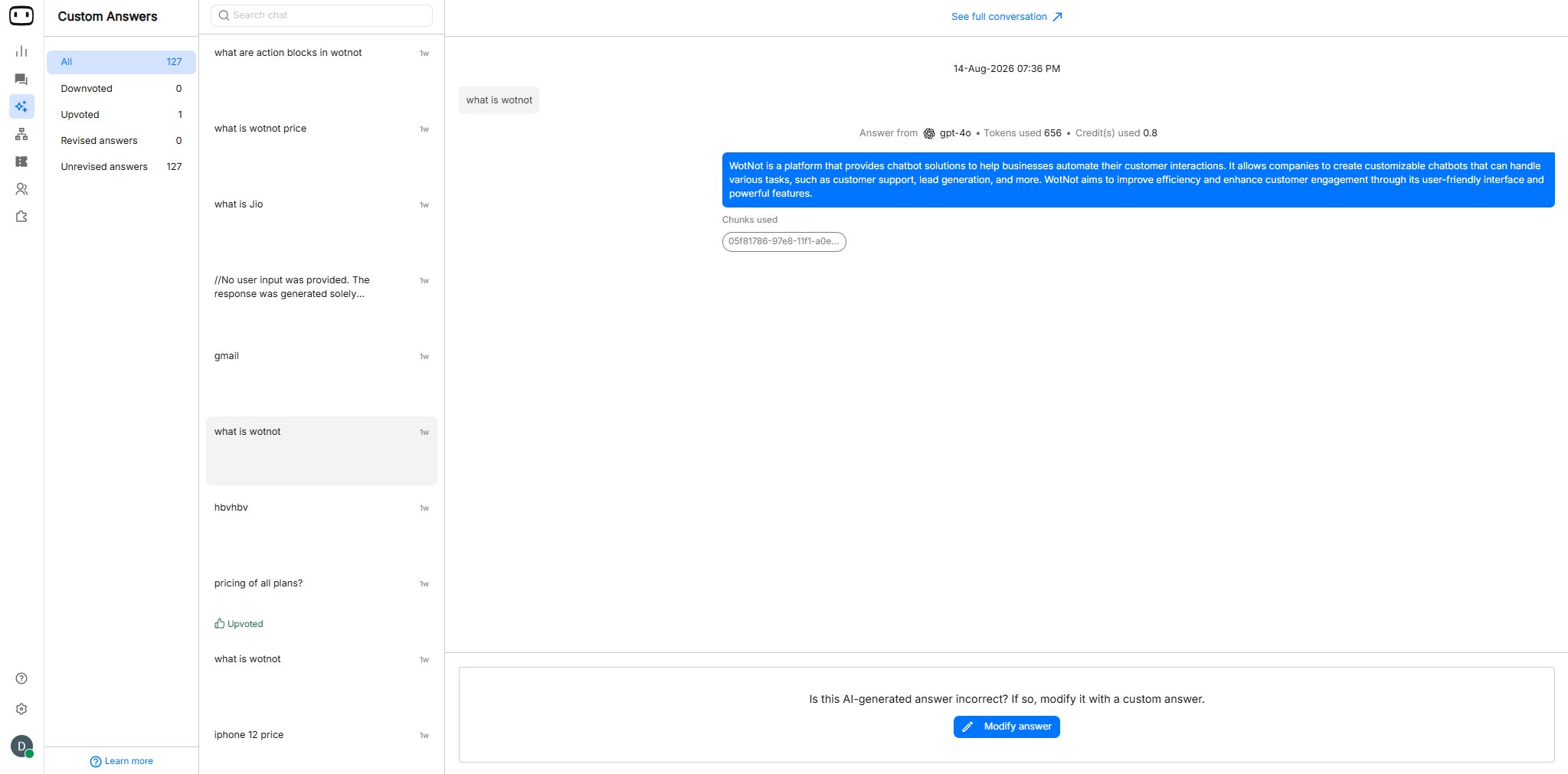
Custom answers are created by reviewing AI-generated responses and replacing an incorrect response with the answer you want the AI to use.- Open AI Studio → Custom answers.
- Select All or Downvoted to find the response you want to customize.
- Review the AI-generated answer and click Modify answer.
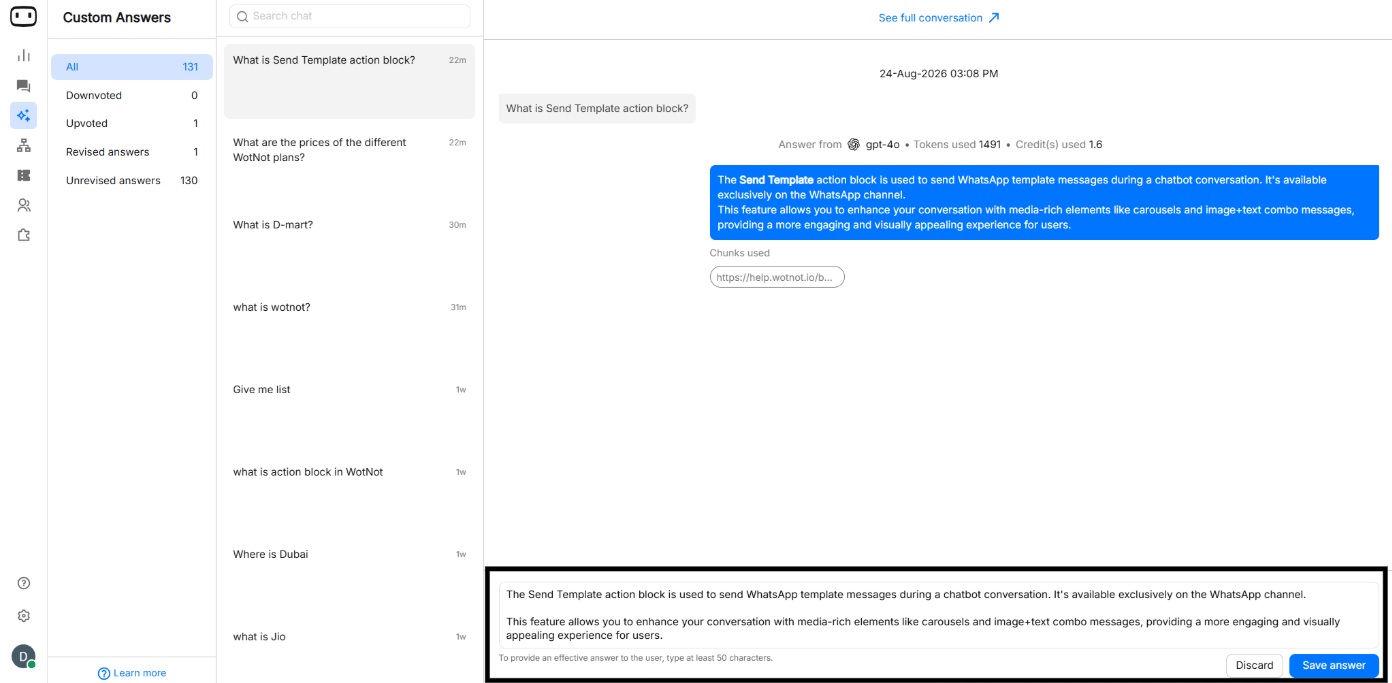
- Replace it with your custom response.
- The answer must contain at least 1000 characters.
- Click Save answer.
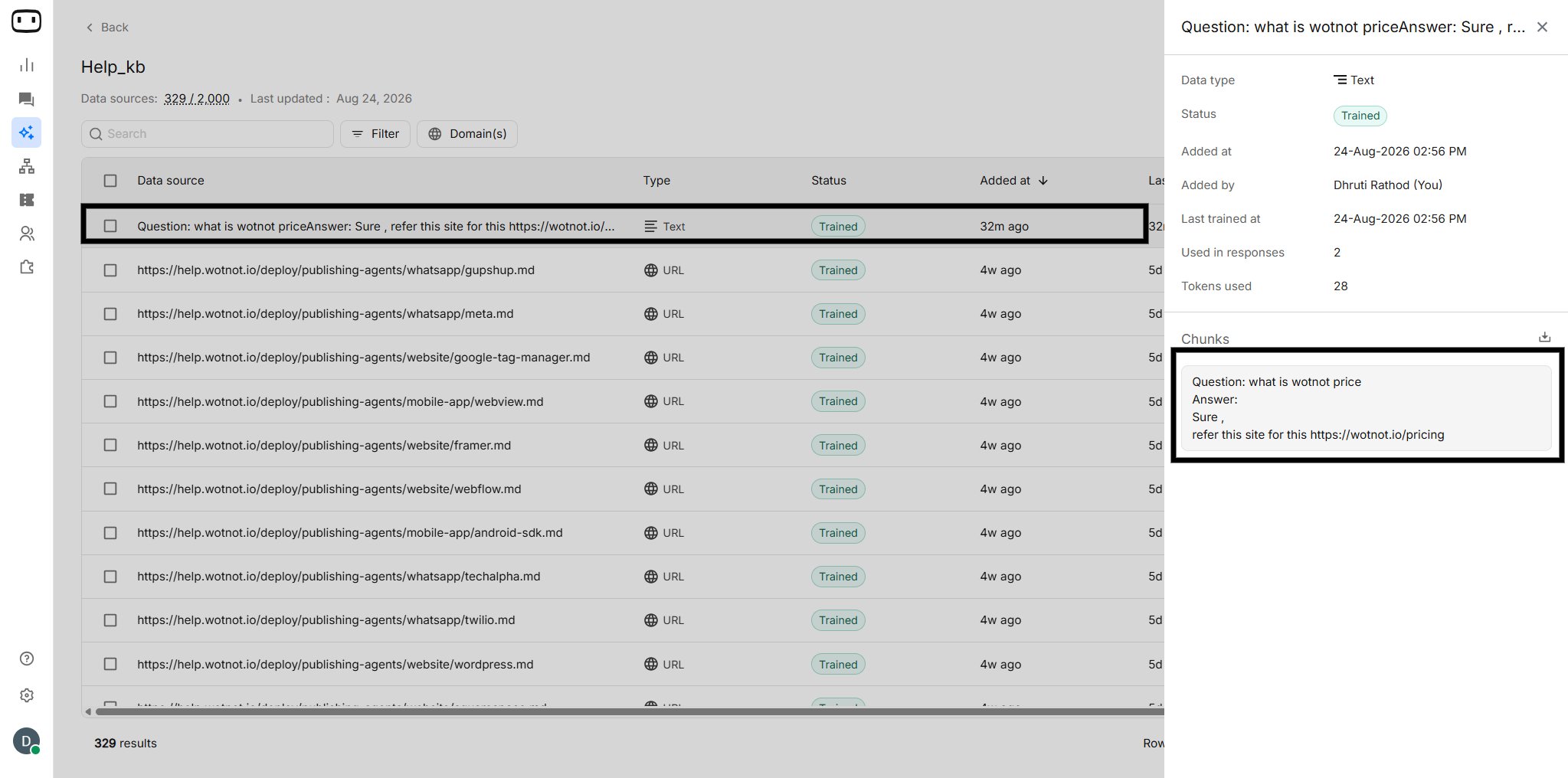
- WotNot automatically adds the question and custom response to the Knowledge Base as a Text source.
Managing custom answers
Editing
If you need to change a previously customized response:- Open AI Studio.
- Go to Custom answers.
- Find the relevant question.
- Click Modify answer.

- Update the response.
- Click on Save Answer.
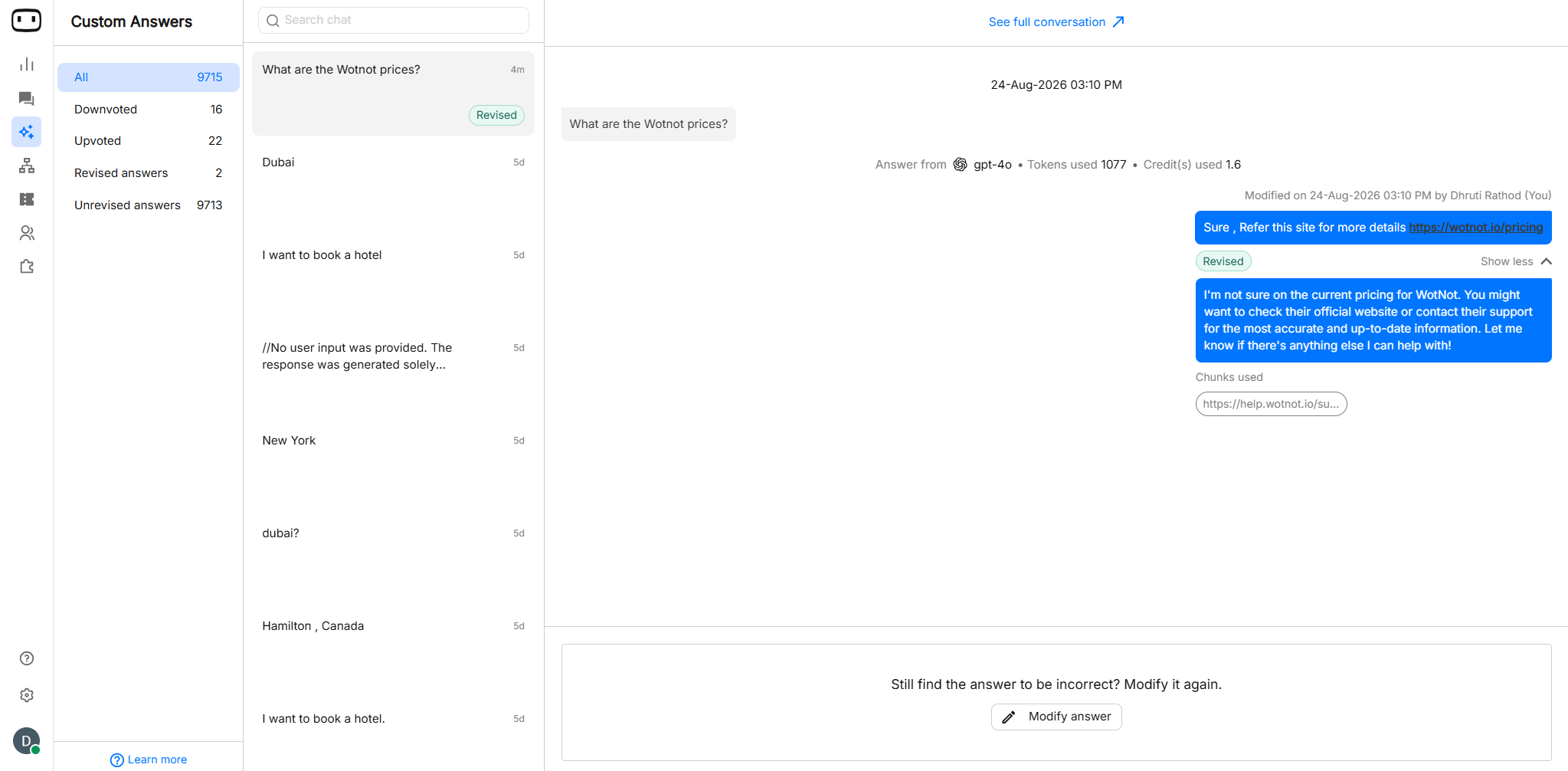
- After modifying the answer, you can see the Revised tag in the left navigation bar.
- You can also compare the old answer with the new answer.
NOTE: When you save a custom answer, WotNot automatically creates a Text source in the Knowledge Base containing the question and customized answer.
Review the answers
Regularly review the answers available in the Custom answers section. Use the available queues to identify responses that need attention:- All — Review all available responses.
- Downvoted — Focus on responses that users have downvoted or not satisfied with the answer.
- Upvoted — Focus on responses that users have upvoted or satisfied with the answer.
Reviewing what’s in use
The current Custom Answers documentation provides All and Downvoted queues for reviewing AI responses. It does not document a firing-count or usage-analytics view for individual custom answers. Therefore, do not describe a usage counter or “times fired” metric unless it is available in the current product UI.Troubleshooting
My custom answer is not firing for an obviously similar question
My custom answer is not firing for an obviously similar question
Start by checking the question and customized response saved in the Knowledge Base.Custom answers are based on the question and answer you saved. A differently worded user question may not always be interpreted as the same question.Also verify that the automatically created Text source still exists in the Knowledge Base.
If the automatically created Text source was deleted, restore or recreate the required information before troubleshooting further.
Two custom answers appear to be competing
Two custom answers appear to be competing
Check whether the two custom answers cover the same or very similar questions.Avoid creating multiple custom answers for the same intent. If the answers address the same requirement, consolidate the information into the most appropriate entry.Also review the corresponding Text sources in the Knowledge Base for duplicate or conflicting information.
I updated the answer but the old response is still being returned
I updated the answer but the old response is still being returned
First, verify that the updated custom answer was saved successfully.Then check the Knowledge Base and confirm that the automatically created Text source still exists.If multiple Knowledge Base sources contain conflicting information, review those sources and remove or correct outdated information where appropriate.
The custom answer works in testing but not on a live channel
The custom answer works in testing but not on a live channel
First, confirm that you are testing the same AI configuration and Knowledge Base used by the live bot.Then verify that the latest configuration is available on the deployed/live experience.The current public Custom Answers documentation does not specify a separate channel-specific limitation, so check the current product configuration if the behavior differs between testing and a live channel.