

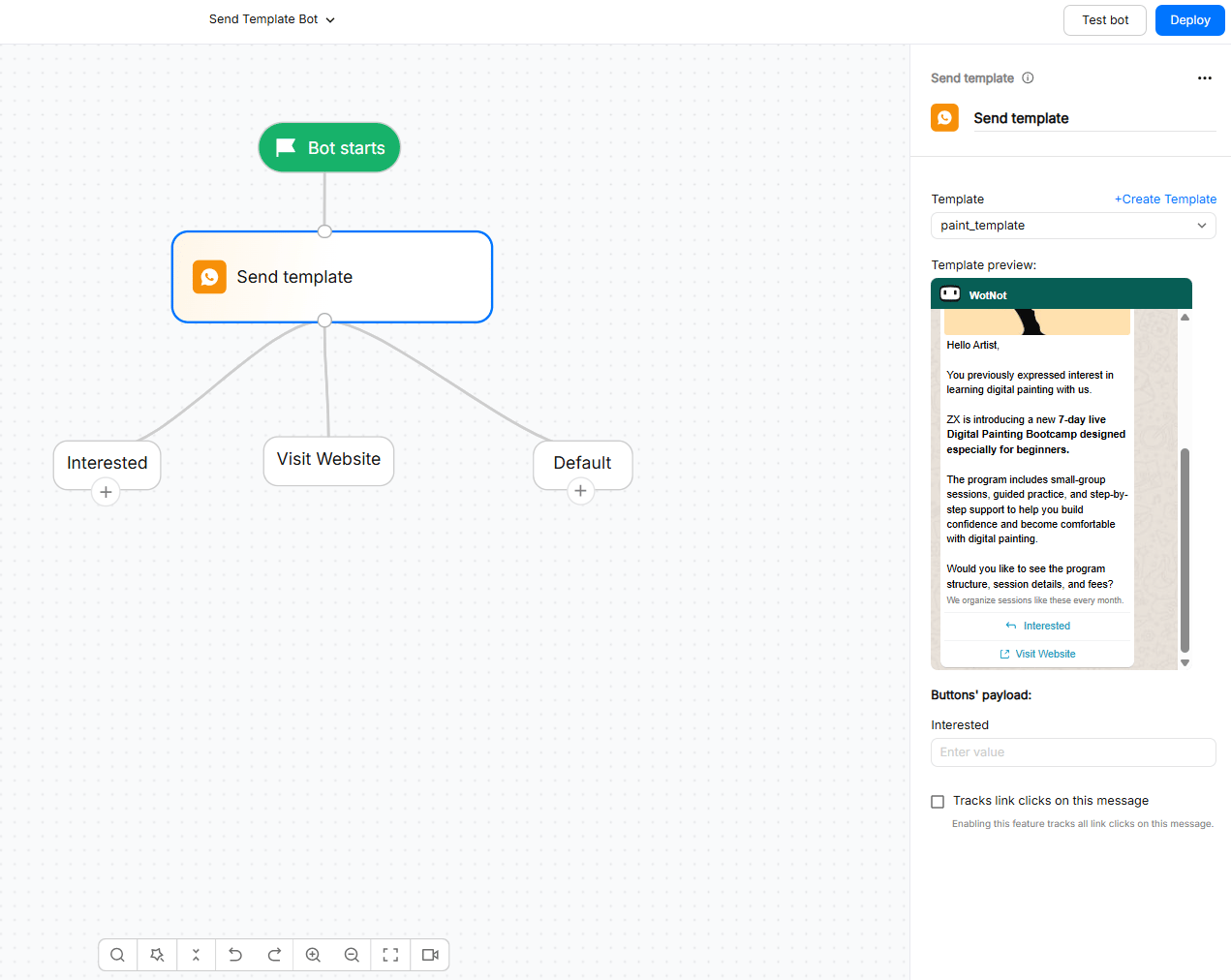
- Available only on the WhatsApp channel.
- Requires access to the WhatsApp Business API.
NOTE :
- Make sure you have selected the phone number on the “Trigger” block to see the list of its approved templates.
- Only “Approved” templates will be listed in the dropdown
Using the Send Template Block
Use the Send template block when you need to send a template message as part of an inbound chatbot flow.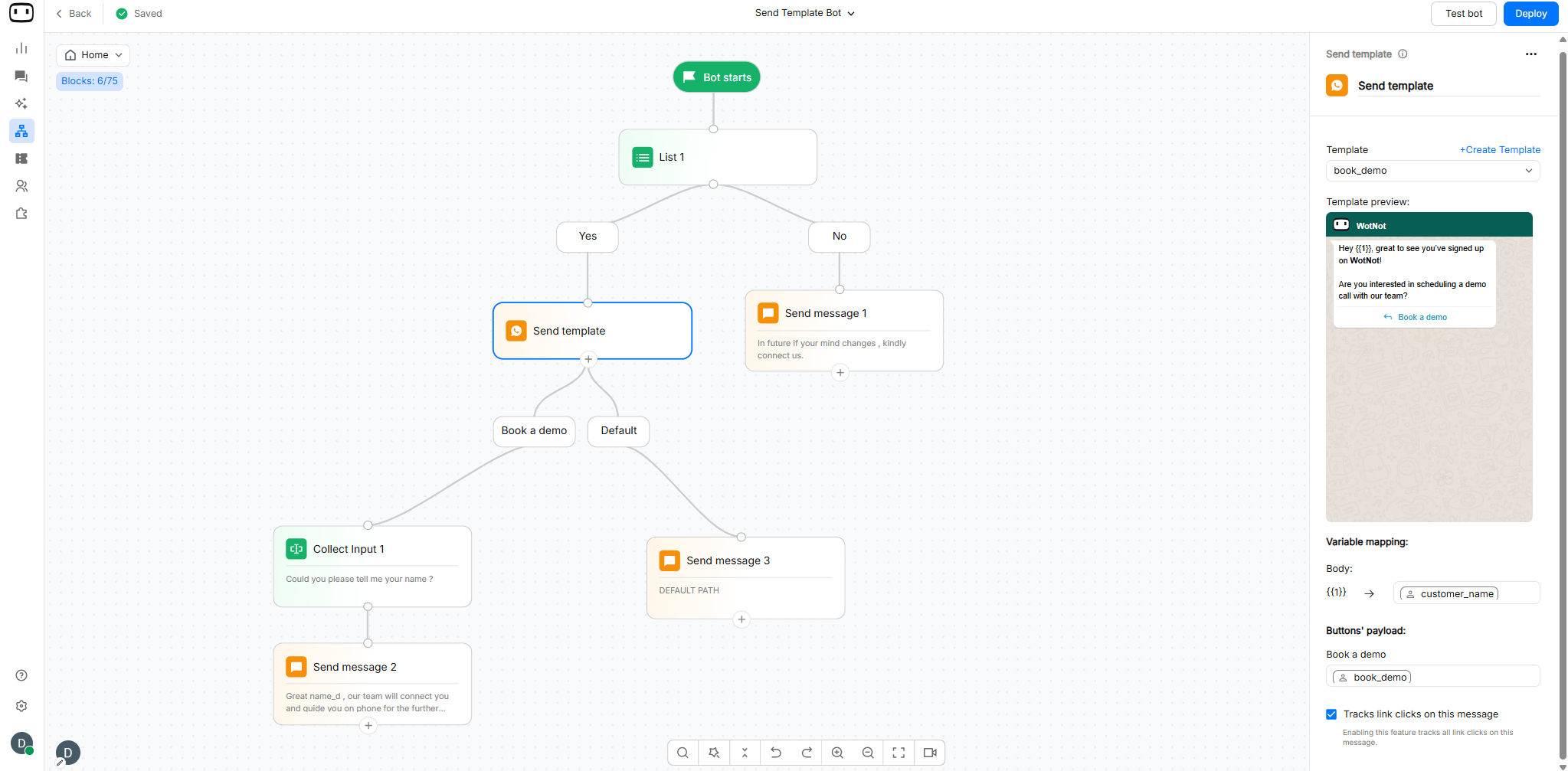
- Drag the Send Template block onto the canvas.
- Connect the block to the previous step in your flow.
- Select an approved WhatsApp template.
- Map values to any variables used in the template.
- Connect the available output paths to the next steps in your flow.
Configurations
Template Creation
Learn about Template CreationTemplate Selection
Select the approved WhatsApp template you want to send. The templates shown in the dropdown depend on the WhatsApp phone number selected in the Trigger block. Only templates that have been approved by Meta are available for selection.- If a template is pending, wait until Meta completes the review before using it.
- If a template is rejected, it will not be available for use. Review the template in WhatsApp Manager, make the required changes, and submit it again for approval.
Variable Mapping
If your template contains variables, map each placeholder to the corresponding value available in the campaign. You can update the mapping without changing the approved WhatsApp template. If the value you want to send is stored in a different bot variable, simply select the appropriate variable for the template placeholder. Example: If your template contains:Hi {{1}}, welcome to WotNot!
You can initially map: {{1}} → name
Later, you can change it to: {{1}} → customer_name
If customer_name contains John, the recipient receives:
Hi John, welcome to WotNot!
Changing the variable mapping does not change the approved WhatsApp template. It only determines which WotNot variable provides the value for the template variable when the message is sent.

Header Media
Some WhatsApp templates use media in the header. Depending on how the template was created, the header can contain:- Image
- Video
- Document
You can add the header media while creating the template.
Buttons
If the selected template contains buttons, configure the button behavior available for that template.- Quick reply buttons can be used to let contacts choose an action and continue through a chatbot flow. The button payload can be used to identify which option the contact selected.
- Call-to-action buttons can direct the contact to a webpage or phone number, depending on how the template was configured.

Buttons’ payload
A button payload is the value sent when a user clicks a button in an outbound message. WotNot uses this payload to identify the user’s selection and can use it to trigger or continue an inbound bot flow. Suppose an outbound WhatsApp message contains a button: Button name:Book a DemoButton Payload:
Book
When the user clicks Book a Demo, WotNot receives the Book payload and can use it to trigger the corresponding inbound bot, allowing the conversation to continue from the selected action.
Book a Demo → Book→ Booking Flow

Default path
The Default path runs when the template cannot be sent from the company’s end, such as when the server is unavailable or an internal error prevents the message from being sent. You can use the Default path to handle these unexpected failures, such as showing a fallback message, logging the error, or continuing the flow through an alternative path.Track Links
Enabling this feature tracks all link clicks on this message.