

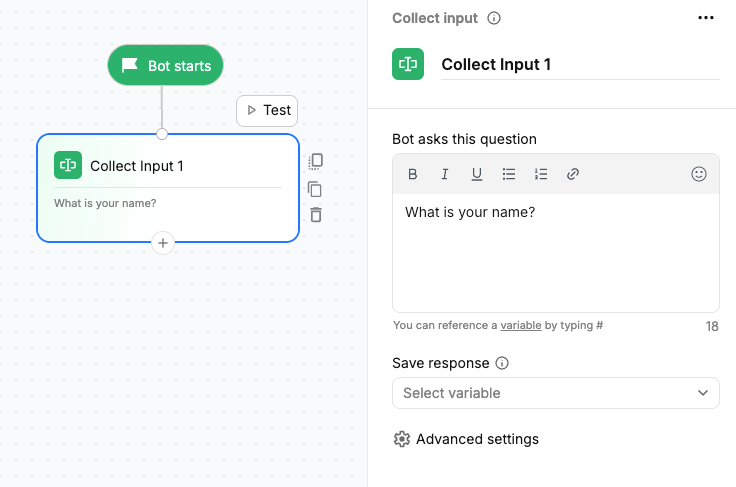
Available on all channels.
Using the Collect input block
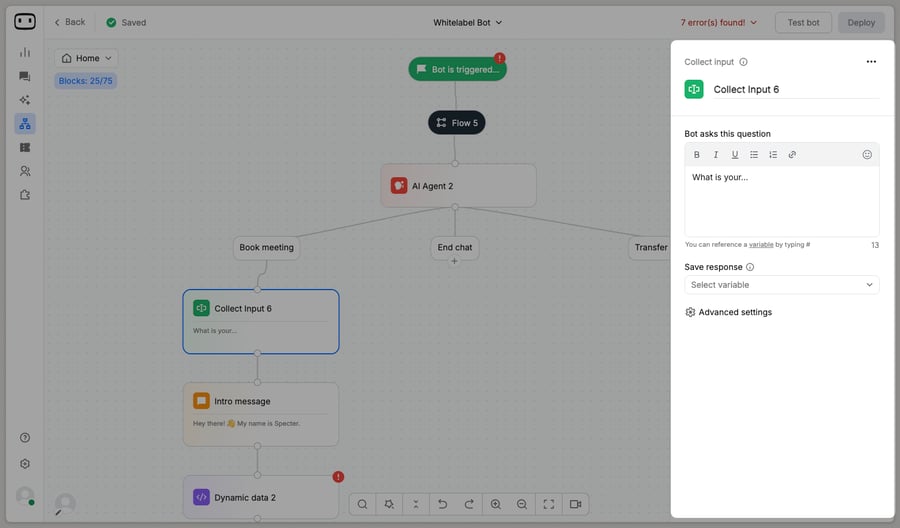
- Add the Collect input block — Drag the Collect input block onto the canvas and connect it to the previous step.
- Enter the question — Enter the question you want to ask the visitor.
- Save the response — Select the variable where you want to store the visitor’s response.
Configurations
Question text
Enter the question that you want to show to the visitor.Save response
Select the variable where the visitor’s response will be stored. The captured value can be referenced later in the workflow by typing #.Validation message
The validation message is configured when you create the variable. When creating a variable with a specific type, enter the message that should be shown to the visitor if their response does not match the selected variable type. For example, if you create a Phone variable, you can enter:Please enter the correct phone number.
When the visitor provides an invalid response, this message is displayed and the visitor cannot proceed until a valid response is provided.