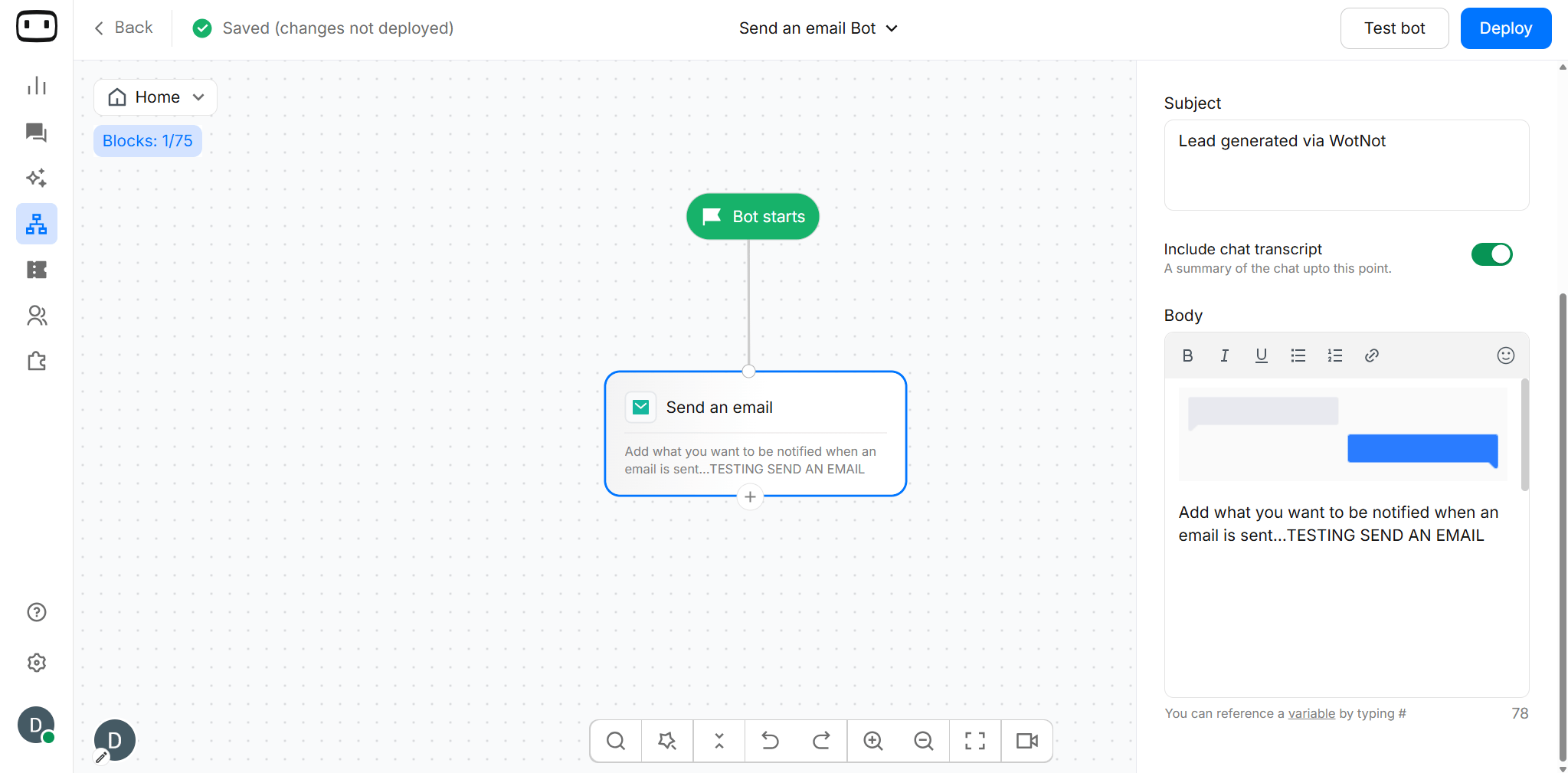
The Send an email block can be used with any channel because the email is sent to your team, not to the user interacting with the bot.
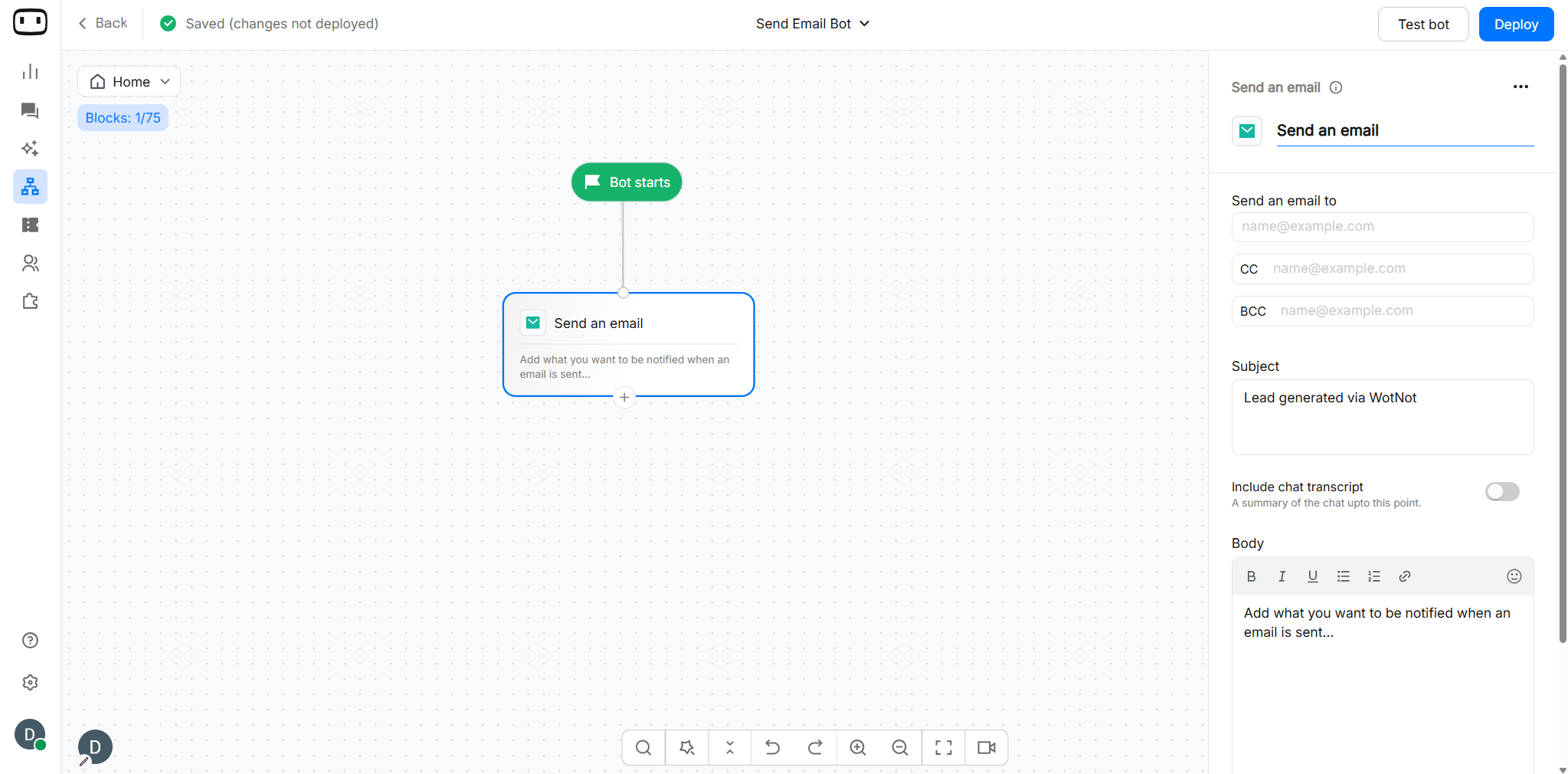
Using the Send an email block
Add the block to your bot flow, connect it to the point where you want the notification to be triggered, configure the recipients, and compose the email.- Drag the Send an email block onto the canvas and connect it to the block that should trigger the notification.
- Enter the email addresses that should receive the notification. You can add recipients directly or use supported variables when the recipient needs to be determined dynamically.
- Enter the subject of the notification email. You can include variables when you want the subject to contain information collected during the conversation.
- Write the content of the notification in the email body. Include relevant conversation or contact information so your team can understand the event without opening the conversation.
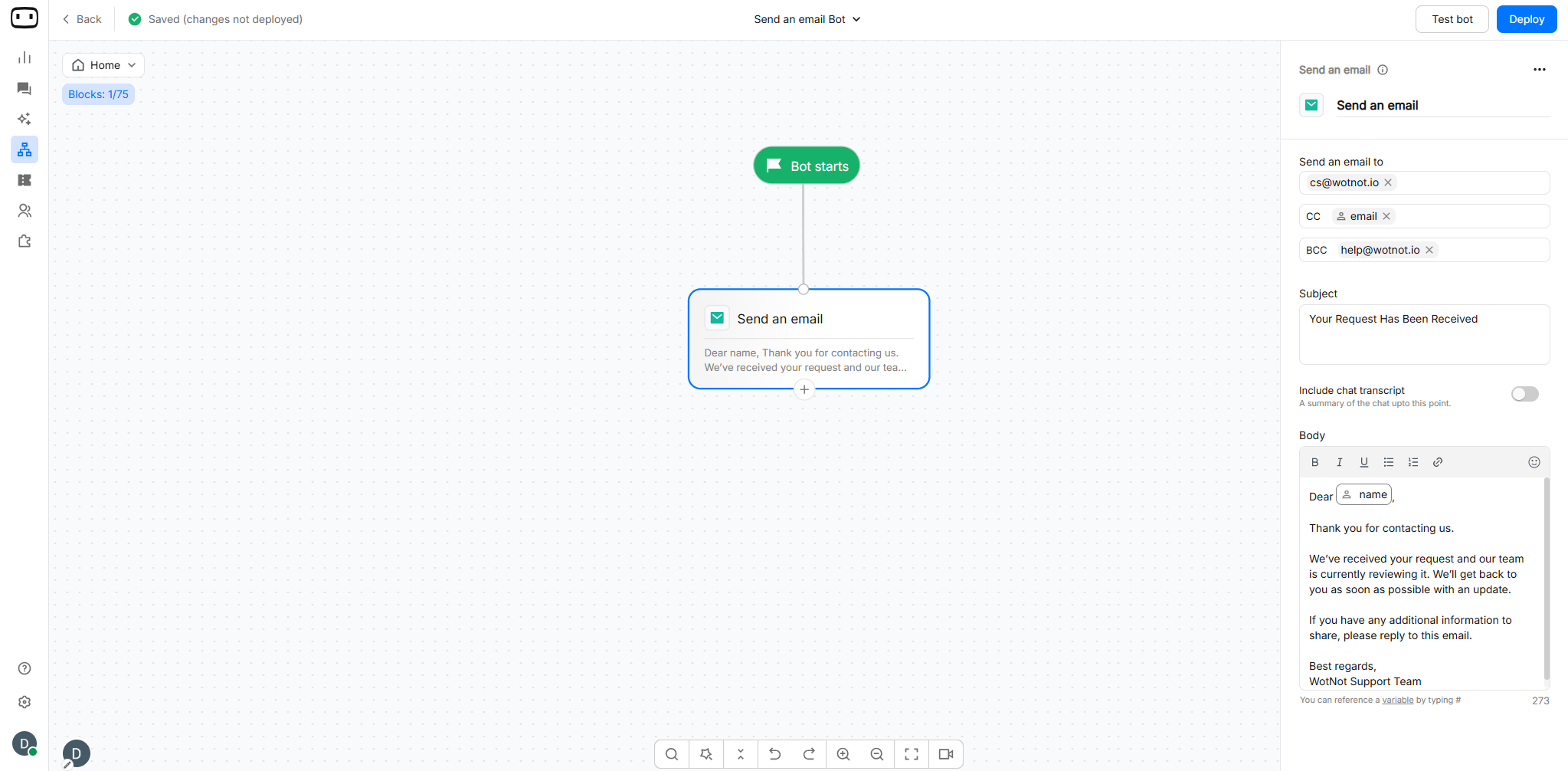
Configurations
Recipients
Use the recipient fields to control who receives the notification.- To — primary recipients of the email.
- CC — recipients who should receive a visible copy.
- BCC — recipients who should receive a hidden copy.

Subject
Enter the subject of the email notification. You can include variables to make the subject more useful to your team. Using variables helps your team understand the reason for the notification without opening the email first. For example:Example 2
Body
Brief overview of the information that you want your stakeholders to be notified about. For example, if I want to be notified about a new lead generated by the bot. You would use the following body:Hey! A new lead was generated by the bot. Here are the details: Name: { name}
Email: {email}
Phone: {phone}
Description: {info}
Location: {city}, {country}
Webpage: {url}
You can use variables in the email.
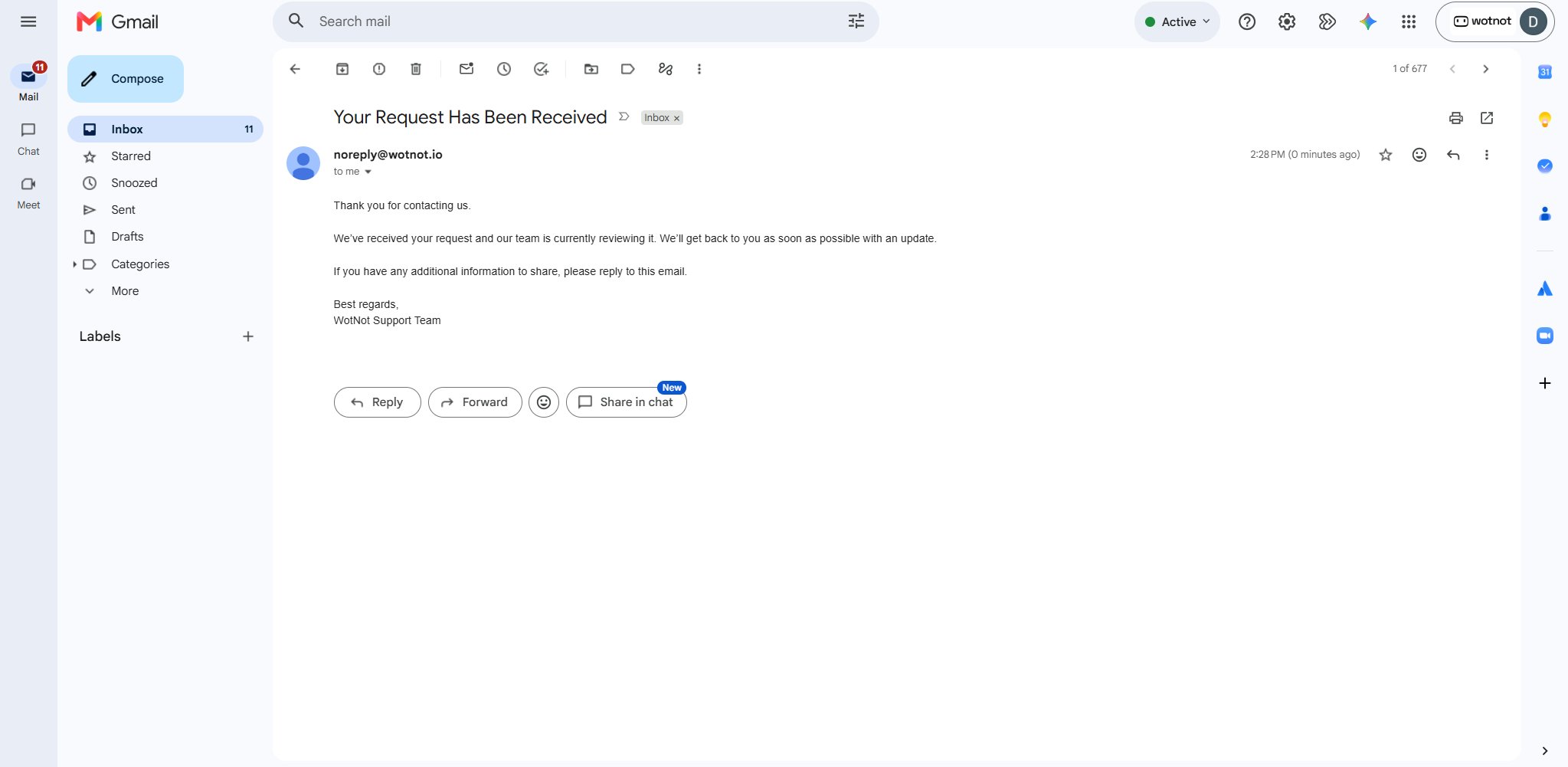
Include chat transcript
By enabling this, we will include the entire conversation history between the user and the bot till this point. It will allow your team to look at the chat exactly as it occurred. After enabling this, you can still add the body for more context. This will be added at the bottom of the email.