

Available on the PREMIUM plan and above
Using the Webhook block
Listener URL
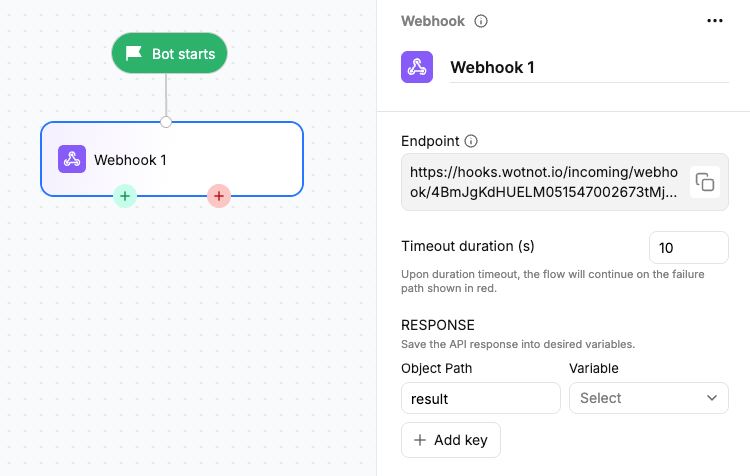
The Listener URL is generated automatically when you add the Webhook block. Copy this URL and configure it as the webhook endpoint in the external system that will send the event. When the external system sends an event, the incoming request must contain theconversation_key associated with the conversation waiting for the event.
The
conversation_key connects the external event to the correct conversation. Make sure your external system sends the same conversation_key associated with the waiting conversation.Getting the conversation key
You can use the variable Conversation URL to extract the conversation_key value from it. Use a javascript action block before using the webhook block with this code.conversation_key to your external system when starting the process that will eventually trigger the webhook.
For example, if a user starts a payment, store the conversation key along with the payment reference. When the payment is completed, your integration can send the same conversation key back to WotNot.
Expected payload
The external system should send theconversation_key along with the event data.
For example:
conversation_key identifies the conversation that is waiting for the event.
The remaining fields contain the event data that you can map to variables and use in the flow.
Example request
You can test the Webhook block using cURL:<LISTENER_URL> with the Listener URL generated by the Webhook block.
Replace abc123xyz with the conversation_key of the conversation waiting for the event.
Response mapping
When a webhook response is received, you can map the fields that are to be saved into variables. For example, if the incoming payload is:You can map a maximum of 50 variables.
Timeout
The chat flow will wait for this webhook call for the specified duration. If the webhook is not invoked in the given timeframe, the chat flow will proceed in the FAILURE flow.Set the timeout between 1 and 300 seconds.
Authentication
If your external system requires authentication for the incoming webhook request, configure the required authentication or secret according to your integration requirements. Make sure authentication credentials and secrets are stored securely and are not exposed in user-visible messages or variables.Output paths
The Webhook block has two possible outcomes.Success
The incoming webhook event is received and the conversation continues through the Success path.Failure
The webhook is not received within the configured timeout and the conversation continues through the Failure path. Connect the appropriate paths to handle both outcomes in your flow.Save response to variables
The Webhook block can save fields from the incoming payload through Response mapping.
You can also map other fields included in the incoming payload.
The
conversation_key is used to identify the conversation waiting for the event.