

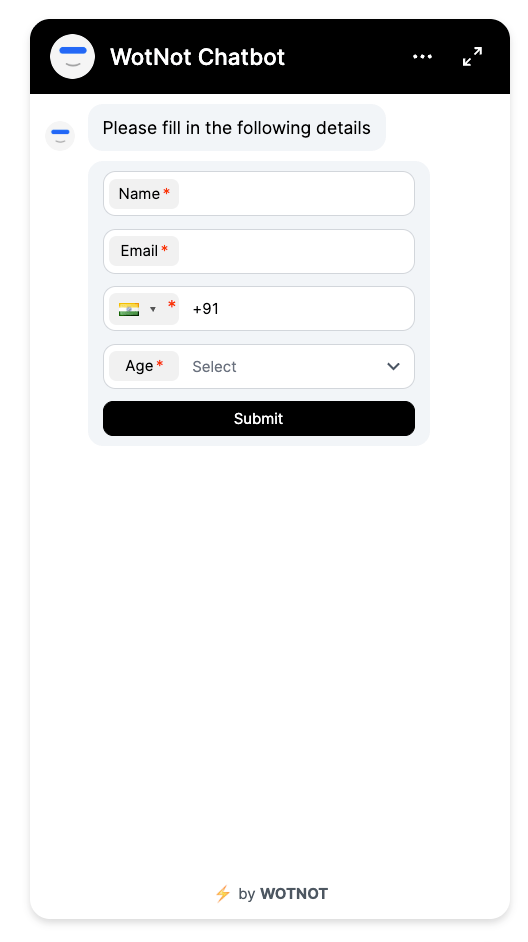
The Form block is supported in the WEB channel. For WhatsApp, use the WhatsApp Flow block to collect multiple inputs in a form-like experience.
Using the Form block
1
Add the Form block
Drag the Form block onto the canvas and connect it to the required blocks in your conversation flow.
2
Add fields
Add the fields you want to collect from the user and arrange them in the required order.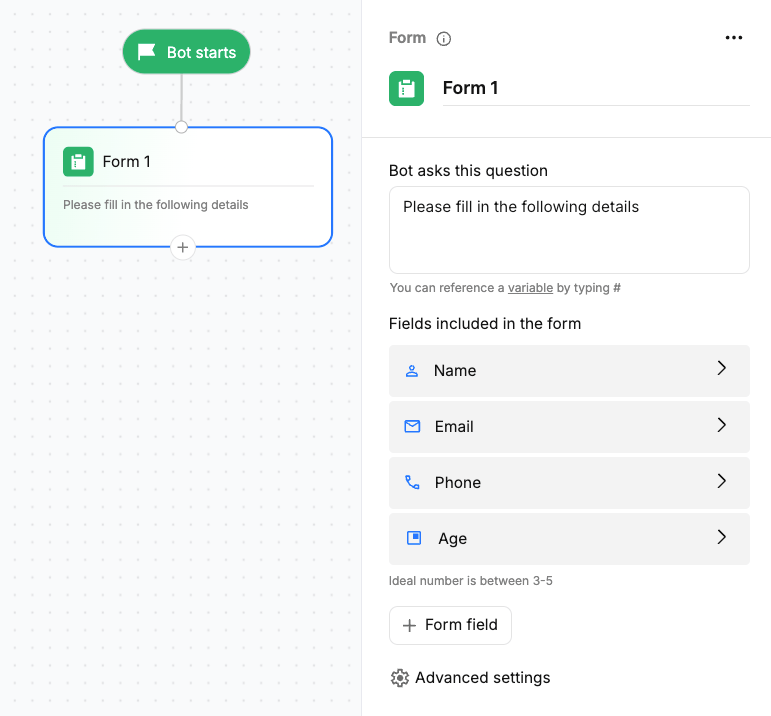
3
Configure each field
Enter the field name, select the appropriate field type, choose the variable where the response should be saved, and specify whether the field is optional.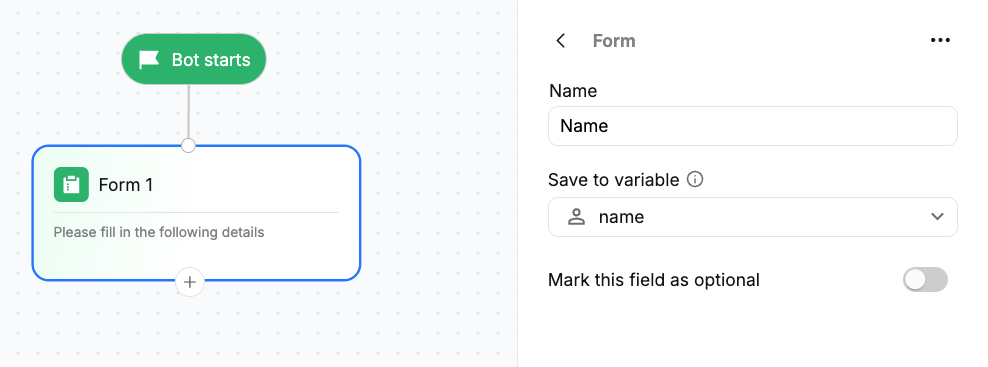
4
Configure the form
Add an optional title and description, and customize the submit button label.
Configurations
Question
Add a question to provide context before showing the form to the user. For example:Can you please help me with your contact information?
The question is displayed before the form fields.
Fields
Add the fields you want to collect from the user. You can:- Add multiple fields to collect related information in a single step.
- Reorder fields to control the order in which they appear.
- Remove fields that are no longer required.
- Configure each field independently.
Field types
Choose the field type based on the information you want to collect.Save to variable
Use Save to variable to store the value submitted for a field. Select an existing variable from the dropdown or create a variable for the field. Each field can be mapped to its own variable. For example, you can map:- Name →
name - Email →
email - Phone →
phone
When mapping a field to a variable, make sure the variable type is appropriate for the value collected by the field. WotNot supports data types such as Text, Number, Boolean, Date, Email, Phone, Regex, and Single Select.