The Trigger block is available on all channels, although the available trigger conditions vary by channel. For example, Page load is available only on web, while Inbound message received applies to WhatsApp, SMS, and Instagram.
Using the Trigger block
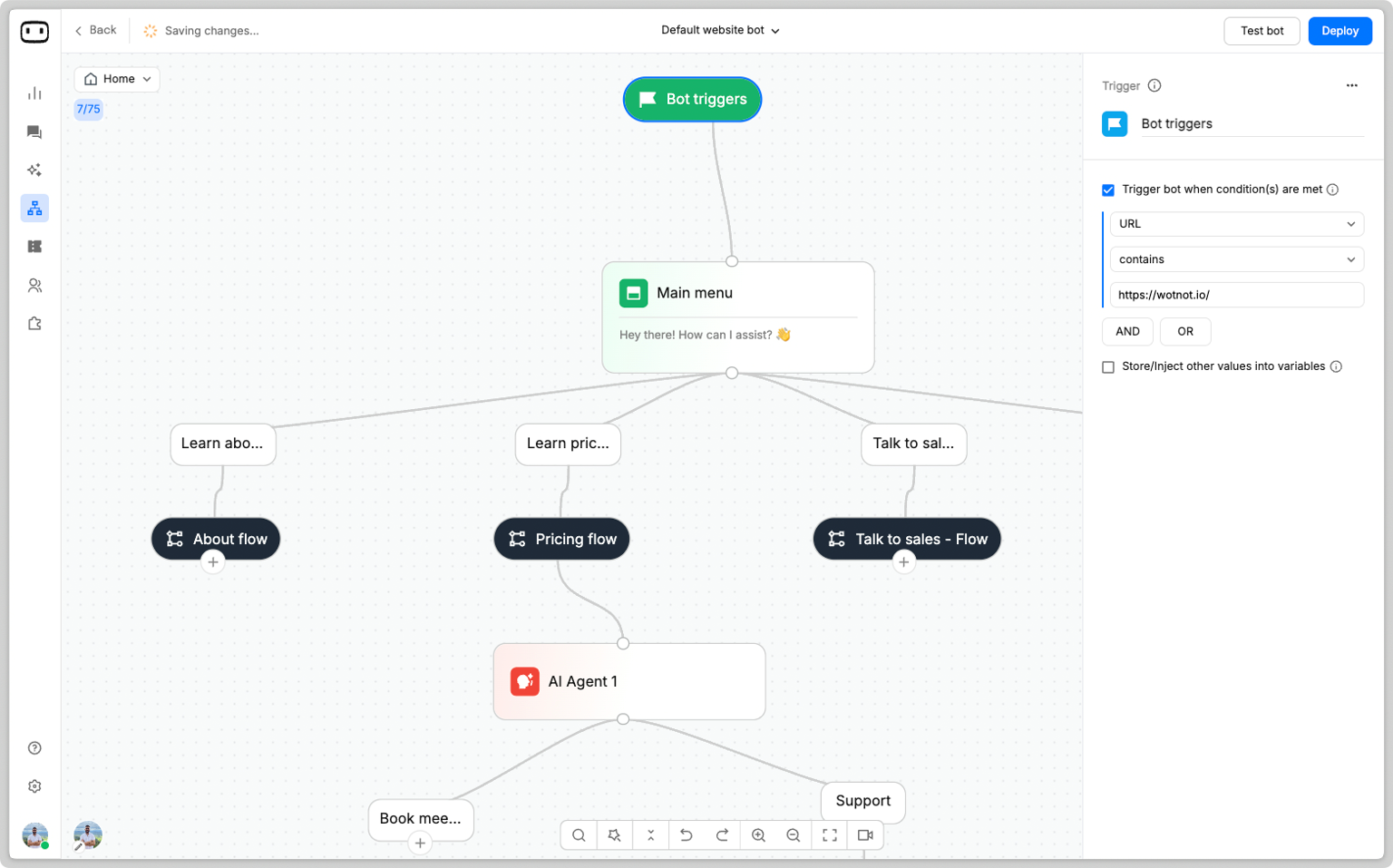
The Trigger block is added automatically when you create a flow. You do not need to add it manually. Click the Trigger block to open its configuration panel and define what should start the conversation.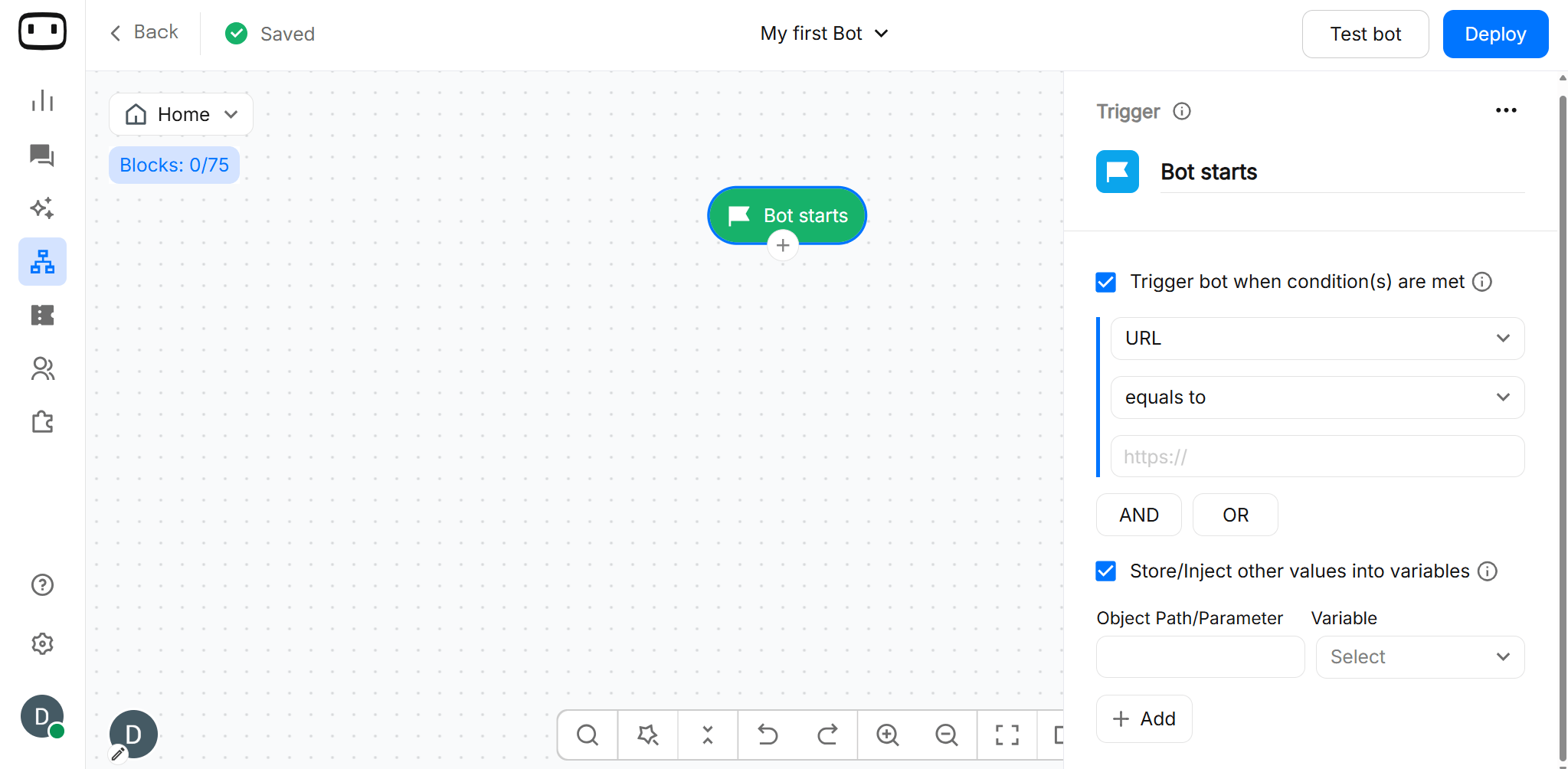
Configurations
Configure the Trigger block based on how you want the conversation to start.Trigger type
The trigger types available depend on the channel where the bot is deployed. You can configure triggers such as:- Page load — Starts the bot when a visitor lands on a webpage.
- User opens the widget — Starts the conversation when a visitor opens the chat widget.
- Inbound message received — Starts the flow when a user sends a message to the bot.
- Button click — Starts the flow when a user clicks a configured button.
Conditions
Use Conditions to restrict when a trigger should start the flow. Depending on the channel, you can configure conditions based on specific pages, URLs, user attributes, or other available criteria. You can combine multiple conditions using AND / OR logic to create more precise trigger rules.Conditions are optional.If no conditions are configured, WotNot triggers the first active chatbot by default.
Output paths
The Trigger block has a single output path that connects to the first block in your flow. Connect the Trigger block to the block that should run immediately after the conversation starts. For example: Trigger → Welcome message → Collect input → Condition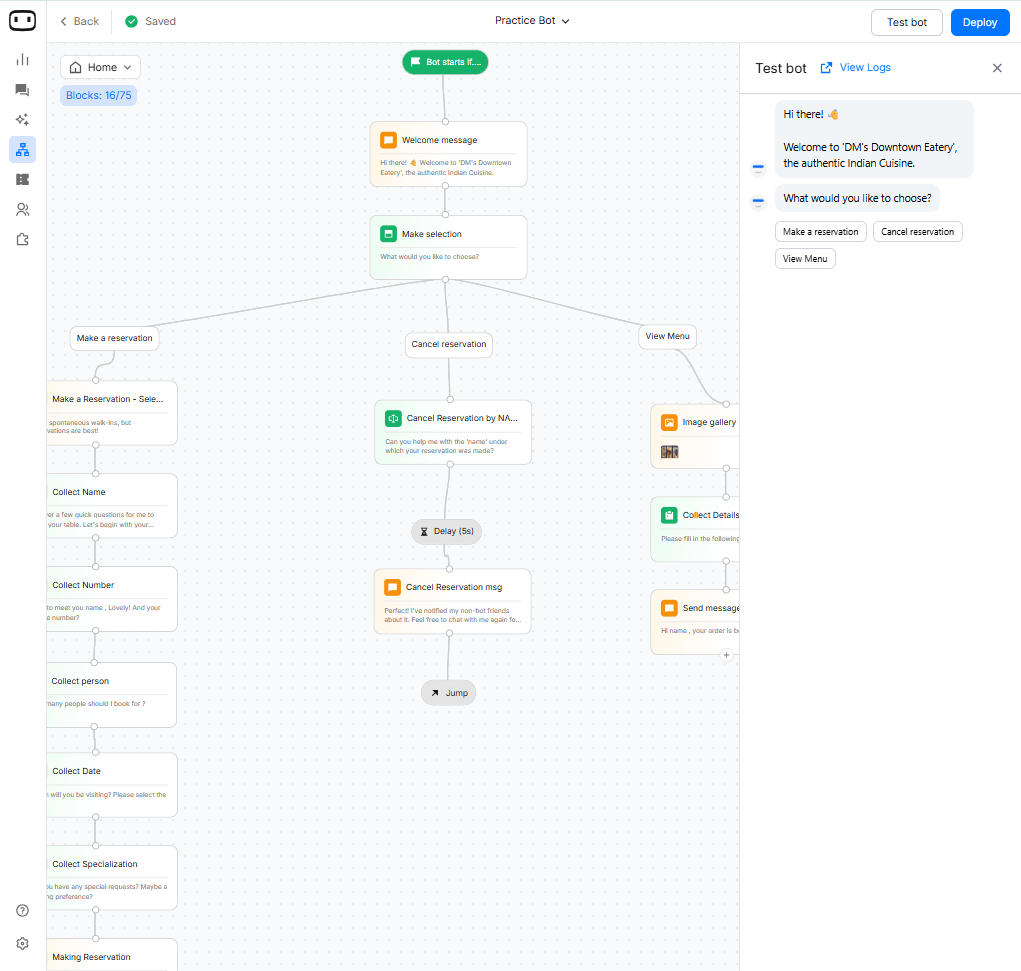
Contact subscription
This feature applies only to WhatsApp and SMS.
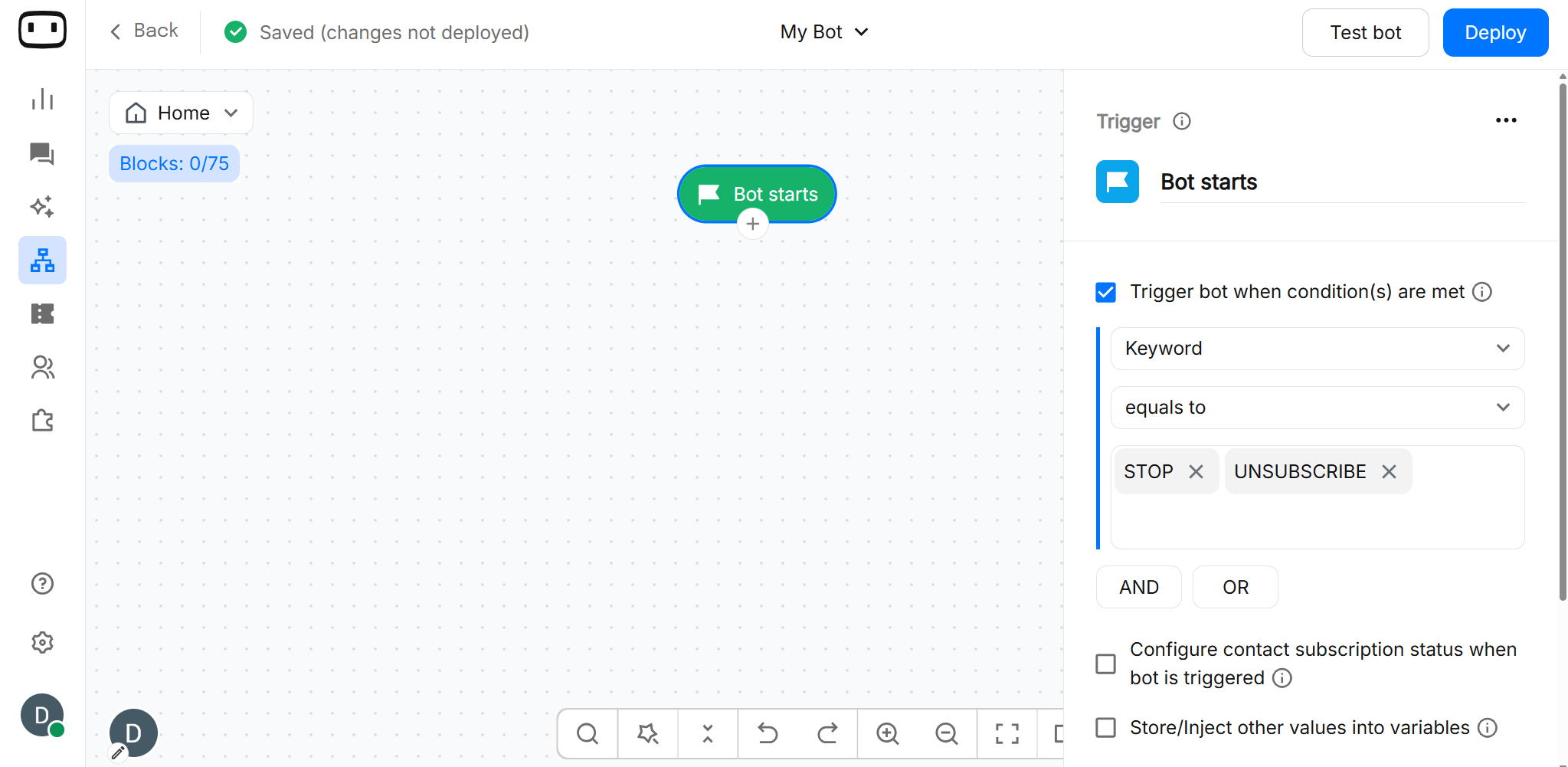
SUBSCRIBED
The contact can receive eligible promotional template messages sent by the business, subject to applicable messaging rules.
UNSUBSCRIBED
The contact should not receive promotional template messages from the business.
- Main chatbot: Configured with the Subscribed status.
- Acknowledgment chatbot: Handles messages from users who type
STOPto unsubscribe.
Inject data into the chatbot
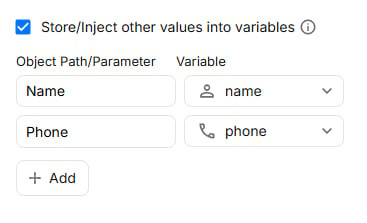
Use this option to pass external data to the chatbot. Once enabled, you can map incoming data fields to WotNot variables.
There are two ways to inject data into the chatbot.
- Using Query Params
- Using JSON
When the WotNot snippet loads on the website for the first time, the defined query parameters and their values can be stored in WotNot variables.For example, consider the following URL: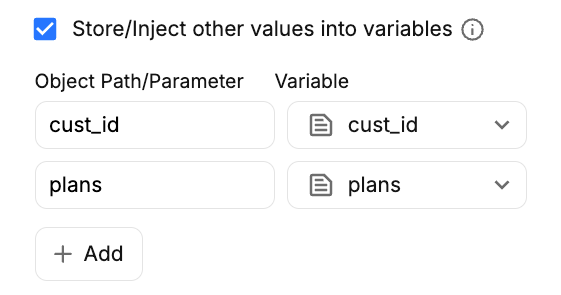
https://www.wotnot.io?cust_id=1234&plan=9896You can map the values of cust_id and plan to WotNot variables in the Trigger block.Important:
- WotNot reads this object when the code snippet is fired. Data added after the snippet loads will not be read automatically.
- Dynamically add the
data-session-payloadobject to the WotNot code snippet when passing session data.
For WhatsApp Meta Cloud, you can use the following object paths to store the selected button’s payload, button text, or incoming text message in a WotNot variable within the Trigger block.
- Selected button payload:
entry[0].changes[0].value.messages[0].button.payload - Selected button text:
entry[0].changes[0].value.messages[0].button.text - Incoming text message:
entry[0].changes[0].value.messages[0].text.body