

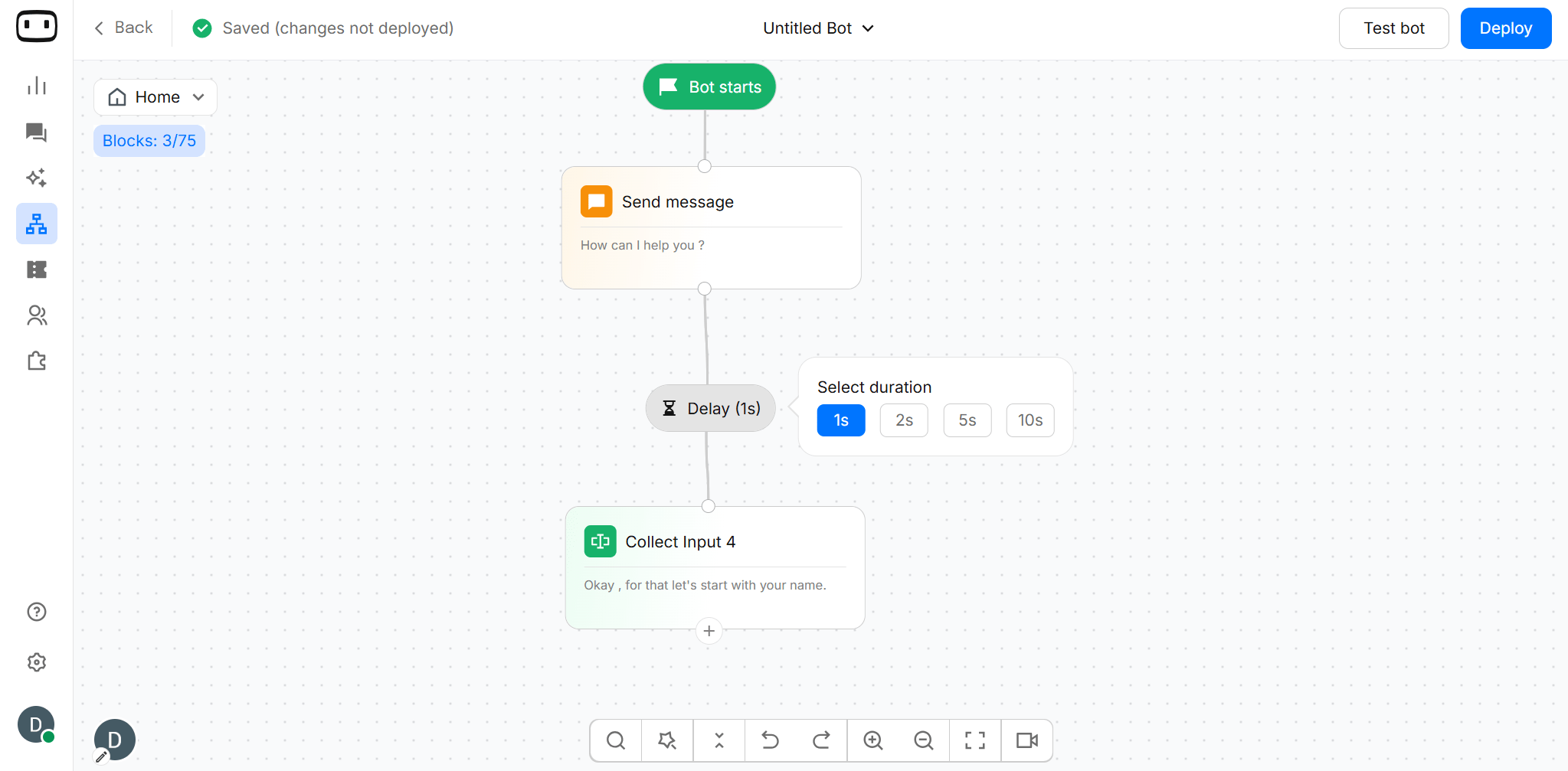
Available on all channels except WhatsApp and SMS.
Using the Delay block
- Drag the Delay block onto the canvas.
- Connect it to the preceding block in your flow.
- Select the required delay duration.
- Connect the Delay block to the next block in the flow.
- Test the flow to verify that the pause works as expected.
Configurations
Duration
The Duration setting determines how long the flow waits before proceeding. For chatbot flows, You can add delays from 1s, 2s, 5s, and 10s. After the selected duration ends, the flow automatically continues to the next block.Typing Indicator
During the delay, WotNot intentionally shows a typing indicator before proceeding to the next step. The typing indicator is part of the Delay block’s behaviour rather than a separate configuration option.Delay (in outbound bots)
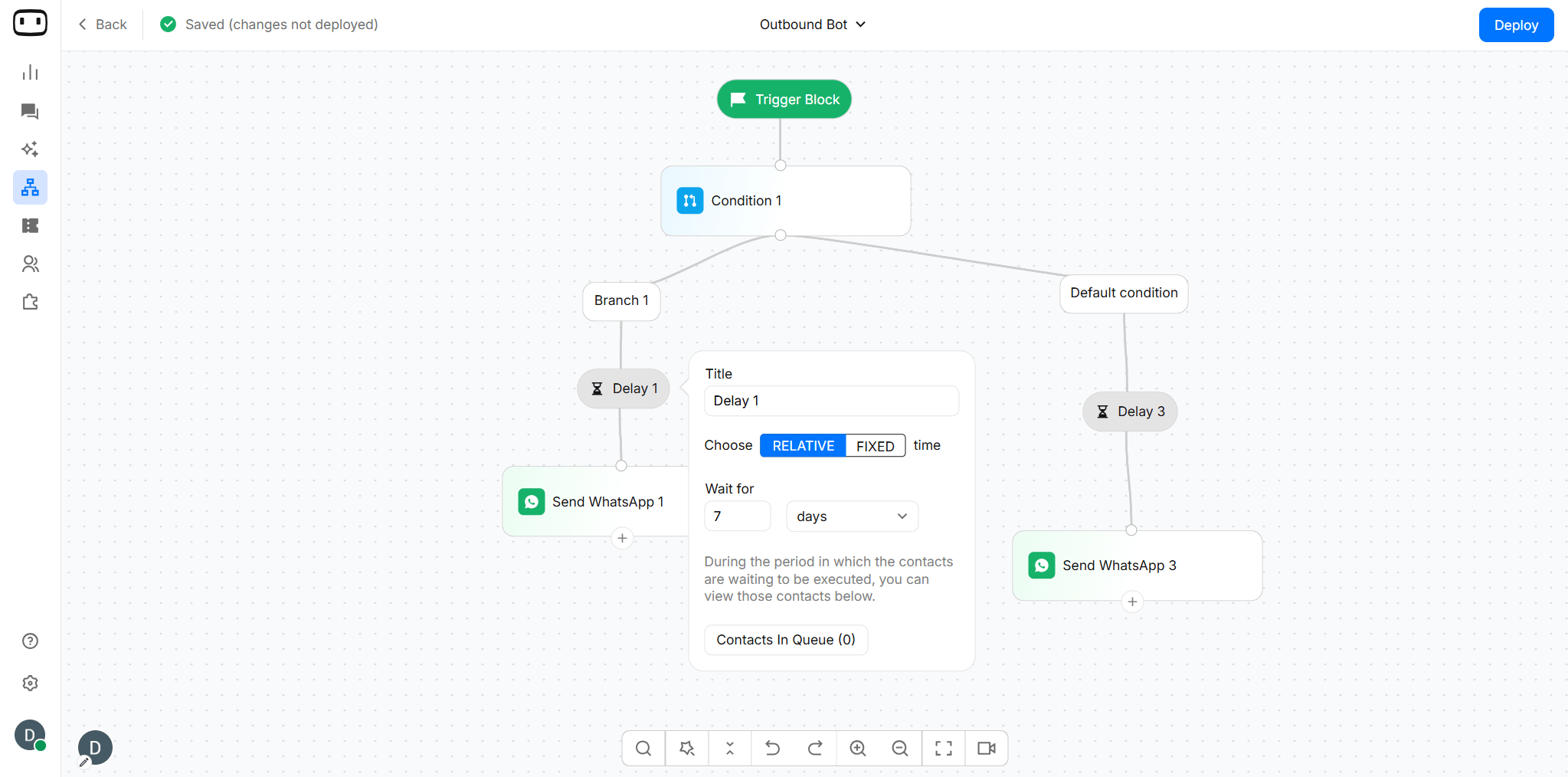
Adds an intentional delay period for which the contacts do not proceed forward in the execution flow. You can add the following type of delay:- Relative delay: For a relative period i.e. 4 hours, 5 days.
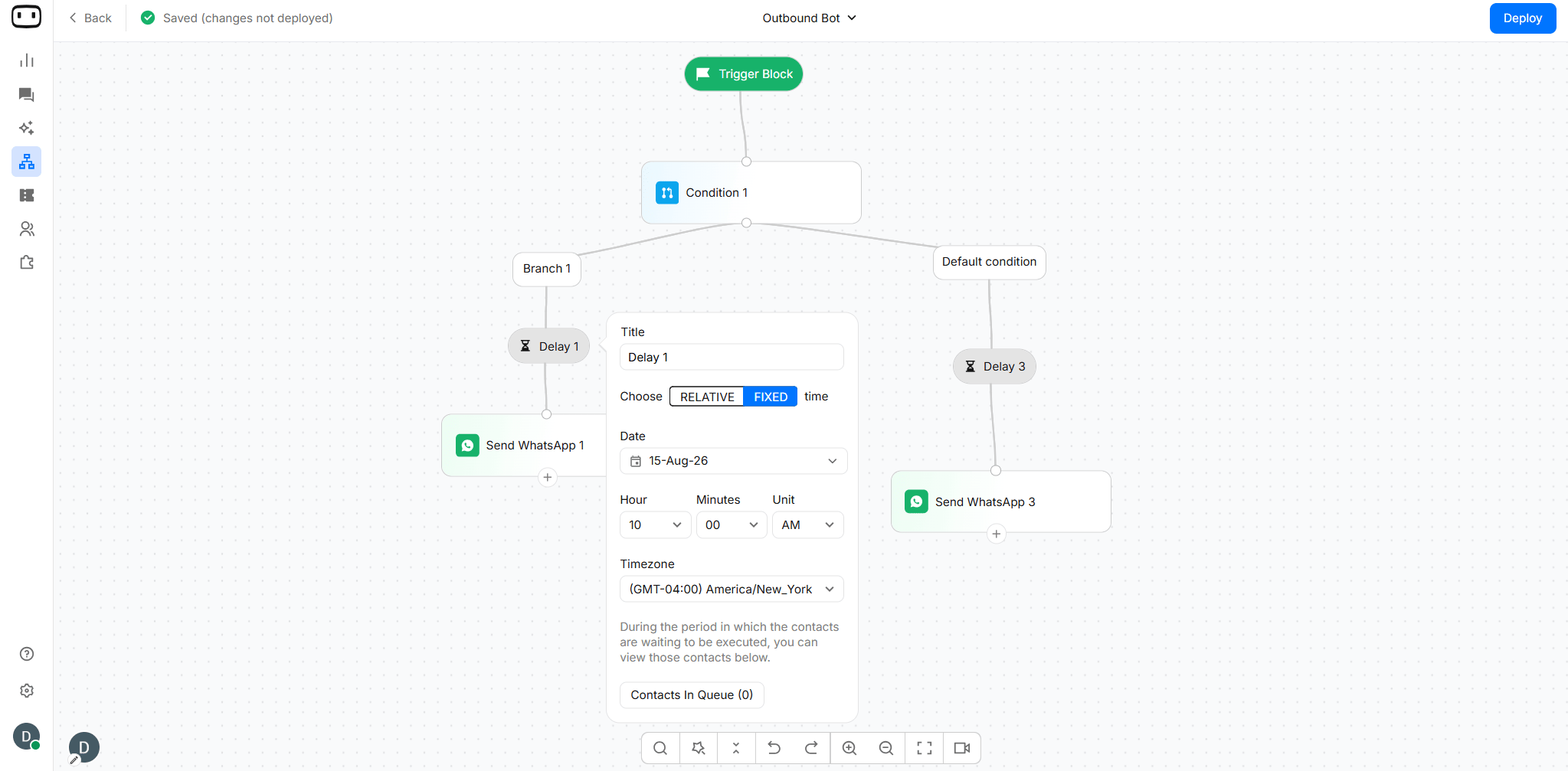
- Fixed delay: For an exact date/time i.e. Aug 15, 2026 10 am America/New-York
Deleting the ‘Delay’ action block will allow the waiting contacts to proceed immediately to the next step of the flow.