Available only on WhatsApp for the following BSPs: 360Dialog, Meta, and GupShup.
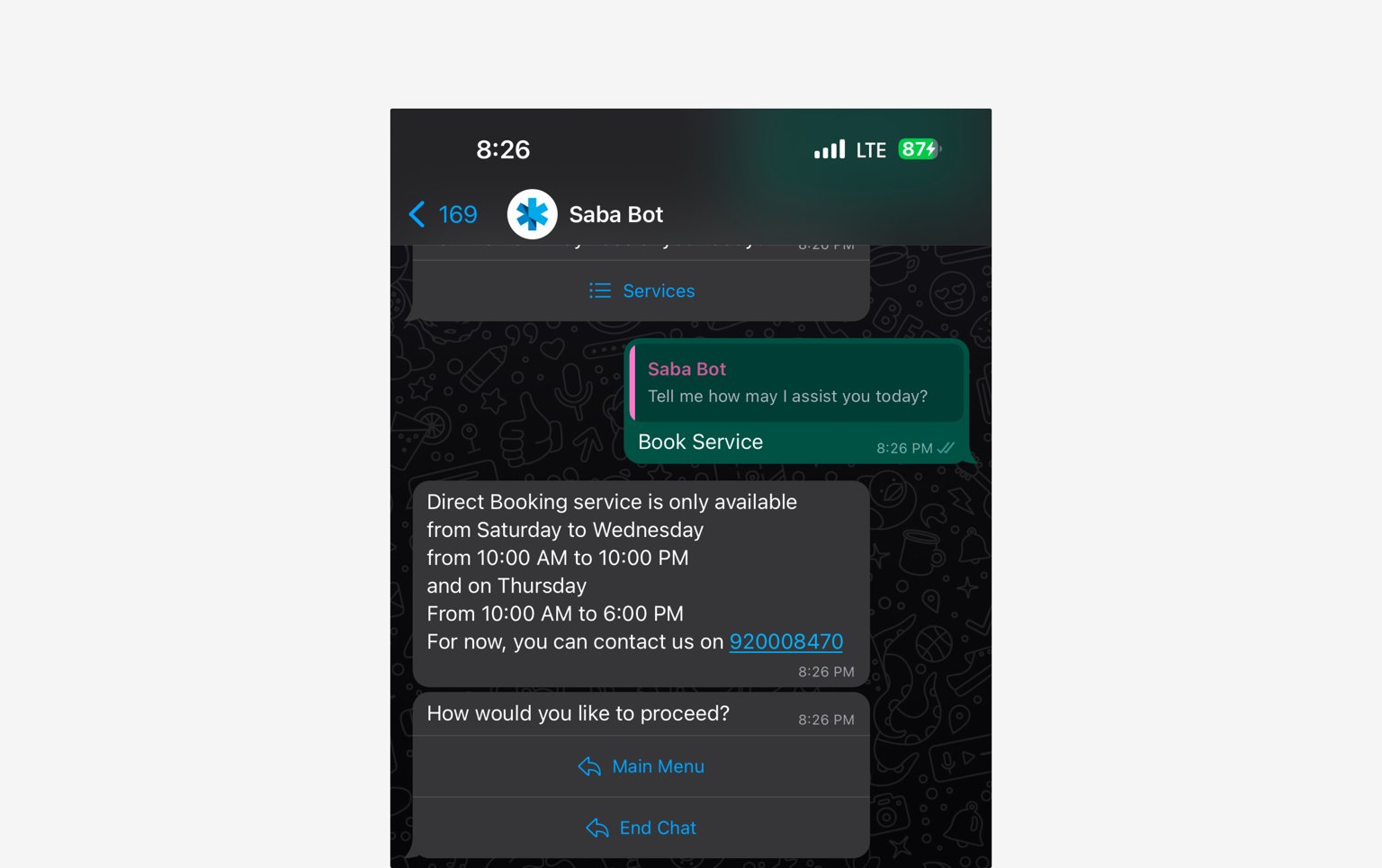
Buttons are for web and Messenger, Reply buttons are for WhatsApp, Options are for a longer list of choices, and List is for grouped items.
Using the Reply buttons block
Drag the Reply buttons block onto the canvas and connect it to your flow. Add up to three reply buttons and configure the message and response settings.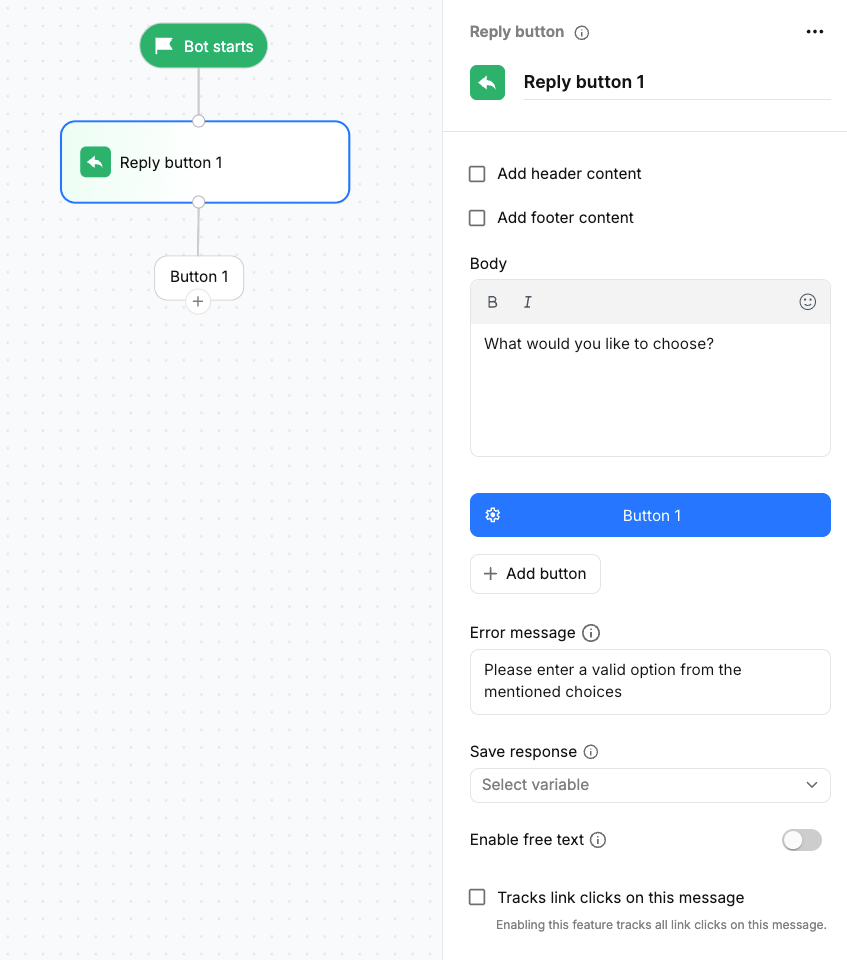
Configurations
Header
Enable Add header content to display content above the body. You can choose from three header types:Text
Text
Add a static text displayed in ‘Bold’ format.
E.g: “Welcome to WotNot”
E.g: “Welcome to WotNot”
Media
Media
Renders a media file as the cover of this message.
Dynamic media
Dynamic media
Send a dynamic image, video or file by using a variable. The variable needs to contain a publicly hosted file URL.
E.g: Invoice file or personalised images with name.
E.g: Invoice file or personalised images with name.
Footer
Enable Add footer content to display supporting information below the body in a small grey font. Use the footer for additional information or disclaimers.Body
Enter the question or message displayed above the buttons. For example:What would you like to choose?
Buttons
Add up to three reply buttons. Each button has its own label and creates a separate output path on the canvas.You can add up to 3 reply buttons as supported by WhatsApp.
Error message
Enter the message displayed when the user’s response does not match one of the available choices. For example:Please enter a valid option from the mentioned choices
Save response
Select a variable to store the user’s selected response. You can select an existing variable or create a new variable from the dropdown.Other configurations
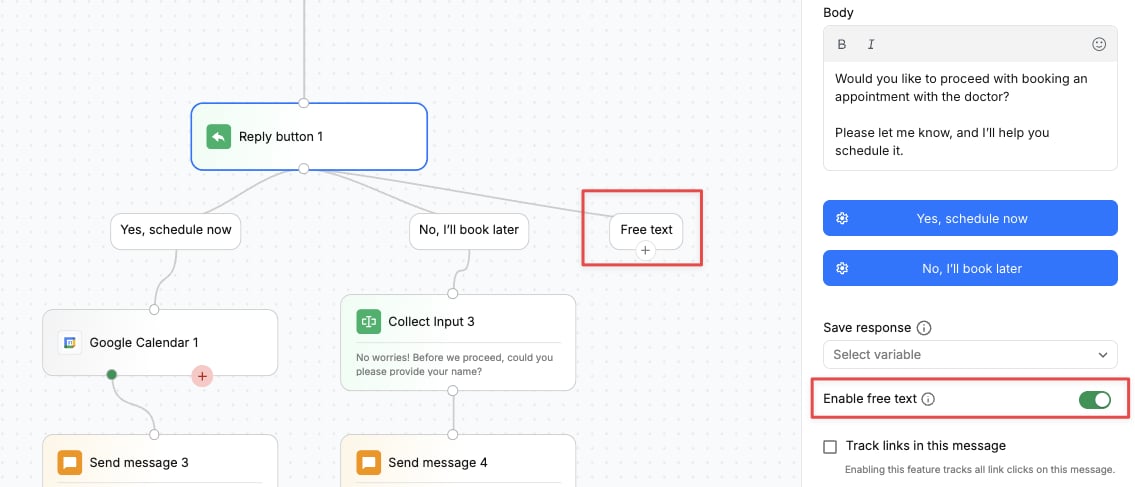
Enable free text
Enable Enable free text to allow users to either select a predefined button or type their own response in the chat input. When enabled, a Free text output is added to the canvas. You can connect this output to another action block, such as an AI agent, to handle the user’s typed response.