

The Slider block is available only on the web widget.On other channels, use the Collect input block with a number type instead.
Using the Slider block
1
Add the Slider block
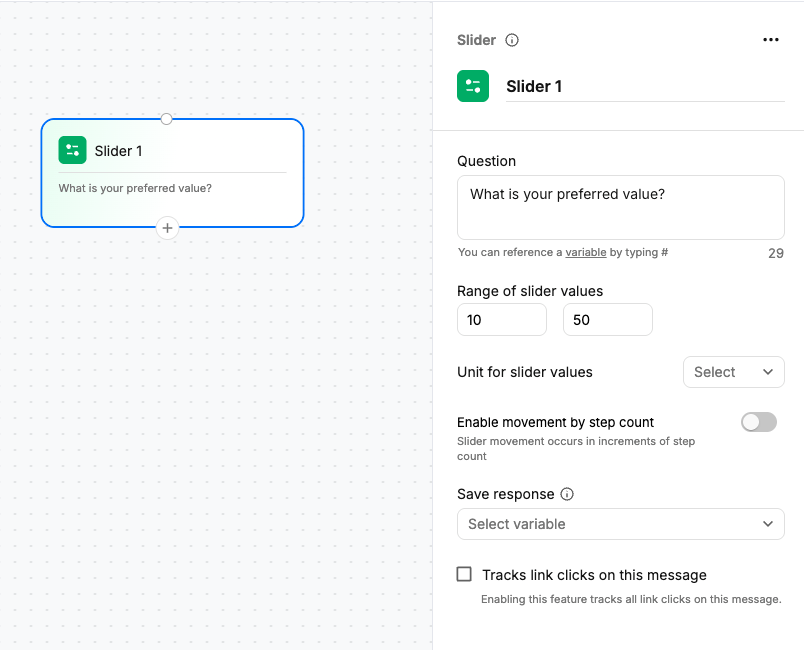
Drag the Slider block onto the canvas and connect it to the required block in your chatbot flow.
2
Configure the question and range
Enter the question you want to display to the user and define the minimum and maximum values under Range of slider values.
3
Select the unit
Under Unit for slider values, select the unit you want to display with the value. You can choose from $, €, £, ₹, °C, and °F.
4
Configure step movement
Enable Enable movement by step count if you want the slider to move in fixed increments.Once enabled, use Count of steps to be displayed to define the number of steps on the slider.
5
Save the response
Under Save response, select the variable where you want to store the value selected by the user.

Configurations
- Question — The question displayed above the slider. You can reference a variable by typing
#. - Range of slider values — Defines the minimum and maximum values that users can select.
- Unit for slider values — Adds a unit to the slider value, such as $, €, £, ₹, °C, or °F.
- Enable movement by step count — Allows the slider to move in fixed increments instead of continuously.
- Count of steps to be displayed — Defines the number of steps displayed on the slider when movement by step count is enabled.
- Save response — Selects the variable where the user’s selected value is stored.
- Tracks link clicks on this message — Tracks link clicks associated with the message when enabled.