

Available on OUTBOUND bots only
We only support TECHALPHA SMS provider for this functionality at the moment.
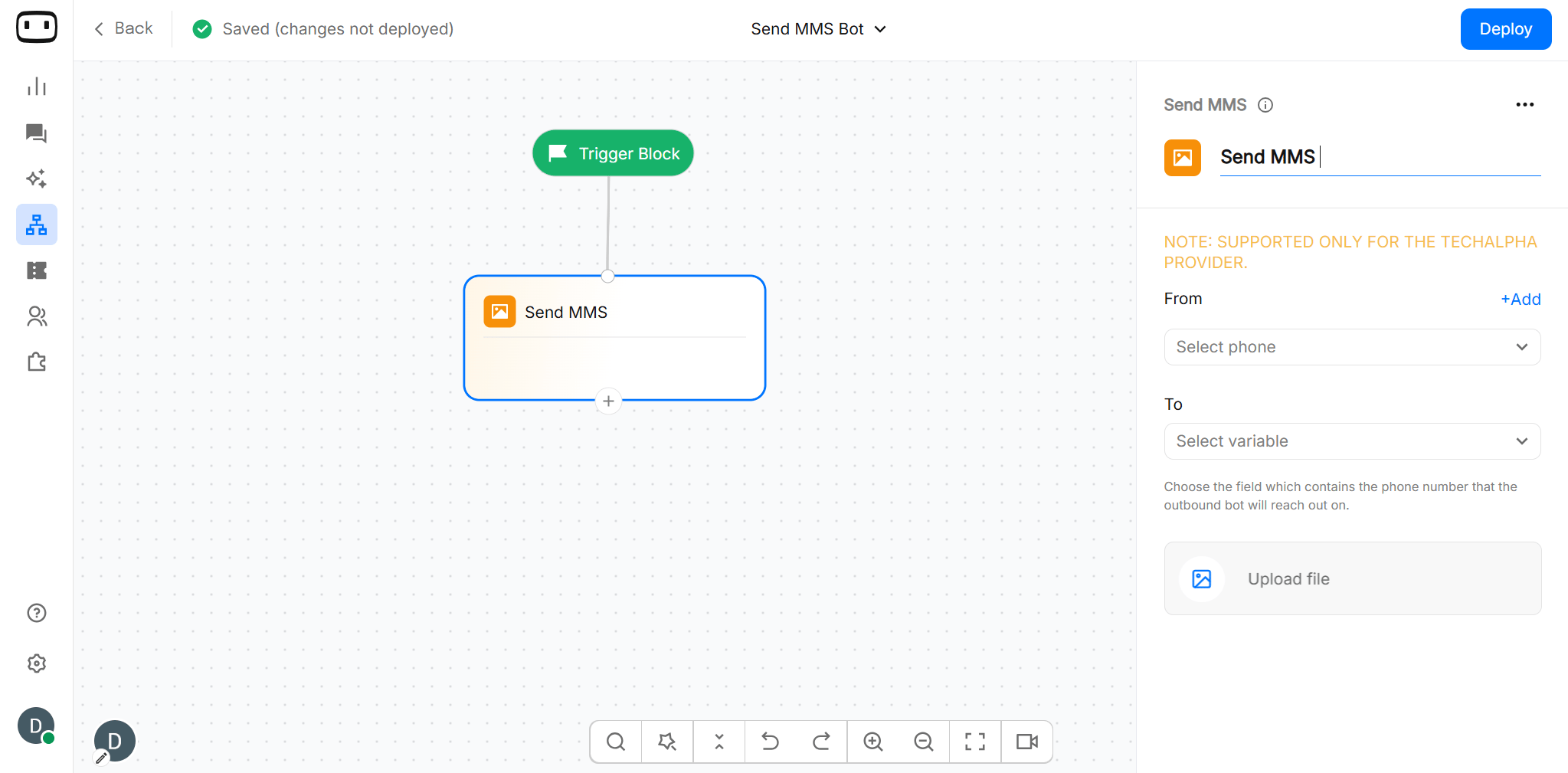
Using the Send MMS block
Add the Send MMS block to your outbound campaign, configure the sender and recipient, enter the message, and attach the media you want to send.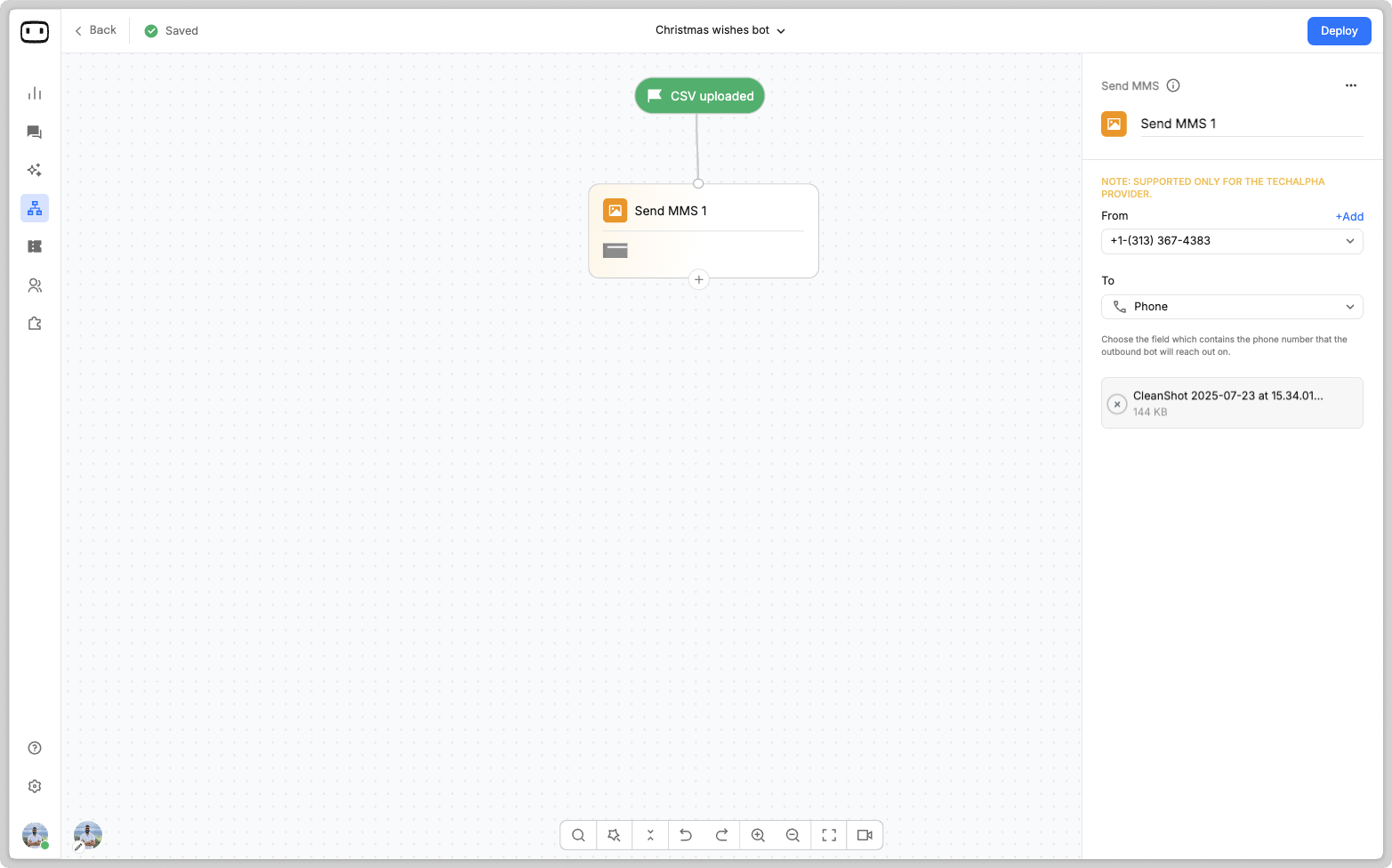
Configurations
Message text
Enter the text that you want to send with the media. You can use variables in the message to personalize the MMS for each contact. For example:Hi {{name}}, here is your offer brochure.Keep the message concise and make sure the text provides enough context for the attached media.
Media
Upload the media that you want to send with the MMS. Use media when your message needs to communicate information visually, such as:- Brochures
- Offer pamphlets
- Promotional material
Sender ID
Select the phone number from which the MMS is sent. The selected number must be configured with an SMS provider that supports MMS. The number and provider must also be available for MMS delivery in the recipient’s region.Recipient
Select the variable that contains the recipient’s phone number. For an outbound campaign, the block uses the value stored in this variable to determine where the MMS should be delivered. Make sure the variable contains a valid phone number in the format supported by your configured provider.Fallback
MMS delivery can depend on the recipient’s carrier, handset, and region. If the recipient cannot receive MMS, delivery may fail depending on the provider’s supported fallback behaviour. Configure your outbound flow to handle unsuccessful delivery appropriately. If you need to branch the campaign based on delivery status, use the Send Status block after sending the message.Output Paths
Use the output paths to define what happens after the MMS is processed. The block can branch based on the delivery outcome, allowing you to handle successful and unsuccessful deliveries separately. For example:- Delivered — Continue the campaign when the MMS is successfully delivered.
- Failed — Route the contact to another path when the MMS cannot be delivered.
The exact delivery outcomes available for branching depend on the provider and delivery status returned to WotNot.You can use Send Status to configure these paths.