

Available on WHATSAPP channel for all plans
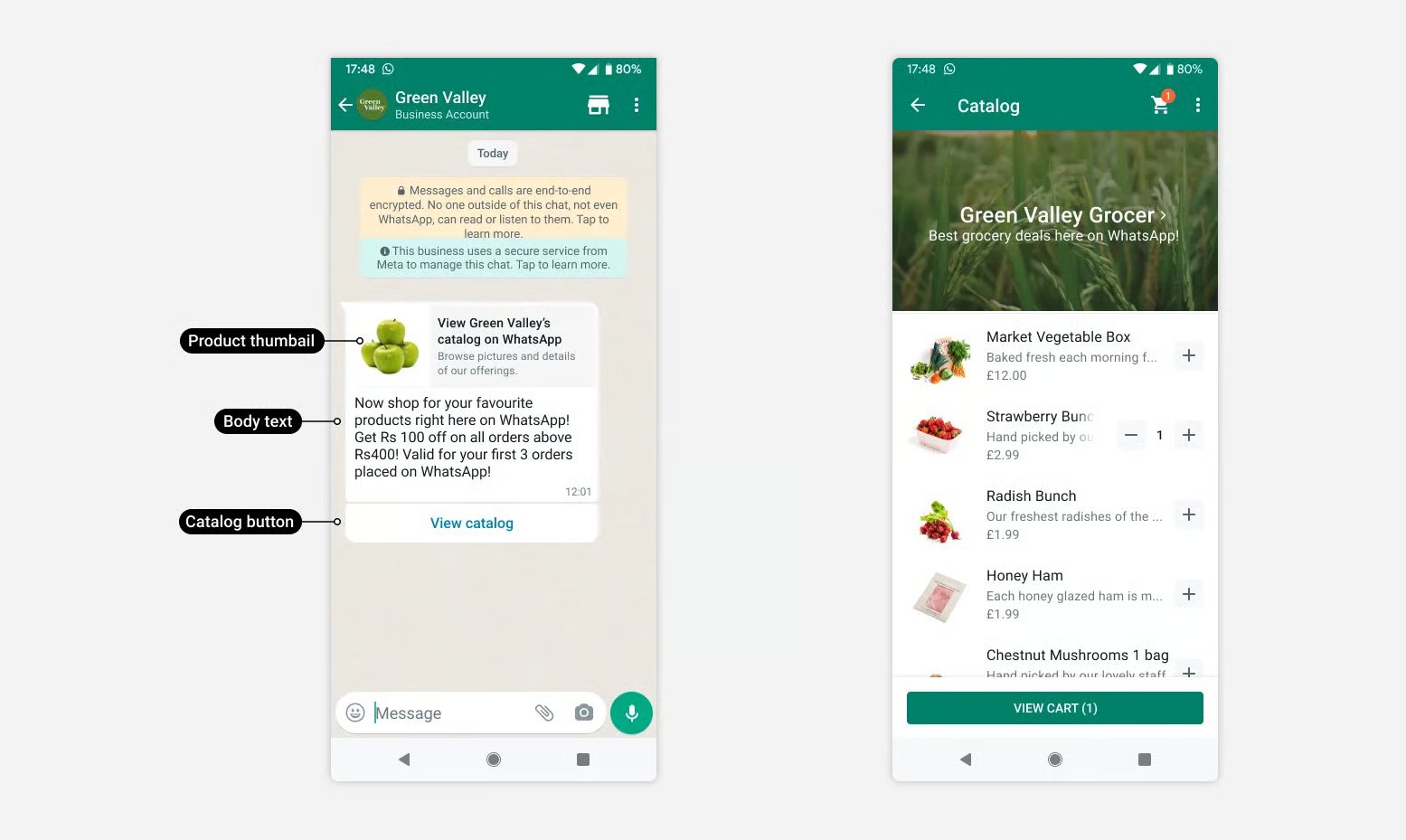
Before using the block, create a product catalogue in Meta Business Manager, add your products, and use the catalogue ID in WotNot. The catalogue must be associated with the WhatsApp Business account you are using
Using the Catalogue Block
Add the Catalogue block to your WhatsApp flow, choose how you want to display your products, and provide the catalogue and product information.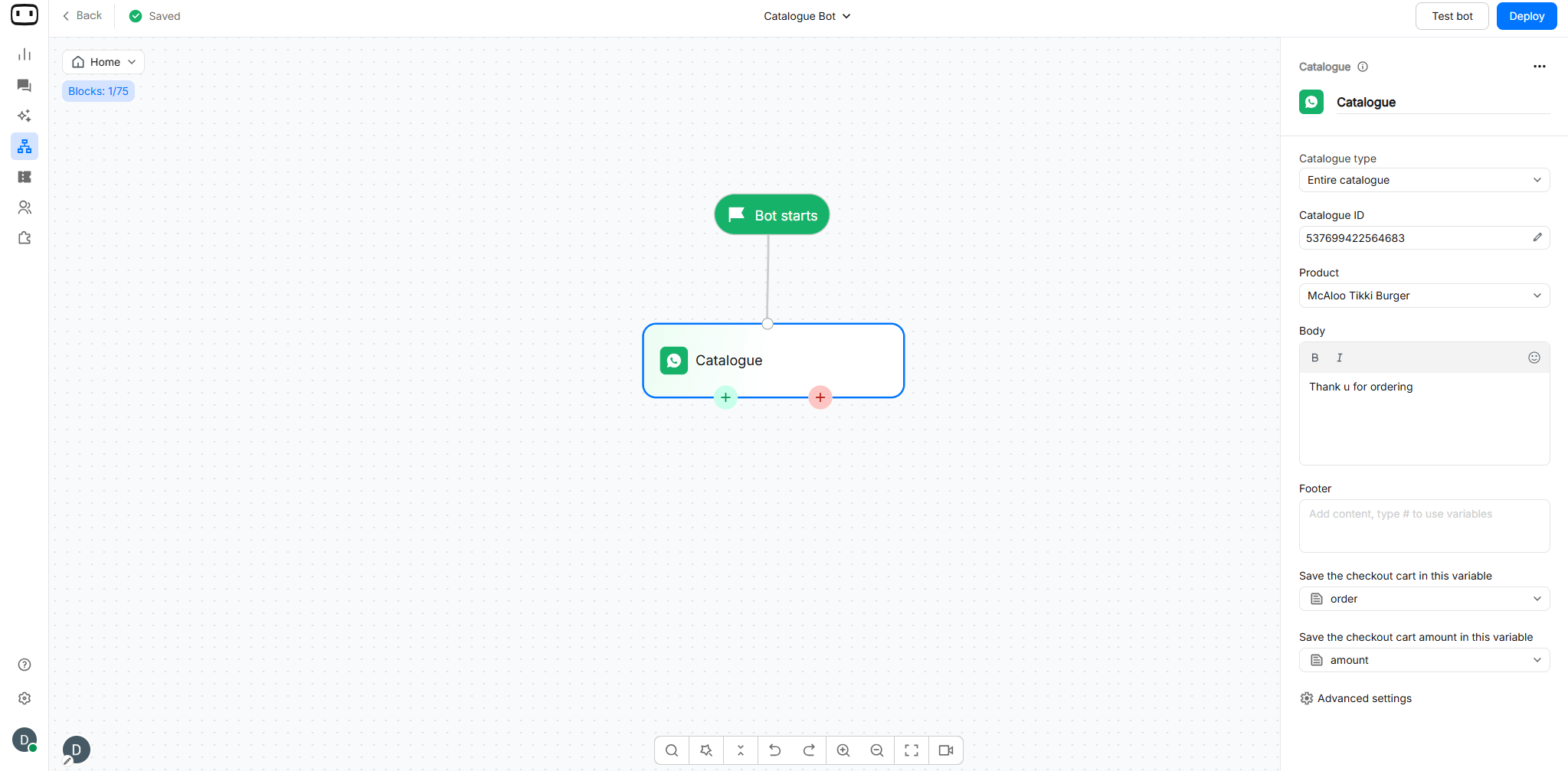
Configurations
To use the Catalogue on WhatsApp, first you need to create a Catalogue on your Meta business manager. Once you upload the list of all your products on Meta business manager, use your Catalogue ID here to reference it. Learn how to create a catalogueCatalogue Type
Depending on how many products you wish to show to users, choose an option:Entire Catalogue
Displays all your products.
Single Product
Displays only one product.
Multi Product
Displays the list of selected products.
Catalogue ID
Catalogue ID is a unique identification number assigned by Meta to a product catalogue. It is used to identify and connect a specific catalogue containing products, services, or other items with Meta and third-party platforms.Product ID
For Single product and Multi product catalogues, enter the product IDs that you want to display. With Multi product, you can display multiple selected products and organise them into sections. WotNot currently supports:- Up to 500 products in a catalogue.
- Up to 30 products displayed at a time.
- Up to 30 products in a section.
- Up to 10 sections in a catalogue.
Message Text
Write the header, body and footer text which will be displayed to prompt the user to open and view your catalogue.- Header — introductory text shown with the catalogue.
- Body — text explaining what the user can browse or purchase.
- Footer — additional information or instructions.
EXAMPLE:
Header: Our productsBody: Browse our products and add the items you want to your cart.Footer: Select a product to view its details.
Saving the checkout cart in a variable
Use this variable when you need the actual products and quantities selected by the customer, for example, to pass the cart details to another block, API, or order-processing system. Once the user adds products to the cart and checks out, the entire cart will be stored in this variable in a JSON format. Here is the sample JSON payload which will be stored in the provided variable,Saving the checkout cart amount in a variable
This variable stores the total amount of the checkout cart submitted by the customer. For example, if the customer selects:- Product A — ₹499 × 2
- Product B — ₹299 × 1
Other configurations
Save any message query in a variable
When the user is browsing the products in the catalog, in case the user closes the catalog popup and sends a random messages, that text can be saved in a variable. This is useful when you want to remember what the customer asked while browsing the catalogue and use that information in a later step.
“What is your address?”You can select a variable such as: cms_enquiry_id The customer’s message can then be stored in: address = “What is your address?”

Output paths
The Catalogue block has two output paths:- Success: when the user submits their cart to proceed in the flow.
- Failure: when the user does not submit their cart, or we fail to retrieve the products.