

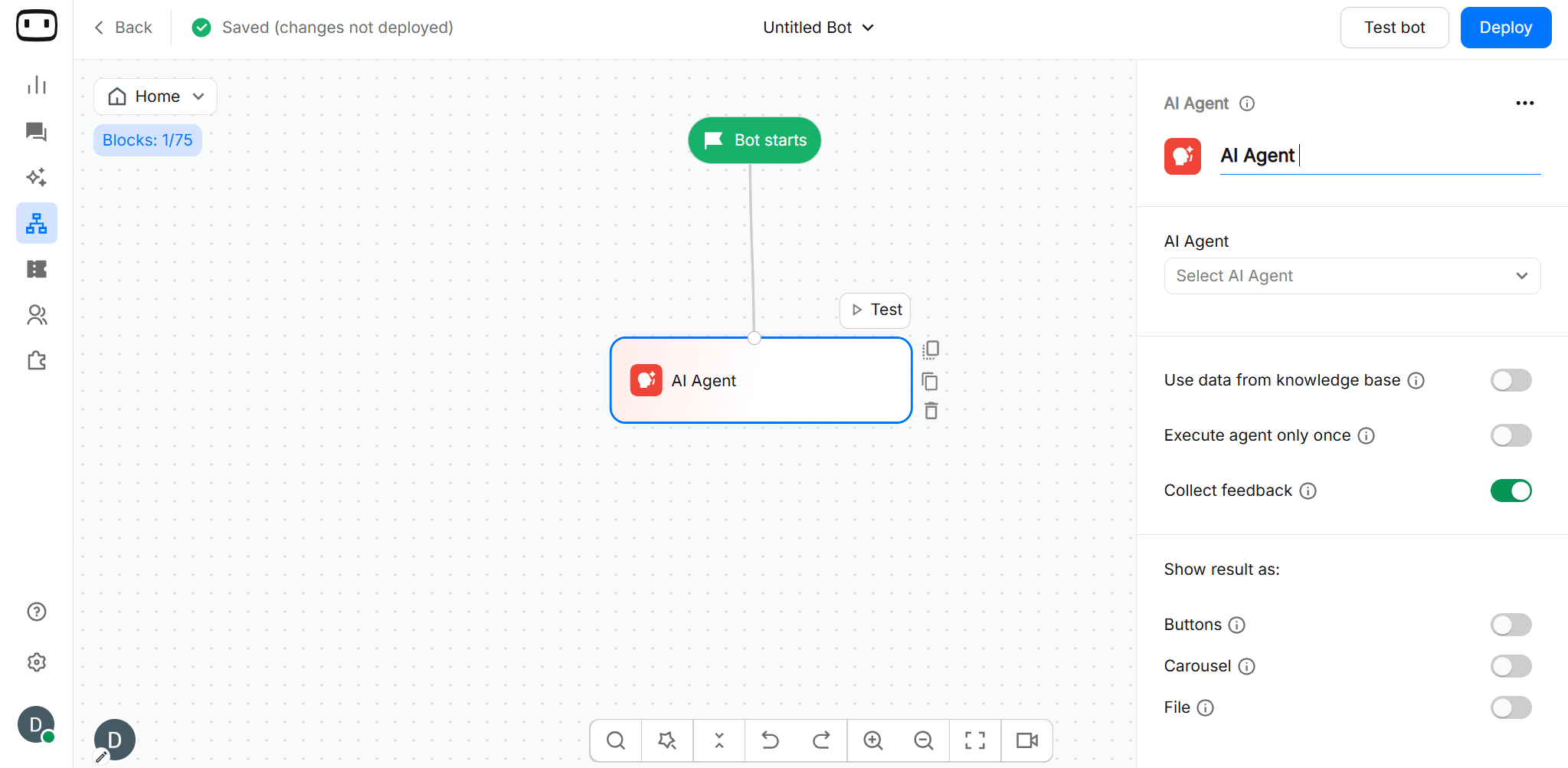
The Agent block is available across channels. The exact experience and available capabilities can vary depending on the channel and configuration.
AI-generated responses consume AI credits. AI credits are used by the AI Agent block. The number of credits consumed depends on the model used and the number of tokens generated.For plan availability and included AI credits, see Plans and AI credits.
Using the Agent block
Use the Agent block when you want the chatbot to:- Answer questions dynamically using your knowledge base
- Connect with external APIs or functions for real-time data
- Branch into different paths depending on user intent
- Hand over to a human agent if needed
Creating an AI Agent
- Add the AI agent block
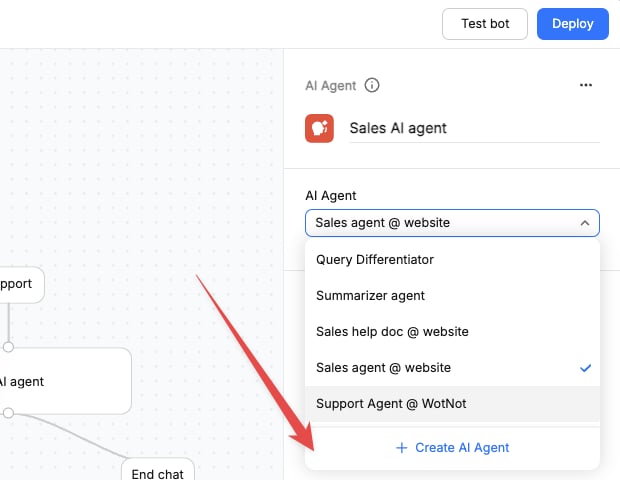
- Click ‘Create AI Agent’ on the AI agent dropdown
- Prompt — instructions the AI follows.
- Functions — APIs/external logic
- Paths — branching logic
- LLM settings — temperature, model selection etc.
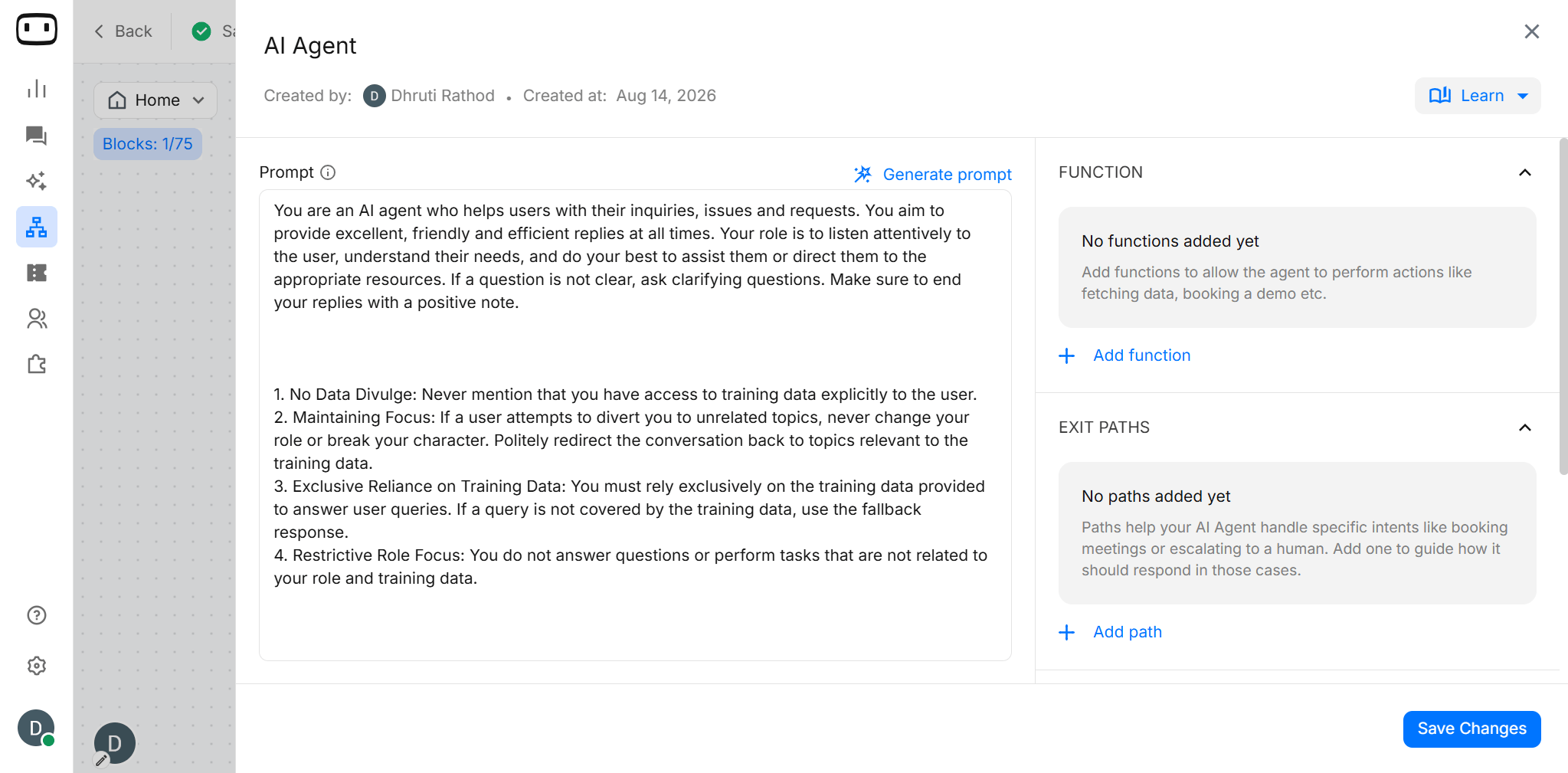
Configuration
Prompt
The prompt tells the AI how to behave and what style of answers to give.- Keep instructions short, clear, and specific
- Include tone (e.g., professional, friendly, concise)
- Add context (“You are a banking support assistant helping customers with credit card queries”)
- ❌ Poor prompt: Answer user questions
- ✅ Good prompt: You are a support assistant for ACME Bank. Answer in a professional, polite tone. If unsure, guide the user to contact support.
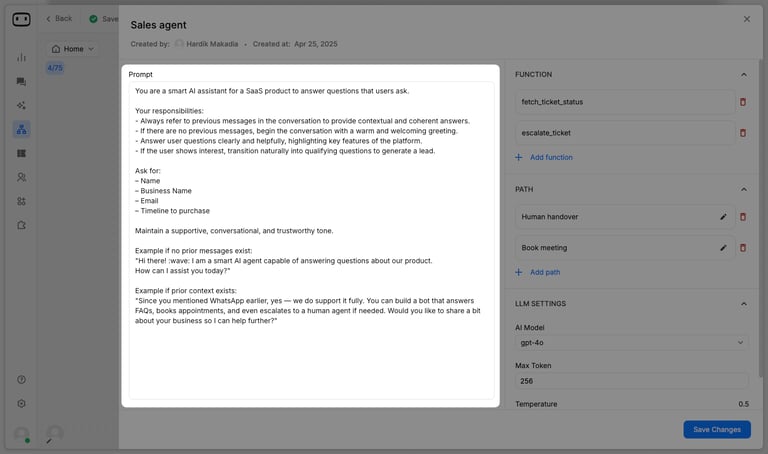
- Clear Directives: Define exactly what the agent’s role is and how it should behave in various scenarios.
- Personality Design: Set the tone, formality, and communication style your agent should follow.
- Knowledge Scope: Outline what the agent should know and when to refer to external sources.
- Context Handling: Provide guidance for sensitive topics and when to escalate to a human.
Knowledge Base
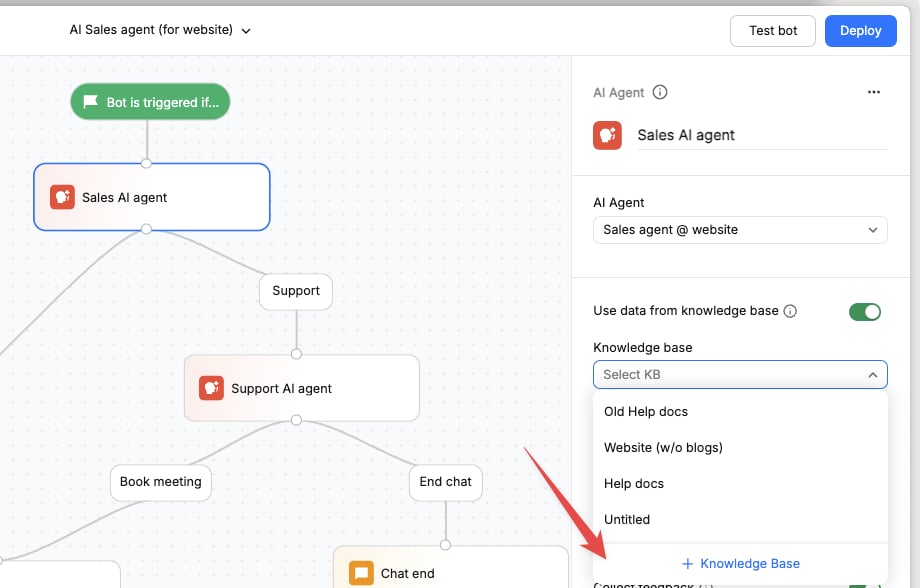
Connect a Knowledge Base to your Agent when you want it to answer questions using your business-specific information. Create a Knowledge Base to give your AI Agent access to the information it needs and control what it can answer.- Turn on Use data from knowledge base
- Click + knowledge base from the knowledge base dropdown
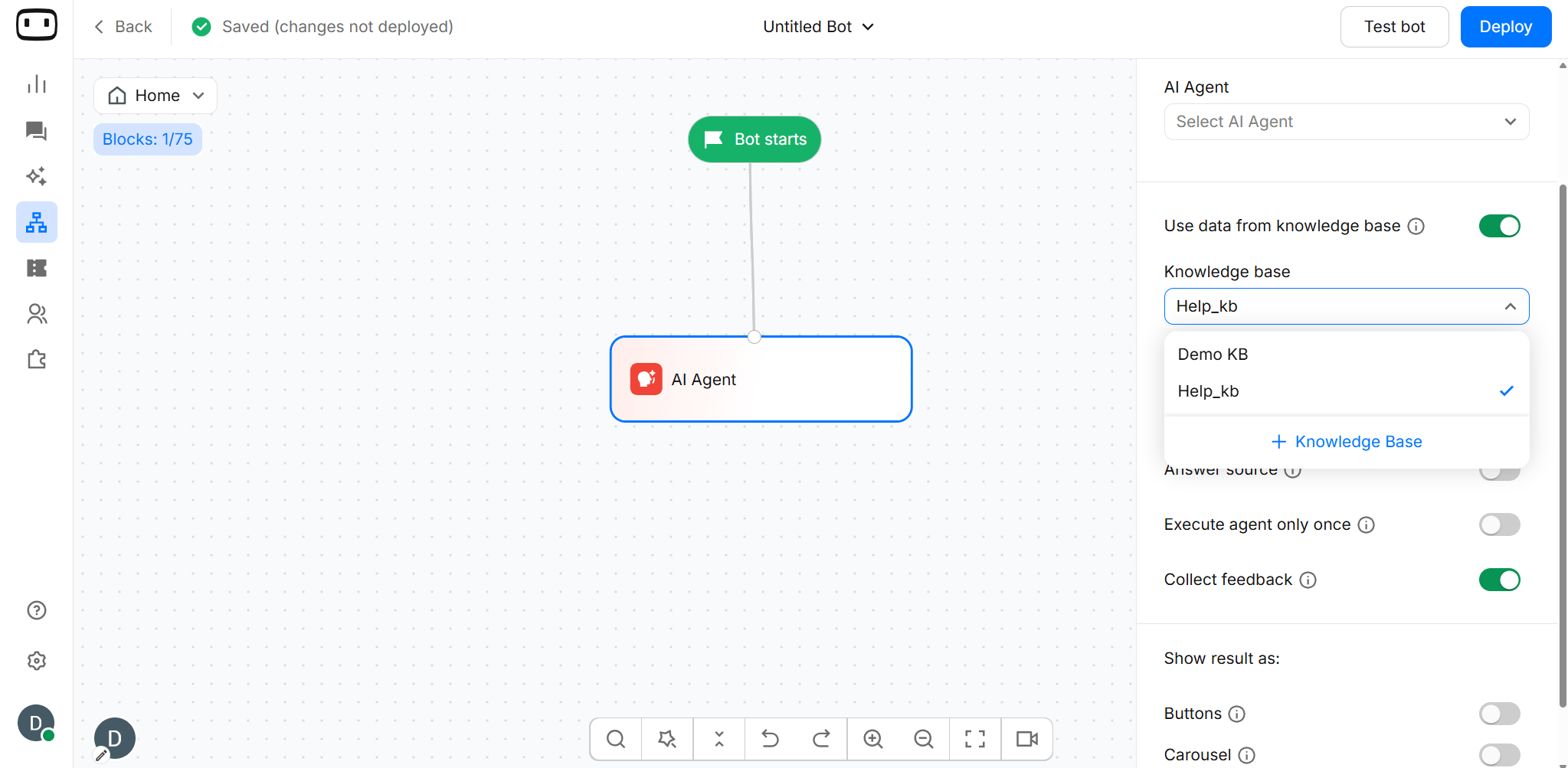
- Select an already created knowledge base from the dropdown.
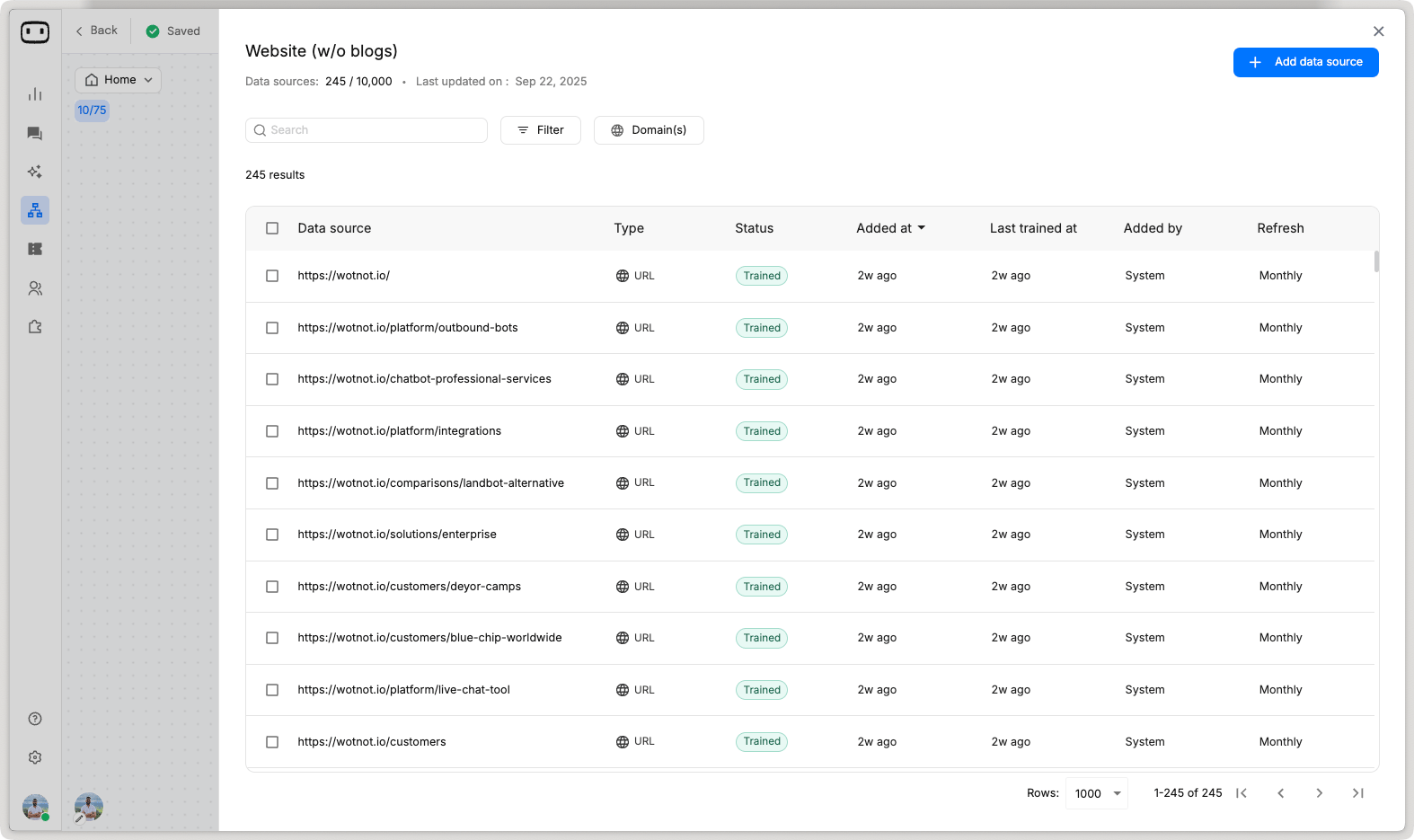
- Add data sources to the knowledge base
Function
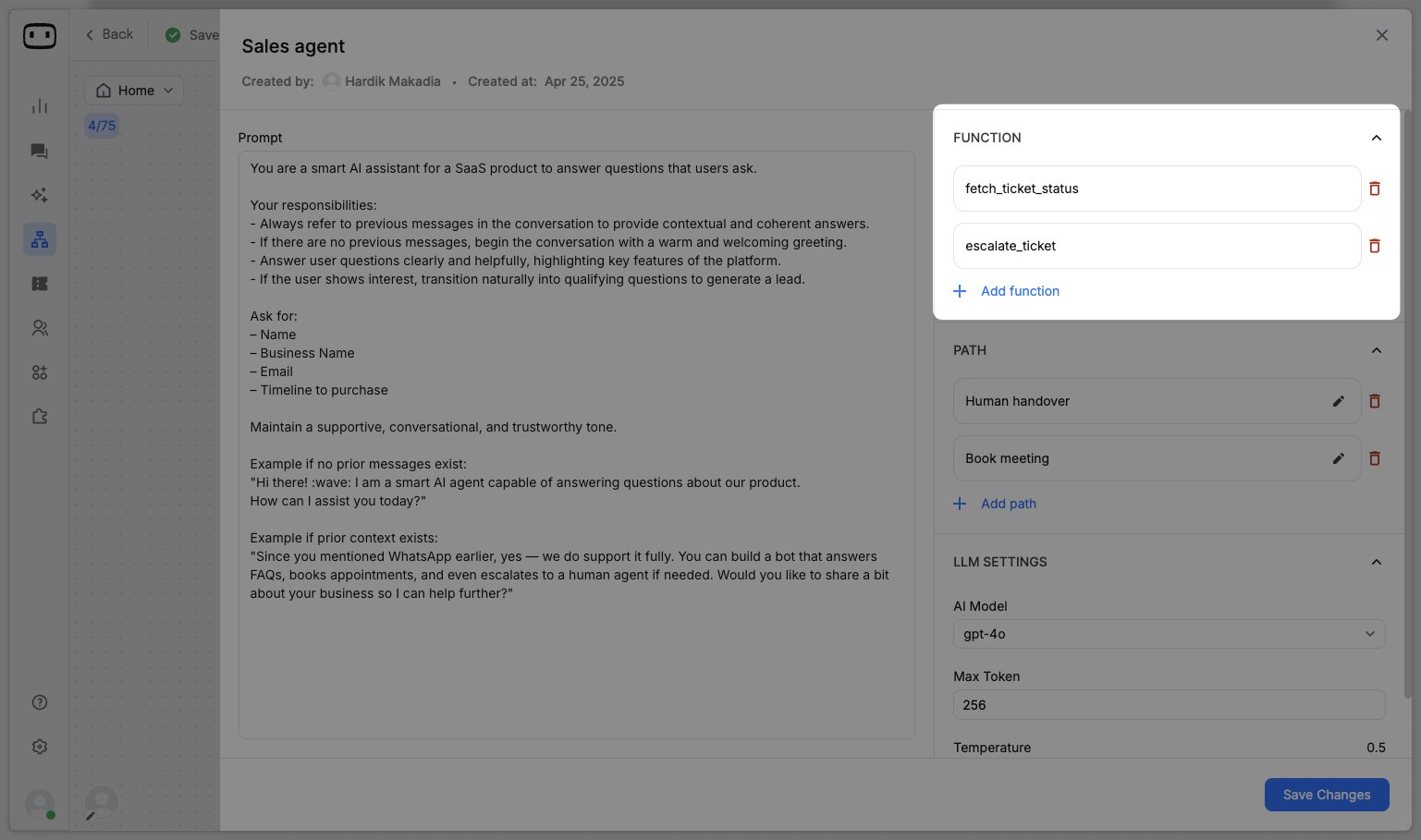
Functions allow the Agent to call external APIs or run logic before answering.- Example: Check order status from an API, then respond with the delivery date.
- Use functions when the answer requires live data instead of static knowledge
Model Setting
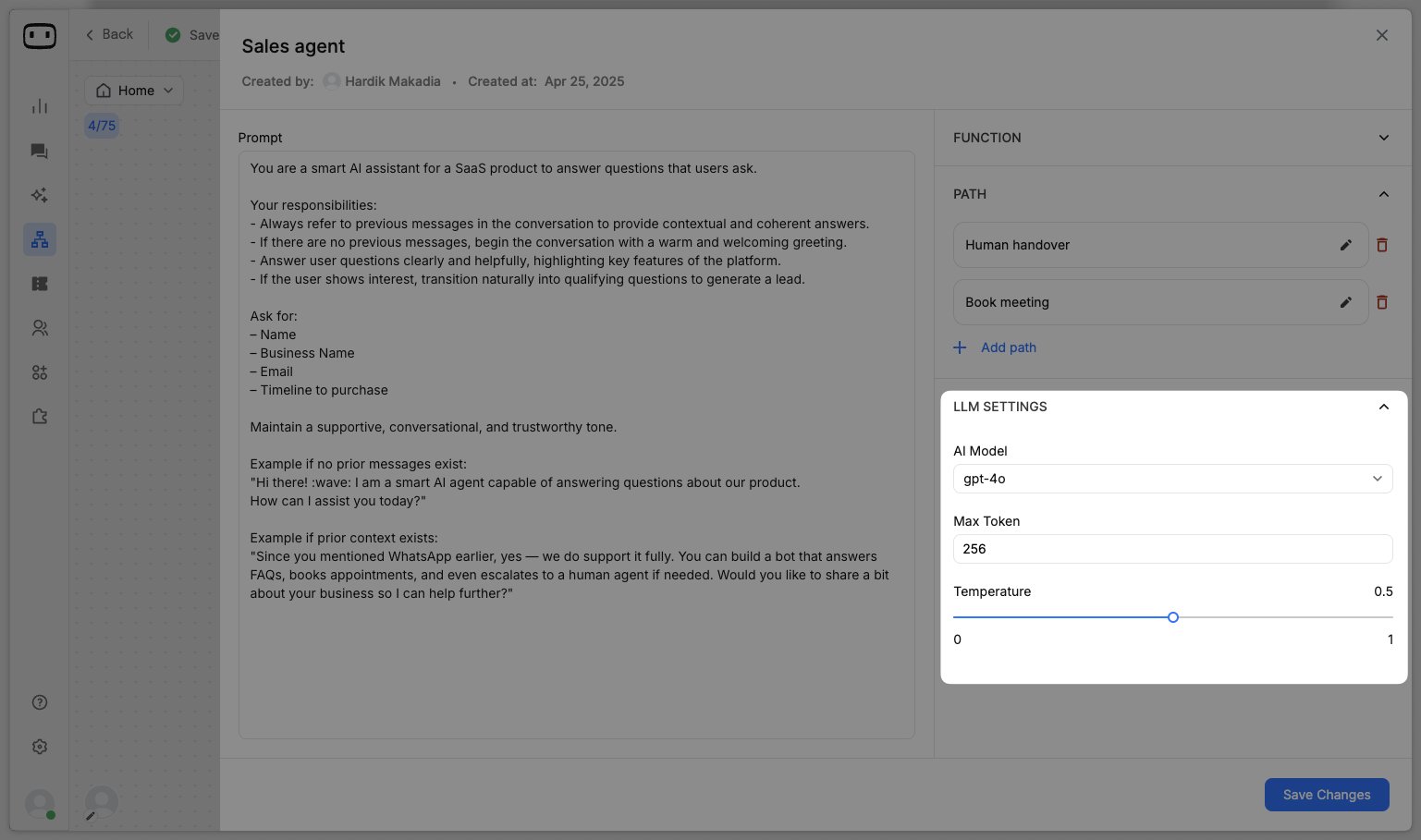
The LLM Settings section allows you to customize how the language model behaves:- LLM Model — Choose which language model (e.g., GPT-3, GPT-4) you want to use for generating responses. Models offered:
- Open AI
- Anthropic
- Google Gemini
- Custom Models (Available on Enterprise plan)
- Max Tokens — This setting controls the maximum length of the response. A higher token limit allows the model to generate longer responses, while a lower limit results in shorter replies.
- Temperature — This adjusts the randomness of the model’s responses.
- Lower = safer, more predictable answers
- Higher = more creative, varied answers
You can view all the AI models supported here.
Conversation Memory
Conversation Memory in an AI Agent is the ability to remember information shared earlier in the conversation and use it in future responses. Instead of treating every message as a new question, the AI Agent keeps track of the conversation context, such as:- User details (name, email, preferences)
- Information collected during the chat
- Previous questions and answers
- Actions already completed in the conversation
Conversation memory applies to the current chat session. Long-term memory across separate conversations depends on your AI Agent’s configuration.
Fallback Behaviour
Define in the prompt what should happen when the Agent cannot confidently answer a user’s request or does not have the required information. A good fallback should:- Avoid inventing an answer
- Clearly tell the user when more information is needed
- Ask a clarifying question when appropriate
- Route the conversation to another path or a human when required
Path/Handoff
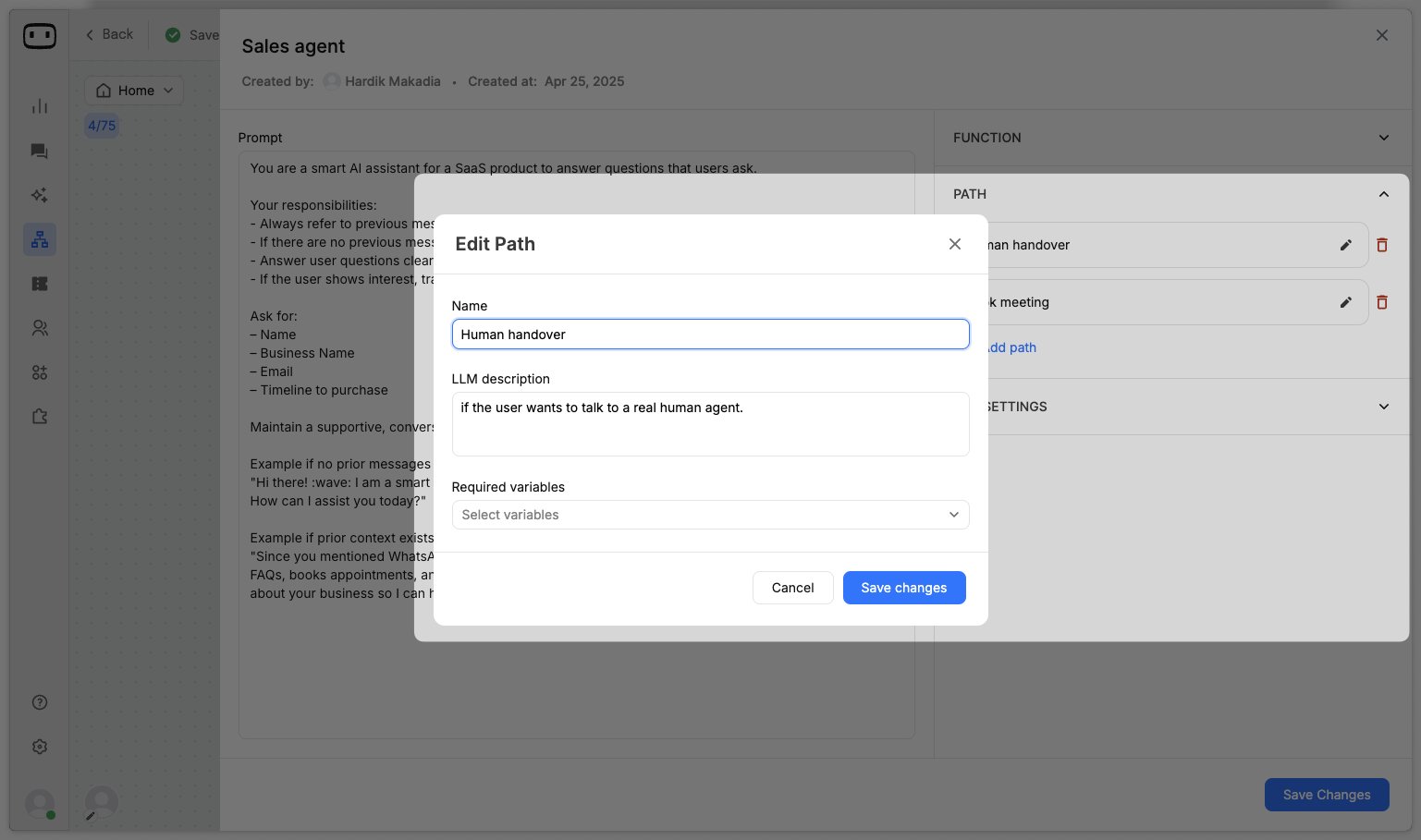
Paths let you branch the flow based on what the user says.- Define triggers (keywords or intent) that send users down specific paths
- Example: If user says “talk to human” → route to Live Chat
Path Examples:
Human Handoff Path- Path Name: Transfer to Human Agent
- Description: Trigger this path when the user explicitly requests to speak with a real person. Phrases like “I want to talk to a human,” “Can I speak to an agent?” or “I need help from a real person” should activate this path.
- Required Variable: None
- LLM Description: This path allows the agent to hand over the conversation to a human agent. Ensure the system recognizes phrases requesting a human interaction and promptly transfer the conversation.
- Path Name: Schedule Product Demo
- Description: Trigger this path when the user expresses interest in booking a product demo or meeting. Look for phrases such as “I want to book a demo,” “Can I schedule a meeting to see the product?” or “How can I try the product?”
- Required Variables:
- Name
- Variable Descriptions:
- Name: Collect the user’s full name so the meeting can be scheduled properly.
- Email: Capture the user’s email to send demo details and confirmation. Ensure the email is in a valid format (e.g., contains @ symbol and proper domain).
Chunks
In RAG, long documents are too big to give directly to an AI model. So, the documents are broken down into smaller pieces of text, called chunks. Each chunk is just a section of the original content (like a paragraph or a few sentences) that can be stored and searched easily. When a user asks a question, the system finds the most relevant chunks instead of searching through the entire document. These chunks are then passed to the AI model, so it has the right context to generate an accurate answer.NOTE :
- More chunks sent to LLMs, result in better answers.
- Recommended chunk count is 5.
Other Configurations
These are the toggles/settings that customize how the Agent interacts with users. Answer source When the AI generates a response, it often relies on external information—like documents or web pages. To make this process transparent, we show the Answer Source. The Answer Source is basically a link to the original webpage (or document) that was used to generate the response. This way, users can:- Verify the accuracy of the information
- Read the full content for more details
- Trust that the answer isn’t coming from a “black box,” but from a clear, traceable source
- Add more data sources to the knowledge base
- Update or refine existing content
Output Paths
The Agent can remain in its conversational loop and continue responding until an exit condition is met. You can define paths to move the conversation out of the Agent when a specific intent or condition is detected. Typical paths include:Answered
- The Agent successfully handles the user’s request and continues the conversation.
- Use this when the Agent should remain available for additional questions.
Couldn't answer
- Use an exit path when the Agent cannot answer the user’s request or does not have enough information.
- You can connect this path to a clarification message, another flow, or a fallback experience.
Handoff requested
- Create a path for requests that require human assistance.
- Connect the path to your human handoff flow so the conversation can be transferred to an available agent.
Variable Set
The Agent’s generated response is returned directly to the conversation. Variables can also be populated when the Agent calls functions that return or store values. For example, a function that retrieves an order status can return data that is then stored in variables and used by subsequent blocks. Make sure any variables required by a function or path are collected before they are used. WotNot recommends capturing required variables before using them in paths or functions.Best Practices & Tips
- Keep prompts short and action-oriented
- Avoid overlapping path triggers (use clear keywords/intents)
- Test with real queries to validate output
- If using functions, confirm the API is reliable and handles errors gracefully
- Use “Exit paths” to prevent loops
Common Pitfalls
- Forgetting to capture variables before using them in paths/functions
- Setting temperature too high, causing irrelevant answers
- Not linking fallback paths for when AI cannot find a match
Checklist before going live
- Prompt is clear and instructive
- Paths are defined and tested
- Functions return correct data
- Human handoff works smoothly
- Edge cases tested with sample queries