

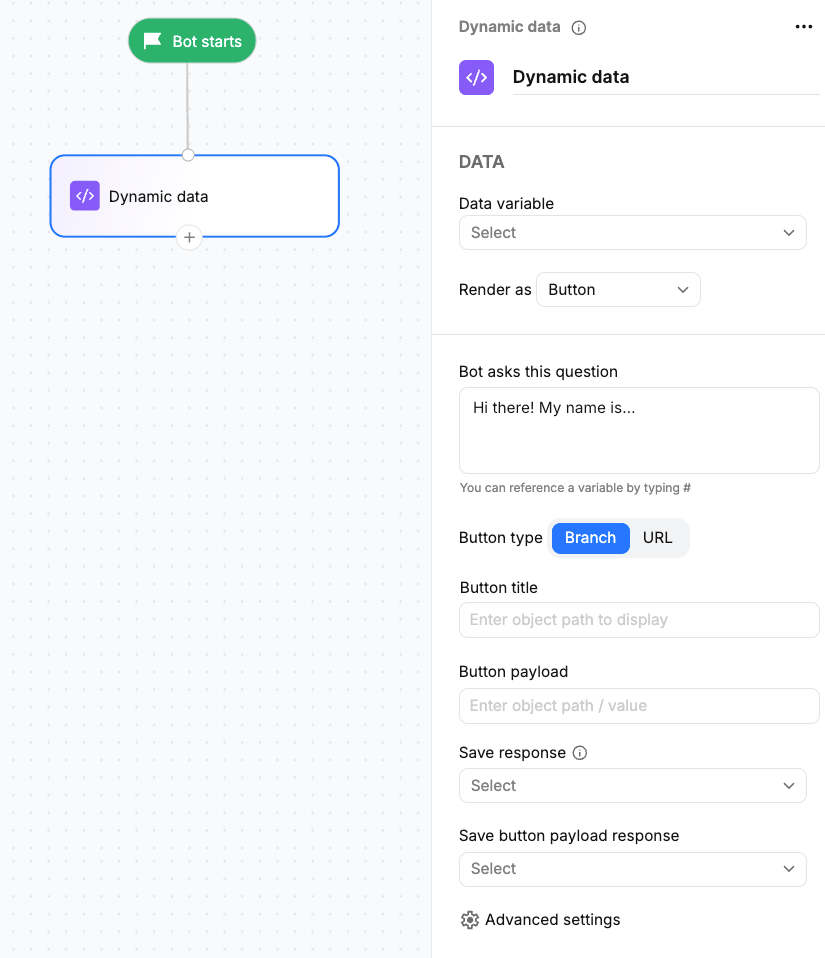
Available on the Premium plan and above.
- Button
- Carousel
- Option (WhatsApp and SMS)
- List (WhatsApp)
- Reply button (WhatsApp)
- File
Dynamic data renders the generated content according to the capabilities of the channel. On supported channels, users see the configured interactive component.
Using the Dynamic data block
1
Fetch the data
Use the HTTP request action block to call your API.Configure the request with the endpoint, authentication, headers, query parameters, or request body required by your API.
2
Store the response
Store the complete API response in a variable.For example:
Make sure you store the entire payload response in the variable. Do not append an object path after the response when mapping it to the variable.
3
Configure Dynamic data
Add the Dynamic data action block after the HTTP request block and connect it to the next step.Select the response variable in Data variable, then select how you want to render the response using Render as.
HTTP request configuration
Before configuring Dynamic data, configure the HTTP request that retrieves the data.
For example:
Dynamic data does not make the API request itself. The HTTP request block retrieves the data, and Dynamic data uses the response stored in the selected variable.
Configuration
Data variable
Select the variable containing the complete API response. For example:Render as
Choose the type of content that Dynamic data should generate.Bot asks this question
Enter the question or message displayed before the dynamic content. For example:#.
Response mapping
Map the fields from the API response to the fields required by the selected render type. For example, for a Button:- Button title — the text displayed to the user.
- Button payload — the value associated with the selected button.
Array path
The array path identifies where the list of items is located in the response. For example:Use
[*] when you want to retrieve a field from every item in an array.Empty response handling
Handle cases where the API request succeeds but does not return any items. For example:Save response
Select the variable where the user’s selected response should be stored.Save button payload response
Select a variable to save the button payload when the user selects an item. The button payload is a value you define for each item. It can be different from the text displayed on the button and can be used later in a Condition block to determine which path the user should follow. For example:Configuring list items
After selecting the render type, map the object paths from the API response to the fields required by that render type. For example, if the payload response stored in the variable is:product_id as a button, use:
[*] indicates that the field should be retrieved from every item in the array.
The resulting buttons are:
result object:
Nested JSON
Nested JSON is one of the most common areas where object-path mapping can become confusing. When the field you need is nested inside multiple objects, include every level of the response in the object path. For example:- 1. Find the array
- 2. Find the label
- 3. Find the value
- 4. Result
The list of items is inside:Use this as the array path.
When mapping nested JSON, start from the root of the stored response and follow each level until you reach the field you need. Add
[*] at the array level.Output paths
Use the output paths to handle the different results of the Dynamic data request.
Connect each path to the appropriate next block in your flow.
Add an alternative message or flow for empty responses and failed requests so the conversation does not stop unexpectedly.
Variables set
Dynamic data can save the user’s selected response and, where applicable, the selected button payload. For example:Common mistakes
The complete API response was not stored
The complete API response was not stored
Make sure the HTTP request stores the complete API response in the Data variable.If only part of the response is stored, Dynamic data may not be able to access the fields you need.
Using the wrong object path
Using the wrong object path
Include every level of the JSON structure.
Missing [*]
Missing [*]
Use
[*] when mapping a field from every item in an array.Using result when the response is already an array
Using result when the response is already an array
If the stored response is:the correct path is:not:Use
result[*].product_id only when the response actually contains a result array.Skipping a level in nested JSON
Skipping a level in nested JSON
If the response contains:do not use:Include every level between the array and the field you want.
Advanced settings
Enable search
Enable search
Enable this option to let users search through the dynamically generated items.Use it when the API returns a large number of items and users need an easier way to find a specific item.
Enable multi-select
Enable multi-select
Enable this option to allow users to select multiple items from the dynamically generated options.Use it when the user needs to choose more than one item.
Enable free text
Enable free text
Enable this option to allow users to enter a text response instead of selecting one of the dynamically generated options.
Add an info message
Add an info message
Enable this option to display an informational message with additional context for the dynamically generated content.Use it when users need additional instructions or context before making a selection.
Track link clicks on this message
Track link clicks on this message
Enable this option to track clicks on links included in the info message.Use it when you want to measure engagement with links displayed in the message.