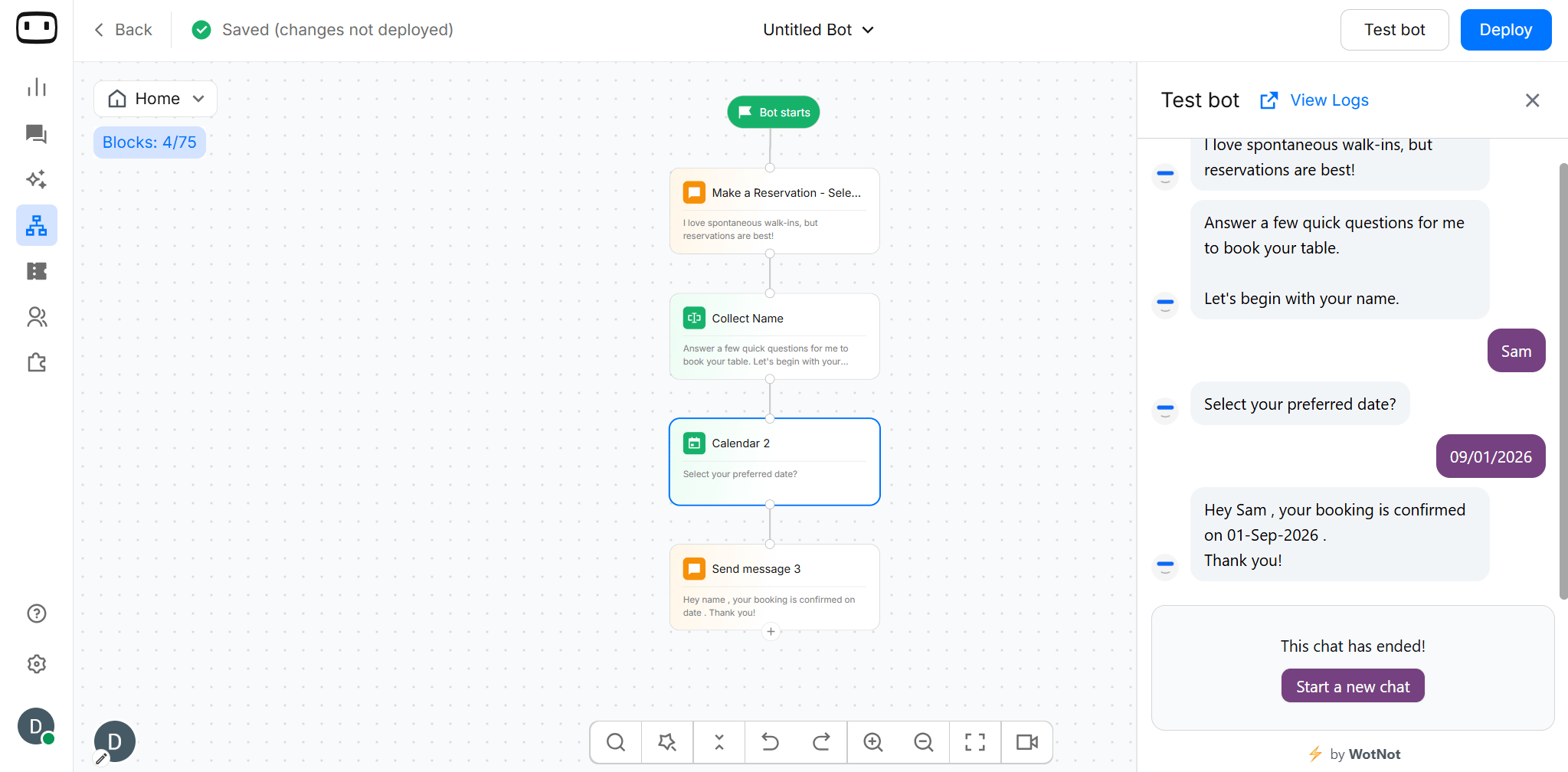
The interactive date picker is available on supported web experiences.On channels such as WhatsApp and SMS, where an interactive calendar picker is not available, users are prompted to provide or select the date using the channel’s supported input format.
Using the Calendar block
Add the Calendar block to your bot when you need to collect a date or schedule an appointment.- Open Bot Builder and add the Calendar block to the canvas.
- Connect the block to the previous and next blocks in your flow.
- Write a question.
- Complete the required configurations
- Save the selected date or appointment details to a variable.
- Connect the appropriate output path to the next step in your flow.
- Deploy the bot.
- Collect a preferred date
- Ask users which day they want to schedule a service, delivery, visit, or callback.
- Example: “Which date would you like our team to contact you?”
- Schedule callbacks
- The bot collects the customer’s preferred date and passes it to an agent or backend system for follow-up.
- Book date-based services
- Useful when the service doesn’t require the customer to choose an exact time.
- Example: home service, document collection, site visit, or delivery date.
- Event registration
- Let users select the date they want to attend an event, webinar, consultation, or session.
- The actual time can be assigned later.
- Collect availability
- Ask users to select a date when they are available, then use that information in a later workflow.
- Date-based workflows
- The selected date can be stored in a variable and used for conditions, notifications, API requests, or other bot actions.
Configuration
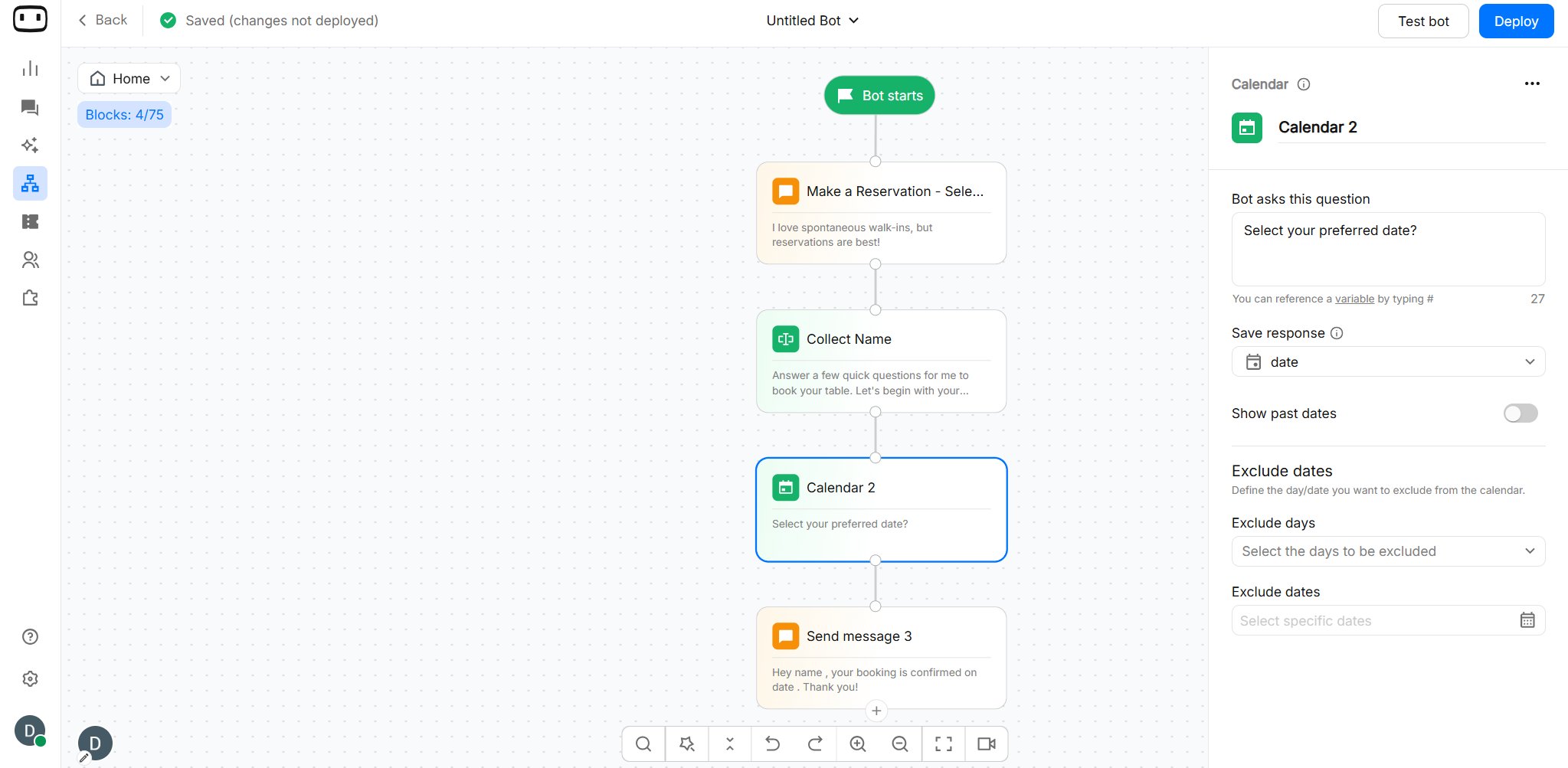
Question
Before showing the calendar UI, you need to ask a question to let users know why they are seeing it in the first place. For example, “Select your desired date of appointment”.Save response to a Variable
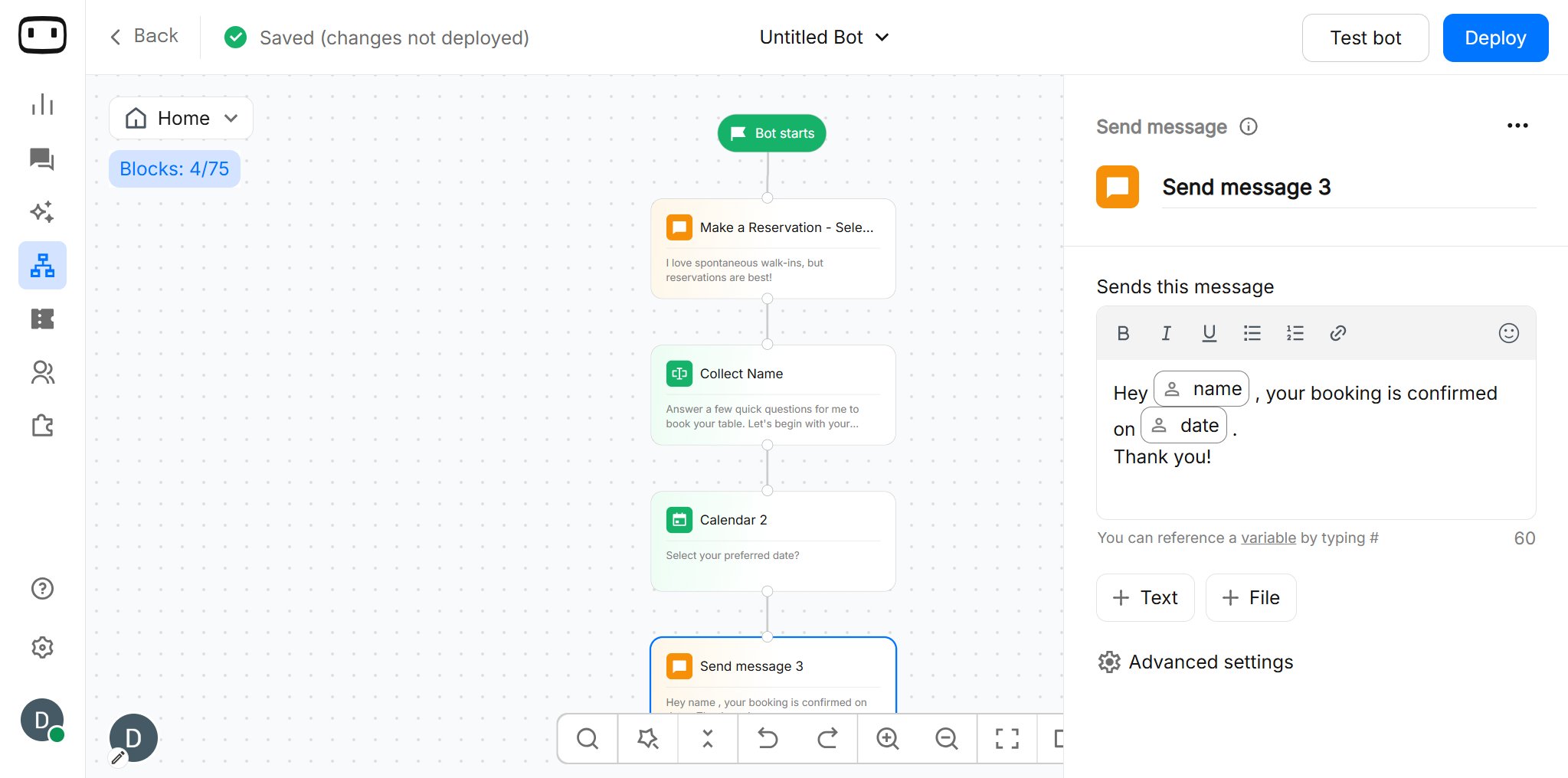
- Variables store the date selected by the user so that it can be referenced later.
- You can choose an existing variable from the dropdown or create a new one.
- Confirm the selected appointment with the user
- Include the date in a follow-up message
- Pass the selected date to another block
- Store the booking information for later use
Show past dates
Enabling this will allow visitors to choose past dates from today as well. Disabling it will only show the dates from today to the future.Availability
Configure when users can book a slot.- Days available — choose the days on which appointments can be booked.
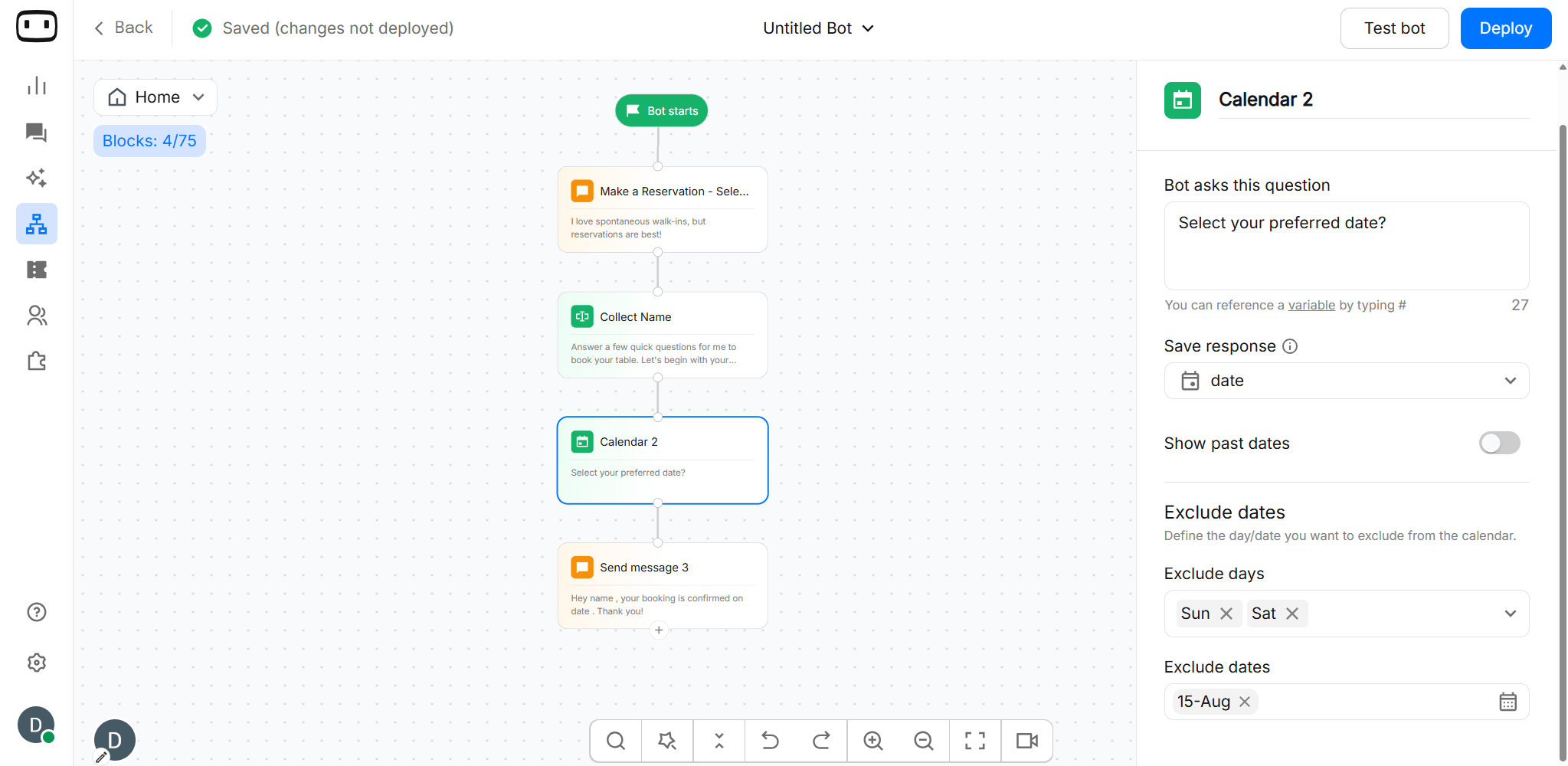
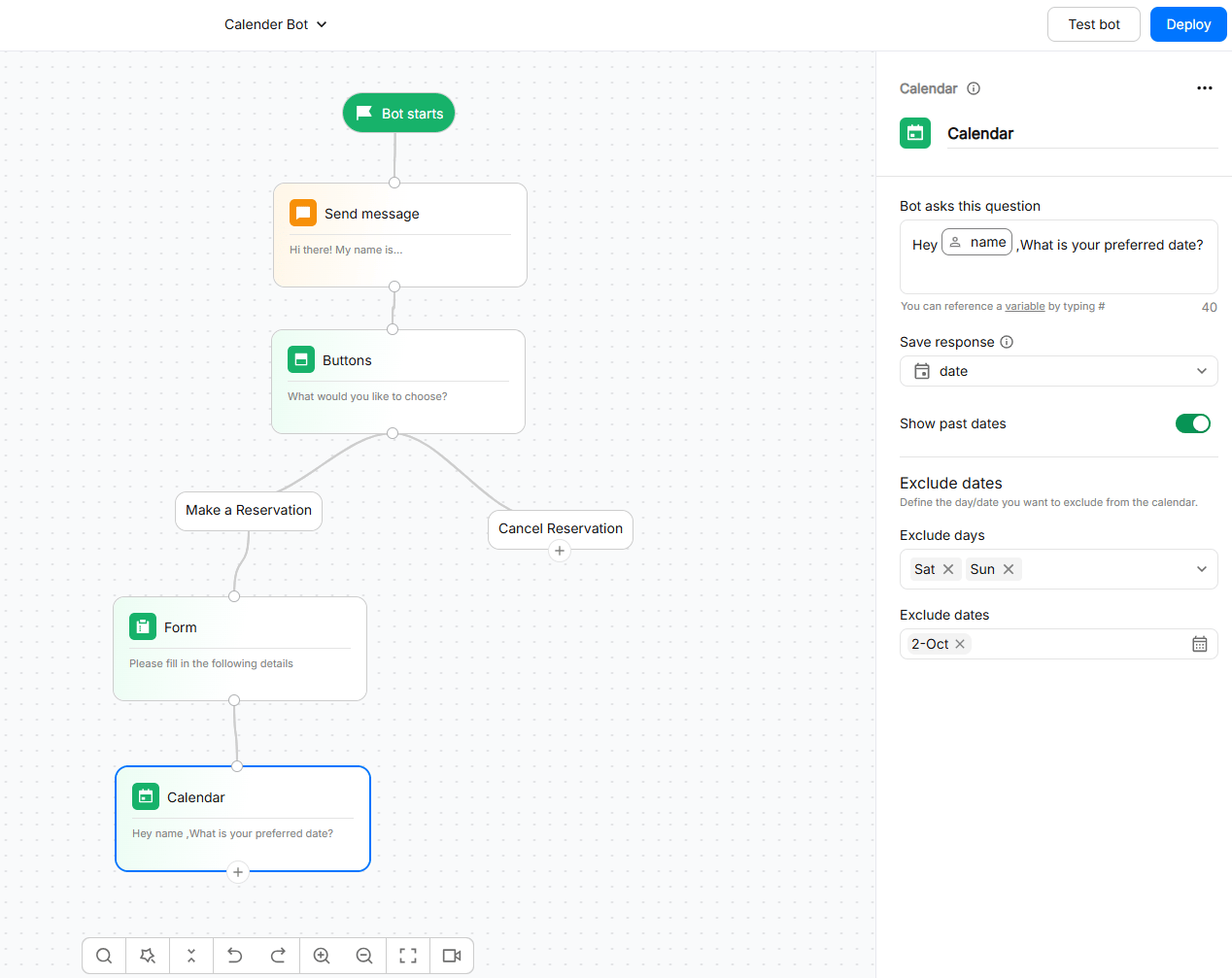
Exclude days
You can choose to exclude certain days of the week, like Saturday and Sunday, from this dropdown. Doing so will always prevent those days from showing up in the calendar UI.Exclude specific dates
You can click on the calendar icon and select the date you want to disable in the calendar UI. These could be to hide dates of public holidays in your region.- USA - 4th July - Independence Day
- India- 15th August - Independence Day
Booking Details
Configure the information that should be included when an appointment is created. Depending on the connected calendar, booking details can include:- Appointment title
- Description
- Date and time
- Attendee name
- Attendee email
- Meeting or location details
- Other information required by the connected calendar
Preview
This is how the Calendar will appear in the chatbot.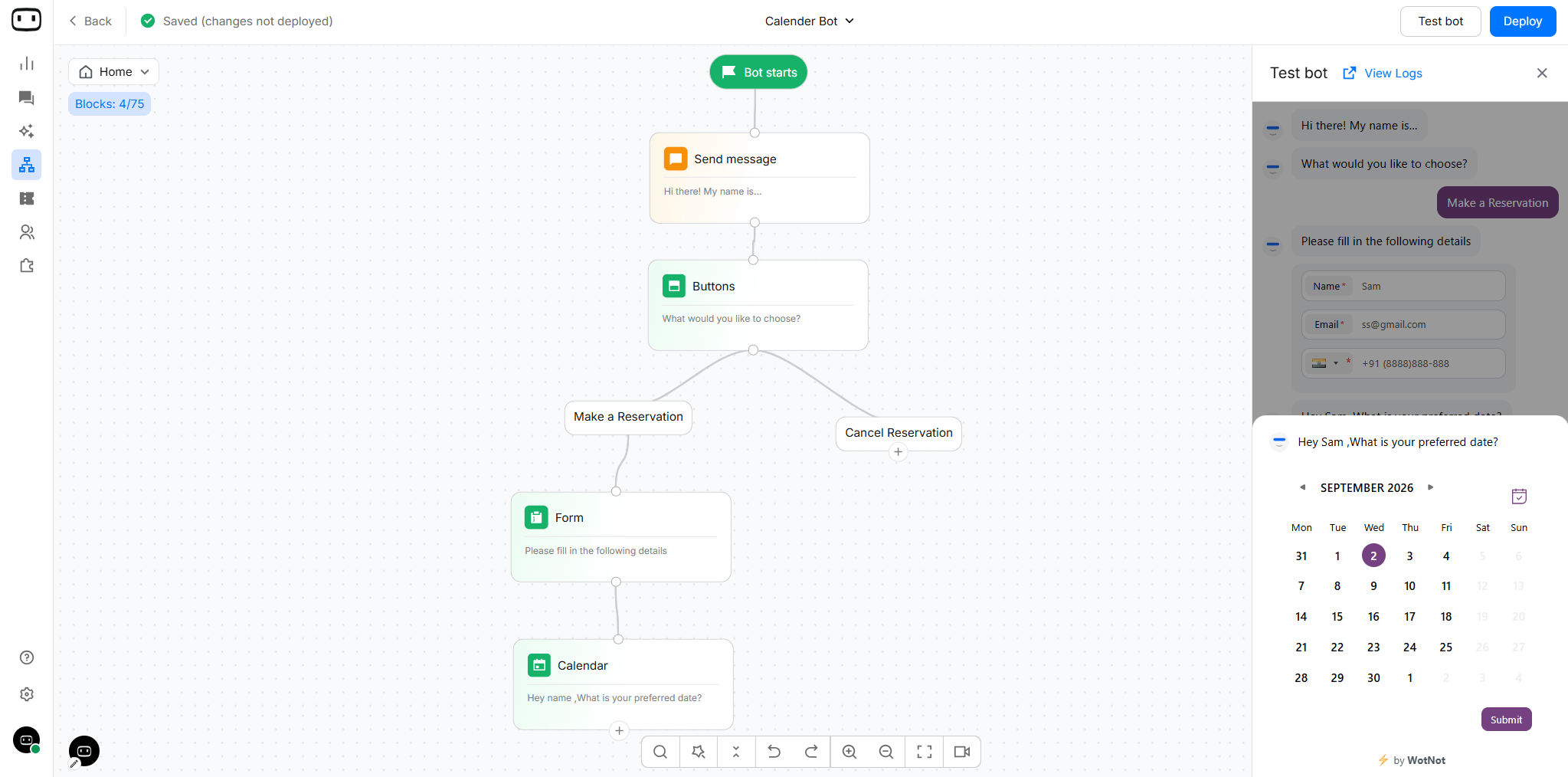
Output Paths
Use the Calendar block’s output paths to handle the result of an appointment booking.Booking confirmed
- This path runs when the appointment is successfully booked.
- Use it to confirm the booking and provide the user with the appointment details.
Variables set
The Calendar block makes the user’s selected date or appointment information available to the flow. Depending on the selected mode, this can include:- Selected date — the date chosen by the user.
- Booking details — information associated with the created appointment.