The rich text editor supports all languages, so you can now type your input in any language you want, such as French, Spanish, etc. and available on all channels
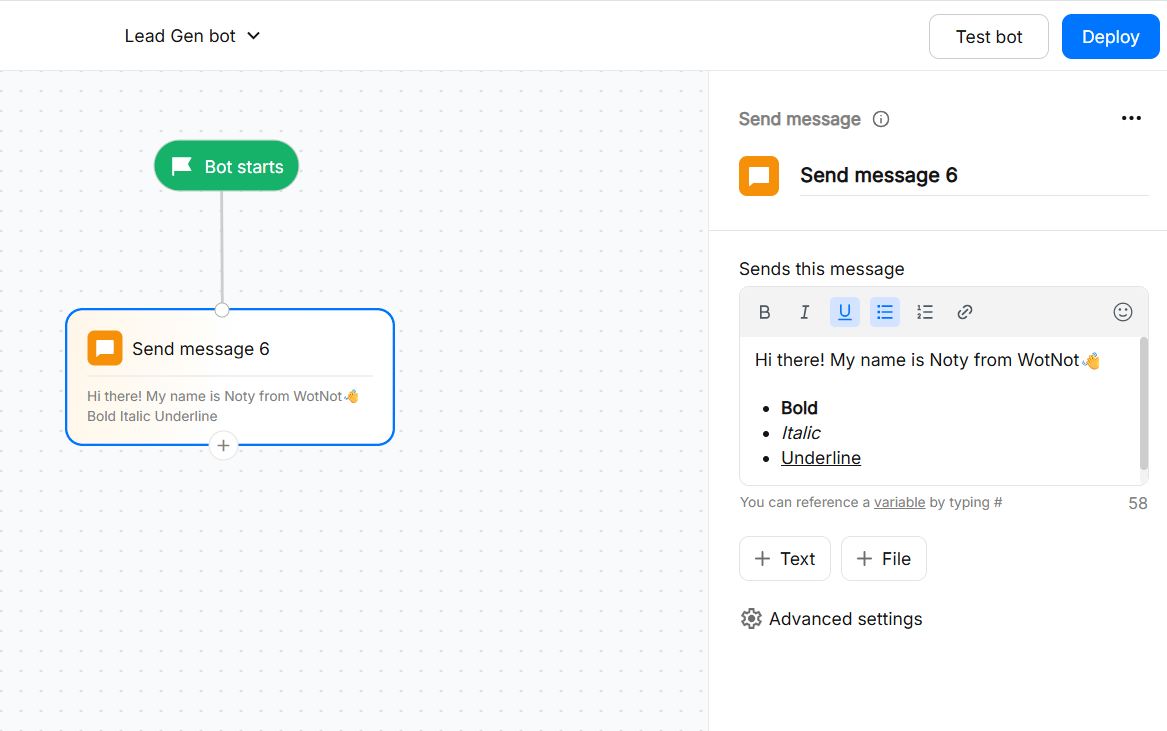
Using the Send message block
Use it when you want to:- Share information with the user
- Confirm that an action was completed
- Provide instructions or file
- Send multiple messages in sequence
- Drag the Send Message block onto the canvas.
- Connect it to the previous block.
- Click the block to open its configuration panel.
- Enter the message you want to send.
- Configure any attachments, multiple messages, or variables as needed.
Configuration
Message text
You can format your text using the formatting bar in the rich text editor.- Bold
- Italics
- Underline
- Ordered bullet lists
- Unordered bullet lists
- Hyperlink
- Emojis
Max characters allowed in a single message block is 1000.
Attachments
You can add files to your message when you need to share additional information with the user. You can upload the following file types:- png/jpg/gif
- mp4
- mp3
- csv/xlsx
The file size cannot exceed 50 MB
Multiple messages
You can send multiple messages from a single Send message block. This allows you to split information into separate message bubbles instead of sending everything as one message.Variables
You can insert variables into your message to display dynamic information. For example: Hello {{customer_name}}, your order {{order_id}} has been confirmed. When the flow runs, the variable is replaced with the corresponding value. Use variables when you want to personalize a message or display information that was collected or generated earlier in the flow.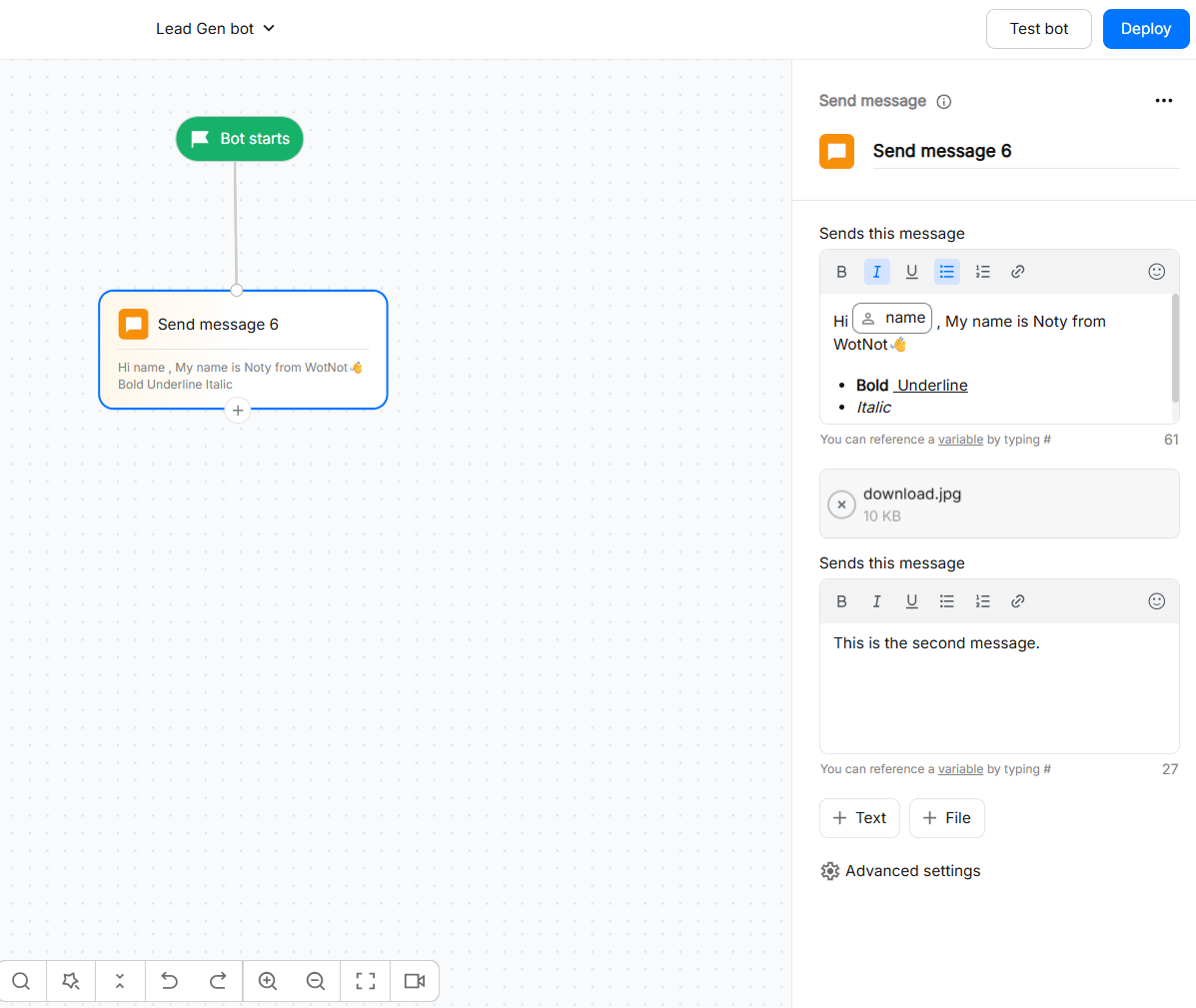
Tracking links
Enabling this feature tracks all link clicks occurring on the chatbot flow. Once enabled, the link will first open the tracking domain and then redirect to the actual URL defined. Learn MoreSend message as info title
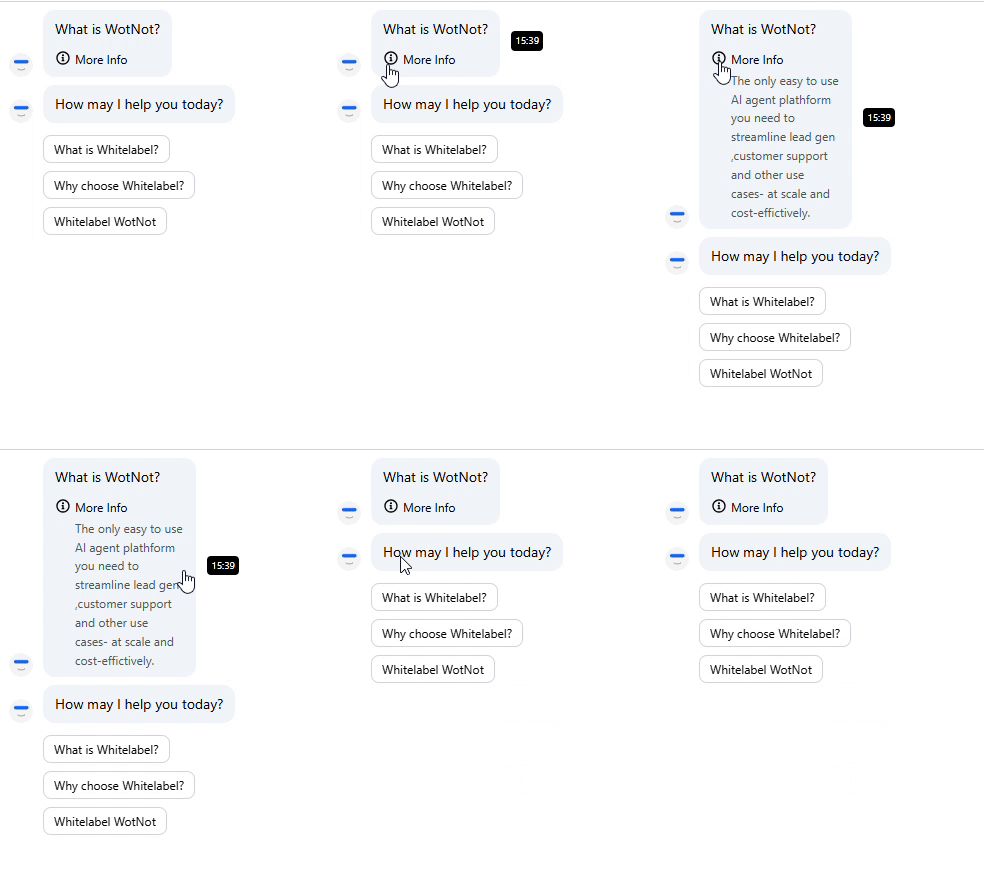
Enable Send message as info title to display the message in a compact format. Enabling this will compress the message description and show the title as defined. It appears as a tooltip that can be expanded to see the information. To enable this go to Advanced Settings → Click on checkbox → Enter Title & Description