

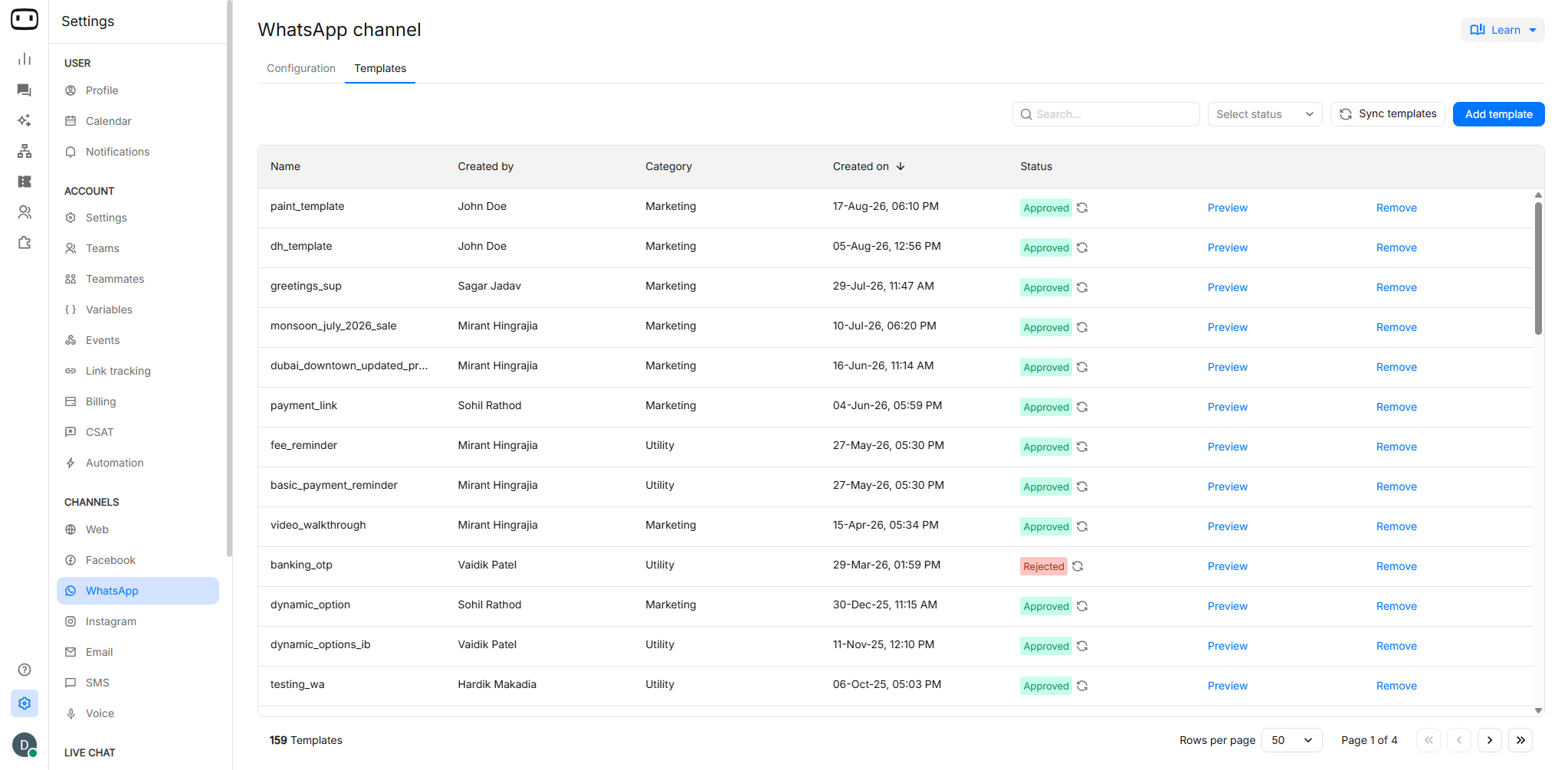
Available only for the WhatsApp channel and require access to the WhatsApp Business API.Template approval is handled by Meta, not WotNot. WotNot submits the template for approval and displays the status returned by Meta.
When you need a template
The 24-hour window
WhatsApp uses a 24-hour customer service window to determine when a business can send messages. During this window, you can send normal messages through your chatbot or live chat.After the 24-hour window expires, you can no longer send free-form messages.Where templates are used
After Meta approves a template, you can use it in WotNot in different ways.
Learn more about Send Template and Send WhatsApp
Template categories
When you create a template, you must select a category. Meta uses the category to determine what the message is intended for. The main WhatsApp template categories are Marketing, Utility, and Authentication. The category also affects how the template is treated for pricing and approval.Marketing, Utility, and Authentication
Choosing the right category
Choose the category that most accurately describes the purpose of the message. For example:- Use Marketing when the message promotes a product, service, offer, or other business activity. i.e. Get 20% off your next order. Shop now.
- Use Utility when the message provides an update related to a transaction, request, or action the customer has already taken. i.e. Your order #12345 has been shipped and will arrive tomorrow.
- Use Authentication when the message contains a verification code or another authentication-related action.
Creating a template
Where templates are created
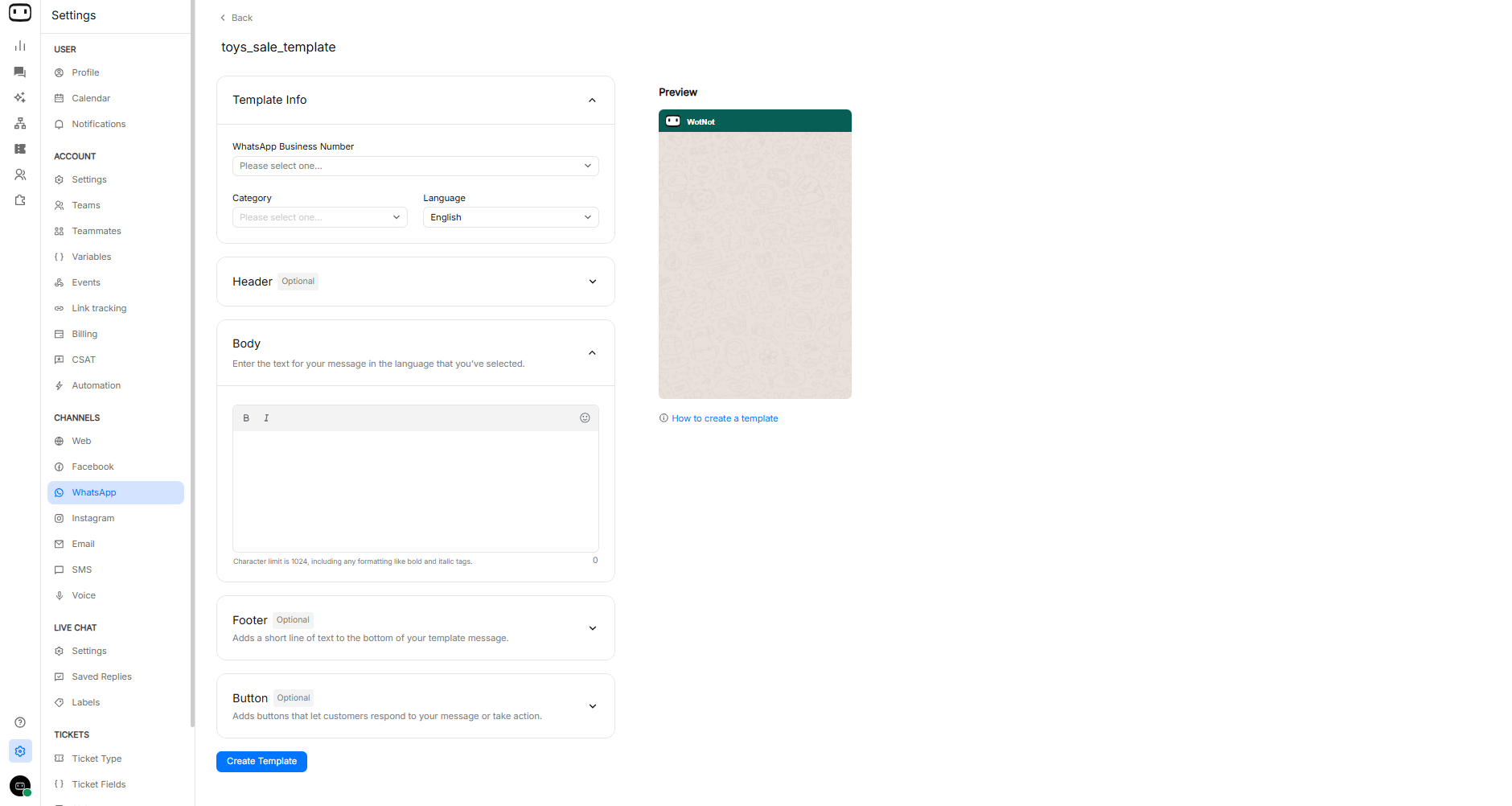
The exact workflow can vary depending on the WhatsApp Business API provider configured for your account. WotNot supports providers such as Meta, 360Dialog, GupShup, Twilio, and TechAlpha. If your account uses a provider-specific template console, follow the provider’s template-creation process and then make sure the approved template is available in WotNot.
- Log in to your WotNot account.
- Go to Settings > Channel > WhatsApp.
- Configuration→ WhatsApp number for which you want to create the template.
- Open Template Messages.
- Click Add Template.
- Choose between Text/Media and Carousel template
- Enter the template details, including the name, category, language, and message components.
- Review the template and submit it for Meta approval.
- Text/Media Template
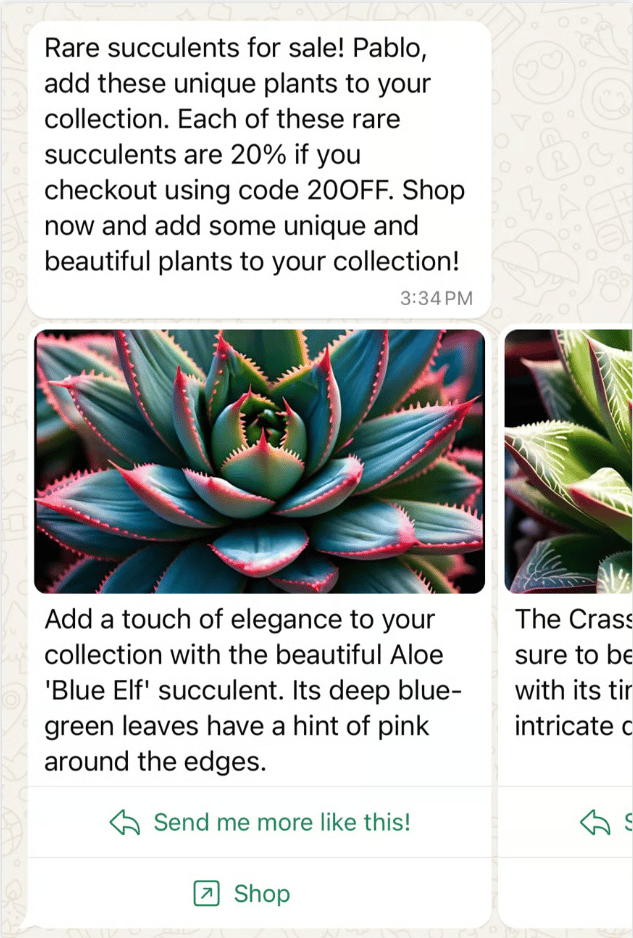
- Carousel Template
General template message where a media followed by text and buttons.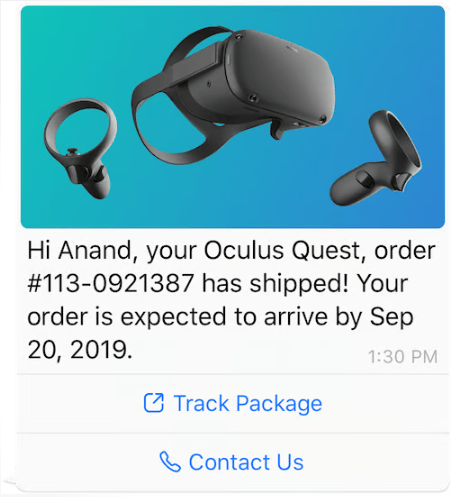
Naming
Give your template a unique, descriptive name that makes it easy to identify when selecting it in a flow or campaign. For exampleorder_confirmationappointment_reminderwelcome_new_customer
Choose the name carefully before submitting the template. The template name is used to identify the template in WotNot and should not be treated as editable message content.
Language
Select the language in which the template content is written. If you need to communicate with customers in different languages, create a separate language version of the template for each supported language. For example, you may have:order_confirmation_englishorder_confirmation_frenchorder_confirmation_hindi
Building the content
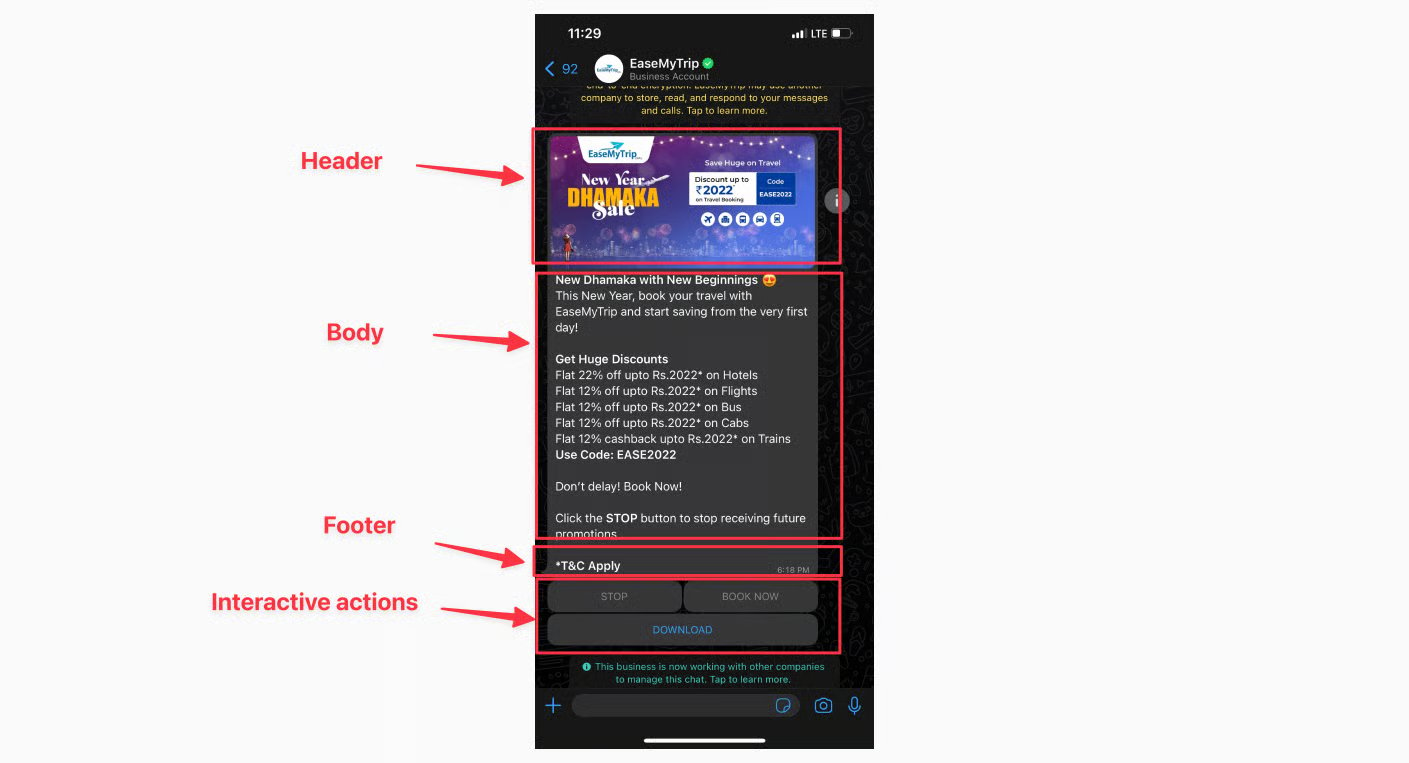
- Header
- Body
- Footer
- Buttons
Header (Optional)
It is the topmost portion of the template message. You can choose to add the following:- No header - Header is excluded in the message.
- Text - Add a text message which appears as the title.
- Image - Upload a static image.
- Image (Dynamic) - Displays a dynamic image as supplied to the system.
- Video - Upload a video.
- Video (Dynamic) - Displays a dynamic video as supplied to the system
- Document - Upload a document.
- Document (Dynamic) - Displays a dynamic document as supplied to the system
Body
Usually contains a piece of text that makes up the majority of the template message. Use emojis and markdown formatting to format your body.Use variables here by typing # to view the variable list.If used, send the variable data to the outbound bot, else, it will not replace the variable value.Maximum character limit is 1024.
Footer (Optional)
Add a short text which appears below the body. Used mostly to convey legal consent or display hot keywords like “STOP to unsubscribe”.Interactive actions
Interactive action help you get an actionable response when the contact receives the template message. Buttons are of two types:Quick replies
You can add upto 3 reply buttons which when clicked can be driven through a defined chatbot flow.
Call to action button
You can define upto 3 call to action buttons, each with a maximum of 20 characters. When clicking on an call to action button, you can direct the user to a webpage or a phone number on their dialer.
You can use variables when using a call-to-action button.
Variables
Variables allow you to insert dynamic information into your WhatsApp template.Use variables here by typing # to view the variable list**.**If used, send the variable data to the outbound bot, else, it will not replace the variable value.
Submitting for approval
What happens after submission
Finally, proofread the template message for mistakes or grammar errors before clicking the submit button. Once submitted, you can’t make changes to the same WhatsApp Template Message. If you have used any variables in the template variables, you will be asked to submit example values of what could be sent when actually used. It typically take 1 minute - to 24 hours for WhatsApp template messages to get approved! You can hit “refresh” icon next to the status of a submitted template to get the latest status.Approval statuses
Approval is not necessarily permanent. Meta can disable an approved template if it receives recurring negative feedback or otherwise falls out of compliance.
Guidelines to creating a WhatsApp template
Managing templates
Editing a template
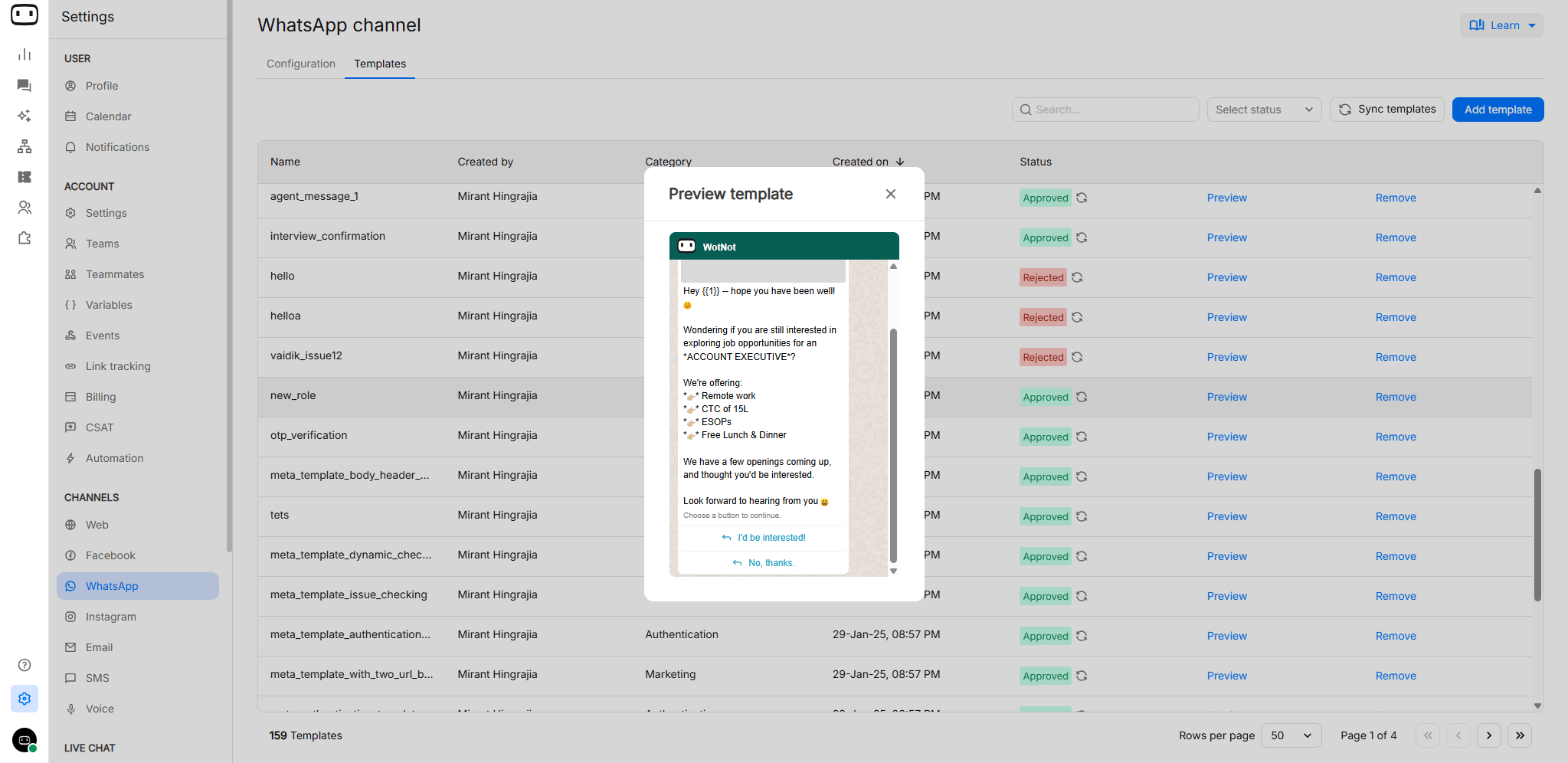
Review your template carefully before submitting it because once a template has been submitted, you can not edit the submitted template directly. If you need different content, create a new template with the required content and submit it for approval.Preview template
- Go to Settings > Channel > WhatsApp.
- Open Templates
- Find the template you want to delete.
- Click Preview.
You can preview templates regardless of their approval status, including rejected templates.
Deleting a template
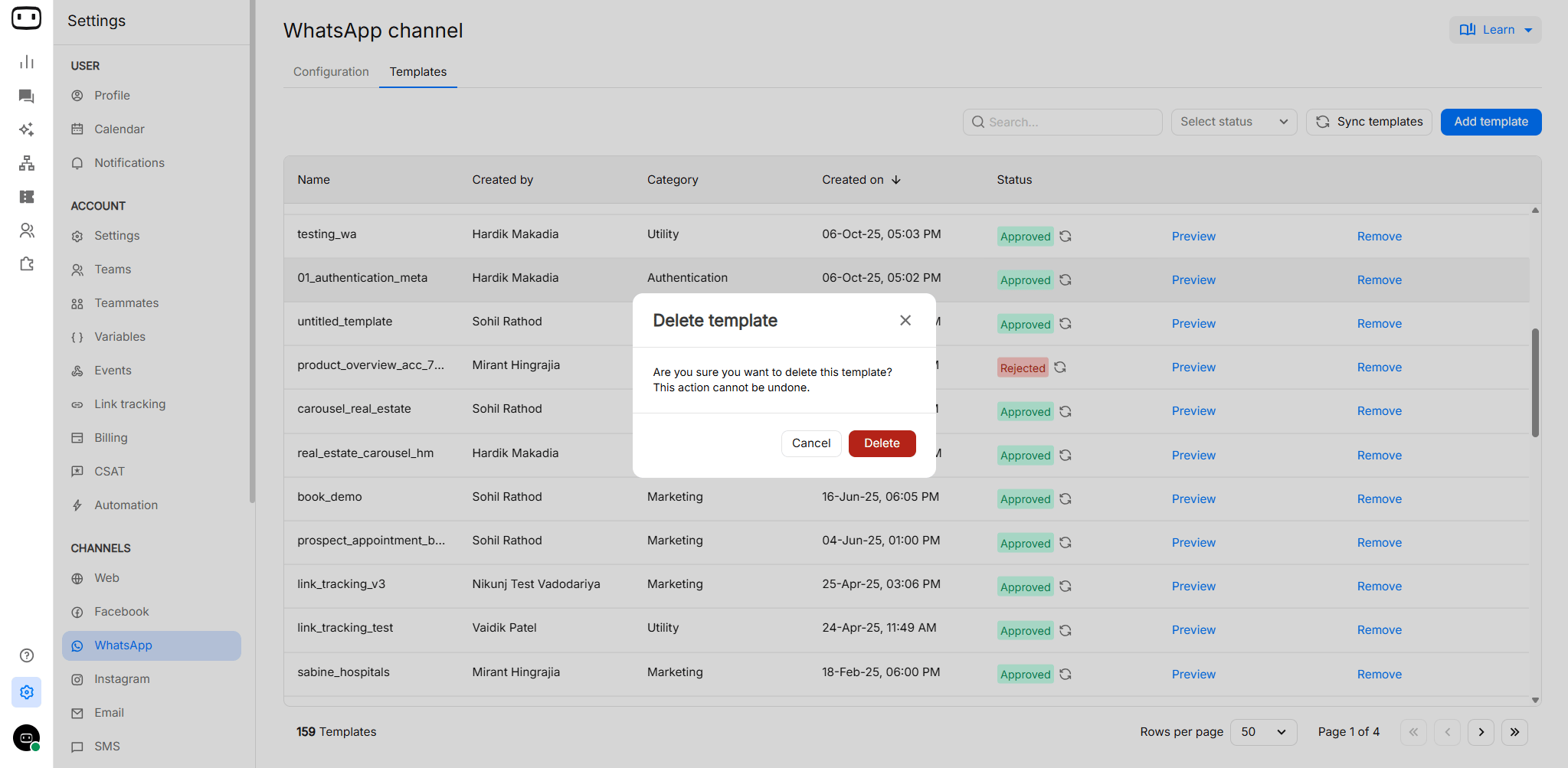
- Go to Settings > Channel > WhatsApp.
- Open Templates
- Find the template you want to delete.
- Click Remove.
- Confirm the deletion.
Reusing templates across bots and campaigns
An approved WhatsApp template can be selected wherever WotNot supports WhatsApp template messaging, including chatbot flows and outbound campaigns. This means you can create a template once and use the approved template for multiple messaging use cases rather than creating a separate template for every bot or campaign. Always make sure the template’s purpose and content are appropriate for each use case.Why templates get rejected
Promotional content submitted under a Utility category
Promotional content submitted under a Utility category
Meta may reject a template if it contains promotional content but is submitted under the Utility category.What to change:
- Select Marketing for promotional content.
- Use Utility only for messages related to a specific transaction, request, or customer interaction.
- Remove promotional language if the message is genuinely intended to be Utility.
Placeholder variables have missing or unrealistic sample values
Placeholder variables have missing or unrealistic sample values
Meta requires sample values for variables to understand how they will be used in the template.What to change:
- Provide a sample value for every variable.
- Use realistic values that represent the information the variable will contain.
- Avoid unclear values such as
test,123, orabc.
Variables are placed at the beginning or end of the body
Variables are placed at the beginning or end of the body
Meta does not allow variables to appear directly at the beginning or end of the template body.What to change:Add meaningful text around the variable so that the message provides sufficient context.For example:
Content is too vague or generic
Content is too vague or generic
Meta may reject content that does not clearly communicate the purpose of the message.What to change:
- Clearly explain why the customer is receiving the message.
- Provide enough context for Meta to understand the purpose of the message.
- Avoid generic content such as
Hello,Important update, orClick herewithout additional context.
Formatting or character limit violations
Formatting or character limit violations
Templates must follow WhatsApp’s formatting and character requirements.Common issues include:
- Body text exceeding the allowed character limit.
- Invalid variable placement.
- Unsupported button combinations.
- Invalid URLs.
- Unsupported header or media configurations.
- Incorrect formatting.
Content is prohibited by Meta
Content is prohibited by Meta
Meta may reject templates that contain content prohibited under its WhatsApp policies.What to change:
- Review the message against Meta’s current WhatsApp Business and Commerce policies.
- Remove prohibited or misleading content.
- Make sure the message is relevant to the customer.
- Ensure customers have provided the required opt-in before sending business-initiated messages.
Troubleshooting
Template approved but not appearing in the block's dropdown
Template approved but not appearing in the block's dropdown
If an approved template does not appear in the block’s dropdown:
- Verify that the template is Approved.
- Check that the correct WhatsApp number is selected.
- Make sure the template belongs to the same WhatsApp number configured in the flow.
- Refresh the template selection and try again.
- Verify that the template is available for the selected WhatsApp provider and language.
Template send failing at runtime
Template send failing at runtime
If the template fails when the bot or campaign tries to send it:
- Verify that the template is Approved.
- Check that the correct WhatsApp number is configured.
- Make sure all required variables are mapped.
- Verify that variable values are available when the message is sent.
- Check whether the template has been Paused or Disabled.
- Review the conversation or campaign logs for the specific error.
Variables rendering as placeholders in the delivered message
Variables rendering as placeholders in the delivered message
If the customer receives
{{1}}, {{2}}, or another placeholder instead of the expected value:- Check the variable mapping in the block or campaign.
- Make sure every template variable has a corresponding value.
- Verify that variables are mapped in the correct order.
- Make sure the variable contains a value when the message is sent.
{{1}} should receive the customer’s name, and {{2}} should receive the order number.Template paused after going live
Template paused after going live
Meta may pause a template when its quality decreases or it receives negative customer feedback.What to check:
- Customer feedback and complaints.
- Blocks or reports.
- Message frequency.
- Whether customers opted in to receive the messages.
- Whether the message is relevant to the customer.
Language variant not being used for a given contact
Language variant not being used for a given contact
If the expected language version is not being used:
- Verify that the required language variant has been created and approved.
- Check the language selected in the template or campaign.
- Make sure the selected template matches the intended language.
- Verify that the language variant is available for the configured WhatsApp number and provider.
Best Practices
Following are few suggestions to maintain high quality of messages;- Message needs to be compliant with WhatsApp Business Policy
- Send Message to only those who have opted into receiving messages from your business
- Messages need to be highly personalised and useful to visitors. Avoid open ended messages
- Keeping track of frequency of messages sent across to the visitors during the day. Avoid sending too many messages in a single day
- Informational messages needs to be optimised for content and length
Related Pages
Send template
Send an approved WhatsApp template during a bot conversation.
Send WhatsApp
Send an approved WhatsApp template from an outbound campaign.
WhatsApp Business API
Configure and manage your WhatsApp Business API connection.
WhatsApp Channel
Configure WhatsApp as a communication channel for your bot.
Cost
Understand WhatsApp API pricing and conversation categories.
Messaging Limits and Quality Rating
Learn about WhatsApp messaging limits and quality rating.