

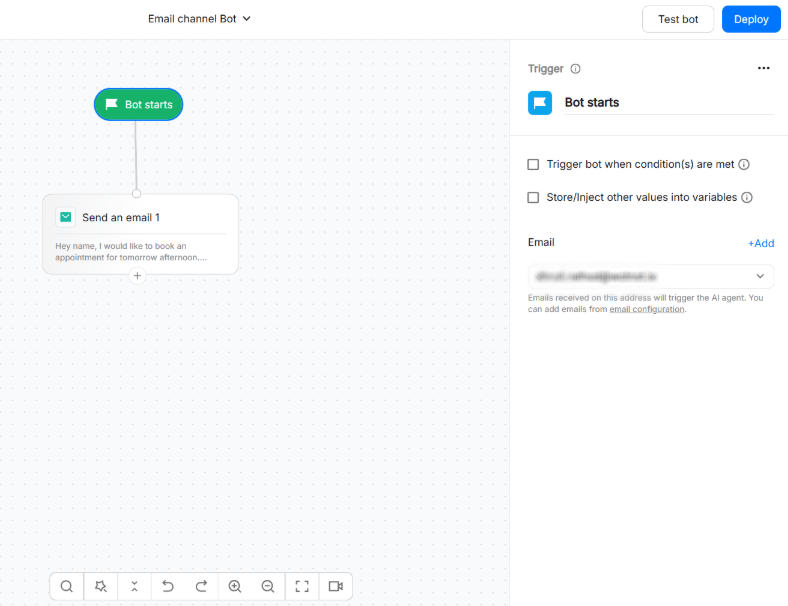
Email is text-based. Email does not support interactive chatbot elements such as buttons, carousels, or quick-reply options. Interactive elements from a flow are delivered as formatted text or links where applicable.
Available on the Premium plan and above
Before you start
A sending and receiving address
The email account you connect to WotNot is used to receive incoming emails and send agent replies. The connected account is configured from: Settings → Channels → Email WotNot currently supports the following email providers:- Microsoft
- Gmail
- TechAlpha
- Other
Domain verification
Email deliverability depends on your sending domain being correctly authenticated. Configure the following for the domain used to send your agent’s emails:- SPF — authorizes approved mail servers to send email for your domain.
- DKIM — adds a cryptographic signature that helps receiving servers verify that the email was sent by an authorized sender.
- DMARC — tells receiving servers how to handle messages that fail authentication checks.
Connecting an address
Define the sender email
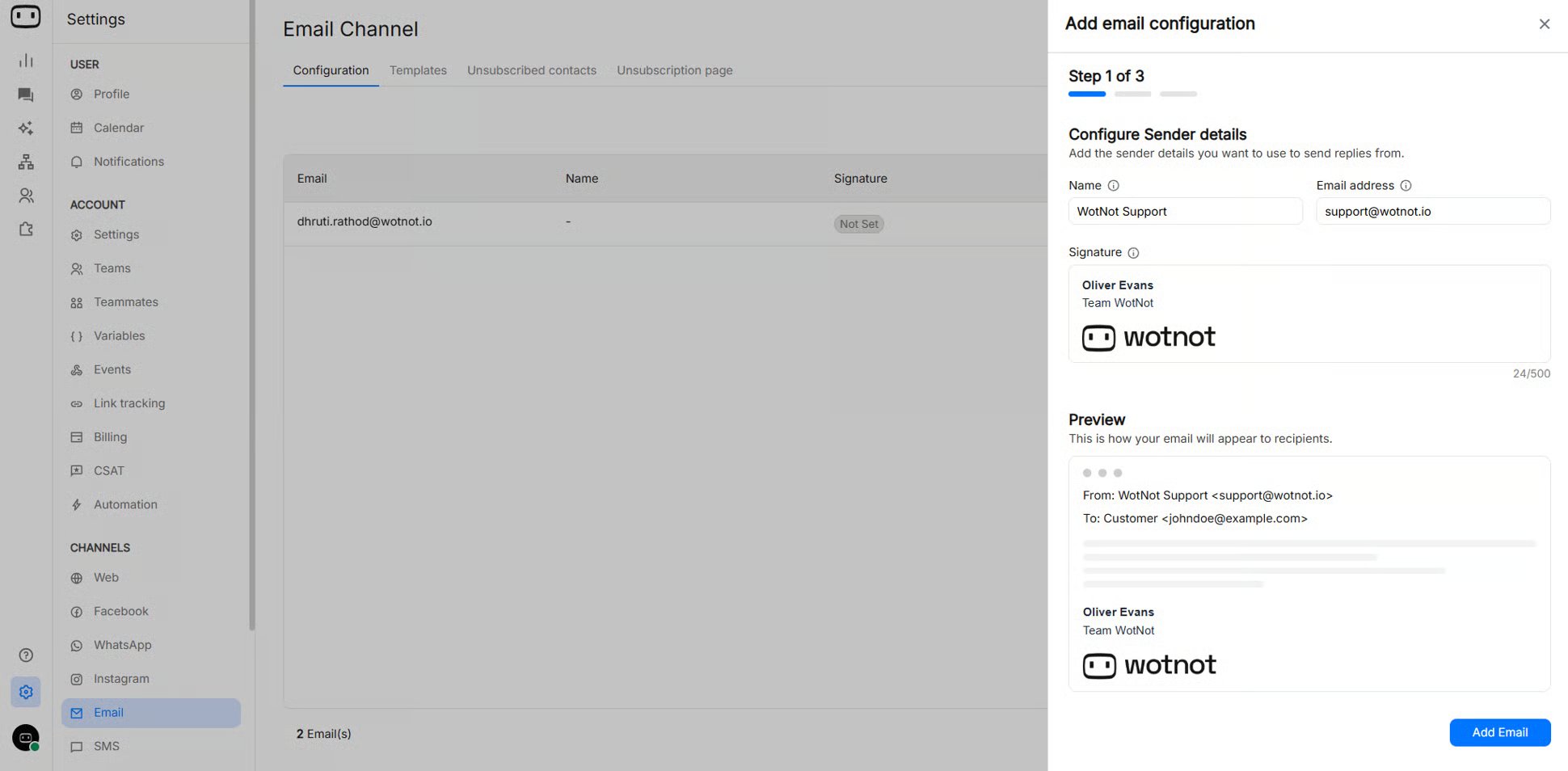
- Navigate to Settings > Email > Add email configuration
- Enter the email address through which the agent will send replies from.
For example, support@yourcompany.com
Set up email forwarding
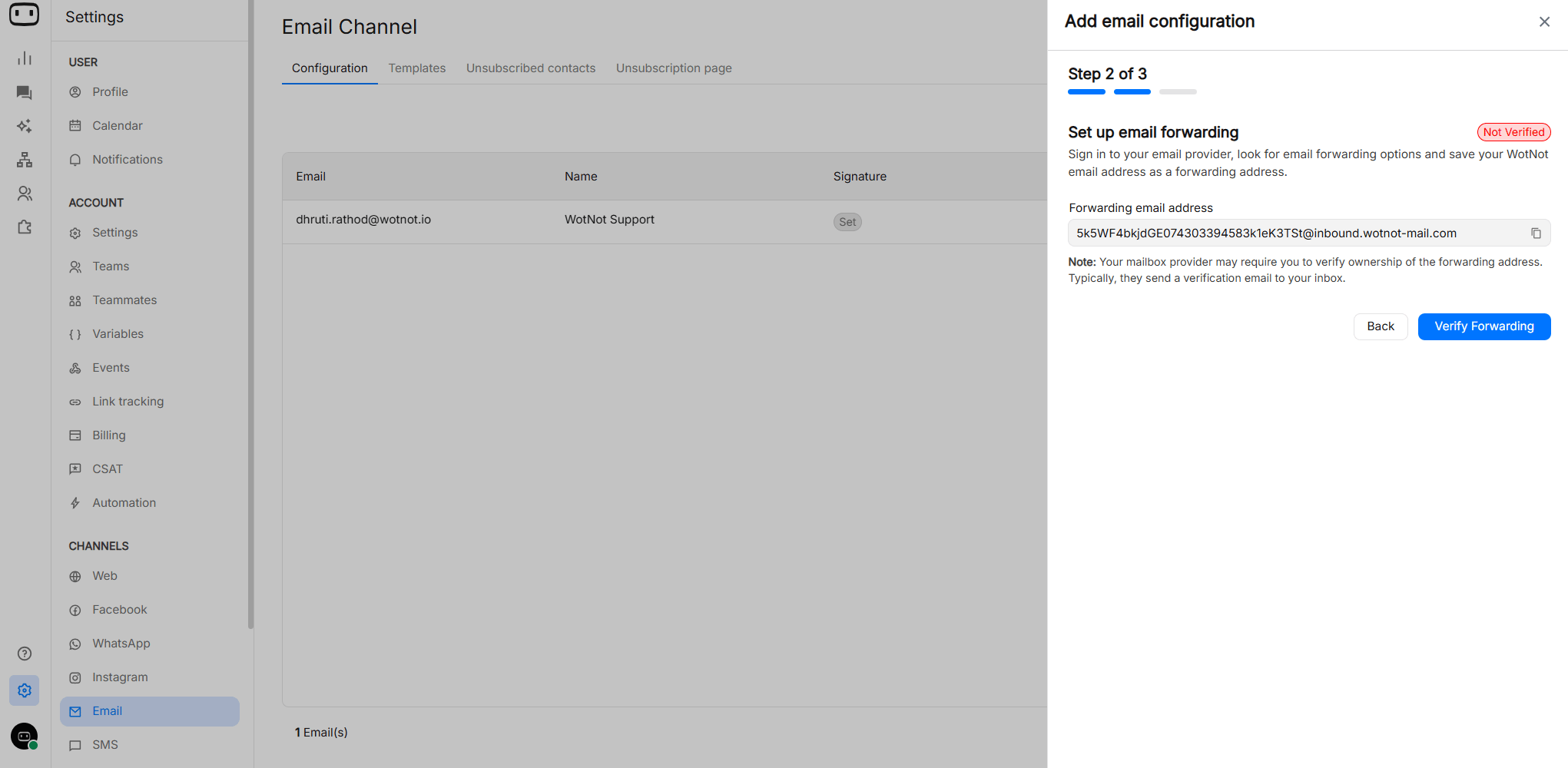
Next, configure automatic forwarding in your email provider so that emails sent to your support addresses are delivered to your agent email. How it works:- A customer emails
support@yourcompany.com. - Your email provider forwards that message automatically to
{uniquecode}@inbound.wotnot-mail.com. - The AI agent processes the email and generates a reply.
- The response is sent back via email from your sender email.
Your mailbox provider may require you to verify ownership of the forwarding address. Typically, they send a verification email to your inbox.
Provider specific forwarding guides:
For Gmail (personal inbox forwarding): Set up email forwarding in Gmail For Google Workspace:- Sign in to the Admin console using an admin account
- Navigate to Apps → Google Workspace → Gmail
- Find Default routing, then click Configure or add another rule to create a new routing rule.
- Set Envelope Recipient to the email address you want customers to use (for example, support@yourcompany.com).
- Under Envelope Recipient, select Change Envelope Recipient.
- In Replace Recipient, enter your WotNot forwarding email (for example,
{uniquecode}@inbound.wotnot-mail.com). - Save the rule and enable it for recognized + unrecognized addresses
- Verify forwarding in WotNot
Authenticate your domain with DNS
Once we detect automatic forwarding from at least one email address on the domain, you’ll be able to proceed to DNS authentication. This step allows WotNot to send emails on your behalf from your defined sender email address.
- Sign in to your domain provider and find their DNS settings.
- Copy the WotNot domain records into your domain settings.
- Paste each of the codes below into the DNS settings
- Once done, click Verify configuration.
Verification begins automatically once the DNS records are detected. This may take some time depending on DNS propagation.
Designing for email
Asynchronous conversations
Do not assume that the user will reply immediately. Email conversations behave differently from live chat. A customer may reply:- A few minutes later
- Several hours later
- The next day
- Several days later
- Keep instructions clear and self-contained.
- Do not rely on buttons or other chat-only interactions.
- Avoid requiring the user to respond within a short period.
- Make each email understandable when viewed independently.
- Test flows where there is a significant delay between messages.
Threading
Email replies contain conversation metadata that email systems use to associate a response with an existing thread. To keep a conversation threaded:- Ask customers to use Reply rather than starting a new email.
- Avoid asking customers to manually change the subject.
- Avoid forwarding an email into a completely different thread.
- Keep the original email context when replying.
- Test replies from the email clients your customers commonly use.
Formatting
Email supports richer formatting than plain-text channels, but email clients do not render HTML identically. Do not rely on chat-style buttons, quick replies, carousels, or other interactive blocks being rendered as interactive email controls. Where an interaction is required, provide a clear text instruction or link instead.Email clients such as Gmail, Outlook, and Apple Mail can render the same HTML differently. Always test important templates in the clients your customers are most likely to use.
Email templates
Email templates let you control the visual presentation of messages sent by your agent. Use templates when you want consistent branding, formatting, headers, footers, and styling across agent emails.Creating a template
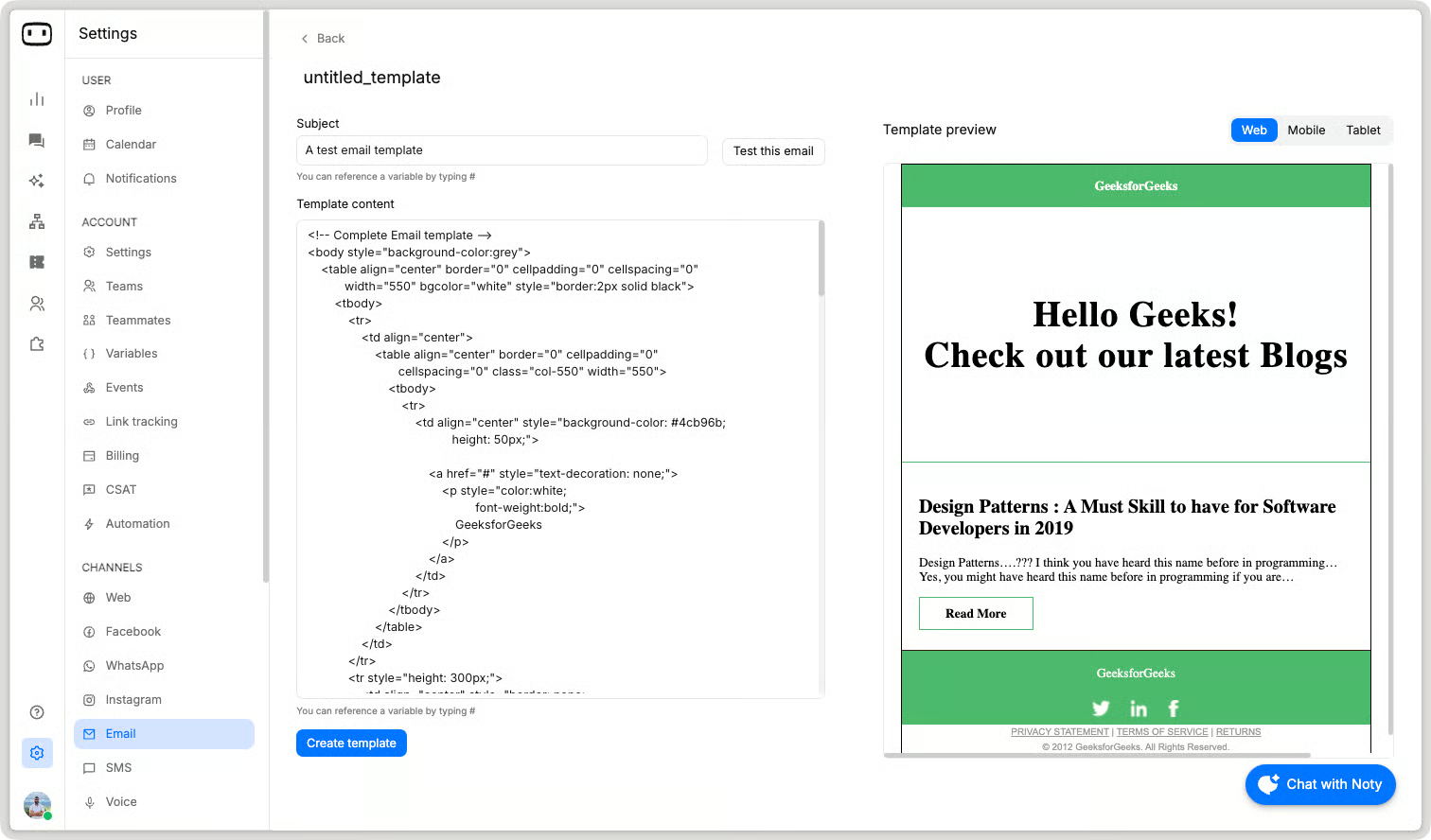
To create an email template,- Go to Settings > Email channel > Templates
- Click “Create template”
- Provide a unique template name
- Provide the subject line
- Provide the template content for the body
- Once previewed, click ‘Create template’
A template controls the reusable presentation of the email, including:
A template controls the reusable presentation of the email, including:
- Header
- Footer
- Branding
- Typography and styling
- Reusable email structure
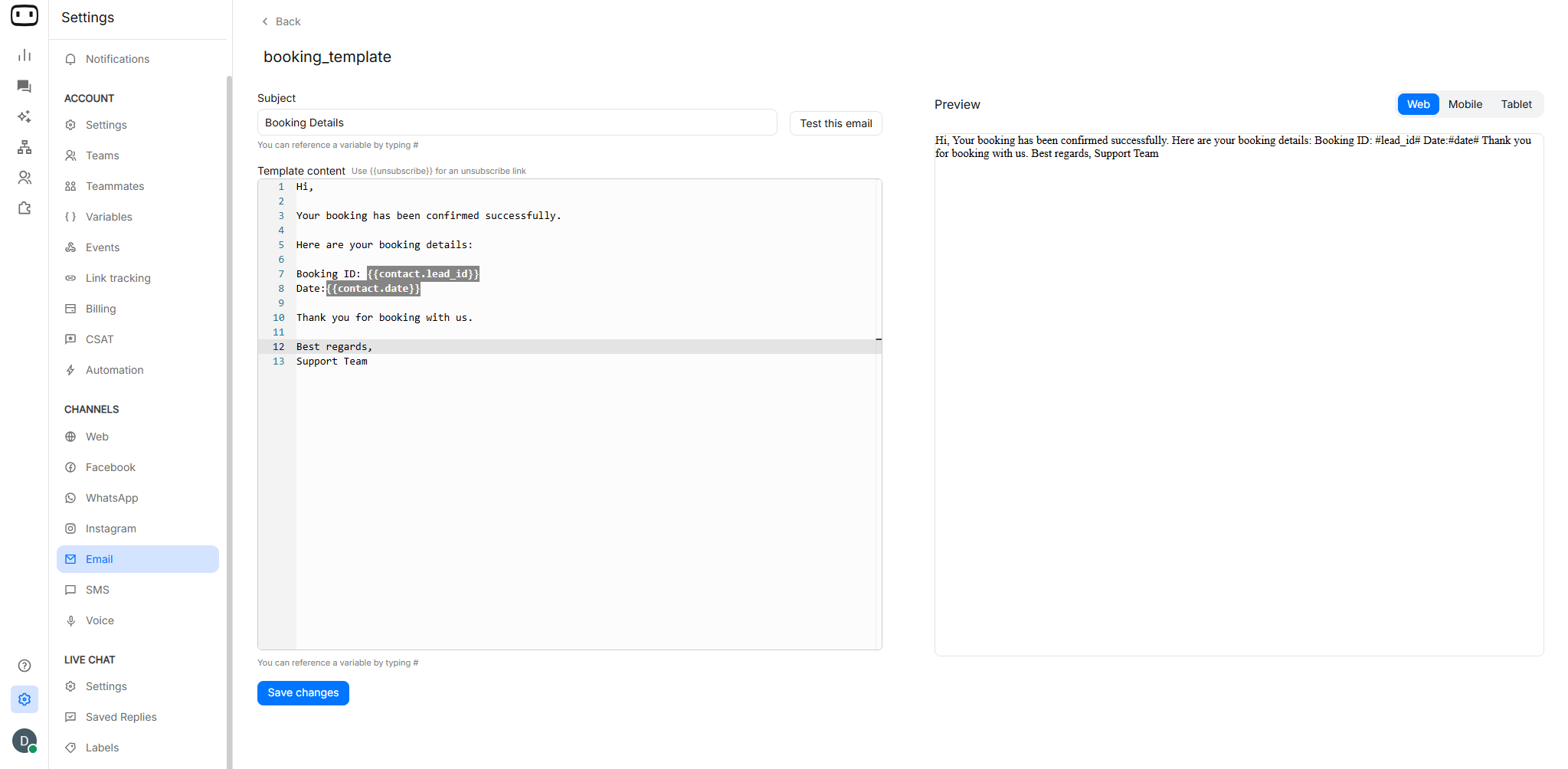
Using variables
Use variables to personalize emails with information already available in the conversation. Variables can be used to insert values such as:- Contact information
- Conversation information
- Values collected during the flow
- Other variables available to the agent
Previewing
Preview your email before connecting the agent to a live mailbox. Email clients can render the same HTML differently, so test important templates in more than one email client before going live. Check:- Text formatting
- Spacing
- Links
- Images, if used
- Variable values
- Header and footer content
- Overall readability on desktop and mobile
Publishing the agent
After configuring the email account and connecting it to your agent, deploy the agent to make it live.- Open the agent you want to publish.
- Open the Trigger block and select the correct email address from dropdown.
- Choose the email configuration you created under Settings → Channels → Email.
- Review the flow
- Click Deploy to publish the agent.
- Send a test email to the configured email address.
- Wait for the email to be processed and verify that the agent sends the expected response.
Troubleshooting
Inbound email is not reaching the bot
Inbound email is not reaching the bot
Check the following:
- Confirm that the correct email account is configured under Settings → Channels → Email.
- Verify that the email provider, credentials, and protocol are correct.
- For custom providers, verify the Server and Port values.
- Send a new test email from an external mailbox.
- Wait for the email polling interval to complete.
- Check whether the message is being filtered or moved by the mailbox.
- Confirm that the email account can receive messages normally.
- Check the conversation in WotNot after the email has been processed.
WotNot reads incoming emails in batches, so a newly sent email may not appear immediately.
Replies are landing in spam
Replies are landing in spam
Check the following first:
- Verify the sending domain’s SPF record.
- Verify the DKIM configuration.
- Check the domain’s DMARC policy.
- Confirm that the From address belongs to the authenticated sending domain.
- Check the recipient’s Spam or Junk folder.
- Test delivery to more than one email provider.
Replies are not threading into the original conversation
Replies are not threading into the original conversation
Check the following:
- Ask the customer to use Reply instead of creating a new email.
- Confirm that the email subject has not been changed.
- Check whether the customer forwarded the message.
- Verify that the original email headers are still present.
- Test the same conversation from another email client.
- Check whether the customer started a completely new email thread.
Conversation state is lost between turns
Conversation state is lost between turns
Email conversations can have long gaps between messages.Check the following:
- Confirm that the customer replied to the original conversation.
- Check whether the reply was sent as a new email.
- Verify that the conversation is still associated with the original thread.
- Make sure important information is stored in variables rather than relying only on immediate session context.
- Review the conversation in Chat logs.
The email template renders badly in a specific client
The email template renders badly in a specific client
Check the following:
- Test the email in another client such as Gmail, Outlook, or Apple Mail.
- Simplify complex layouts or styling.
- Avoid advanced CSS that may not be supported consistently.
- Check the email on both desktop and mobile.
- Verify that images and links load correctly.
- Review the actual delivered email rather than relying only on the template preview.
The agent is creating an auto-reply loop
The agent is creating an auto-reply loop
An auto-reply loop can occur when the WotNot agent monitors a mailbox that is also receiving automated messages from another system.For example:
- WotNot sends an automated reply.
- Another automated mailbox responds automatically.
- WotNot receives that automated response.
- WotNot sends another response.
- The other system responds again.
- Avoid connecting mailboxes that automatically respond to each other.
- Do not configure WotNot to monitor an address used exclusively by another automated responder.
- Add appropriate filtering or routing rules for known automated senders.
- Test automated integrations carefully before enabling them in production.
- Monitor email volume immediately after deployment.