

Instagram deployment requires a professional Instagram account (Business or Creator) linked to a Facebook Page. Personal Instagram accounts cannot be connected. Instagram also has channel-specific messaging and interactive-element limitations, so test your agent on Instagram before going live.
Before you start
Account requirements
Before connecting Instagram to WotNot, make sure you have:- An Instagram Professional account — Business or Creator.
- A Facebook Page linked to your Instagram account.
- Admin access to the Facebook Page and the Instagram account.
Permissions
When you connect Instagram, WotNot opens Meta’s authorization flow. You must grant the permissions requested in the authorization screen so WotNot can access the Instagram account and receive and respond to messages. The person completing the connection must have the required admin/manage permissions for the Facebook Page and connected Instagram account. If the required permissions are not available, the Instagram account or Facebook Page may not appear during setup. Meta’s Instagram APIs use permissions for account access, messaging, and comment management. The exact permission names shown can vary depending on the Meta connection flow being used.Connecting Instagram
To launch the chatbot you built for “Instagram” channel, follow these steps:1
Connect your Instagram business account
Go to Settings > Channels > Instagram and click “Connect to Instagram”.Doing this opens the Instagram pop-up asking for permissions, here make sure you choose all the permissions listed.Once all permissions are granted the popup will close, and you will see your Instagram business page listed here.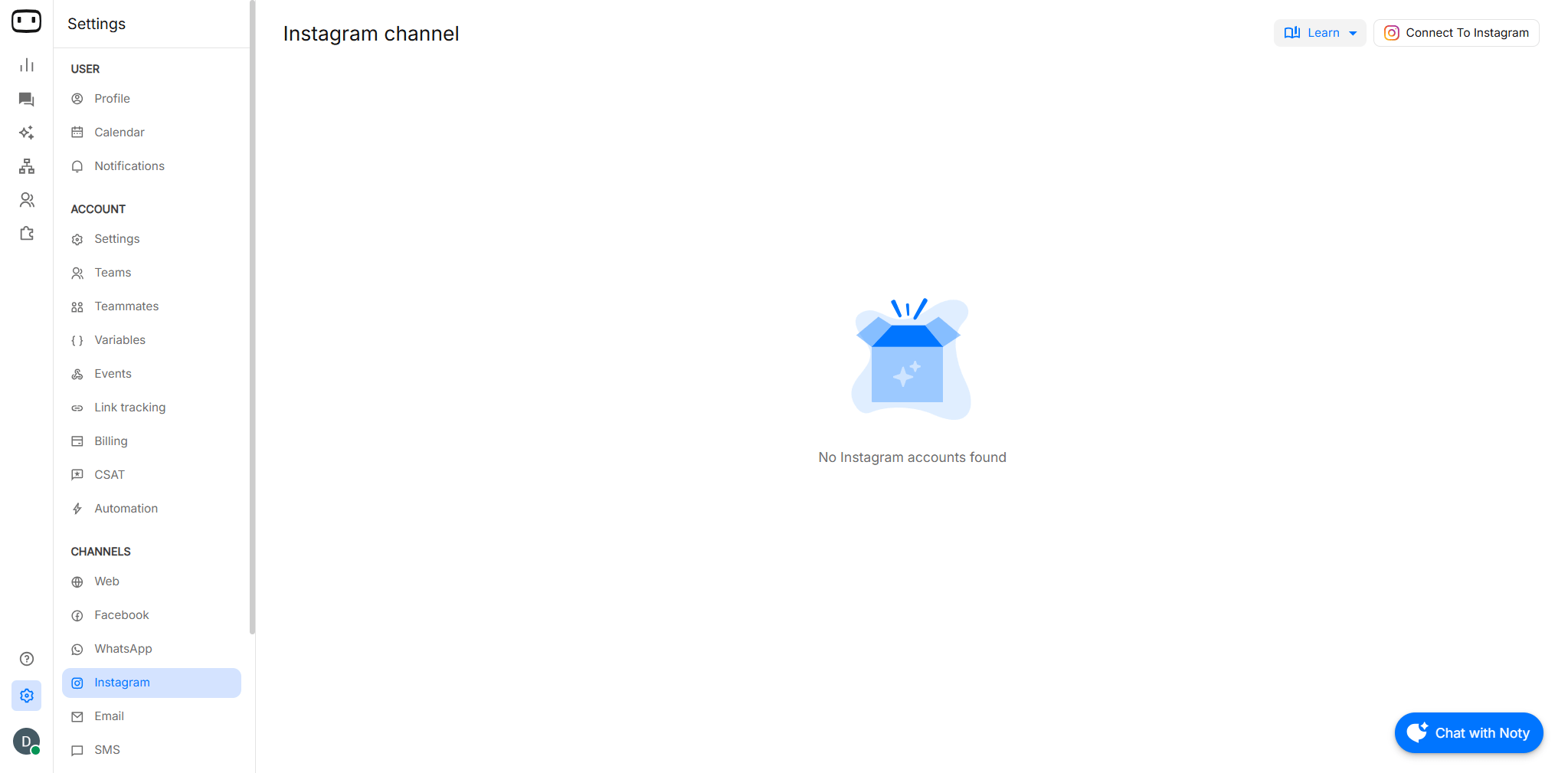
You will require “Admin” permissions to be able to connect the chatbot to a Instagram business page. If you do not see any pages, it means that you do not have the required permissions.
2
Connect the chatbot to the Instagram page
Now, open the Instagram bot that you built and click on the ‘Trigger’ action block.On the right panel, choose the Instagram business page from the dropdown that you trigger the chatbot on.Once selected, hit ‘Deploy’ to save this configuration. Post this all messages sent to your Instagram page will be handled by your chatbot.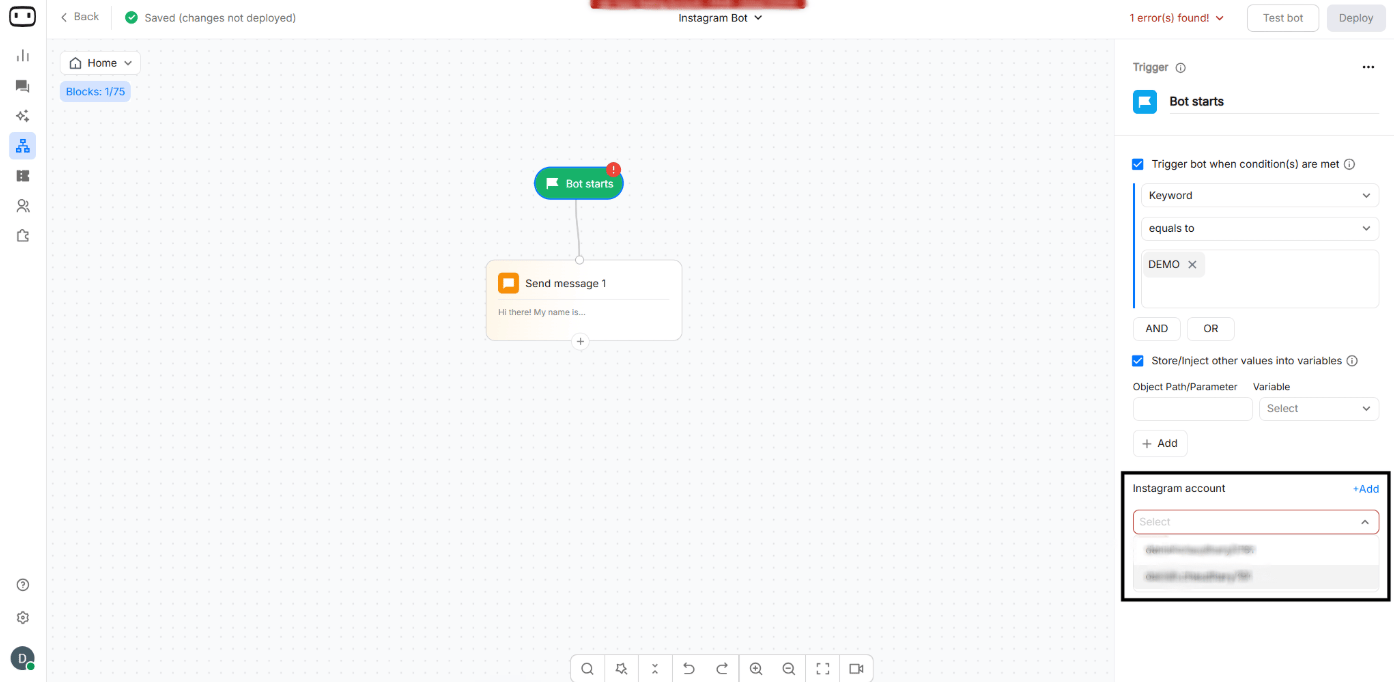
Getting an error connecting your Instagram account
If you’re experiencing an issue when trying to link your Instagram account To resolve this, please follow these steps:- Log out from your Instagram account in all devices.
- Clear your browser cache and cookies.
- Log back in to your Instagram account.
What the agent can respond to
Direct messages
Direct messages are the primary Instagram use case. When a user sends a message to your connected Instagram Professional account, Instagram sends the conversation event to WotNot. The connected agent can then process the message and respond according to your chatbot flow. The conversation must be initiated by the Instagram user. Meta’s Instagram messaging API does not allow a business to start an arbitrary conversation with a user who has not messaged the account.Use keyword trigger to run a specific bot
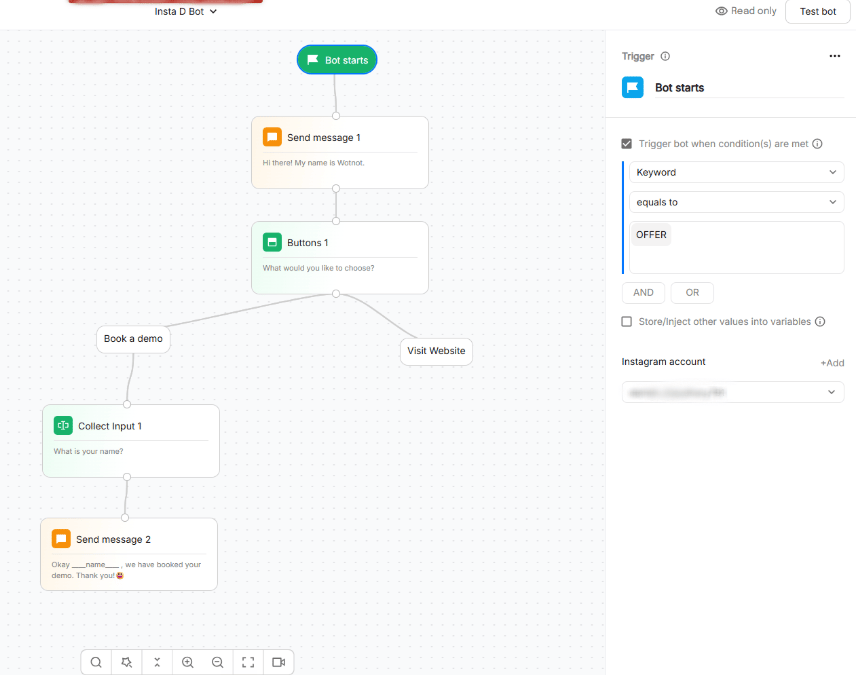
Easily launch specific bots on your Instagram channel using keyword triggers. Define words or phrases like “GET OFFER” or “START”, and when a user sends them, the assigned bot will instantly take over the conversation. Perfect for running campaigns, sharing offers, or guiding users into the right flow.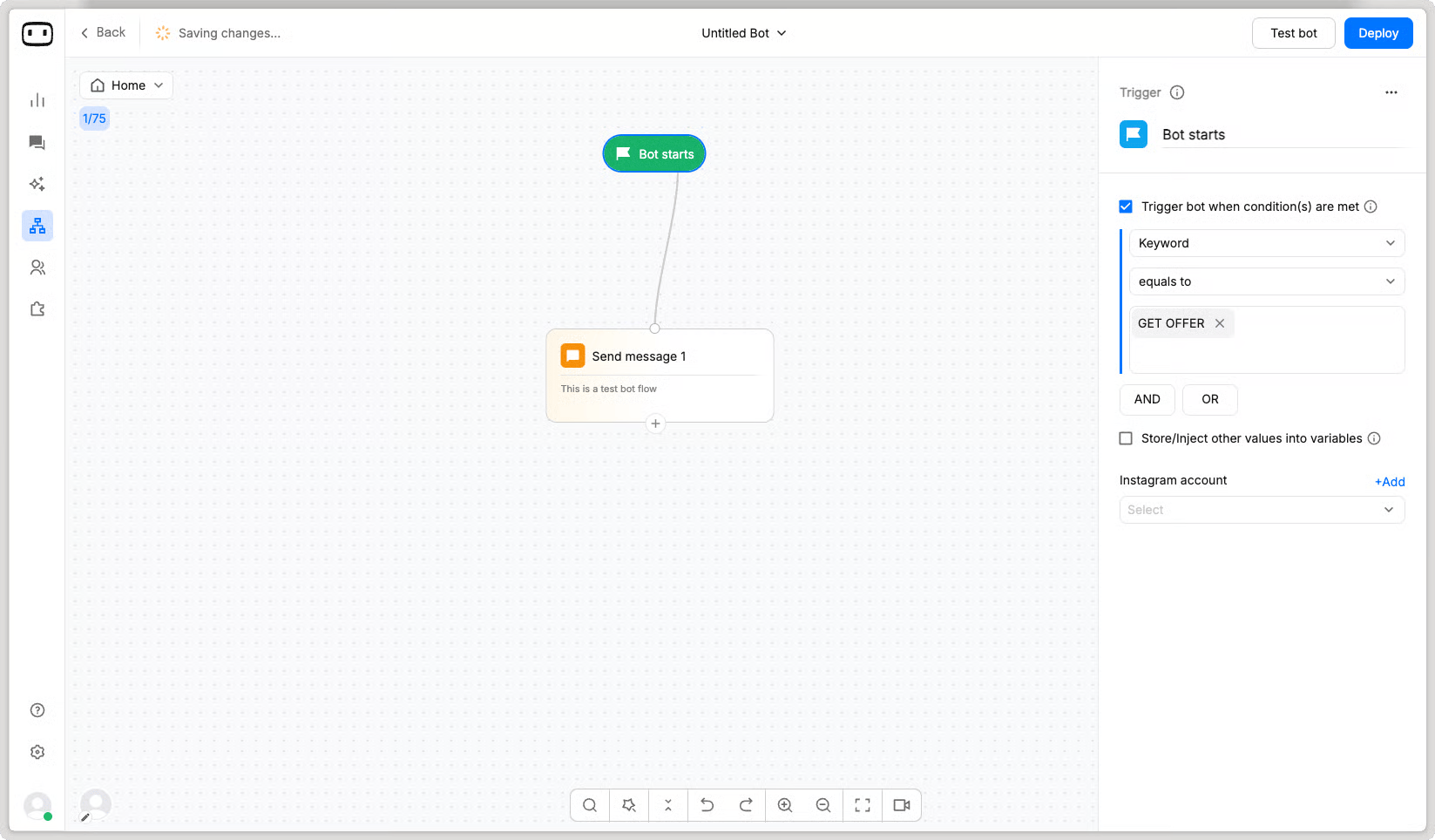
Messaging rules
Instagram messaging rules are defined by Meta, not WotNot. These rules determine when an agent can send messages and what types of interactions are allowed.The response window
For standard Instagram messaging, you generally have 24 hours to respond after an Instagram user sends a message. You can configure the auto-inactive chat setting, and chats will automatically close after the specified period of inactivity. Learn moreRate and volume limits
Meta controls Instagram API rate limits and messaging limits. These limits can vary depending on the API, account, permissions, and type of request. If you are deploying an agent for a high-volume Instagram account, monitor the agent’s behavior and Meta errors during testing. Avoid assuming that limits from another channel, such as WhatsApp, also apply to Instagram.Publishing the agent
Once your Instagram account is connected, connect the agent you want to use with that account.- Open the Instagram agent you want to publish.
- Open the Trigger block.
- In the right-side configuration panel, select the connected Instagram account/Page.
- Review your flow and make sure the agent is configured to handle Instagram conversations.
- Click Deploy to publish the current version of the agent
Testing
Before sharing your Instagram account with customers, test the deployed agent using a real Instagram account.- Open Instagram using a separate account that can message the connected Professional account.
- Send a direct message to the connected Instagram account.
- Follow the conversation through the agent and verify that each expected response is delivered.
- If your flow uses buttons, quick replies, media, or other interactive elements, test each one directly on Instagram.
Troubleshooting
Account connected but messages are not reaching the bot
Account connected but messages are not reaching the bot
Check the following:
- Make sure the correct Instagram Professional account is connected.
- Verify that the Instagram account is still linked to the selected Facebook Page.
- Confirm that the agent is connected to the Instagram account from the Trigger block.
- Make sure the latest version of the agent has been deployed.
- Send a new message from a real Instagram account and check the conversation logs.
Personal Instagram account rejected during connection
Personal Instagram account rejected during connection
WotNot requires an Instagram Professional account.If you are using a personal Instagram account, switch it to a Business or Creator account and make sure it is linked to a Facebook Page before trying to connect it again.Meta’s Instagram API does not support consumer/personal Instagram accounts.
Permissions revoked after a Meta password change
Permissions revoked after a Meta password change
If the Instagram connection stops working after changes to your Meta or Facebook credentials:
- Check that you still have admin access to the Facebook Page.
- Confirm that the Instagram account is still linked to the Facebook Page.
- Reconnect Instagram from Settings → Channels → Instagram.
- Grant all requested permissions during the Meta authorization flow.
Interactive elements are not rendering
Interactive elements are not rendering
Instagram has different messaging capabilities from the WotNot web widget.If an interactive element does not appear as expected:
- Test the same flow using a real Instagram account.
- Check whether the element is supported by Instagram messaging.
- Prefer simpler message formats when a channel-specific element is not supported.
- Do not use the web preview alone to confirm Instagram rendering.
Messages outside the response window are failing
Messages outside the response window are failing
Check when the Instagram user last sent a message.Standard Instagram messaging provides a 24-hour response window. If the conversation is outside this window, a normal automated response may not be accepted by Meta.For comment-triggered private replies, different rules apply. Meta allows a private reply within 7 days of the comment, subject to its restrictions.
Facebook Page is no longer linked to the Instagram account
Facebook Page is no longer linked to the Instagram account
The Instagram Professional account must remain correctly linked to the Facebook Page used during setup.If the Page was unlinked or changed:
- Open your Meta/Facebook settings.
- Verify that the correct Facebook Page is linked to the Instagram Professional account.
- Return to WotNot and check the Instagram connection.
- Reconnect the account if the connection is no longer valid.