

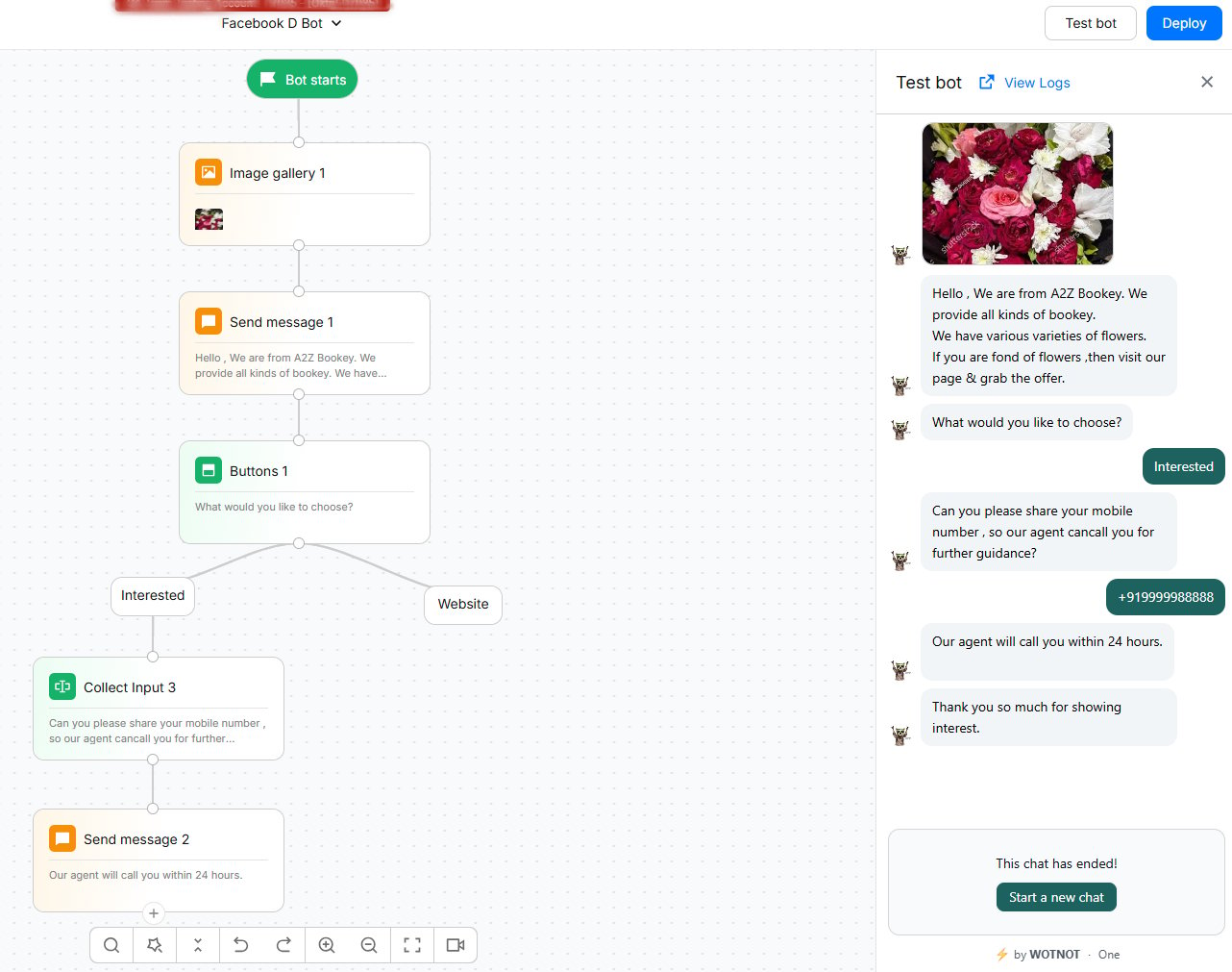
To connect Facebook Messenger, you need a Facebook Page and Admin access or equivalent permissions on the Page. Meta may also require additional business or messaging permissions depending on your account configuration.
Before you start
Page requirements
Make sure you have:- A Facebook Page that you want to connect to WotNot.
- Admin permissions on the Page.
- Access to the Facebook account that manages the Page.
- Messenger enabled for the Page.
Permissions
When you connect Facebook Messenger, WotNot opens a Meta authorization window. During this process:- Sign in with the Facebook account that manages your Page.
- Select the Pages you want WotNot to access.
- Grant the permissions requested by Meta.
- Make sure you select all Pages you may want to connect during the authorization flow.
pages_messaging permission and a Page access token associated with a person who can perform the required messaging task on the Page.
The exact permissions shown by Meta can change as Meta updates its platform requirements. If a Page does not appear in the authorization window, first check that your Facebook account has Admin access to that Page.
Connecting a Page
Authorising
1
Connect your Facebook account
- Go to Settings → Channels → Facebook Messenger in your WotNot workspace.
- Click Connect to Facebook.
- A Facebook authorization window opens. Sign in with the Facebook account that manages your Page.
- Select the Facebook Pages you want to connect to WotNot.
- Once authorization is complete, the Facebook window closes and your available Pages appear in WotNot.
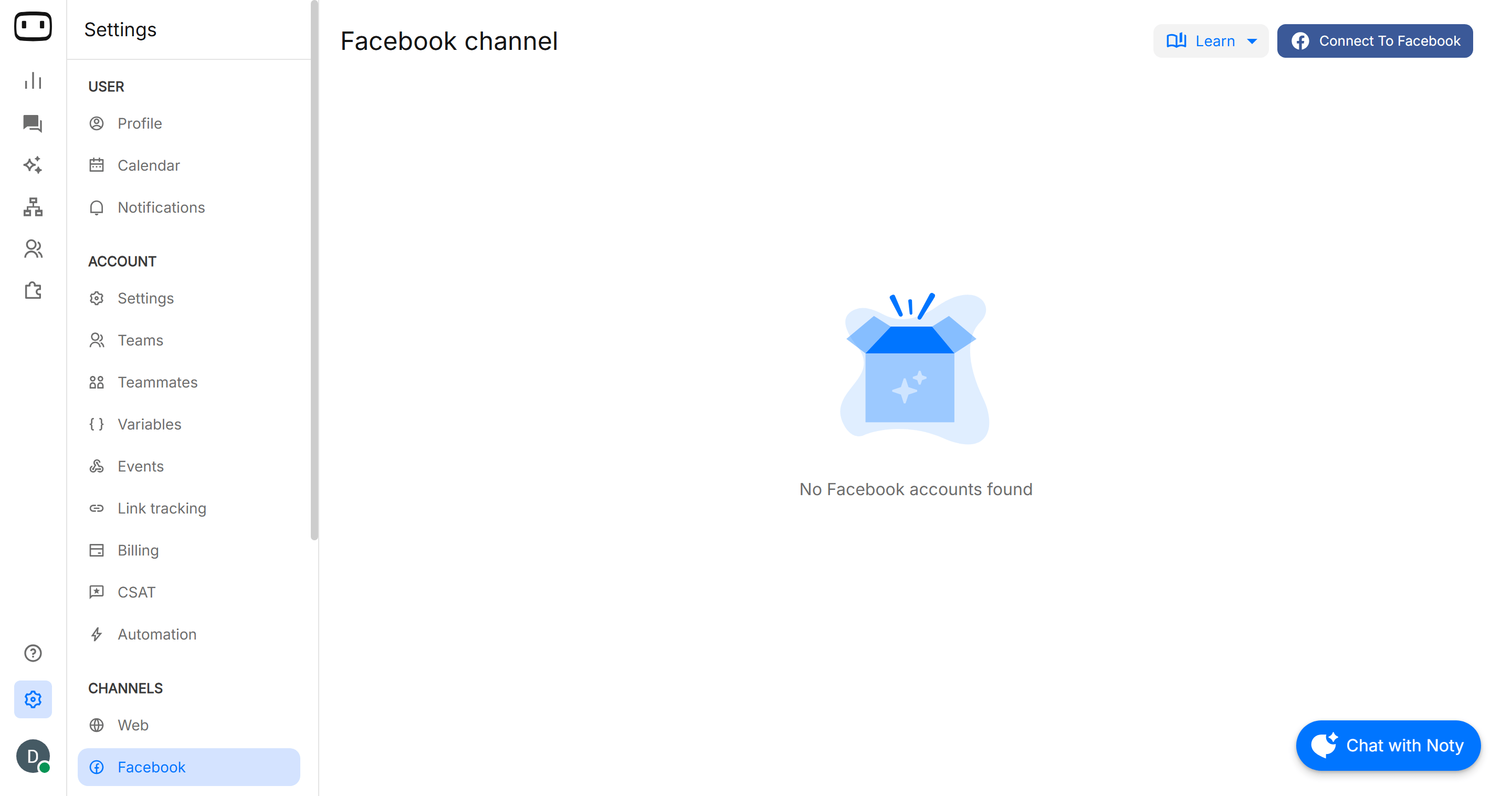
You will require “Admin” permissions to be able to connect the chatbot to a Facebook page. If you do not see any pages in the list, it means that you do not have the required permissions.
2
Connect the chatbot to the Facebook page
- Once your Facebook account is successfully configured, the Facebook pop-up will auto-close, and you will be able to see all the Facebook pages in the current screen.
- Click on the “Expand” icon to be able to choose the chatbot you want to connect.
- Once done, hit “Save” and your chatbot is now live on Facebook Messenger.
If the bot’s status is turned on then you will see ACTIVE written on that page & if the bot is turned off, you will see INACTIVE
If there is no status, that means that no bot is not connected to the page
If there is no status, that means that no bot is not connected to the page
Managing multiple Pages
You can connect multiple Facebook Pages from the same Facebook account.- Open Settings → Channels → Facebook Messenger.
- Find the Facebook Page you want to configure.
- Click the Expand icon to view the available agents.
- Select the agent you want to connect to the Page from select bot dropdown.
- Check if your bot is in active mode.
- The agent is now connected to the Facebook Page.
If the agent is enabled, the Page shows an ACTIVE status. If the agent is disabled, it shows INACTIVE. If no status is displayed, an agent is not currently connected to the Page.
What renders on Messenger
Messenger supports several interactive message formats. This means you can use many of the same conversational patterns you build for web, while keeping Messenger’s platform-specific rendering in mind.If a block behaves differently on Messenger than it does on your website, check whether the block depends on a web-specific interaction. Messenger uses its own native message formats.
Messaging rules
Messenger messaging rules are controlled by Meta. WotNot cannot override Meta’s messaging windows, delivery restrictions, or rate limits.The 24-hour window
Messenger uses a standard 24-hour messaging window. When a user messages your Facebook Page, your agent can respond during the active messaging window. Once the window expires, Meta may prevent standard automated messages from being sent. Keep the following in mind:- A user’s message starts or extends the active conversation window.
- Automated replies should be sent while the conversation window is active.
- Redeploying an agent does not reset the messaging window.
- A failed message outside the allowed window is generally a Meta messaging-policy restriction rather than a WotNot deployment issue.
Rate limits
Meta applies limits to Messenger API traffic. If your Page sends a large number of messages in a short period, Meta may throttle requests or temporarily prevent additional messages from being sent. To reduce the chance of throttling:- Avoid sending large bursts of messages.
- Keep automated flows efficient.
- Avoid unnecessary repeated messages.
- Check failed messages in your conversation logs.
- Follow Meta’s current Messenger Platform limits for high-volume use cases.
Rate limits are enforced by Meta and may change over time. WotNot cannot increase or bypass Meta’s platform-level limits.
Publishing the agent
Once your Page is connected, assign an agent to it and deploy the configuration.- Open the agent you want to publish.
- Make sure the flow is configured and tested.
- Click Deploy to publish the current version of the agent.
- Open Settings → Channels → Facebook Messenger.
- Select the Facebook Page you want to connect.
- Click the Expand icon and select the agent.
- Confirm that the Page shows the agent as ACTIVE.
- ACTIVE — the agent is connected and enabled for the Page.
- INACTIVE — the connected agent is currently turned off.
Deploy after every change. Changes made to your agent are not live on Messenger until you deploy the updated version.
Entry points
Customers can start Messenger conversations with your Page through supported Meta entry points, including:- Your Facebook Page.
- An m.me link to your Page.
- A Messenger experience on your website, where supported.
- Messenger-enabled ads, where configured through Meta.
https://m.me/<PAGE_USERNAME>
Meta controls which entry points are available for your Page and account. If an entry point does not work, verify its configuration in Meta before troubleshooting the WotNot agent.
Testing
Test the deployed agent using a real Facebook account.- Open the Facebook Page or its
m.melink using a real Facebook account. - Send a message to the Page.
- Confirm that the message reaches the WotNot agent.
- Follow the conversation through different paths in the flow.
- Check interactive elements such as buttons, quick replies, images, and carousels.
- Verify that links open correctly and that the expected action is triggered when a user selects an option.
- Test the conversation from a fresh Messenger account or conversation where possible.
- Open Chat logs in WotNot and confirm that the conversation and expected flow execution are recorded.
Troubleshooting
Page connected but messages are not reaching the bot
Page connected but messages are not reaching the bot
Check the following:
- Make sure the correct Facebook Page is connected.
- Confirm that an agent is assigned to the Page.
- Make sure the agent status is Active.
- Confirm that the latest version of the agent has been deployed.
- Verify that you are messaging the same Page that is connected in WotNot.
- Send a new message from a real Facebook account.
- Check the conversation in Chat logs.
Messages are going to the Page inbox instead of the agent
Messages are going to the Page inbox instead of the agent
Check the following:
- Confirm that the correct Page is connected.
- Open the Page configuration and verify that the intended agent is selected.
- Make sure the agent is Active.
- Confirm that the latest version has been deployed.
- Verify that no other Messenger integration is handling the Page’s messages.
- Start a new Messenger conversation and test again.
Permissions were revoked after a Meta account change
Permissions were revoked after a Meta account change
If your Facebook account or Page permissions changed, the existing connection may no longer work correctly.To reconnect:
- Go to Settings → Channels → Facebook Messenger.
- Disconnect the affected Facebook connection if required.
- Click Connect to Facebook.
- Sign in with the Facebook account that has Admin access to the Page.
- Select the required Page.
- Grant the requested permissions.
- Return to WotNot and confirm that the Page appears.
- Assign the agent again and deploy it.
Interactive elements are not rendering
Interactive elements are not rendering
Check the following:
- Confirm that the element is supported by Messenger.
- Check whether the element is specific to the web channel.
- Test buttons, images, and carousel cards individually.
- Confirm that image or media requirements are met.
- Check whether the issue affects one block or the entire conversation.
- Review the conversation in Chat logs.
Sending outside the 24-hour window is failing
Sending outside the 24-hour window is failing
Check the following:
- Confirm when the user last messaged your Page.
- Verify whether the conversation is still within Meta’s allowed messaging window.
- Check whether the message type is permitted after the window expires.
- Review the error returned by Meta.
- Do not assume that redeploying the agent will reopen the messaging window.
The Page role changed and the connection broke
The Page role changed and the connection broke
If your Facebook Page permissions changed, you may need to reconnect the Page.Check the following:
- Confirm that your Facebook account still has Admin access to the Page.
- Verify that the Page appears in the Meta authorization flow.
- Reconnect the Page in WotNot.
- Select the correct agent.
- Save the configuration.
- Deploy the agent again.
- Test using a new Messenger conversation.