

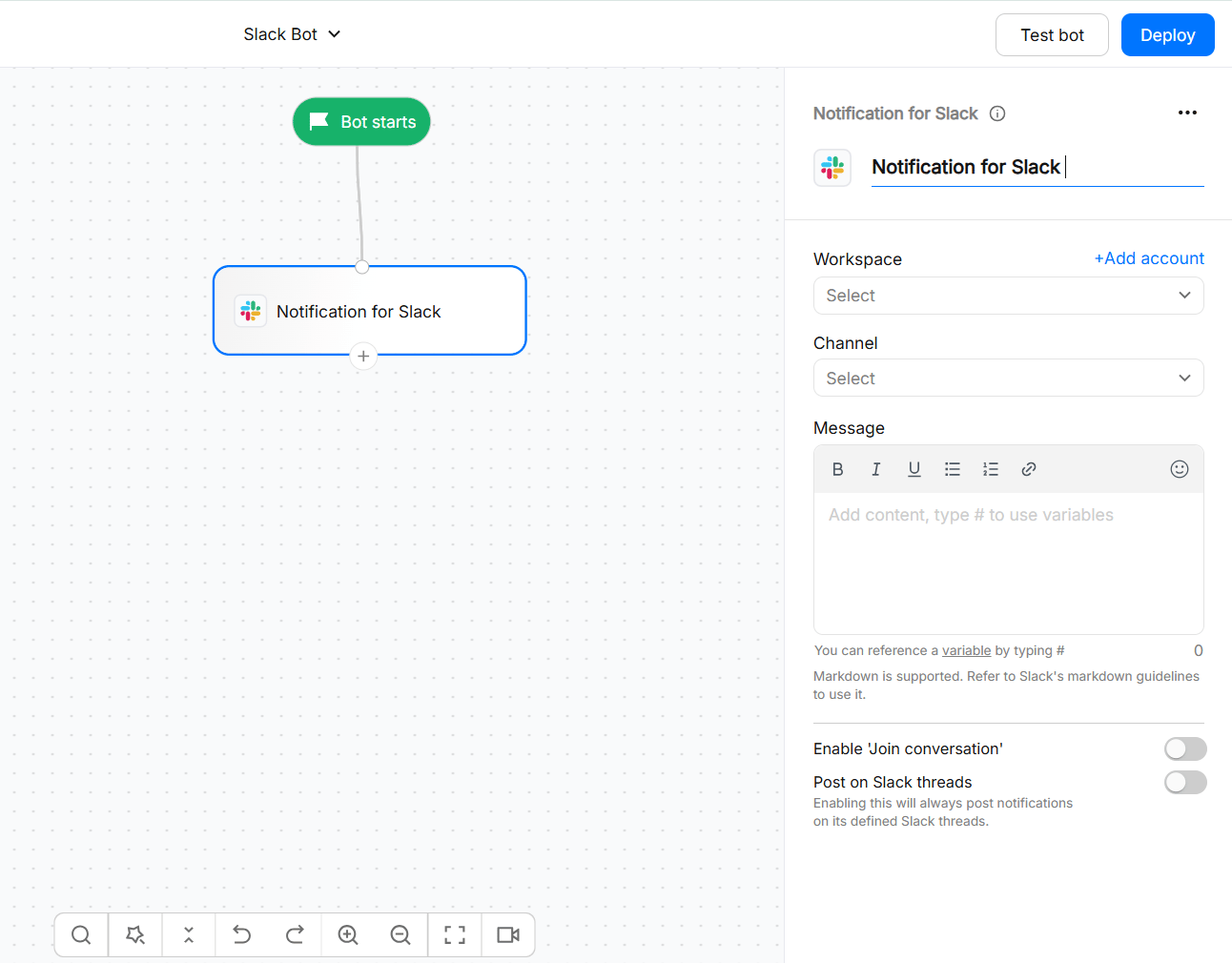
- Notifications: Send visitor or bot events to a selected Slack channel. You can include chatbot data using variables to make notifications more useful and actionable.
- Two-way chat: Let agents take over conversations and reply to visitors directly from a Slack thread.
With two-way chat enabled, agents can manage the conversation from Slack instead of using the Live chat page. This is especially useful for sales and support teams that already work in Slack.
Available on the Starter plan and above.
What you can do
Before you start
Make sure you have:- A Slack workspace where you have permission to install or approve apps.
- The Slack channel where notifications or live-chat conversations should appear.
- The WotNot app added to any private channel you want to use. Private channels are not shown in the channel selector until the app has been added to them.
- An assignment setup if you plan to use Live chat for Slack, so incoming conversations can be assigned to the appropriate users or teams.
Connecting Slack
- Add the Notification for Slack or Live chat for Slack action block to your bot.
- Click connect your Slack account.
- Select the Slack workspace you want to connect.
- Review the permissions requested by the Slack app and click Allow.
- Return to the action block and select the Slack channel you want to use.
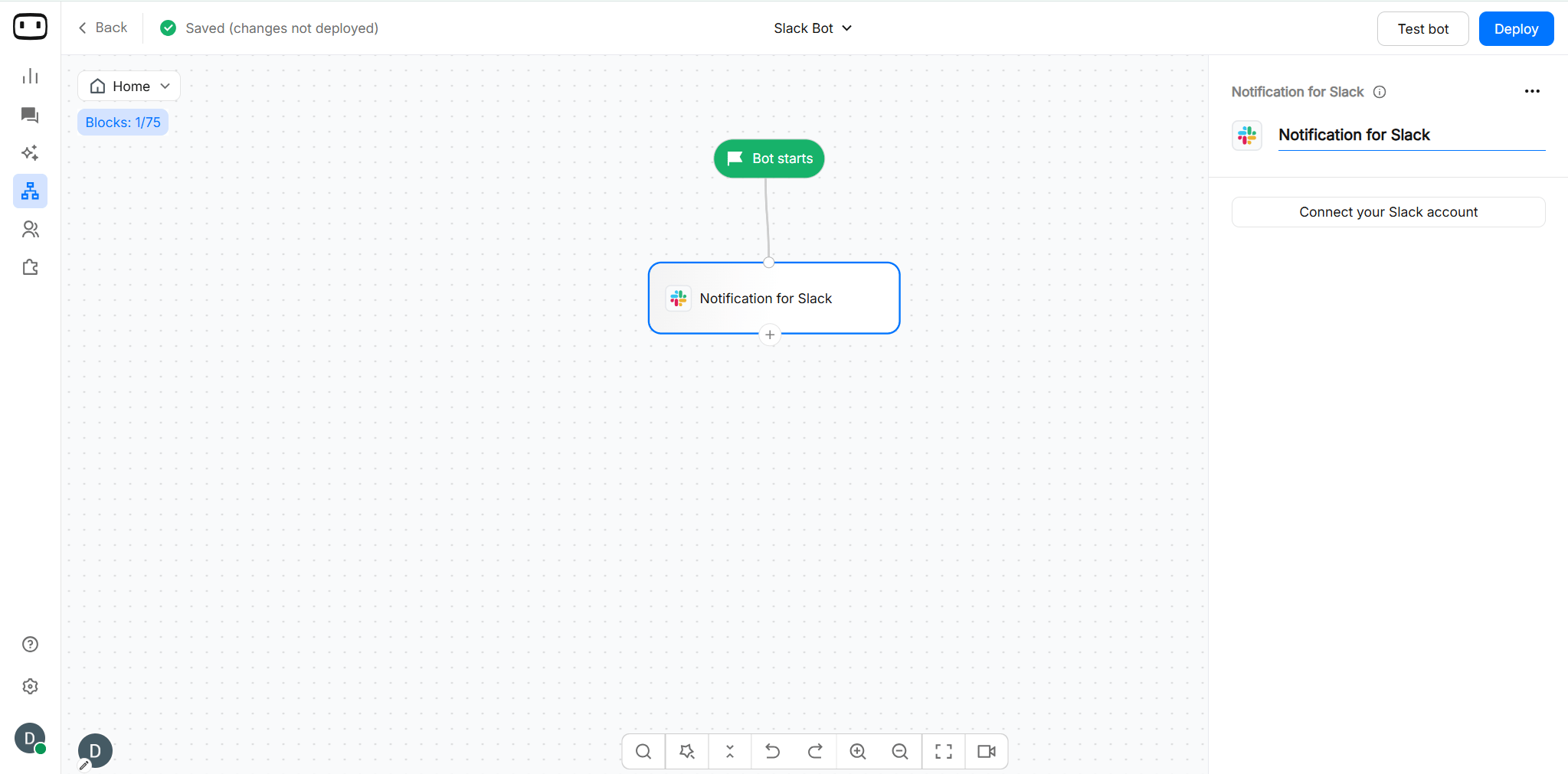
- You can also connect from App market. For that follow these steps: Go to App Market → Slack → Add account
Choosing a Slack channel
After connecting your Slack workspace, select the channel where WotNot should post. Public channels are available for selection by default. For private channels, invite the WotNot app to the channel before configuring the action block. open channel → Agents & apps → Add Agents & apps → search WotNot → click on Add You can configure different action blocks in different chatbot flows and select the appropriate Slack channel for each one. This allows you to route notifications or live-chat conversations based on your chatbot flow. For example:- Sales-related conversations →
#sales - Support conversations →
#support - High-value leads →
#qualified-leads
Sending notifications
Using Notification for Slack action block, you can send notification on your desired Slack channel about an event that occurs during visior chats.For example, notifying your team about:
- New chat from target country
- Existing lead speaking with bot
- User submitting qualified answers
1
Connect your Slack workspace
Connect your Slack workspace by choosing your account from the dropdown.Next, choose the channel that you want to send the notification to.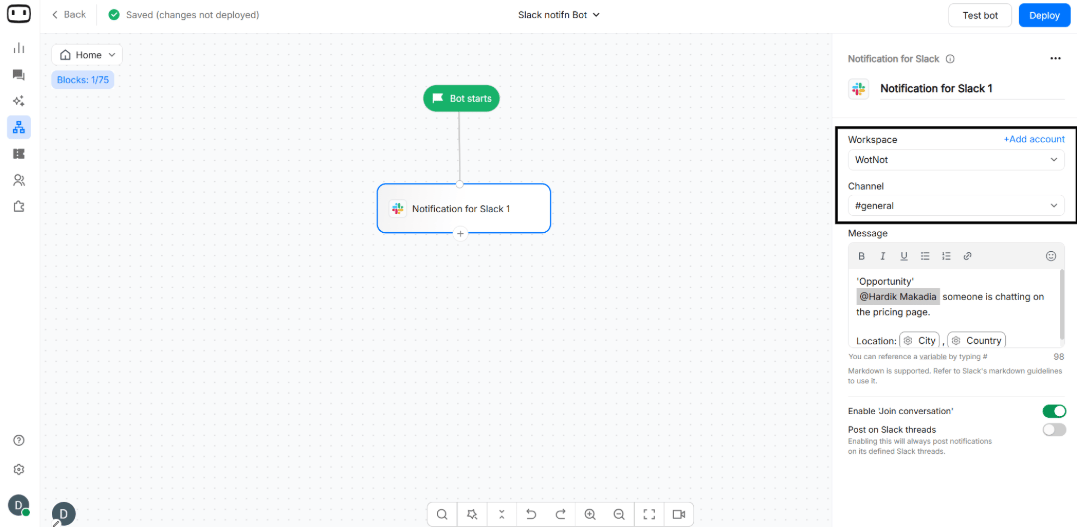
You will only see the public channels in this list. To view your private channels, add the “WotNot” app to that channel.
2
Define your notification message
Now that you have selected the channel, all you need to do is craft the message that you want to notify your team about.To make this message more helpful, use variables to extract collected data from the chatbot.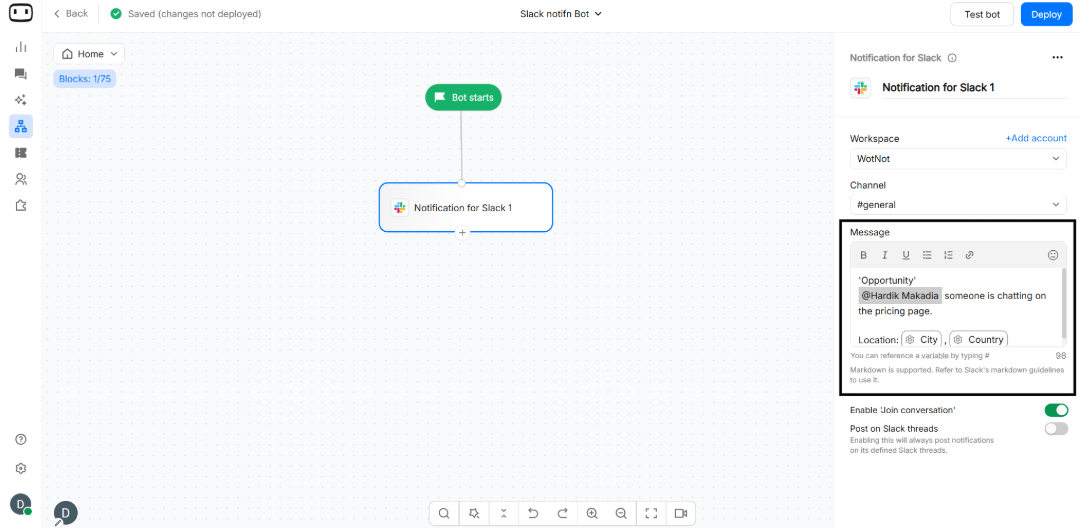
Replying to visitors from Slack
With Live chat for Slack, your team can take over a visitor conversation and reply directly from Slack.1
Connect your Slack workspace
Connect your Slack workspace by choosing your account from the dropdown.Next, choose the channel that you want to send the notification to.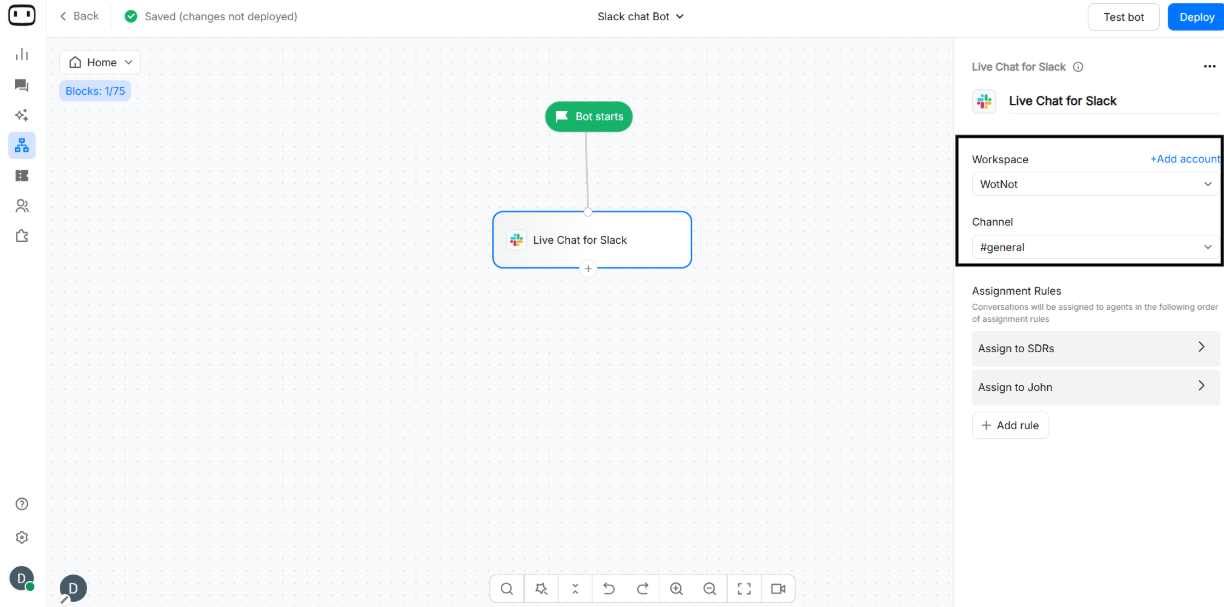
You will only see the public channels in this list. To view your private channels, add the “WotNot” app to that channel.
2
Set up your assignment rules
Here you would need to set up the assignment rules, based on which the chat will be assigned to your agents.While defining the rule, you need to choose a user/team that you want to assign the chat with, and a ‘wait time’ after which the system will reassign the chat as per the next assignment rule – if there is no reply given by the first user.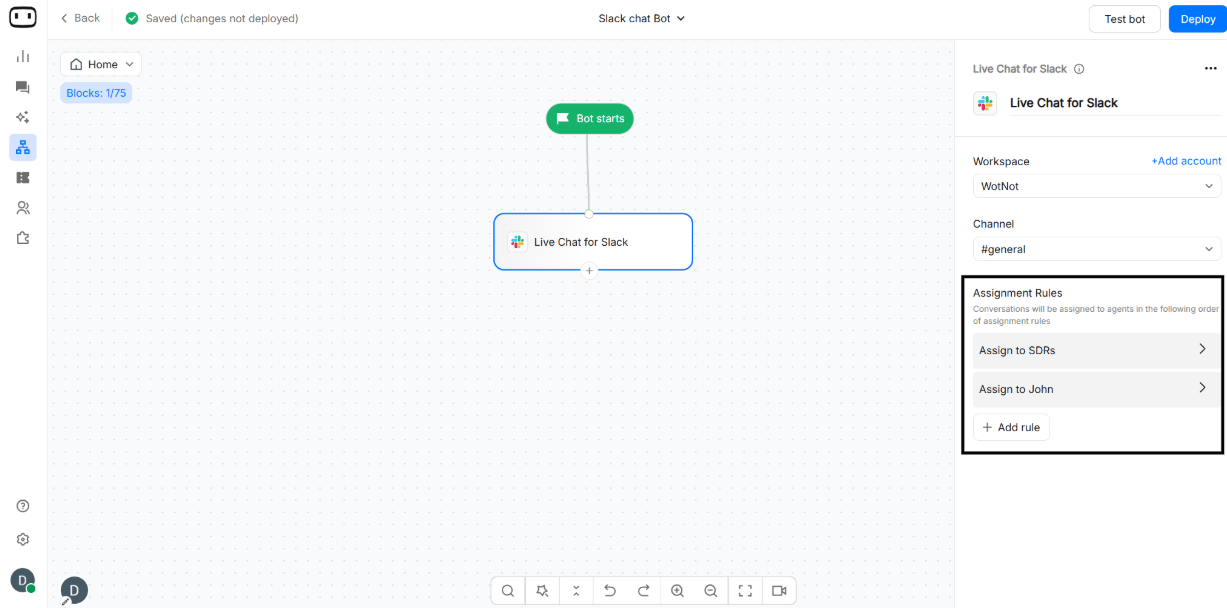
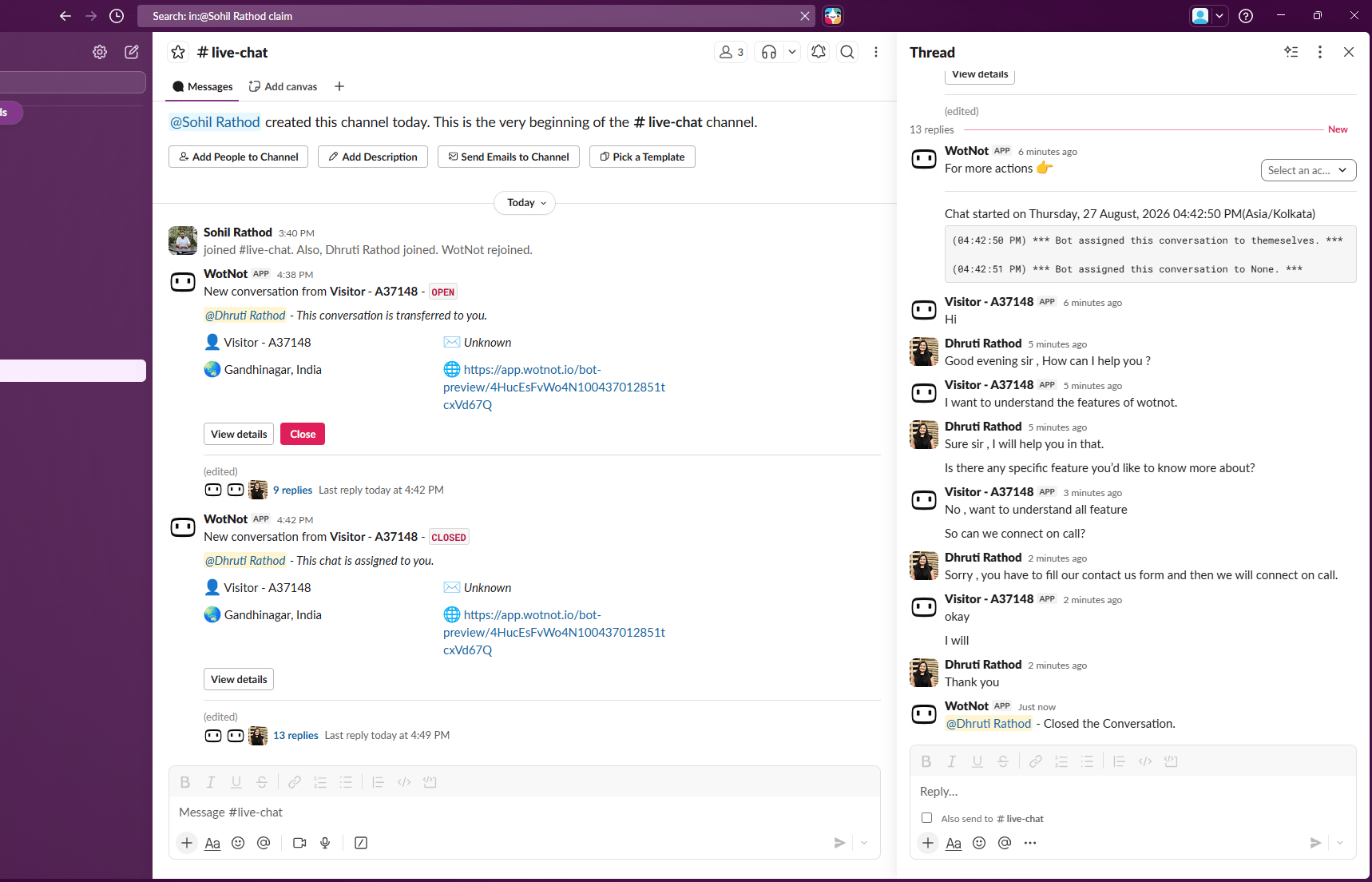
- Now, whenever this action block is executed you will see a notification on your slack channel with a thread to continue the conversation.
- On the thread, the user can use the input box to simply send replies to the visitor. Visitor replies will also be displayed in this thread.
How it works
- A visitor starts a conversation with the bot.
- When Live chat for Slack is triggered, the conversation appears in the configured Slack channel.
- The agent opens the Slack thread and replies to the visitor.
- The visitor receives the reply in the same conversation.
- Visitor replies appear back in the Slack thread, so the agent can continue the conversation without switching to Live chat.
What the visitor sees
The visitor continues the conversation as usual. Replies sent by the agent from Slack appear in the visitor’s existing chat.Slack vs. Live chat
Slack is designed for quick conversation handling without leaving your team’s Slack workspace. Some features available in the full Live chat experience may not be available in Slack.
For the complete set of Live chat capabilities and controls, see Live chat.
For conversations that require a human agent, see Talk to human.
Breakup of the slack post
Visitor information
You can see a summary of the visitor information i.e. the name, email location, and webpage from where the visitor is chatting right now. Also, you can click on the ‘View details’ button to see more information about the visitor.Chat history
On the slack thread, the first thing you see is the historical context of the chat till the point the human handover took place. Messages are tagged as ‘Bot’ and ‘Visitor’ along with the timestamp.Actions
You can perform the following actions:- Reassign chats – Shows a list of users you can reassign the chat too
- Send saved reply – Choose and send the saved reply
- Create saved reply – Create a new saved reply
- Delete saved reply – Delete a saved reply
- Notes – Add a note message to the chat thread
- Google calendar – Send a calendar event to book a meeting
Close
Once you have completed chatting with the visitor, you can hit “Close” on the slack post to close the chat. If not closed, WotNot will automatically close the chat after the session times out.Troubleshooting
Slack app installation is blocked
Slack app installation is blocked
Your Slack workspace may restrict app installations to administrators. Ask your Slack workspace administrator to approve or install the Slack app, then try connecting the workspace again.
My Slack channel is not available in the selector
My Slack channel is not available in the selector
Public channels are shown by default. If the channel is private, add the WotNot app to that channel first and then return to the Slack configuration.
Notifications are not appearing in Slack
Notifications are not appearing in Slack
Check that the correct Slack workspace and channel are connected. Verify that the action block is present in the bot flow and that the flow reaches the Slack action.
The live-chat conversation is not reaching the right agent
The live-chat conversation is not reaching the right agent
Check your assignment rules. Confirm that the intended user or team is selected and review the configured wait time before the conversation moves to the next rule.
The agent can see the Slack thread but the visitor is not receiving replies
The agent can see the Slack thread but the visitor is not receiving replies
Verify that the conversation is still active and that the agent is replying in the conversation thread created by the Live chat for Slack action.
Replies are appearing in the wrong Slack conversation
Replies are appearing in the wrong Slack conversation
Make sure the agent is replying in the correct conversation thread. Each live-chat handover creates a Slack thread for continuing that visitor conversation.
The Slack channel was archived or changed
The Slack channel was archived or changed
Check the Slack configuration and select an active channel. If the destination channel is no longer available, update the Slack action block with a valid channel.