

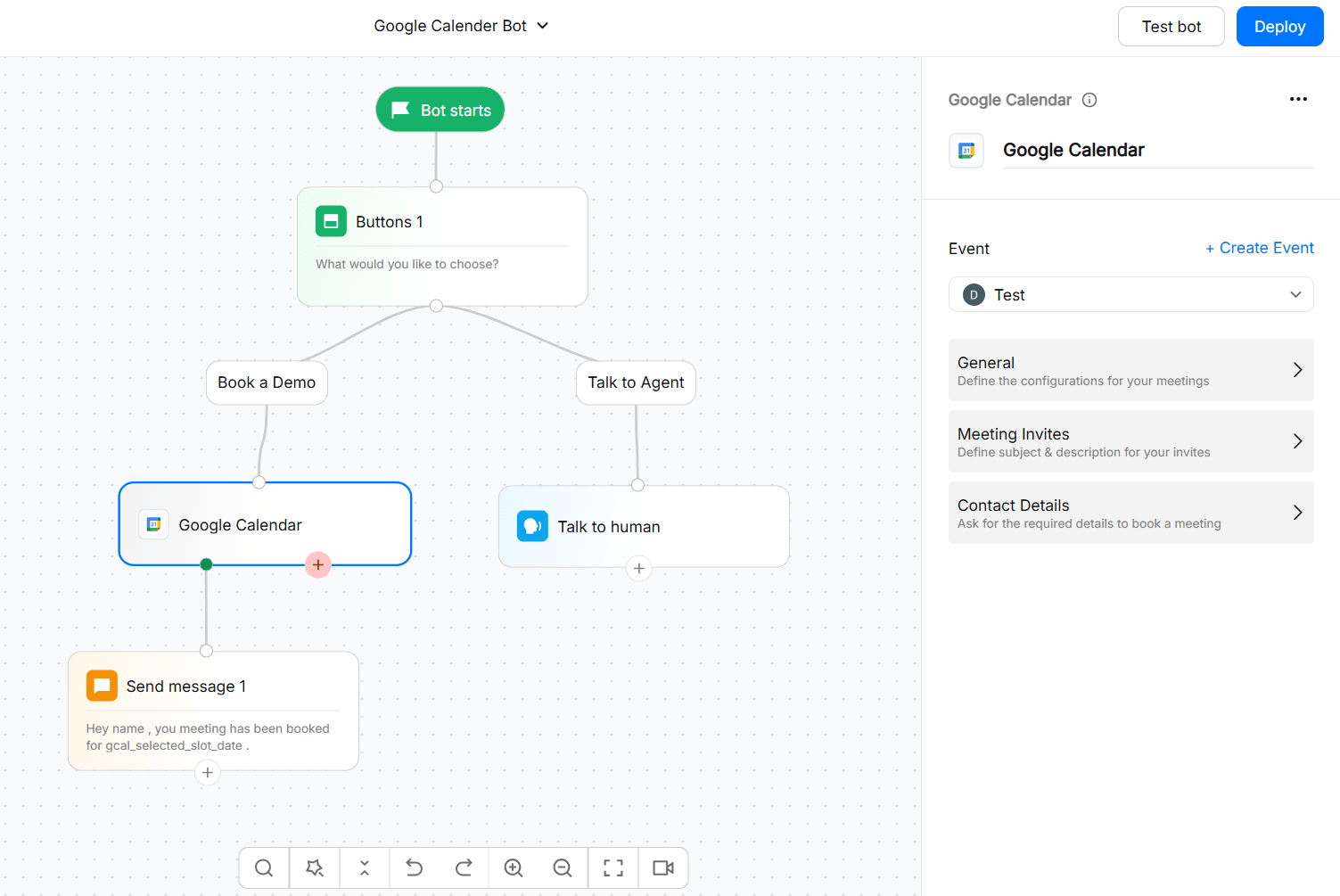
Google Calendar works as a push and fetch integration: WotNot reads your calendar availability and writes newly booked events to your calendar.
Available on the STARTER plan and above.
What you can do
Google Calendar integration lets WotNot read your calendar availability and create new events when visitors book an appointment.Before you start
Before connecting Google Calendar, make sure:- You have access to the Google account that owns or manages the calendar you want to use.
- You know which Google Calendar should receive the appointments.
- If you use Google Workspace, check whether your administrator restricts third-party applications. Your administrator may need to allow WotNot before you can complete the connection.
- If your Google account has multiple calendars, decide which calendar should receive the events.
Connecting Google Calendar
The Google Calendar action block allows visitors to book appointments with you based on availability. To use the Google Calendar, you will go across the following steps:- Connect your Google account
- Create an event
- Configure the event settings
- Setup your meeting invite
- Collect contact details to book
1
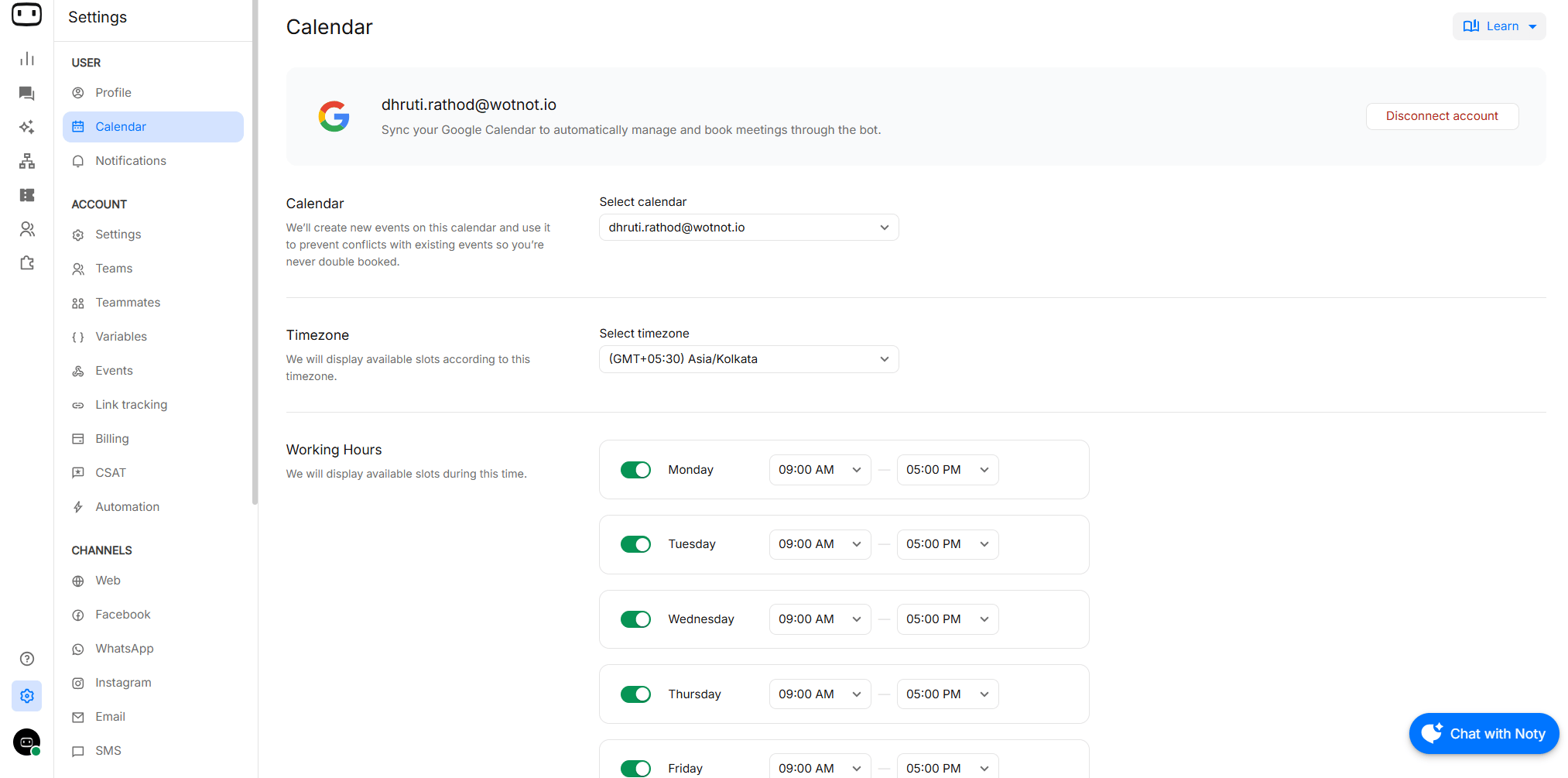
Connect your Google Calendar account
- Goto Settings > User > Calendar
- Click “Connect your Google account”
- Choose the calendar in which events will be booked.
- Choose the timezone of your availability.
- Set your availability (Timeslots from this will be displayed to visitors)
Make sure you grant all the permissions as requested when connecting your account.
2
Create an event
An event is a pre-set of what kind of meeting is to take place and who are the people among whom the event will be assigned.
- Click “+Create event” to create an event.
- Give the event a name.
- Choose the teammates/team who should get assigned to this event.
NOTE:
- Slots are displayed to the visitor based on the availability of all users’ in that event.
- An event is always assigned to only one user.
3
Configure the event settings
Customise how you want the event to be booked.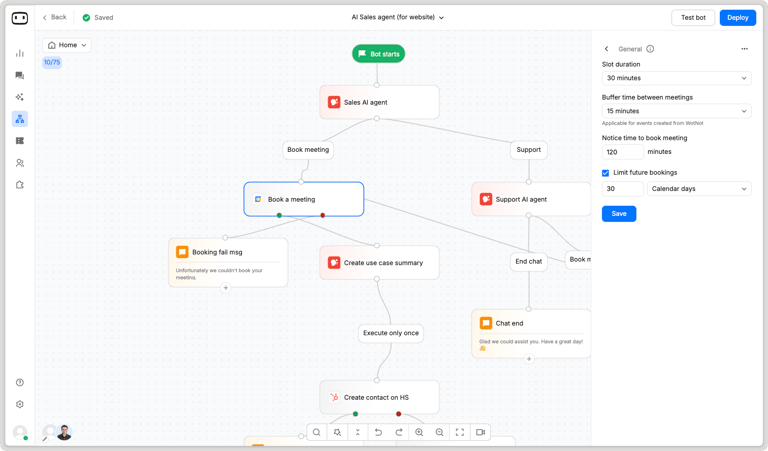
4
Setup your meeting invite
Here, you configure the messaging of the calendar invite, which is sent to the attendees.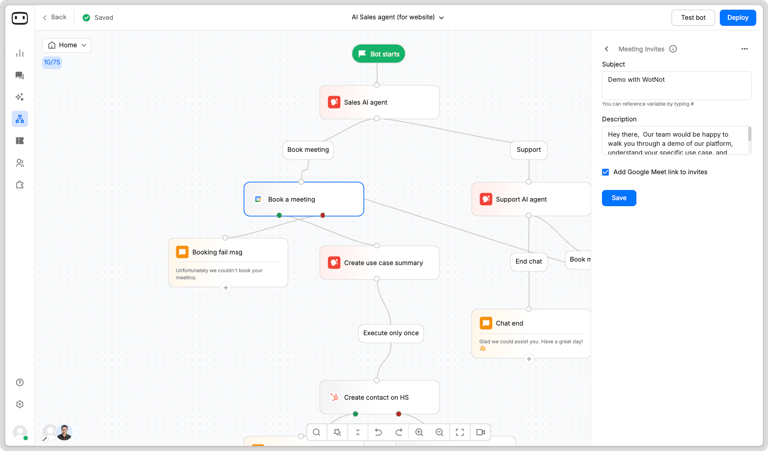
- Subject - Subject of the meeting invite Like “Demo with WotNot”.
- Description - Brief details of what and why is the event taking place.
- Location - You can include a Google Meet/Zoom meeting link here.
5
Collect contact details to book the meeting
To book the event, it is mandatory to collect the name and email of the attendee.You can customize this form to include other fields by creating new fields.You can also enable the “Skip form” configuration, which will automatically skip this screen if data is already available.As users who speak with your bot may have previously provided their contact details, the chatbot will smartly skip asking for the details again if it already knows the answer.For every Google Calendar action block, you will find two output ports: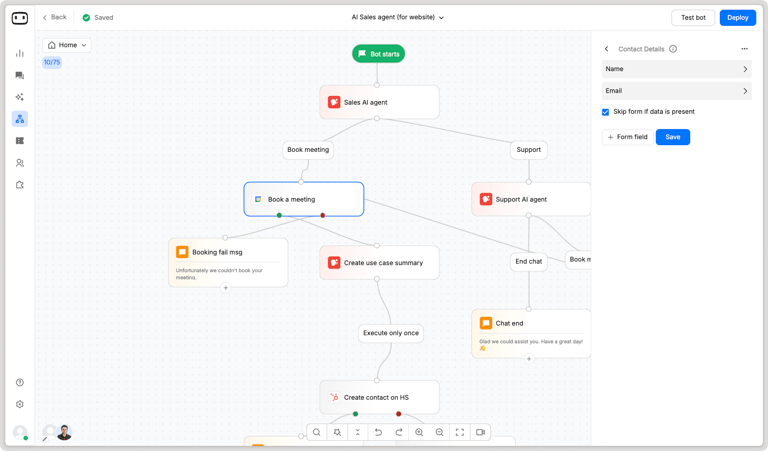
- Success - When an event is booked successfully.
- Failure - When there is a failure while booking the event.
If you use Google Workspace
Your organization may restrict third-party applications from accessing Google Workspace data. If WotNot is blocked by your organization:- Contact your Google Workspace administrator.
- Ask the administrator to review the WotNot application under Apps → Web and mobile apps in the Google Admin console.
- The administrator may need to mark the application as Trusted or otherwise allow the requested Google Calendar access, depending on your organization’s policies.
- Return to WotNot and connect your Google account again.
Choosing a calendar
If your Google account has multiple calendars, choose the calendar where you want booked events to be created.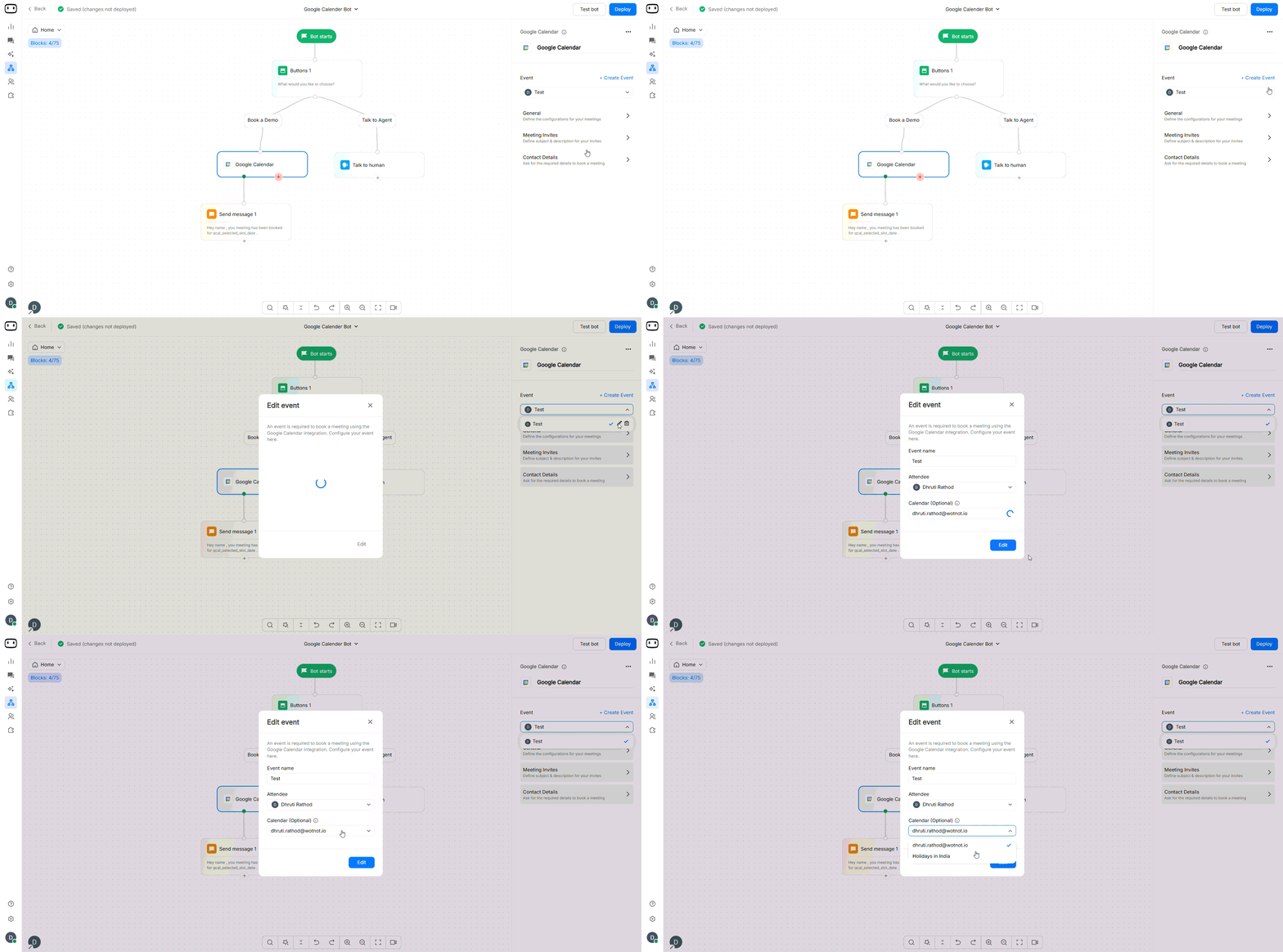
- Personal appointments
- Sales meetings
- Customer demos
- Team meetings
[WhatsApp/SMS] Define the message copy
If you use Google Calendar on WhatsApp or SMS, you can change the copy of the message used to collect the date and timeslot.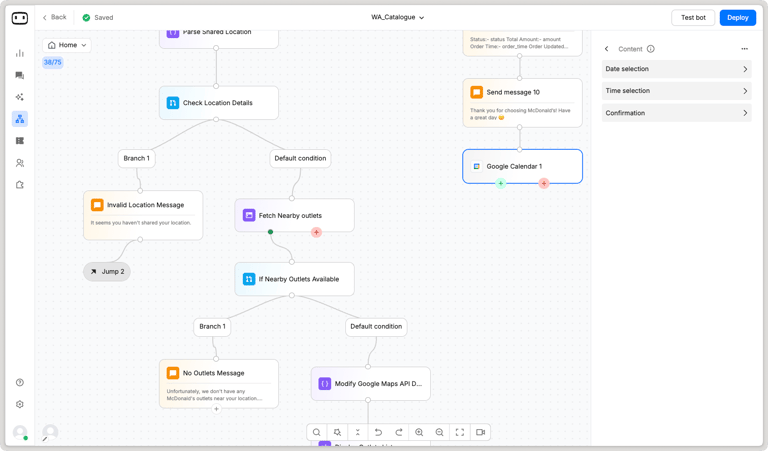
- Date selection
- Question - Question asked when showing the list of dates.
- Button text - On WA, clicking this button will display the list of dates.
- Error message - When an invalid selection is made.
- Timeslot selection
- Question - Asked when showing the list of timeslots.
- Button text - On WA, clicking this button will display the list of timeslots.
- Error message - When an invalid selection is made.
- Confirmation message - Once the meeting is successfully booked .
Meeting details
You can use the following system variables to use the booked time, date and day- gcal_selected_slot_time
- gcal_selected_slot_date
- gcal_selected_slot_day
Click ‘Save’ on every section of the action panel to save your changes for that event.
Choosing a different event from the event dropdown will show its configurations.
Troubleshooting
My Google Calendar token has expired or access was revoked
My Google Calendar token has expired or access was revoked
Reconnect your Google Calendar account from Settings → User → Calendar.If you previously removed WotNot’s access from your Google account, reconnect the account and grant the required Calendar permissions again.
My Google Workspace administrator is blocking WotNot
My Google Workspace administrator is blocking WotNot
Your organization’s Google Workspace policies may prevent third-party applications from accessing Google Calendar.Ask your Workspace administrator to review WotNot in the Google Admin console and allow the application to access the required Google Calendar services.After the administrator allows access, reconnect your Google account in WotNot.
Events are being created on the wrong calendar
Events are being created on the wrong calendar
Check which calendar is selected in your Google Calendar configuration.If your Google account contains multiple calendars, WotNot creates events in the calendar selected during the configuration process. Select the correct calendar and save the changes before testing the booking flow again.
The visitor sees a different time zone from my calendar
The visitor sees a different time zone from my calendar
Check the time zone configured for your Google Calendar and compare it with the time zone shown to the visitor.A time zone mismatch can cause an available slot to appear at an unexpected time.Check the Calendar action block configuration and make sure the availability time zone is configured correctly.
Two visitors are able to book the same slot
Two visitors are able to book the same slot
Check the availability and booking configuration in the Calendar action block.Make sure your Google Calendar is up to date and that the slot is not already occupied by another event.If multiple teammates are involved in scheduling, verify that their calendars and availability are configured correctly.
The invitee did not receive the calendar invitation
The invitee did not receive the calendar invitation
Check that the visitor’s email address was collected correctly during the booking flow.The attendee’s email address must be provided correctly for Google Calendar to send the calendar invitation.You can also open the created event in Google Calendar and verify that the attendee was added to the event.