

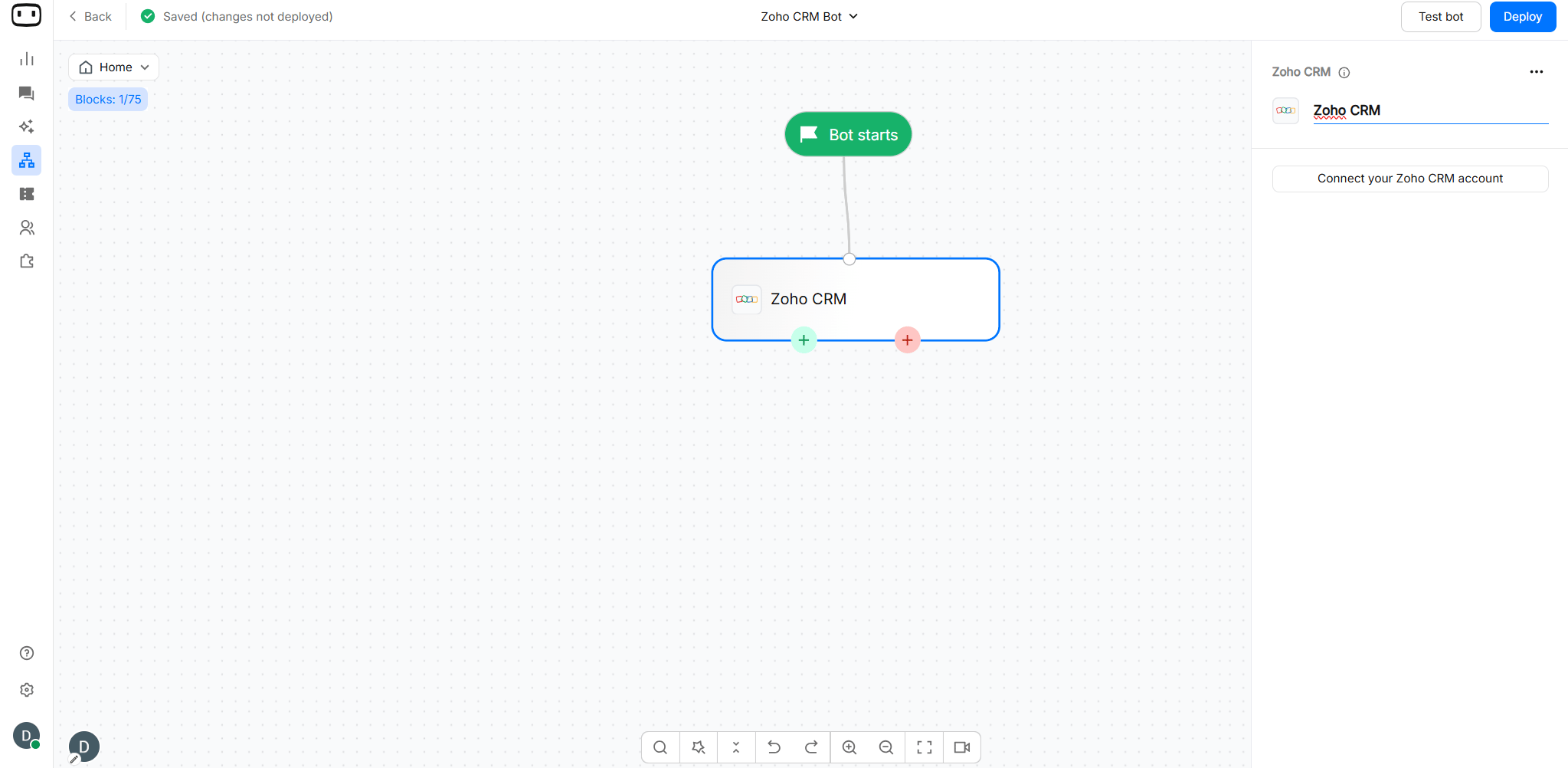
The native integration currently supports the Contacts module and the Create Contact operation. It does not perform contact lookup or fetch existing records before creating a contact.
Available on the STARTER plan and above.
What you can do
Before you start
Before connecting Zoho CRM, make sure you have:- Admin access or sufficient permissions in Zoho CRM to authorize the connection.
- API access enabled for the Zoho CRM user used for the integration.
- Permission to create records in the Contacts module.
- Any custom fields you want to map already created in the Zoho CRM Contacts module.
- All mandatory fields in your Zoho CRM Contacts layout configured before creating the record.
Zoho CRM permissions and API availability depend on your Zoho account, edition, profile, and role. Make sure the connected user has permission to access and create Contacts.
Connecting Zoho CRM
- Open your chatbot in the Bot Builder.
- Click + to add an action block.
- Select Zoho CRM.
- Click + Add account.
- Sign in to your Zoho CRM account.
- Review and authorize the requested permissions.
- Select the Zoho CRM account you want to use.
Using Zoho CRM in a flow
- Open your chatbot in the Bot Builder.
- Click + and add the Zoho CRM action block.
- Select the Zoho CRM account you connected.
- Configure the Contact fields you want to send to Zoho CRM.
- Map each WotNot variable to the corresponding Zoho CRM field.
- Connect the Success and Failure outputs to the next steps in your flow.
Mapping fields
Map the values collected by your chatbot to the corresponding Zoho CRM Contact fields.When mapping fields, use the Zoho CRM API field name, not necessarily the field’s display label. For example, a field displayed as Last Name may use the API name
Last_Name.Last Name is required when creating a Contact in Zoho CRM. Any additional fields marked as mandatory in your Zoho CRM layout must also be provided.
Picklist fields
For Zoho CRM picklist fields, the value sent by WotNot must match an available value configured in the corresponding Zoho CRM picklist. If the value does not match an accepted picklist value, Zoho CRM may reject the record.Empty required fields
If a required Zoho CRM field is mapped to a WotNot variable that does not contain a value, Zoho CRM can reject the request. Make sure your flow collects all mandatory information before the Zoho CRM action block runs.You can map up to 50 fields in the Zoho CRM action block.
Troubleshooting
The Zoho CRM token has expired
The Zoho CRM token has expired
Reconnect your Zoho CRM account and authorize it again. Make sure your browser allows the authorization window to open during the authorization process.
I get a wrong data centre or region error
I get a wrong data centre or region error
Check the region of your Zoho CRM account, such as .in, .com, or .eu. Zoho CRM accounts are region-specific, so the authorization must use the correct data centre.Disconnect and reconnect the account using the correct Zoho CRM region.
I get an insufficient scopes or permissions error
I get an insufficient scopes or permissions error
The connected Zoho CRM user may not have sufficient permissions to create Contacts.Check the user’s Zoho CRM profile, role, API access, and Contacts permissions. After updating the permissions, reconnect the Zoho CRM account.
The contact is created with blank fields
The contact is created with blank fields
Check that the WotNot variables contain values before the Zoho CRM action block runs.Also verify that each variable is mapped to the correct Zoho CRM API field name.
A duplicate contact is created
A duplicate contact is created
The native Zoho CRM integration creates a new Contact when the action block runs. It does not perform a lookup or check for an existing Contact before creating the record.If you need to search for an existing Contact before creating a new one, use the HTTP Request / API action block with the appropriate Zoho CRM search API.
Zoho rejects the record because a mandatory field is missing
Zoho rejects the record because a mandatory field is missing
Check the mandatory fields configured in your Zoho CRM Contacts layout.Make sure WotNot collects and maps a value for every mandatory field before the Zoho CRM action block runs. Last Name is required when creating a Contact.
Zoho rejects a picklist value
Zoho rejects a picklist value
Check that the value sent from WotNot exactly matches one of the values configured for the corresponding Zoho CRM picklist field.Update the chatbot variable or Zoho CRM picklist configuration if the values do not match.
The Zoho API call limit has been reached
The Zoho API call limit has been reached
The request may have been rejected because your Zoho CRM account has reached its API usage limit.Check your Zoho CRM API usage and review the API limits associated with your Zoho CRM edition and plan.
Disconnecting Zoho CRM
To disconnect a Zoho CRM account:- Open App Market in WotNot.
- Open Zoho CRM.
- Find the connected Zoho CRM account.
- Click on Remove to Disconnect the account.
Disconnecting the Zoho CRM account prevents flows using that connection from creating Contacts in Zoho CRM.If a live bot uses the disconnected account, the Zoho CRM action block may follow its Failure path when it runs until a valid Zoho CRM account is connected again.