

Available on the Starter plan and above
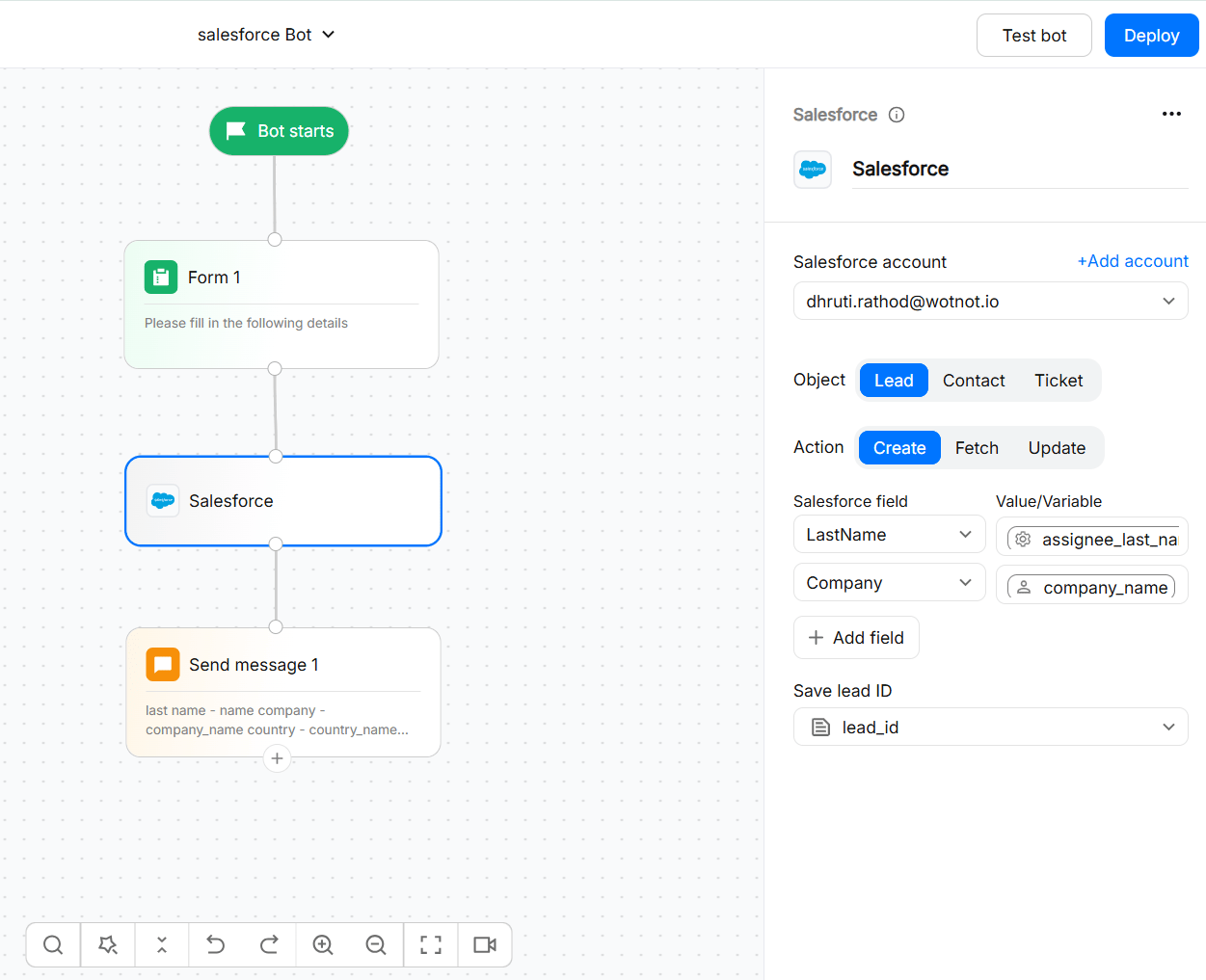
What you can do
- Create: Creates a new Salesforce record using information collected during the conversation.
- Fetch: Retrieves information from Salesforce based on the configured criteria.
- Update: Updates an existing Salesforce record with values collected or generated during the conversation.
Before you start
Before using the Salesforce integration, make sure:- Your Salesforce organization has the required API access.
- You have the required Salesforce permissions to perform the selected operation.
- The Salesforce object you want to work with is available to your connected account.
- Any custom fields you want to use already exist in Salesforce.
- Required Salesforce fields are populated before creating or updating a record.
- Picklist values sent from WotNot match the values accepted by Salesforce.
- Any Salesforce validation rules or other organization-specific restrictions are satisfied.
Connecting Salesforce
- Log in to your WotNot account.
- Navigate to App Market.
- Find and select Salesforce.
- Open the configuration and click on Add Account
- A Salesforce authentication window opens.
- Select the Salesforce account you want to connect.
- Review and authorize the requested permissions.
Using Salesforce in a flow
- Open the Bot Builder.
- Add the Salesforce action block.
- Select your connected Salesforce account.
- Configure the Salesforce object and action required for that operation.
- Map WotNot variables to Salesforce fields where required.
- Select lead id
- Test the flow.
- Deploy the bot after confirming that the Salesforce operation works as expected.
Mapping fields
For operations that send data to Salesforce, map WotNot variables to the corresponding Salesforce fields.
For Fetch operations, Salesforce values returned by the action can be stored or used in the subsequent flow according to the variables configured in the action.
Required fields
When creating or updating a Salesforce record, make sure all required fields have valid values. For a standard Salesforce Lead, Last Name and Company are required. Your Salesforce organization may have additional required fields configured by an administrator. If a required value is empty, Salesforce may reject the operation.Troubleshooting
Fetch does not return a record
Fetch does not return a record
Check the criteria configured for the Fetch operation.Make sure:
- The search value is populated.
- The value matches the expected Salesforce field.
- The connected Salesforce account has permission to access the record.
- The record exists in the selected Salesforce environment.
Update does not modify the Salesforce record
Update does not modify the Salesforce record
Make sure WotNot can identify the existing Salesforce record that you want to update.Then check:
- The record exists.
- The connected Salesforce user has update permission.
- The fields being updated are accessible.
- The new values satisfy Salesforce validation rules.
- Required fields still contain valid values.
The Salesforce record was not created
The Salesforce record was not created
Check the required fields and Salesforce-side rules.A record can fail to create because of:
- Empty required fields
- Missing permissions
- Validation rules
- Invalid picklist values
- Duplicate rules
- Invalid field values
- Salesforce API restrictions
Salesforce validation rules and required-field configuration vary between customer organizations. A Salesforce operation can fail even when the WotNot integration itself is configured correctly.
A Salesforce validation rule is blocking the operation
A Salesforce validation rule is blocking the operation
Salesforce administrators can configure validation rules that prevent records from being created or updated unless specific conditions are met.Check the Salesforce error message and review the validation rules configured for the relevant object.
The user does not have permission
The user does not have permission
Ask your Salesforce administrator to verify that the connected Salesforce user has permission to:
- Access the required object.
- Read the required fields.
- Create records when using Create.
- Update records when using Update.
- Read records when using Fetch.
Disconnecting Salesforce
Disconnect Salesforce only when you no longer want your bots to use the connection. Steps to disconnect- Go to your Dashboard → App Market.
- Open the Salesforce integration setting
- Click Remove next to your connected Salesforce account.