

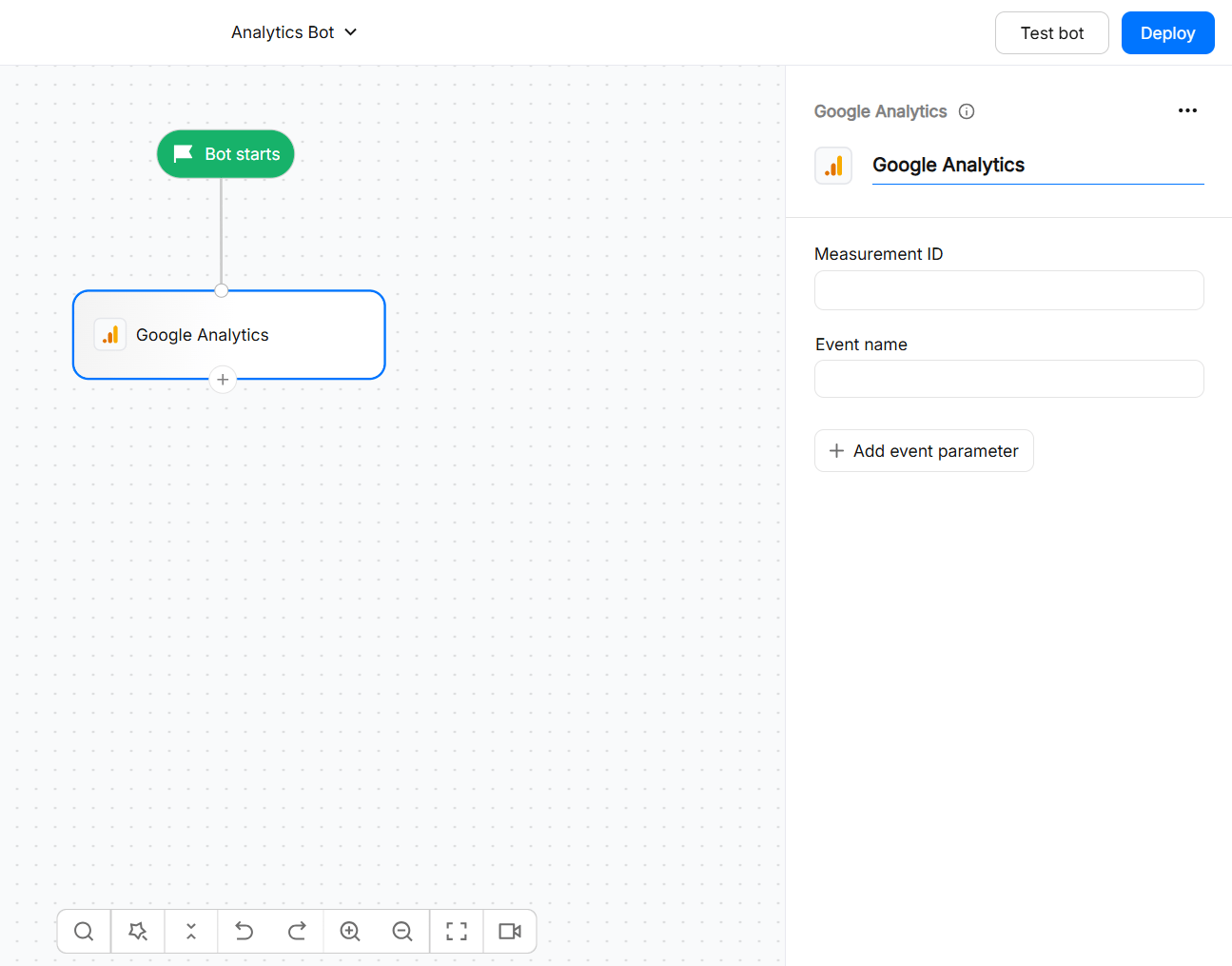
Available on the STARTER plan and above
Web widget only: The Google Analytics action block uses client-side tracking, so events are fired from the visitor’s browser. This integration is designed for Google Analytics 4 (GA4). Universal Analytics is no longer supported by Google.
What you can do
The Google Analytics block does not map chatbot fields to a Google Analytics record. Instead, it sends an event and its parameters directly to the GA4 property associated with the measurement ID.
Before you start
Before configuring Google Analytics in WotNot, make sure you have:- A Google Analytics 4 property.
- A web data stream configured for the website where the WotNot widget is installed.
- The Measurement ID for the web data stream.
- The Google Analytics tag already installed on the website hosting the WotNot widget.
Measurement ID
The measurement ID acts as a critical link, connecting your website to the corresponding data stream in Google Analytics 4. It ensures that the data from your site is sent to the right location. Find your measurement IDEvent name
The name of the event that you want to fire. Event names are to be written in lowercase without spaces and help you easily understand what that event is. Some examples are — chat-started, menu-selected, lead-generated etc.Event parameters
An event parameter is an additional piece of data about a user interaction on a website and/or app, offering valuable context and details about the interaction.
For example, in the below screenshot we have a main menu with multiple options. We can create an event “menu-selected” and pass an additional event parameter which tracks the menu selected under “option”.
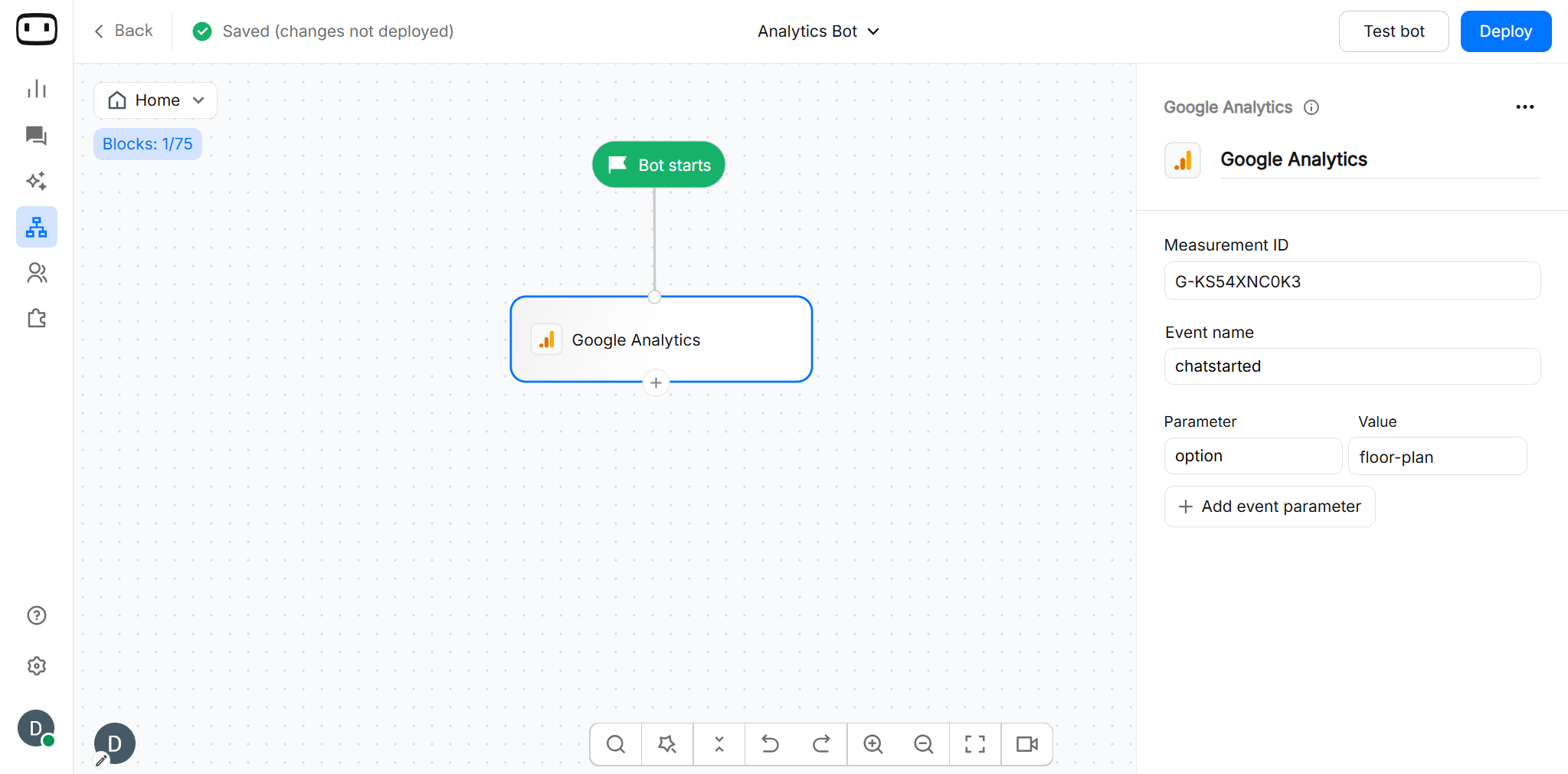
You can use variables in the Event name, and while defining value to event parameters
Connecting Google Analytics
Google Analytics does not require an OAuth account connection in WotNot. Instead, you connect the chatbot flow to your GA4 property by entering the property’s Measurement ID in the Google Analytics action block. To configure it:- Open the chatbot flow where you want to track an interaction.
- Click + to add an action block.
- Select Google Analytics.
- Enter your GA4 Measurement ID.
- Enter the Event name you want to send.
- Add event parameters if you want to send additional information.
Make sure the Measurement ID belongs to the same GA4 web data stream used on the website where the chatbot is deployed. Using the wrong Measurement ID sends the event to a different property.
Firing events from a flow
With our ‘Google analytics’ integration, you can fire events to your GA account using 2 methods:Client-side tracking
With this approach, we fire a GA event on the client-side using GA’s javascript methods on the browser. All you need to do is add a “Google Analytics” block at the point in the chatbot flow when you want to fire an event, and configure it.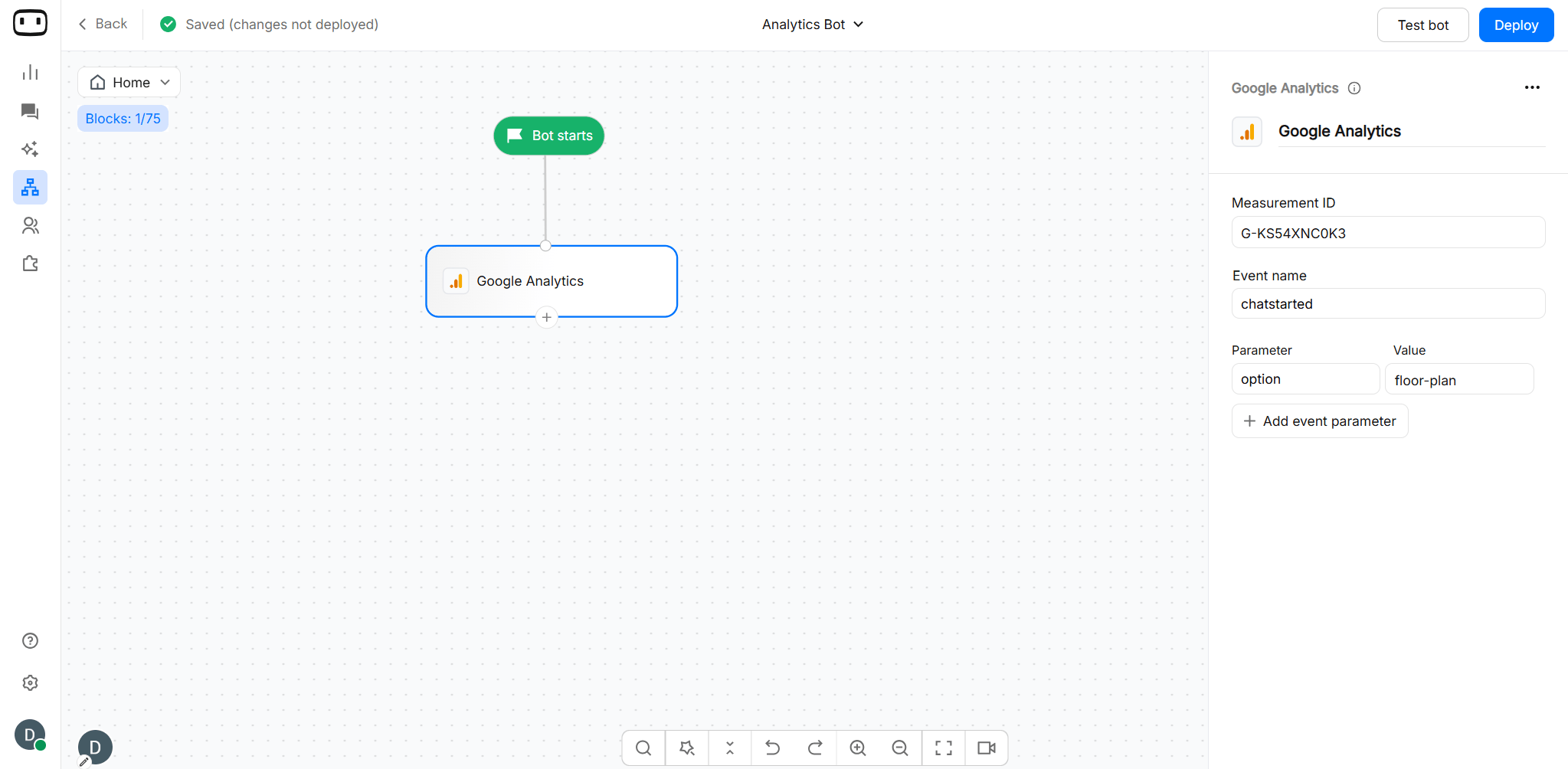
Server-side tracking
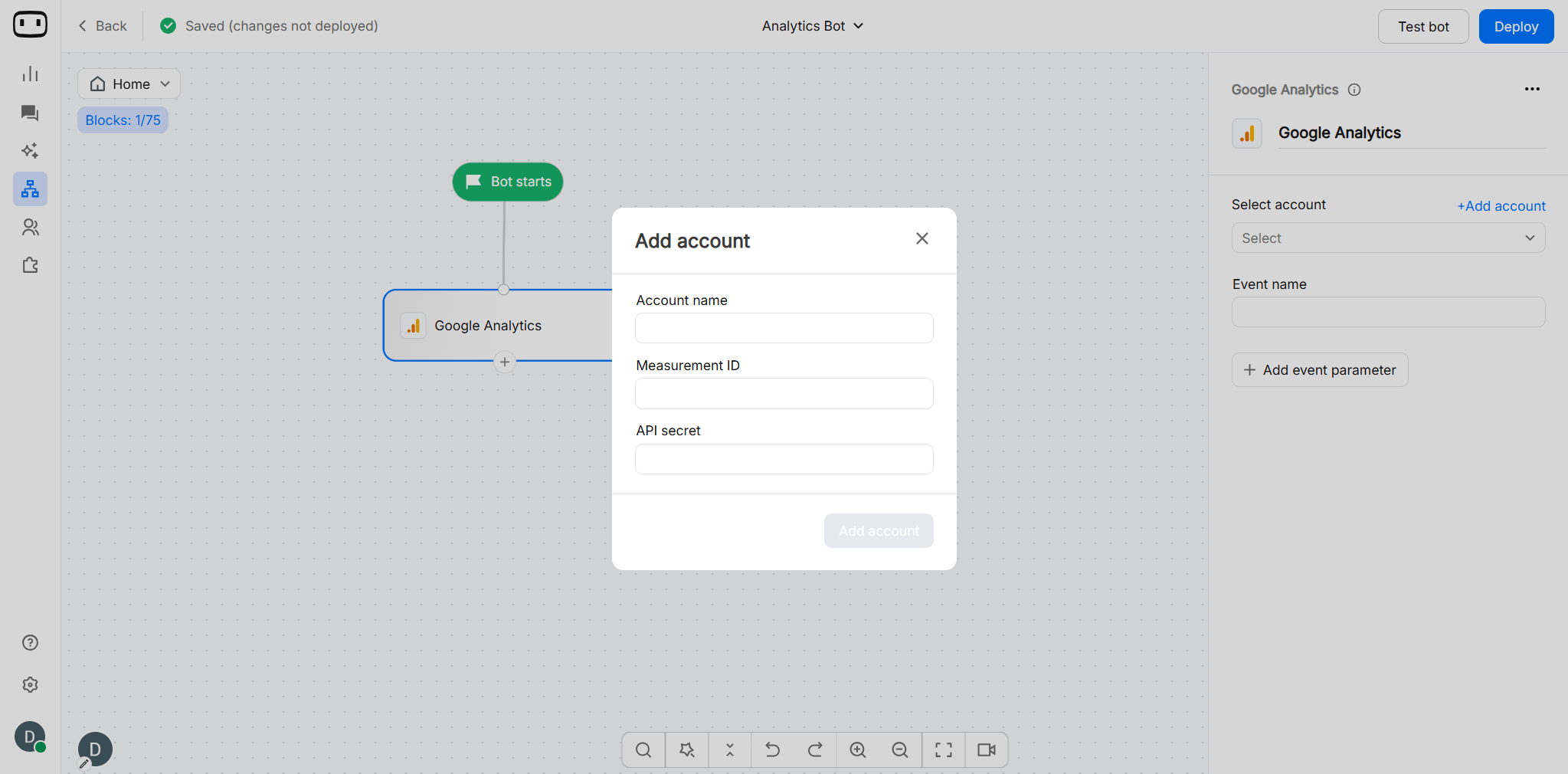
Specifically for non-web channels like Instagram, WhatsApp, Facebook Messenger and SMS, the above method of GA tracking does not work, as work with the principle of client-side tracking. With server-side tracking, we fire APIs of Google analytics to record an event. To configure this, you would need:- Measurement ID - GA account in which you want to record the event.
- API secret - Goto Settings -> Data stream -> Measurement Protocol API secrets -> “Create” to create your API secret.
Testing
After configuring the Google Analytics block, test the chatbot and verify that the event reaches the correct GA4 property.Verify the event in Realtime
- Open your chatbot on the website where the widget is installed.
- Start a test conversation.
- Navigate through the flow until it reaches the Google Analytics block.
- Trigger the event.
- Open your GA4 property.
- Go to Reports > Realtime.
- Look for the event under the event activity, such as Event count by Event name.
Verify event parameters
If the event appears but you want to confirm that its parameters are being sent correctly:- Open DebugView in GA4.
- Trigger the event again from your test chatbot session.
- Select the event in DebugView.
- Review the parameters associated with the event.
Note: Events can take some time to appear in GA4 reports. Google states that events should appear in DebugView within seconds and in Realtime reports within minutes. Standard GA4 reports can take 24–48 hours to fully process data.
Using JavaScript
Overview on how to fire events on Google Analytics using the JavaScript action block.1
Make sure that the Google Analytics 4 code snippet is present
In order to fire events to your measurement ID, you need to first make sure that the Google Analytics code snippet is already added to your website. Usually, website either add it manually on the code or using Google Tag Manager.
2
Add the JavaScript block on the chatbot flow
At the point in the chatbot flow when you want to fire an event, add the JavaScript action block and input this code.Make sure you add the MEASUREMENT ID of your GA4 property in the mentioned places. And also, use the event name as per your requirement.You can find your MEASUREMENT ID by navigating to the Settings -> Data collection -> Data streams
Note that it takes about 20-30 seconds for events to reflect in Google Analytics.
Troubleshooting
Events are not appearing in Google Analytics
Events are not appearing in Google Analytics
Check the following:
- Confirm that the chatbot is deployed on the website associated with your GA4 web data stream.
- Verify that the Measurement ID in the Google Analytics block is correct.
- Make sure the Measurement ID starts with
G-. - Confirm that the visitor reaches the Google Analytics action block.
- Test the event using GA4 Realtime or DebugView.
- Check whether an ad blocker or consent-management tool is preventing Google Analytics from running.
Events are arriving without parameters
Events are arriving without parameters
Check the parameter configuration in the Google Analytics block:
- Make sure the parameter name is entered correctly.
- Confirm that the variable used as the parameter value contains a value when the block executes.
- Test the flow with a known value instead of a variable to determine whether the issue is with the variable.
- Use GA4 DebugView to inspect the parameters received with the event.
Custom dimensions are blank
Custom dimensions are blank
If the event is visible but a custom parameter is not available in your reports, register the parameter as a custom dimension in GA4.Sending the parameter from WotNot only collects the parameter. GA4 requires custom parameters to be registered before their values can be used in standard reports and explorations.Also check that:
- The custom dimension uses the same parameter name sent by WotNot.
- The correct scope is selected.
- You are checking data collected after the custom dimension was registered.
The same event is appearing more than once
The same event is appearing more than once
Duplicate events can occur when the same tracking action is triggered more than once.Check your flow for:
- Multiple Google Analytics blocks firing the same event.
- A loop or repeated path that reaches the same Google Analytics block more than once.
- The same event being sent separately through the Javascript block.
- Existing website or Google Tag Manager tracking that sends the same event.
Events are appearing in the wrong Google Analytics property
Events are appearing in the wrong Google Analytics property
This usually means the wrong Measurement ID is configured.
- Open the Google Analytics block in WotNot.
- Check the Measurement ID.
- In Google Analytics, go to Admin > Data collection and modification > Data streams.
- Open the website’s web data stream.
- Compare its Measurement ID with the value configured in WotNot.
- Update the WotNot block if the IDs do not match.
- Publish the chatbot and test again.