

Available on the Starter plan and above & WEB Channel only.
Fetch only: The Airtable integration is read-only. You can fetch records from Airtable, but you cannot push, create, or update records using this native integration.
What you can do
Before you start
Make sure you have the following ready:- An Airtable base and table where the required data is stored.
- A field you can use to match or filter records.
- An Airtable Personal Access Token (PAT) with the required API scopes and access to the relevant base.
- The necessary permissions to access the base and its records.
Airtable no longer supports legacy API keys for API access. Personal Access Tokens (PATs) and OAuth are the current authentication methods.
Connecting Airtable
You can connect Airtable from the Airtable action block or from the App Market.- Open the Airtable action block.
- Select Connect account.
- Complete the Airtable authentication flow.
- Grant access to the Airtable bases that you want WotNot to use.
- Return to WotNot after the authentication is completed.
Airtable permissions
- Open Airtable and go to Developer Hub.
- Under Personal access tokens, select Create token.
- Enter a name for the token so you can identify its purpose.
- Under Scopes, add:
data.records:read— allows the integration to read records from your Airtable tables.schema.bases:read— allows the integration to read base and table structure when required.
- Under Access, select Add a base and choose the base you want to connect.
- Grant access only to the base(s) that the chatbot needs to use.
- Create the token and copy it.
- In the Airtable integration, enter the token to complete the connection.
Selecting a base and table
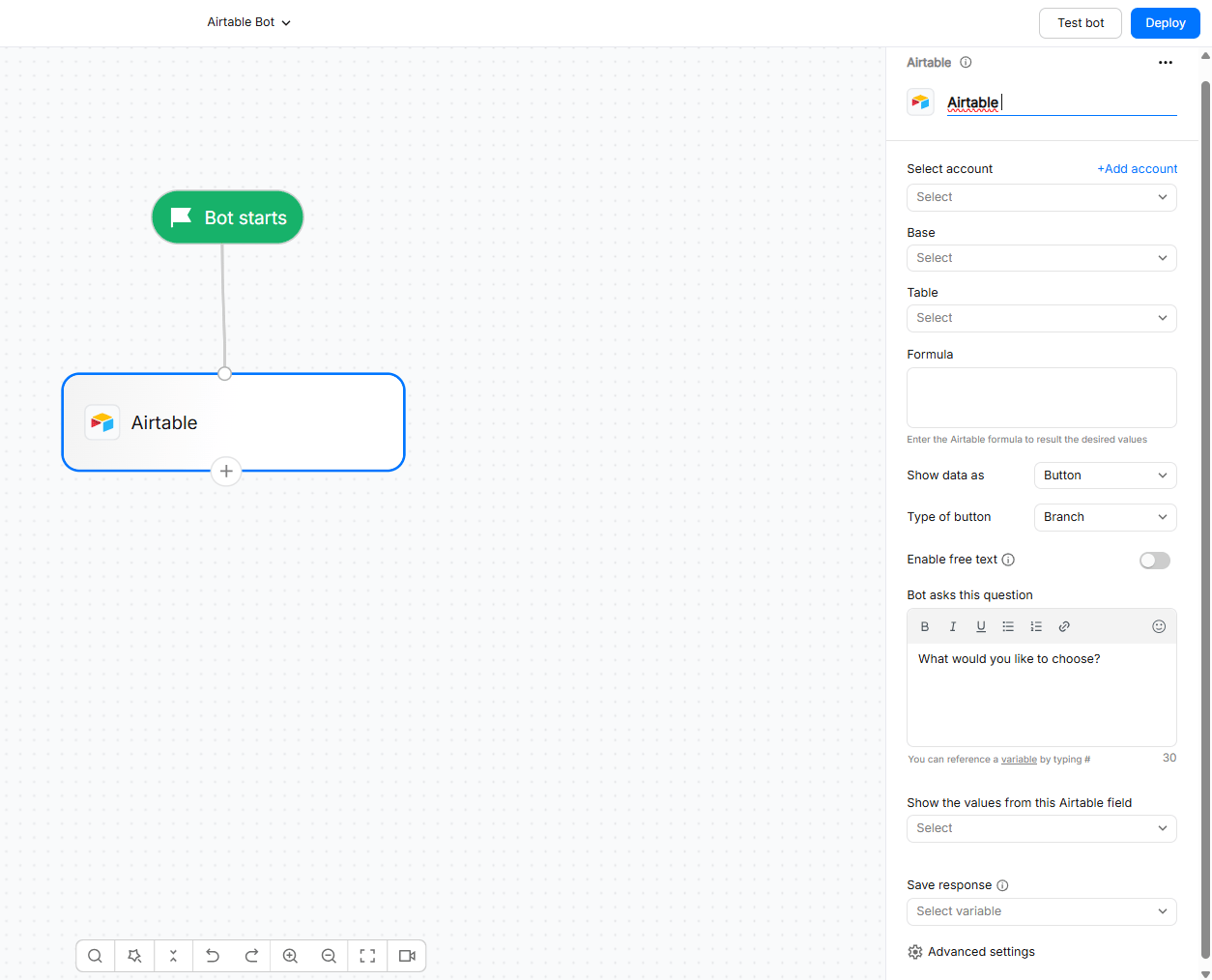
After connecting Airtable, select the base and table that contain the records you want to fetch.- Select the connected Airtable account.
- Select the Base you want to use.
- Select the Table that contains the records.
- Configure the field and value you want to use for matching records.
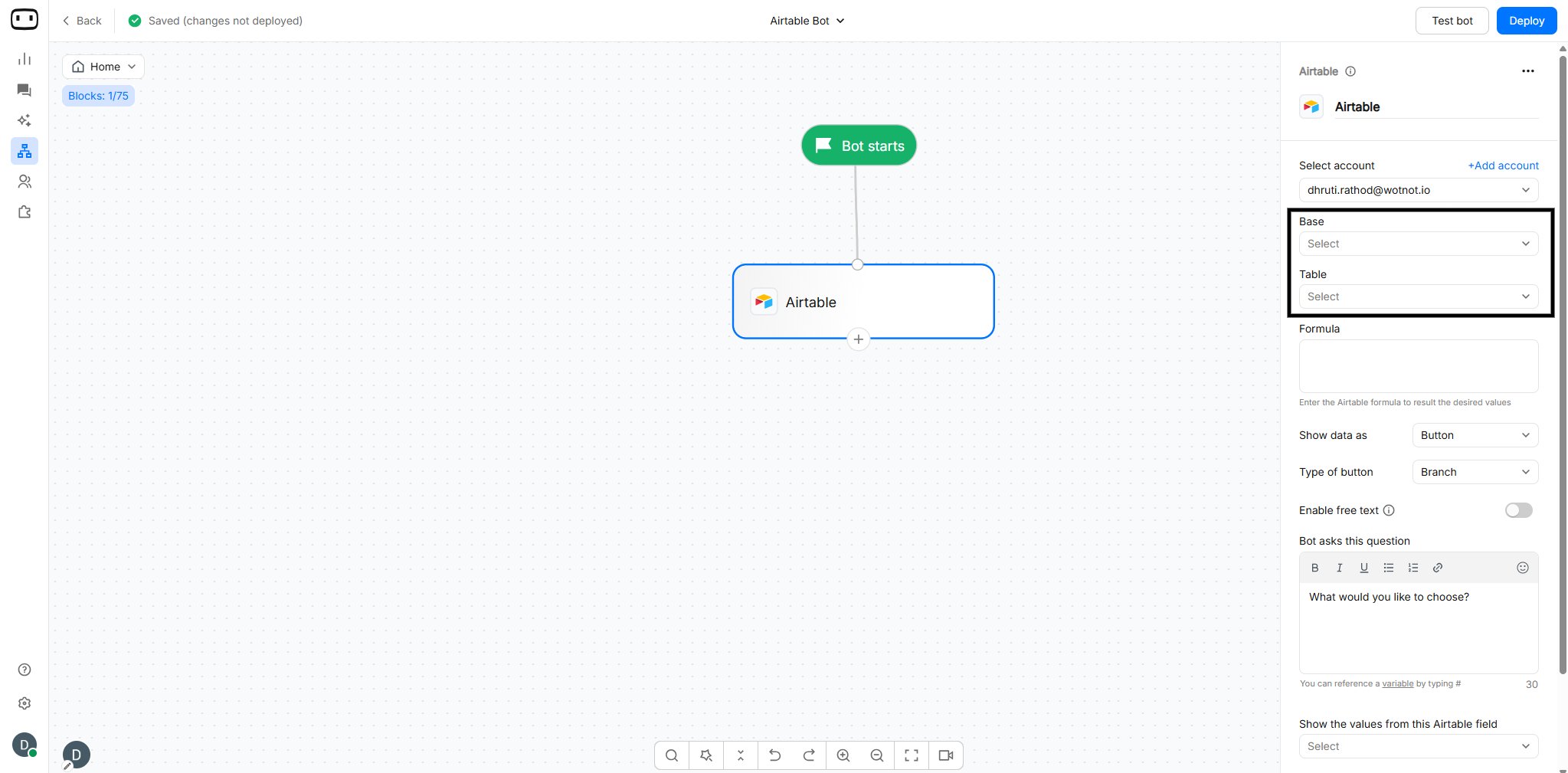
You will only see those bases for which you have granted permission during the authentication process.If you do not see your base, reconnect your account by visiting App Market > Airtable.
If a field is renamed or removed
The field used for matching must remain available in the selected table. If you rename or remove a field after configuring the Airtable action:- Renamed field: Update the field mapping or filter configuration to use the new field name.
- Removed field: Replace the mapping with another available field.
- Changed field type: Review the filter and mapping to make sure the value is still compatible.
Fetching records
Next, define the filter crtieria that you want to apply while fetching the records from the selected base and table. The syntax to write the formula is same as what you would use in Airtable. Learn more about Airtable formulas.Match a record
Select the field you want to use for matching and provide the value to search for. The action checks the selected field and returns the records that match the configured value.When multiple records match
If multiple records match the value, the action returns all matching records available from the query. You can use the returned data to display multiple results or pass them to the next step in your bot flow.When no records match
If no record matches the specified value, the action returns no matching records. Add a Condition block after the Airtable action if you want to handle the no-match scenario separately.Use the results downstream
The returned Airtable fields can be mapped to variables and used in subsequent steps of the conversation. For example, you can use a customer’s name, email, status, or other record details in a message. If you are displaying the returned records as dynamic content, see Dynamic Data.Choose how to render the data
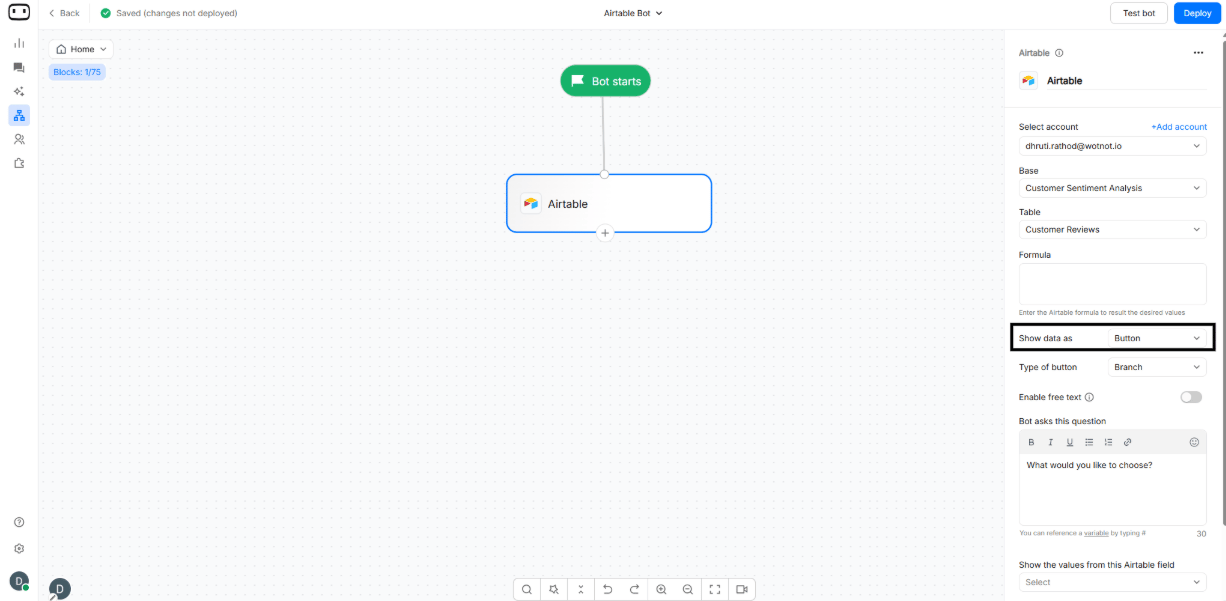
Based on your applied filter, the records will be fetched from Airtable. Here you choose how do you want to render the data — i.e. as buttons, carousel, or image carousel.Number of records fetched is determined on the formula you define.
Show Buttons
You can choose to render the data as a branch/URL button.- Branch button - when clicked moves forward in the chat flow.
- URL button - when clicked opens a URL.
- Define the question that will be asked when buttons are shown
- Choose the Airtable column whose data is to be shown as the button text
- If URL button is chosen, choose an additional field which contains the URL
Show Carousel
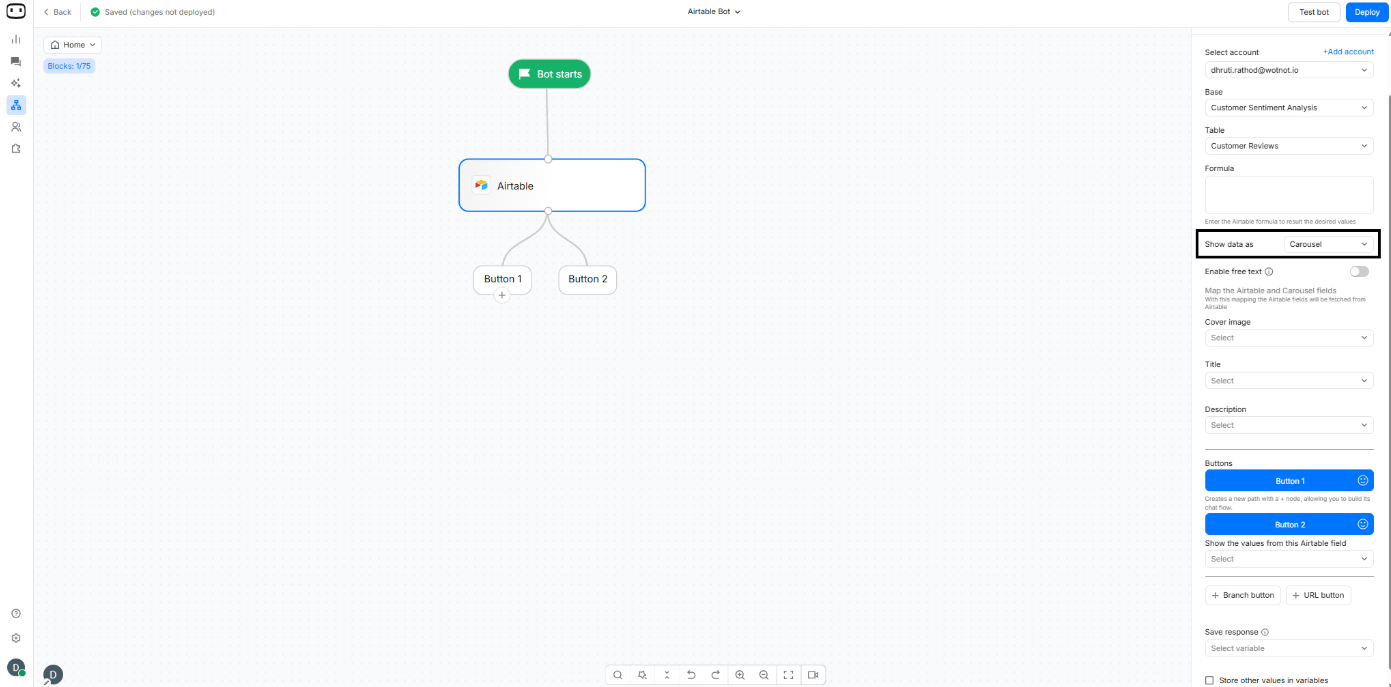
Here we render the details in a carousel format with a set of cards.- Map ‘Cover Image’ with Airtable field that contains images
- Map ‘Title’ with Airtable field that contains description. This will be the title of the card
- Map ‘Description’ with Airtable field that contains description. This will provide the brief summary about the card. It is best to limit the text here to 2-3 lines
- Define action for the buttons. Maximum upto 3 buttons can be added.
- Define variable in which the visitor selection will be stored
Show Image Carousels
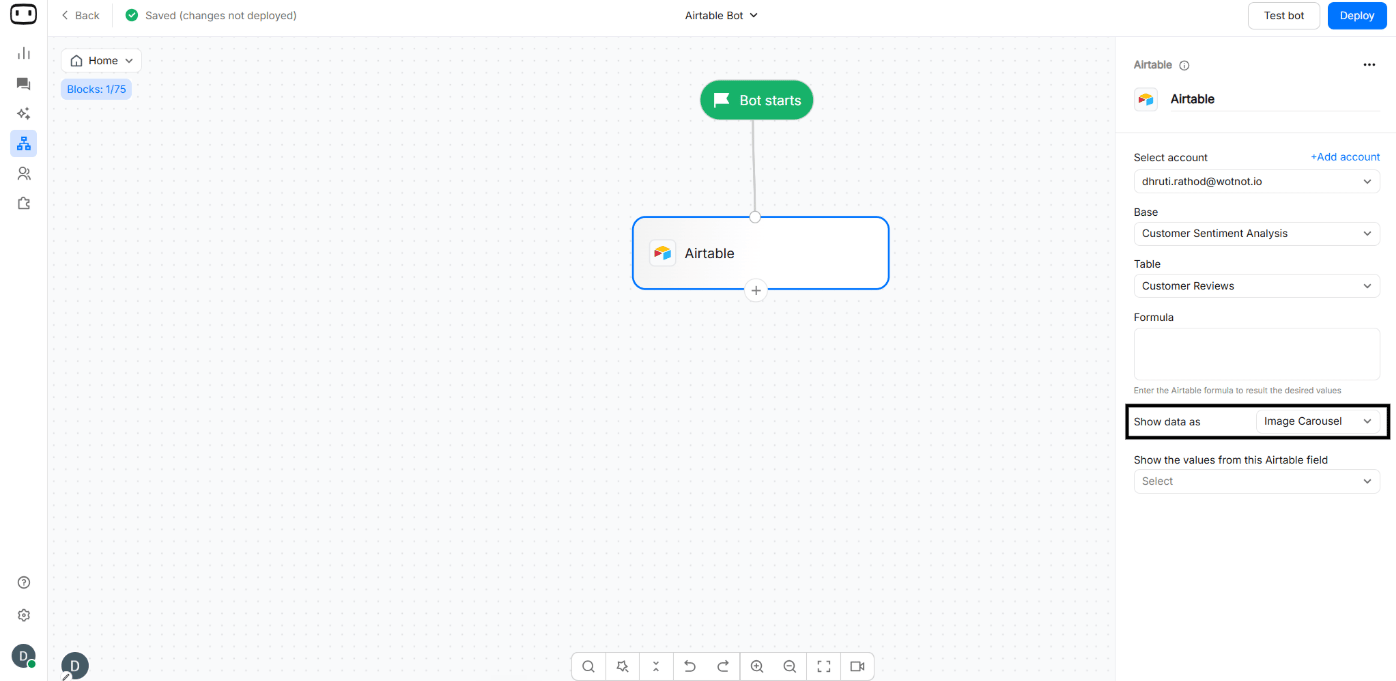
Here we display a set of pictures in a carousel format.You can follow the following steps to configure it:
- Select ‘Show data’ as ‘Carousel’
- Map ‘Image’ field with Airtable field that contains images
Store the selected value in a variable
Once the button/carousel is displayed, you can choose a variable in which the data will be stored.- If button is chosen, the button text will be stored in the variable.
- If carousel is chosen, the carousel title will be stored in the variable.
- If image carousel is chosen, no variable support is provided.
Limitations
The API has a rate limit of 5 request per second per base. If you exceed this rate, your bot will show an error and the visitors will need to wait for 30 seconds before subsequent requests will succeed.Field types
Airtable supports different field types, and the value returned to the bot depends on the type of field.Linked records
Linked record fields represent relationships between Airtable records. The returned value may contain the record ID rather than the name displayed in Airtable.Attachments
Attachment fields return attachment information rather than plain text. If you want to display an attachment, use the returned attachment data or URL.Formula and rollup fields
Formula fields return the calculated result of the formula, not the formula itself. Rollup fields return the calculated or aggregated value based on the linked records.Troubleshooting
My Airtable token is invalid or does not have access to the base
My Airtable token is invalid or does not have access to the base
Check that:
- The Personal Access Token is still active.
- The token has the required read scope.
- The base has been added to the token’s allowed resources.
- Your Airtable account has permission to access the base.
My base or table is not available
My base or table is not available
Make sure the base exists and that your Airtable connection has access to it.If you recently changed the permissions or added access to another base, reconnect the Airtable account so the available bases are refreshed.
The lookup returns nothing even though the value exists
The lookup returns nothing even though the value exists
Check the following:
- The selected base and table are correct.
- The field name used in the filter is correct.
- The filter formula is valid Airtable syntax.
- The value being compared matches the Airtable value.
- The record is accessible through the connected Airtable account.
filterByFormula against each record, so an incorrect formula or field reference can result in no matches.A linked record returns an ID instead of the name I expected
A linked record returns an ID instead of the name I expected
Linked records are relationship fields and are not returned in the same way as plain text fields.If you need a visitor-friendly value, create a Lookup or Formula field in Airtable that exposes the linked record’s name or another display value, and use that field in your chatbot mapping.
My attachment field is not displaying correctly
My attachment field is not displaying correctly
Attachment fields contain file information rather than a simple text value.If you are using attachments for an image carousel, make sure the Airtable field contains valid image attachments and map the attachment field to the appropriate image field in the action block.
I am getting an Airtable rate-limit error
I am getting an Airtable rate-limit error
Airtable APIs are subject to rate limits. If your chatbot makes many requests in a short period, requests may be temporarily rejected.Reduce unnecessary Airtable calls in the flow and avoid repeatedly fetching the same records during a single conversation.