

Available on the Starter plan & above and works with the Web channel only.
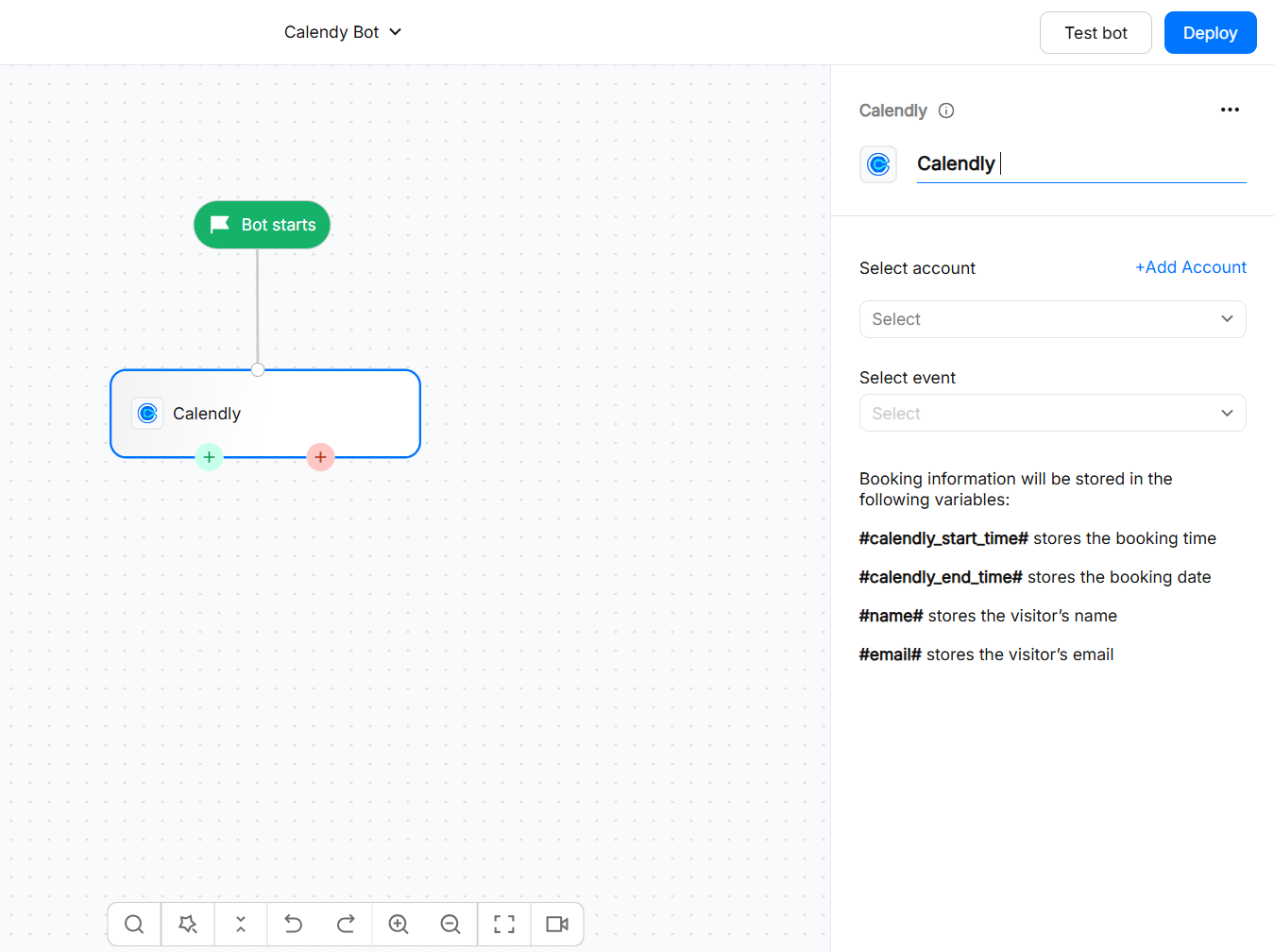
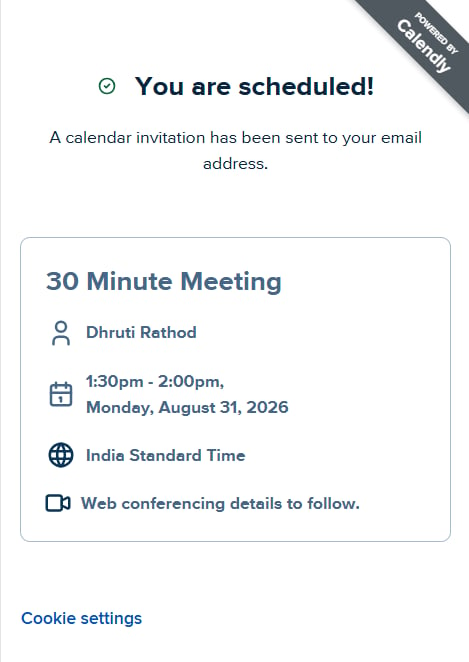
The Calendly booking experience opens as a full-screen pop-up in the web chat. After a meeting is booked, the meeting details are available in variables that you can use later in the flow.
What you can do
After a meeting is booked, the following variables are available:
- #calendly_start_time# stores the booking time
- #calendly_end_time# stores the booking date
- #name# stores the visitor’s name
- #email# stores the visitor’s email
Choosing between Calendly, Google Calendar, and Outlook Calendar
Choose the integration based on where you want availability and booking to be managed.Before you start
- Make sure you have a Calendly account.
- Create the event type you want visitors to book.
- Make sure the event is available for booking.
- Make sure your WotNot account has access to the Calendly integration.
- Use the Web channel, as the Calendly action block is currently available for Web.
Connecting Calendly
- Open the Calendly action block in your flow.
- Click on Connect Your Calendly Account.
- Complete the Calendly authorization flow.
- Grant the requested permissions.
- Once the account is connected, select the account from the dropdown..

Selecting an event
Choose the Calendly event type you want visitors to book from the Calendly action block.- Open the Calendly action block in your flow.
- Add your Calendly account, or select an already connected account.
- Select the event type you want to offer.
- Save the action block and connect it to the next step in your flow.

Using Calendly in a flow
Add the Calendly action block to the point in your flow where you want visitors to schedule a meeting.- Open the flow and add the Calendly action block.
- Select your connected Calendly account.
- Choose the event type you want visitors to book.
- Connect the block to the next step in your flow.
- Test the flow to confirm that the Calendly booking experience opens and the booking is completed successfully.
Troubleshooting
My Calendly account is not connecting
My Calendly account is not connecting
Try connecting the account again and make sure you grant all permissions requested during authorization.If the connection still fails, verify that your Calendly account can access the event types you want to use.
My event type is not showing
My event type is not showing
Only event types that existed before the Calendly account was connected are displayed.If you created the event type after connecting Calendly, disconnect and reconnect the account, then check the event list again.
No availability is shown to the visitor
No availability is shown to the visitor
Availability is controlled by Calendly for the selected event type.Check the event type’s availability, scheduling rules, connected calendars, and conflict settings in Calendly. Calendly’s API can retrieve availability for a specific event type, while the actual scheduling rules remain managed by Calendly.
The visitor booked a meeting, but my flow is not continuing
The visitor booked a meeting, but my flow is not continuing
A successful Calendly booking makes the meeting details available to the flow.Check that the action block is connected to the next step and that the flow is using the booking variables correctly. The available booking details include
calendly_start_time, calendly_end_time, name, and email.The invitee details are not available in my variables
The invitee details are not available in my variables
Check that the booking was completed successfully and use the variables provided by the Calendly action block:
nameemailcalendly_start_timecalendly_end_time