

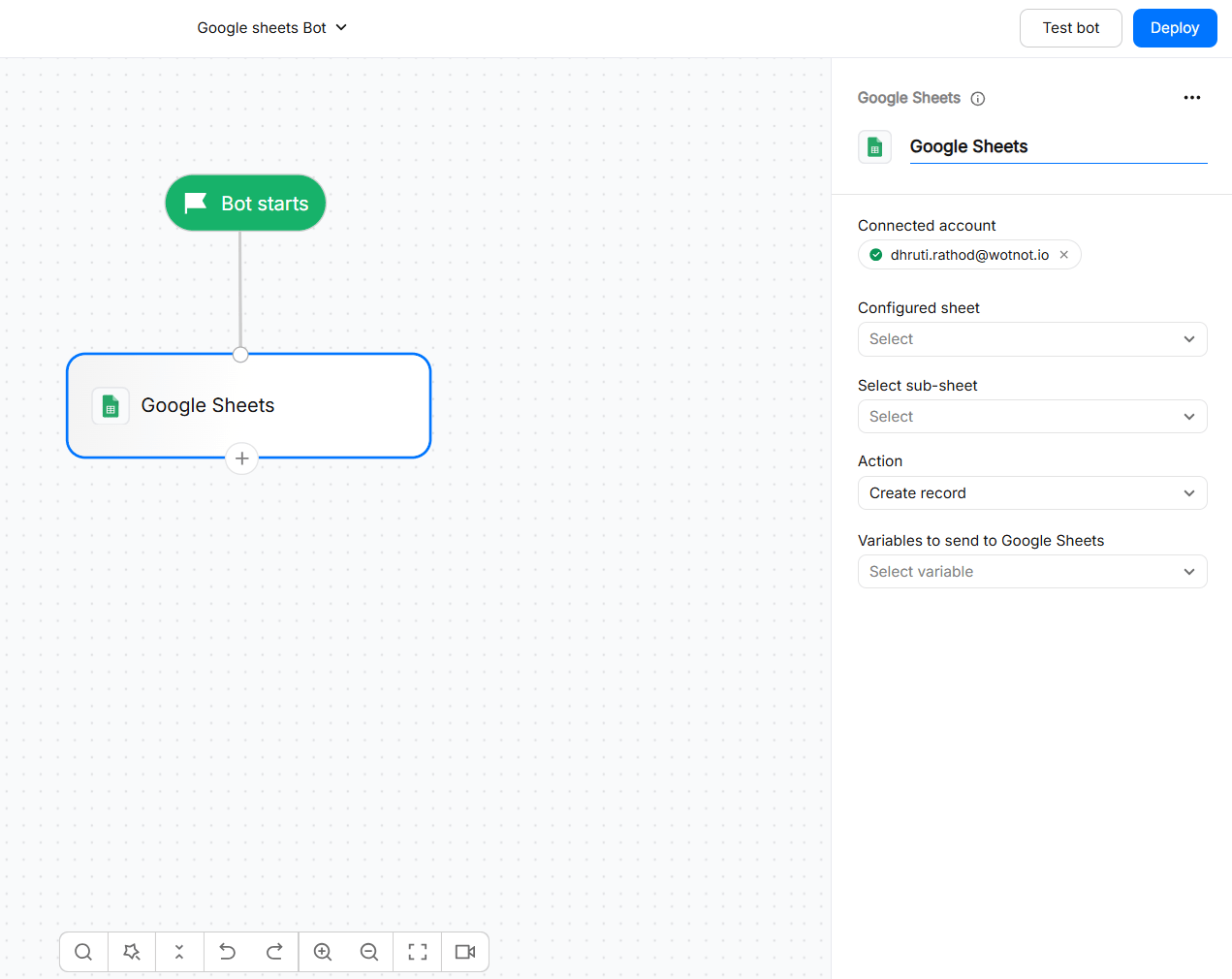
Google Sheets supports both push and fetch operations.
Available in the STARTER plan and above.
What you can do
Before you start
Make sure you have the following ready:- An existing spreadsheet: The Google Sheets file you want to use must already exist.
- Column headers: Add your column names in the first row of the worksheet. These headers are used when mapping data to your sheet.
- Edit access: The Google account you connect must have permission to edit the spreadsheet.
- Google account access: You must be able to authorize the required Google Sheets permissions when connecting the account.
Connecting a Google account
You can connect your Google account directly from the Google Sheets action block or from the integrations area.Connect from the action block
- Add the Google Sheets action block to your chatbot flow.
- Select + Add account.
- Sign in with the Google account that has edit access to the spreadsheet.
- Review the permissions requested by Google.
- Once connected, you will see your Google email address in the account dropdown.
Connect from App Market
- Go to App market –>Google Sheets → Sign in with Google
- Review the permissions requested by Google.
- Once connected, you will see your Google email address in the account dropdown.
Workspace administrators: Your organization’s Google Workspace administrator may restrict third-party OAuth applications. If the connection is blocked, your administrator may need to allowlist the application before you can connect your account.
Selecting a spreadsheet and sheet
- After connecting your Google account, select the spreadsheet you want to work with.

- After selecting a spreadsheet, you can view and select a sub-sheet from the list of sheets available within it.

Keep your sheet structure stable
Google Sheets mappings depend on the structure of the worksheet. After configuring an action, avoid making structural changes without reviewing the mapping again. In particular:- Renaming a sheet: The previously selected worksheet may no longer be available under the original name. Re-select the correct worksheet if required.
- Moving or replacing a sheet: The action may no longer point to the worksheet you expect. Verify the selected sheet before publishing.
- Adding columns: New columns are not automatically mapped to existing variables. Add a mapping if you want to send data to the new column.
- Renaming columns: If a mapped header changes, the existing mapping can stop matching the intended field. Update the mapping using the new header.
- Reordering columns: Reordering columns is generally safe when the headers remain unchanged, but always verify the mapping after editing the worksheet.
- Deleting columns: Any mapping that depends on a deleted column must be configured again.
Most Google Sheets issues that appear as mapping problems are caused by changing the spreadsheet structure after the action block was configured.
Action
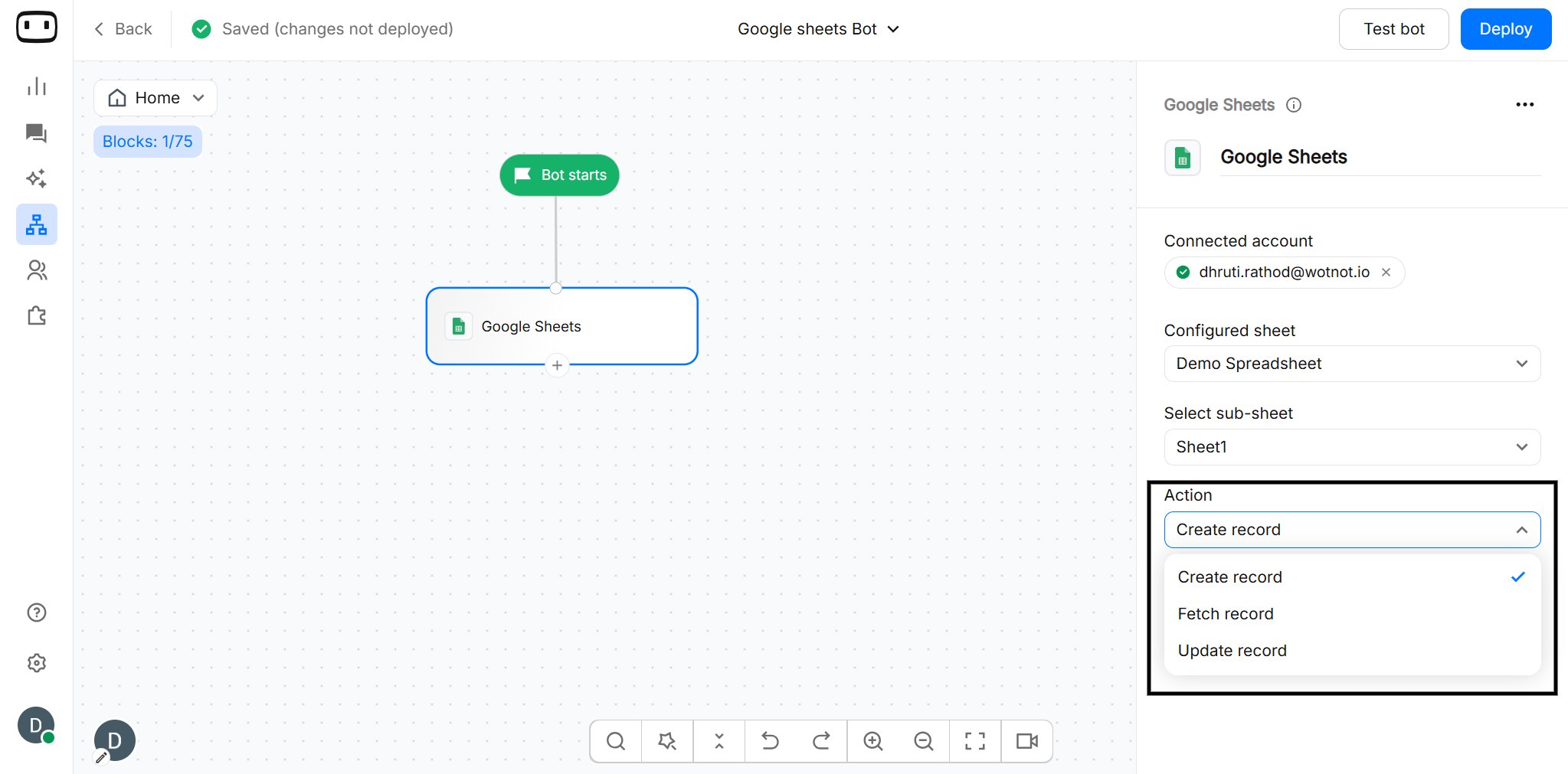
- You can perform three actions in Google Sheets.
- Select one action from the dropdown to continue.
Creating records
To create a record on Google Sheets, here are the steps to be followed:1
Choose your Google Sheet
After choosing your Google account, and action as “Create records”, you need to choose your desired “Sheet” from the dropdown.
You will only see the sheets that you have edit access to. And when choosing a sheet, WotNot automatically creates a new worksheet under which the data will be pushed.
2
Choose the variables you want to send
Now choose the variables that you want to push to the selected Google Sheet. Each selected variable will be added as a column on the sheet.
- Name
- Phone
- City
- Country
- Created at
Fetching records
You can fetch data from a Google Sheet based on criteria using this action.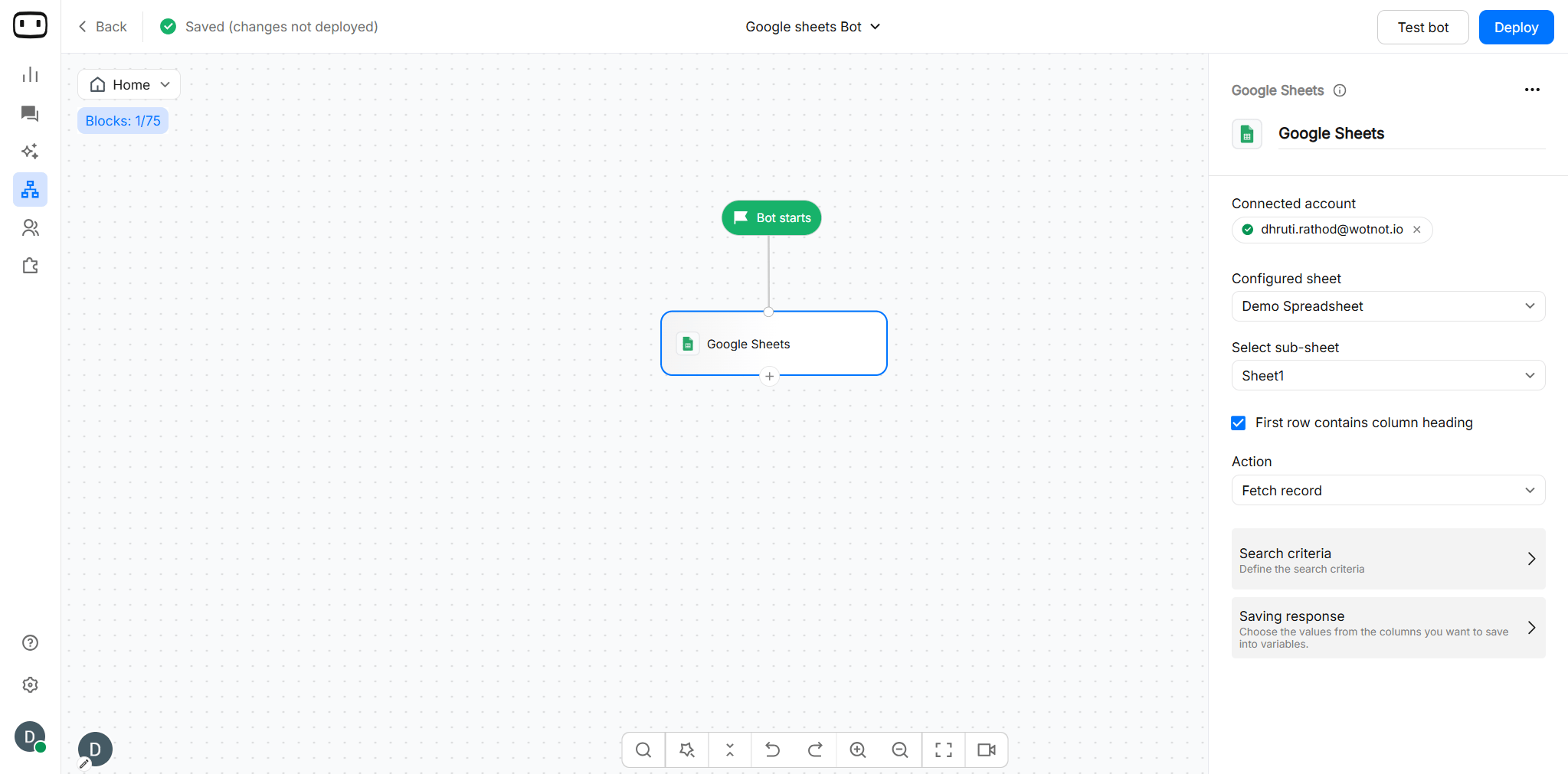
1
Choose the sheet to search
After choosing your Google account, and action as Fetch records.It allows you to fetch data from the sheet and use it in the conversation flow.Enable the checkbox ‘First row contains..’ if the column heading is present.
2
Add your search criteria
Define the search criteria based on which values will be fetched from the Google Sheet.You can choose to add multiple conditions using the “ANY/ALL” operators.For example, you want to fetch the leads whose city is New York and country is United States.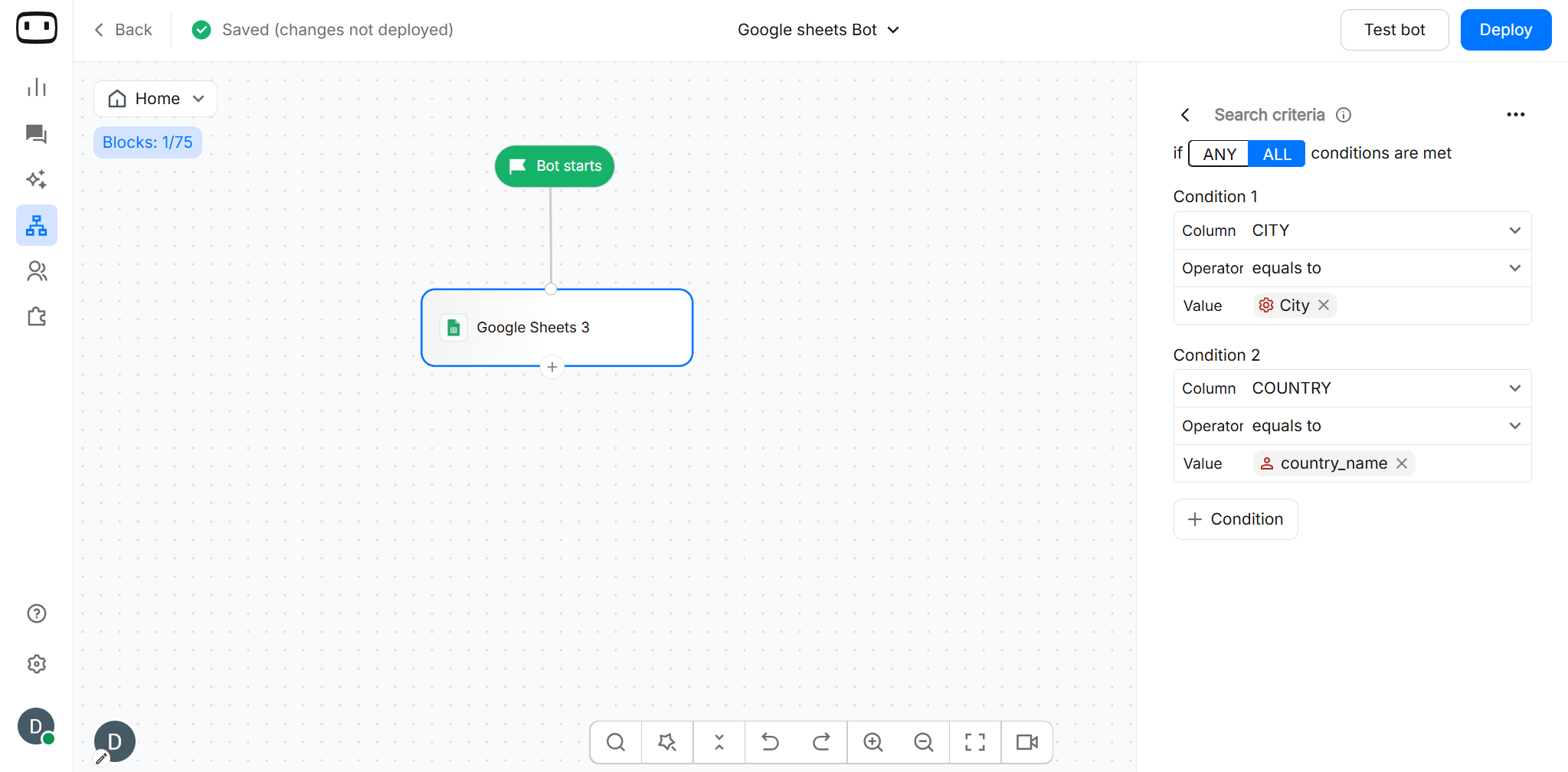
- Condition 1: Column=city, Operator=equals to, Value=New York
- Condition 2: Column=country, Operator=equals to, Value=United States
- Choose the ALL operator, as you need both conditions to hold true.
3
Saving responses
Choose the values from the columns you want to save into variables. Map them out, and the values fetched will be stored inside.For example, if we choose the above condition of city=New York and country=United States, we will receive multiple records as a response.Taking the example of the name field, it would be stored as: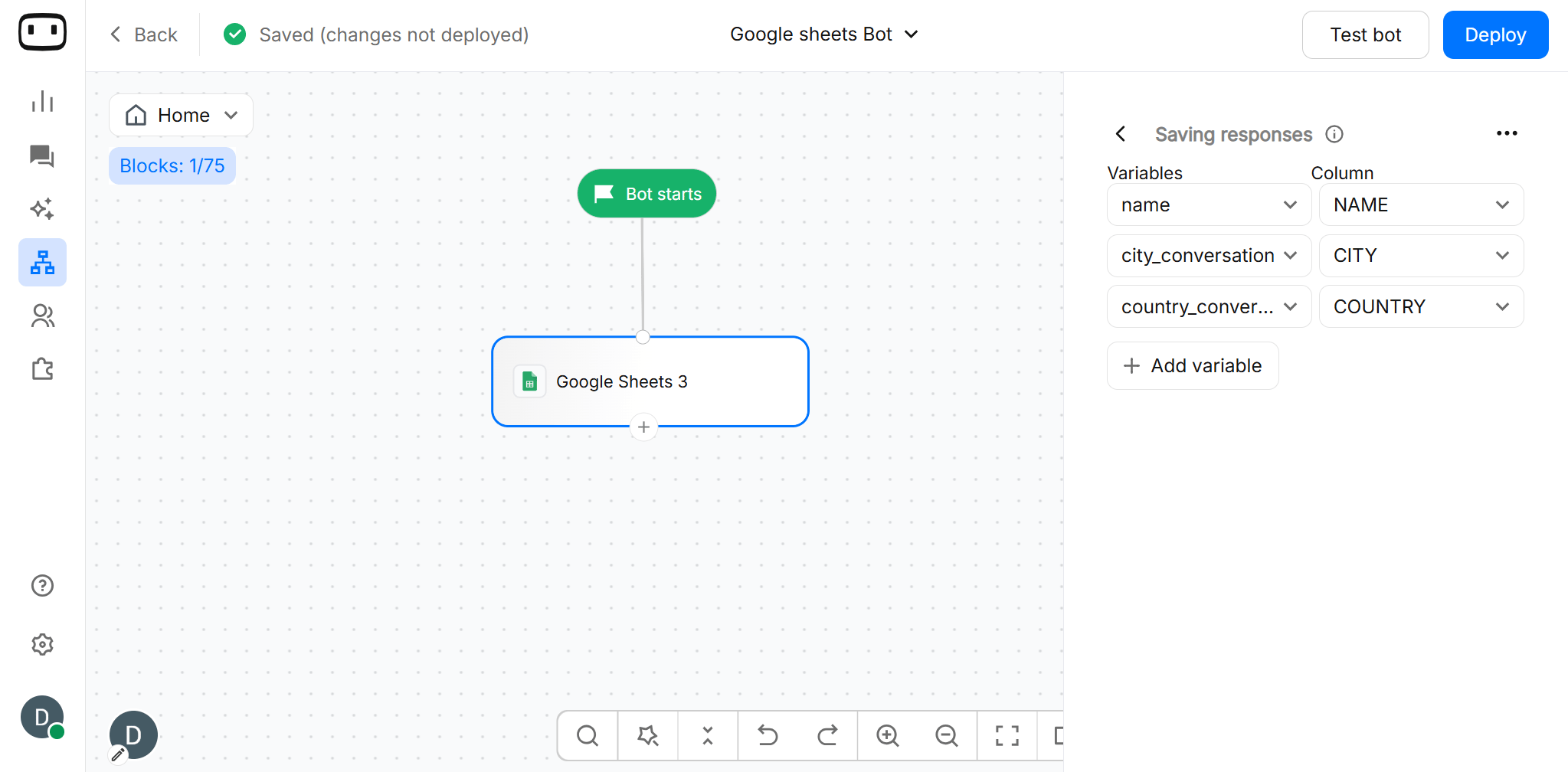
If more than one row gets qualified in the search criteria, the data will be stored in a JSON format in the variable. You can then use the dynamic data action block to parse the data.
Updating records
You can update records on a Google Sheet based on your criteria.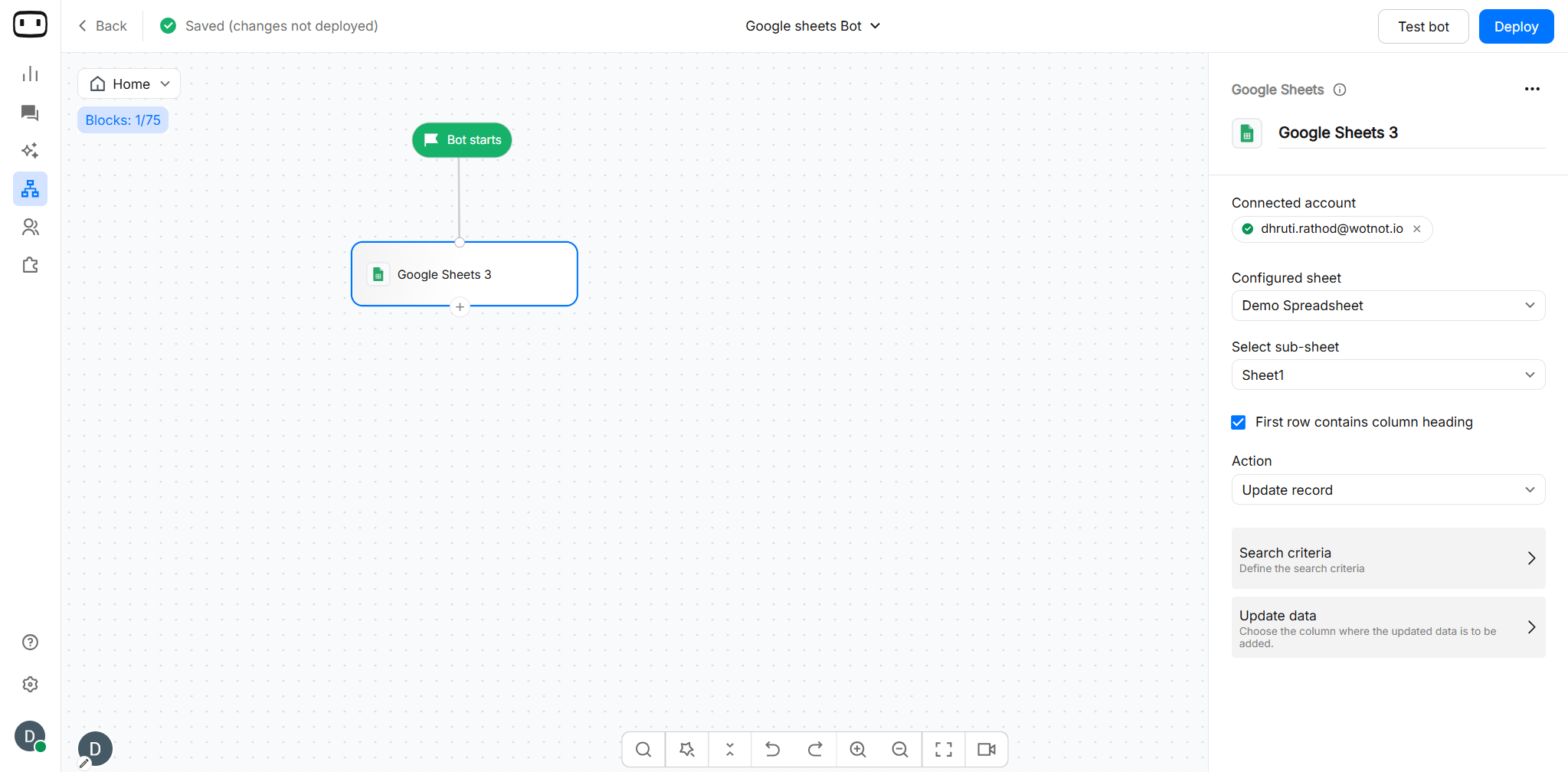
1
Choose the sheet to search
Choose the Google sheet and the worksheet that you want to search data from.Enable the checkbox ‘First row contains..’ if the column heading is present.
2
Add your search criteria
Define the search criteria based on which values will be fetched from the Google Sheet.You can choose to add multiple conditions using the “ANY/ALL” operators.For example, you want to fetch the leads whose city is New York and country is United States.
- Condition 1: Column=city, Operator=equals to, Value=New York
- Condition 2: Column=country, Operator=equals to, Value=United States
- Choose the ALL operator, as you need both conditions to hold true.
3
Update the data
Map the columns you want to update with a value or variable.The column name from the first row of your sheet will be displayed in the column dropdown.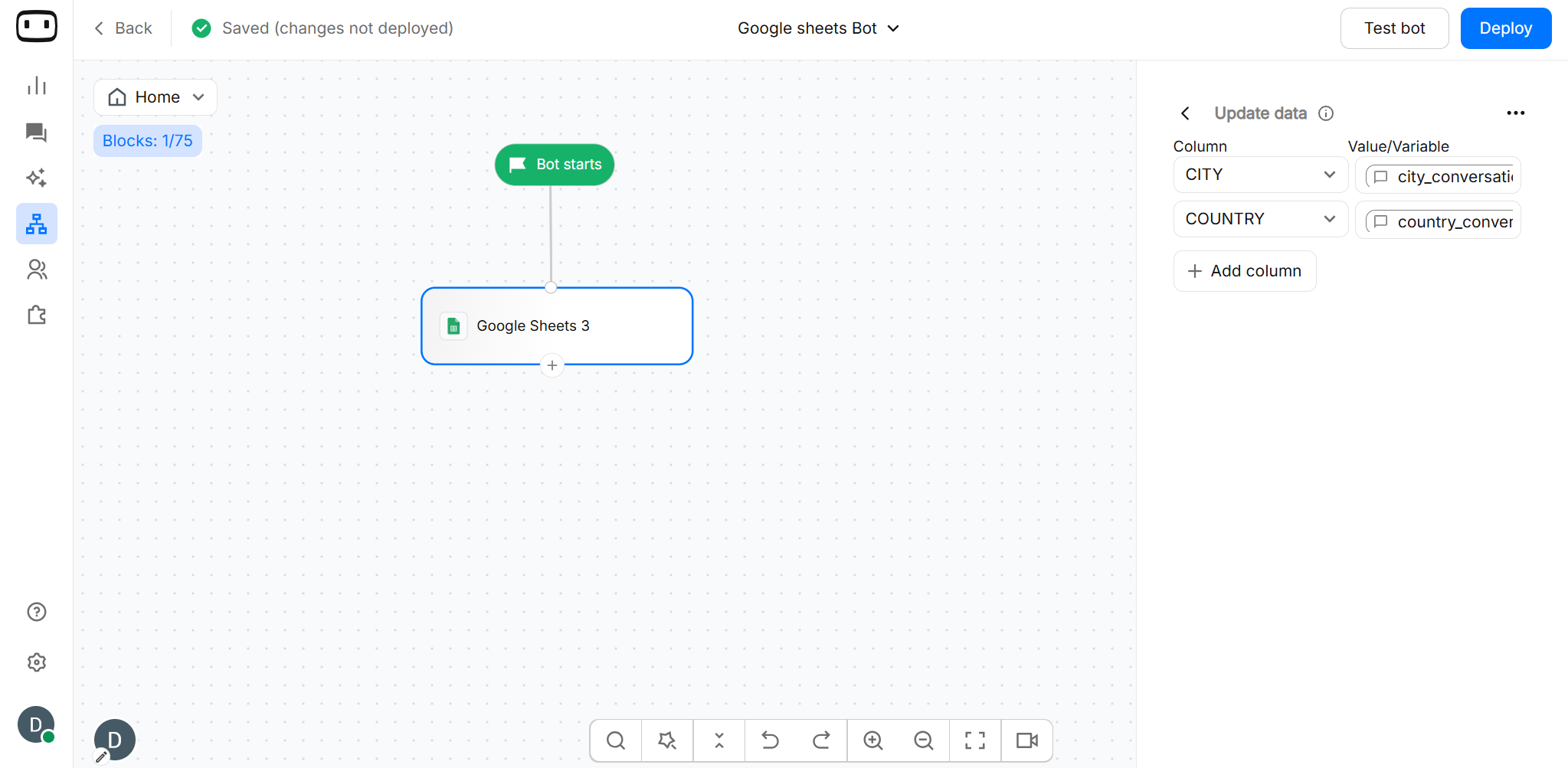
Mapping columns
When sending data to Google Sheets, map each chatbot variable to the corresponding column in your worksheet.
How mapping works
- WotNot variable is the value collected or generated during the conversation.
- Sheet column is the column header in the first row of your worksheet.
- Required indicates whether the field must have a value for the operation to complete successfully.
Empty variables
If a mapped variable does not contain a value, the corresponding sheet cell may be left blank.Data types
Google Sheets may automatically interpret values based on the cell format and the value being written. For example:01/02/2026may be interpreted as a date.- Numeric-looking values may be stored as numbers.
- Long numbers, IDs, or values with leading zeros may be reformatted by Google Sheets.
Troubleshooting
My Google Sheets token has expired or the connection no longer works
My Google Sheets token has expired or the connection no longer works
Reconnect your Google account from the Google Sheets integration or action block.If access was revoked from your Google account, reconnect the account and grant the required permissions again.
I get a permission denied error
I get a permission denied error
Make sure the connected Google account has edit access to the spreadsheet.If the spreadsheet belongs to another user or organization, ask the owner to grant access to the connected account.If you’re using Google Workspace, your administrator may also be blocking third-party OAuth applications. Ask your administrator to allow the integration.
Rows are being added to the wrong sheet
Rows are being added to the wrong sheet
Check the spreadsheet and worksheet selected in the Google Sheets action block.If the worksheet was renamed, moved, replaced, or recreated after the action was configured, open the action block and select the correct worksheet again.
My columns are misaligned after editing the sheet
My columns are misaligned after editing the sheet
Check the column headers in the first row of the worksheet and compare them with the mappings configured in the action block.If a column was renamed or deleted, update the mapping. If you added new columns, map them to the required variables.
Google Sheets is changing my values into dates or numbers
Google Sheets is changing my values into dates or numbers
Google Sheets may automatically format values based on their content.For values that must remain unchanged, such as IDs with leading zeros, format the relevant column as Plain text in Google Sheets before sending the data.
My lookup returns nothing even though the value exists in the sheet
My lookup returns nothing even though the value exists in the sheet
Check the following:
- The correct spreadsheet and worksheet are selected.
- The correct column is used for the lookup.
- The value passed from the chatbot matches the value stored in the sheet.
- There are no extra spaces or formatting differences.
- The column headers have not changed since the action was configured.
I reached the Google API quota
I reached the Google API quota
Google limits the number of API requests that can be made within a given period.Avoid making unnecessary or repeated Google Sheets requests in a short period. If the issue continues, wait for the quota to reset and review your Google API usage.