> For the complete documentation index, see [llms.txt](https://help.wotnot.io/llms.txt). Markdown versions of documentation pages are available by appending `.md` to page URLs; this page is available as [Markdown](https://help.wotnot.io/support-and-billing/faq/notifications.md).
# Notifications
Get alerts when events occur on your account.
Notifications help you be alerted when important events occur on your WotNot account.
WotNot sends notifications to users in 3 ways:
1. Browser notifications
2. Email notifications
## Browser notifications
**To enable browser notifications**, the first time you create your WotNot account, you will see a green banner on the app with a button to "Enable browser notifications".
Click on it to open the modal for confirmation and grant the permissions.
Once permissions are granted, your notifications page should show this green banner.
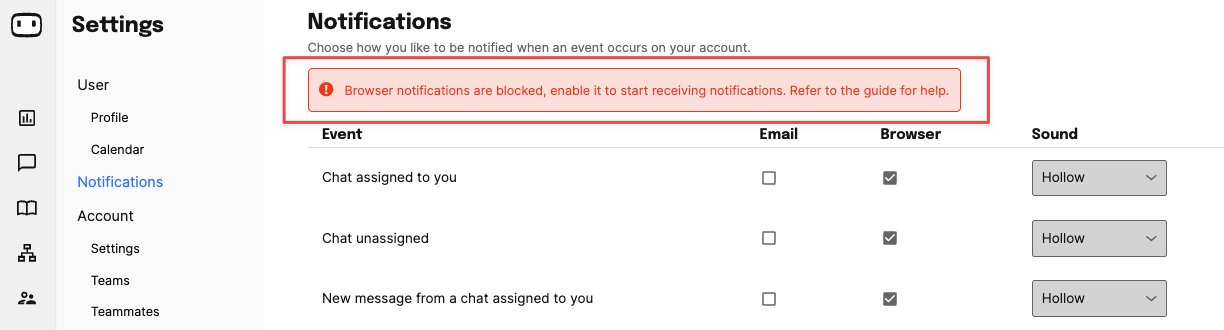
If you have not granted all permissions, you will see this red banner. To rectify this, you need to
### Granting permissions
#### **Method 1: Open the notifications page.**
If you are using Chrome, go to Settings > Notifications, click 'Allow' to open the permissions popup, and choose 'Allow' to grant all permissions.
#### **Method 2: Open browser notifications**
1. Open the 'Settings' icon next to the domain name
2. Enable the 'Notifications' permission
1. OR open 'Site settings' from the list
2. Choose 'Allow' for the 'Notification' permission in the list
## **Email notifications**
**To enable email notifications**, go to Settings > Notifications and check the' Email' column to select the events you want notified about.
Once events are selected, you can click 'Save changes'.