> For the complete documentation index, see [llms.txt](https://help.wotnot.io/llms.txt). Markdown versions of documentation pages are available by appending `.md` to page URLs; this page is available as [Markdown](https://help.wotnot.io/deploy/whatsapp-business-api/getting-a-whatsapp-api.md).
# Getting a WhatsApp API
Step by step process of getting WhatsApp API from Meta.
{% hint style="info" %}
Available on the **STARTER** plan and above.
{% endhint %}
WotNot uses an embedded signup approach to create a WhatsApp API for a new business.
Follow the steps to get a new WhatsApp API:
## Step 1: Initiate the embedded signup process
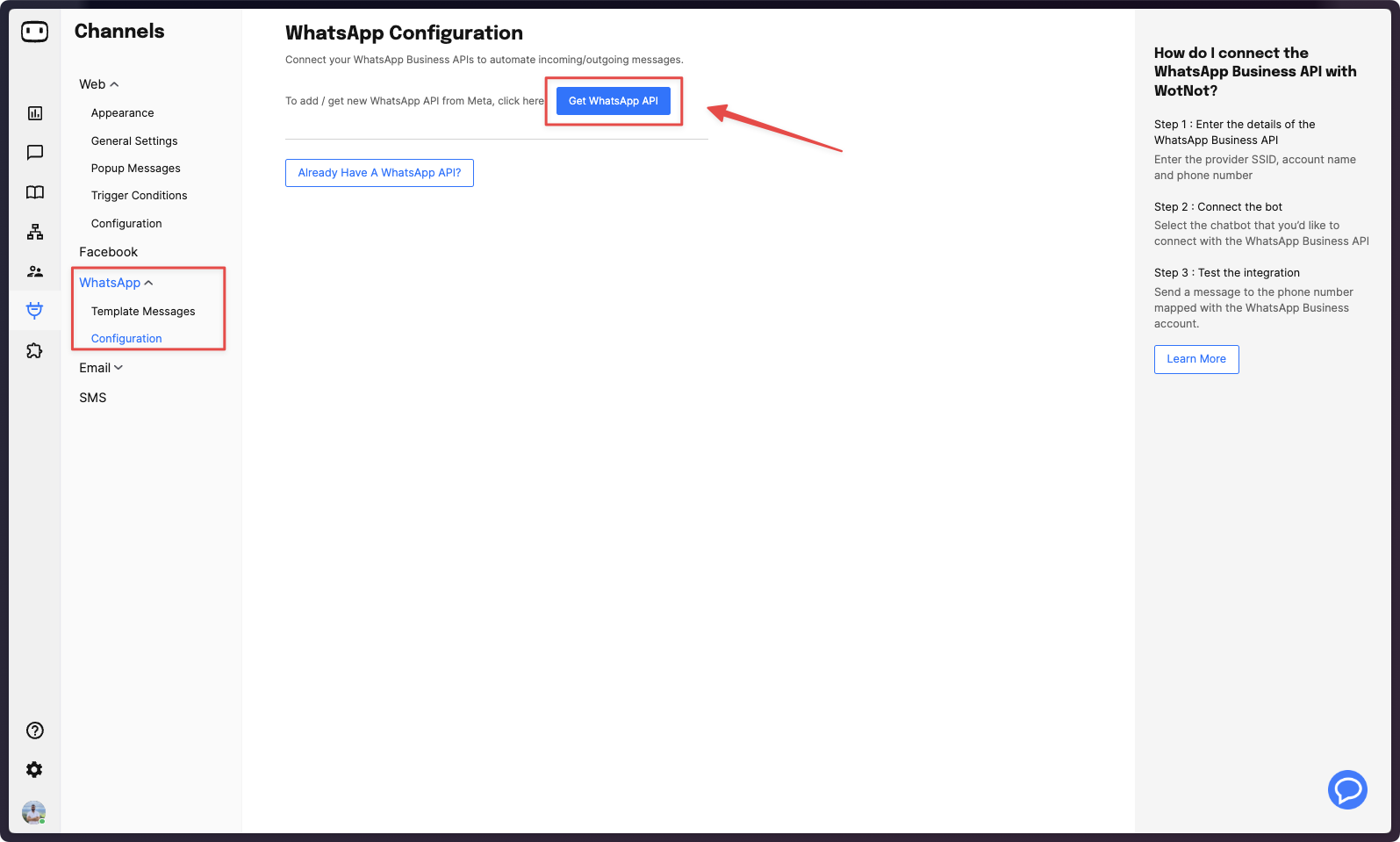
1. Goto Channels -> WhatsApp -> Configuration
2. Click on 'Get WhatsApp API'
3. This will open the Facebook onboarding popup
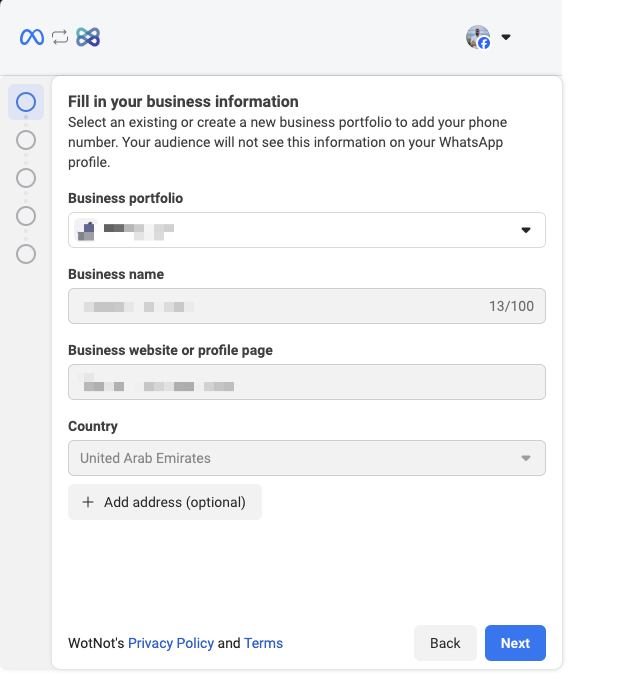
## Step 2: Choose a Facebook business account
Meta requires a Facebook business account to be associated with your WhatsApp number.
You can see the existing portfolio in the dropdowns, or choose to create a new Facebook business account.
Refer this video for complete walkthrough of the steps:
{% embed url="" %}
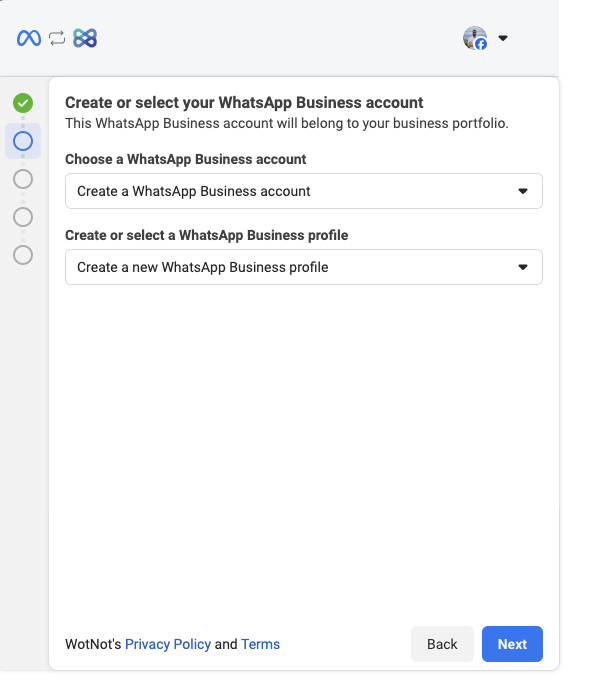
## Step 3: Create a WhatsApp business account
1. Choose 'Create a new WhatsApp Business account'
2. Choose 'Create a new WhatsApp Business profile'.
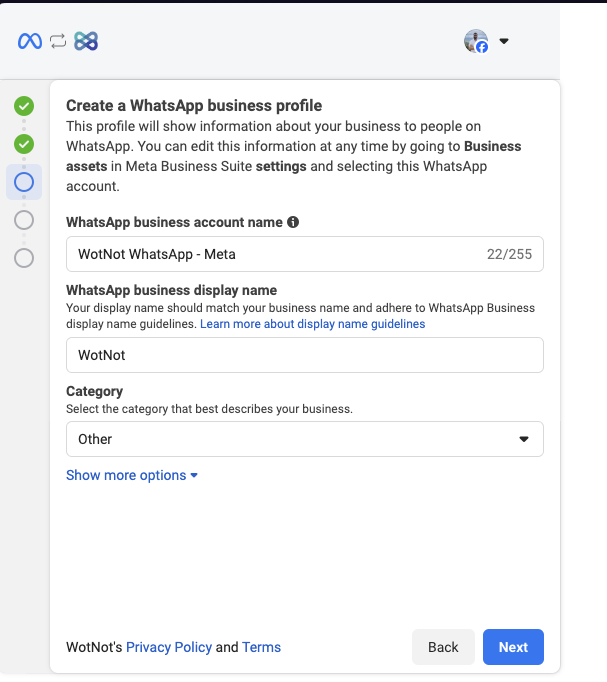
## Step 4: Create your WhatsApp profile
Here you add information that others will see about your company when they message your WhatsApp number.
**WhatsApp business account name** - It is an internal name only visible inside your Meta business account.
**WhatsApp business display name** - This name is what contacts will see on your WhatsApp profile.
**Category** - Select the category that best describes your business.
**Timezone** - Local timezone of your business.
**Business description** - Short description about your business.
**Website** - Website URL of your business.
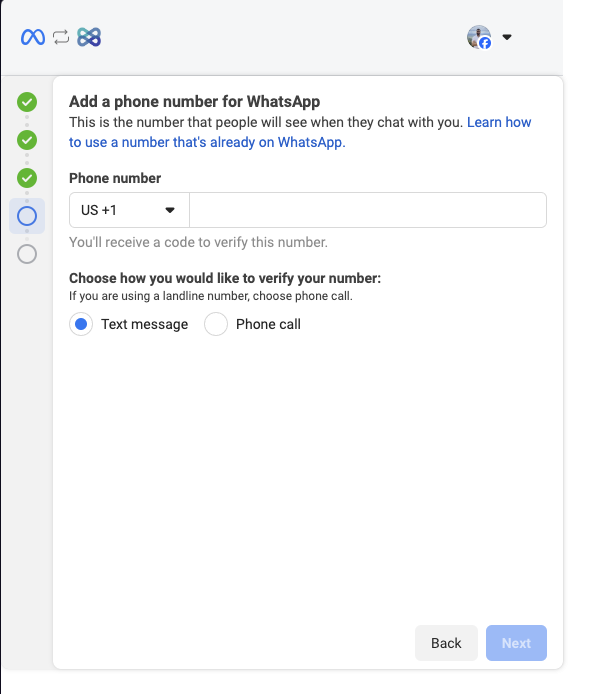
## Step 5: Add your phone number for WhatsApp
This is the number that people will see when they chat with your business.
You will be required to verify this number with a **text message** or a **phone call**.
{% hint style="warning" %}
Make sure this number does not have an active WhatsApp account.
If you do, delete the WhatsApp account.
{% endhint %}
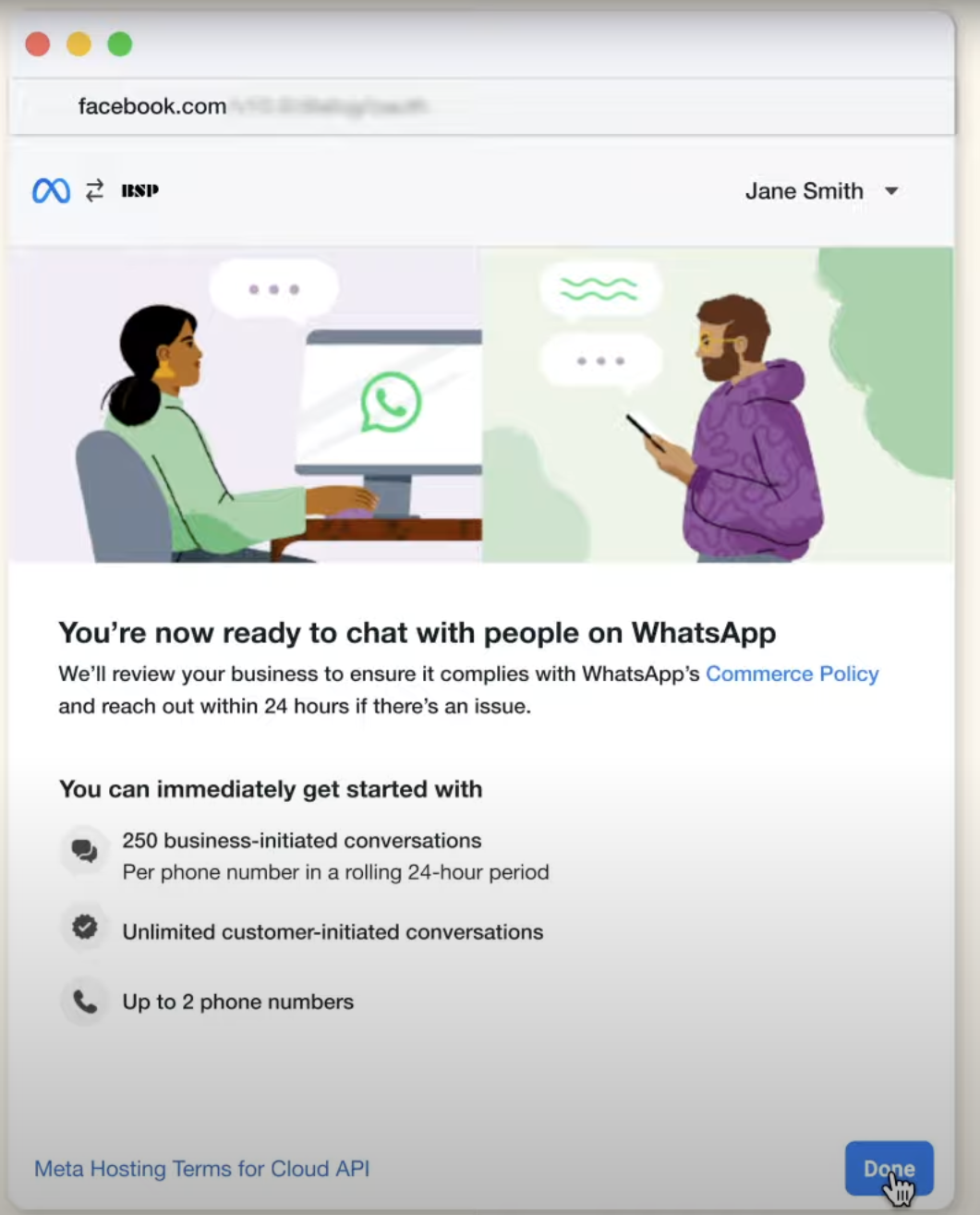
Once you complete the verification of the number, your WhatsApp account will be connected to your WotNot account.
You can then connect your WhatsApp chatbot, and activate it for this WhatsApp number.