# Web chat widget

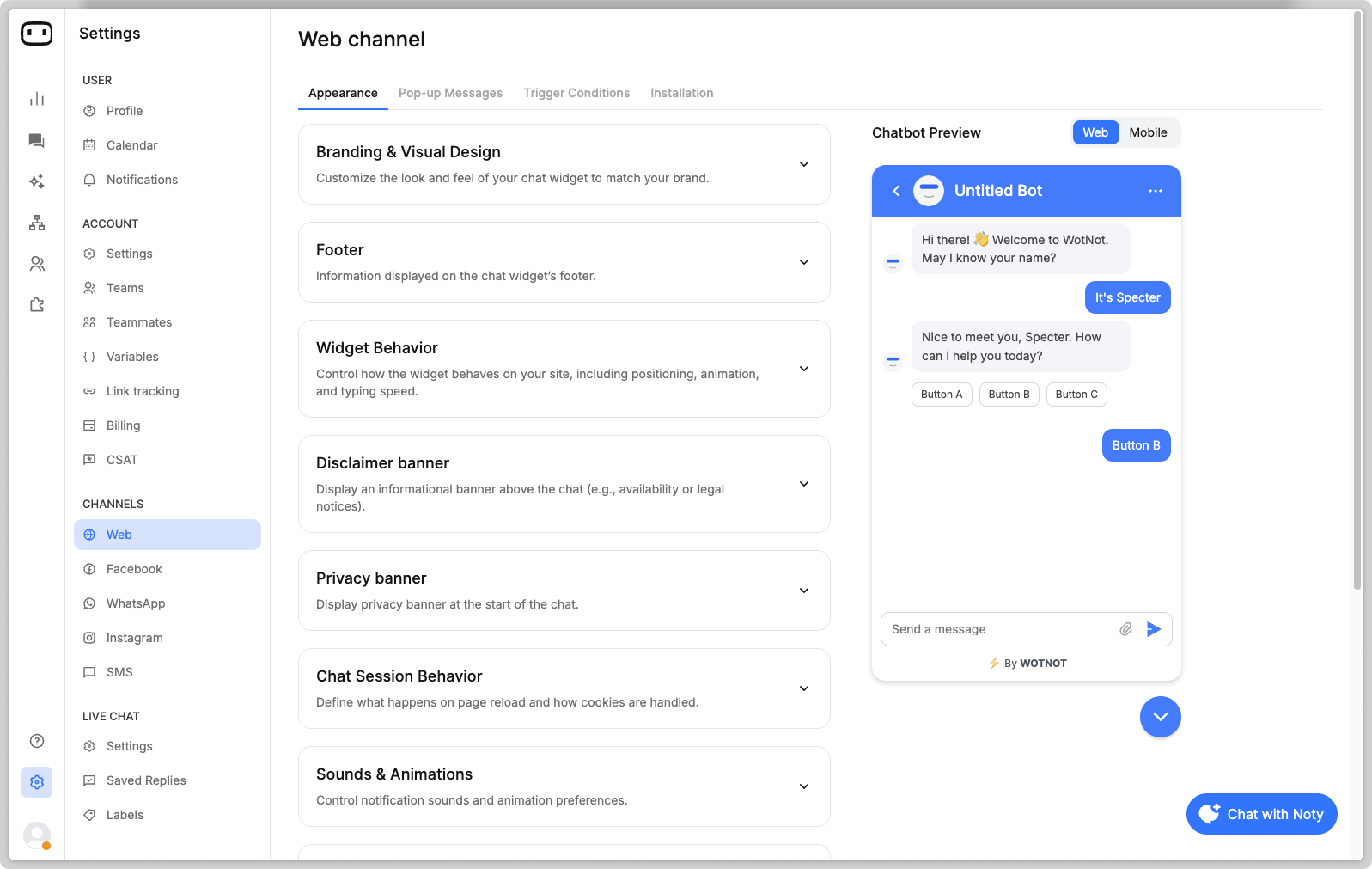
To customize the appearance of the chat widget, you can go to Settings > Channels > Web > Appearance.

<figure><img src="https://360969599-files.gitbook.io/~/files/v0/b/gitbook-x-prod.appspot.com/o/spaces%2FsrMxU8nO3RjusUiYuXBB%2Fuploads%2FONMG5YlNO8e5UUlQicdY%2FCleanShot%202025-06-19%20at%2020.25.43.png?alt=media&#x26;token=822121c7-15e6-4661-9bc8-5c4807977782" alt=""><figcaption></figcaption></figure>

There are multiple customization options offered:

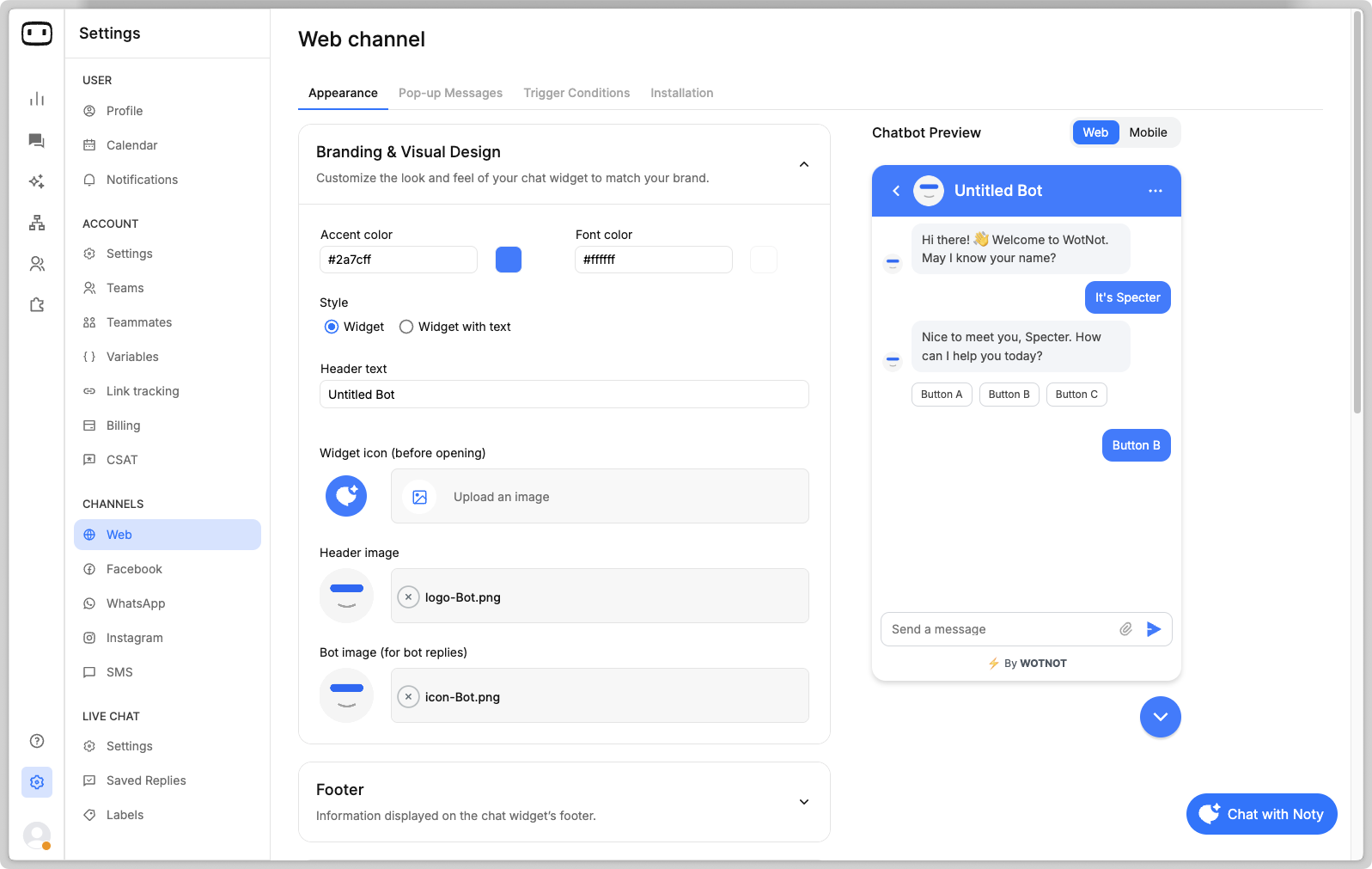
## Branding & visual design

<figure><img src="https://360969599-files.gitbook.io/~/files/v0/b/gitbook-x-prod.appspot.com/o/spaces%2FsrMxU8nO3RjusUiYuXBB%2Fuploads%2FulAsnrSgJz4ZTSJnHtOZ%2FCleanShot%202025-06-19%20at%2020.25.53.png?alt=media&#x26;token=1eb337f1-3e8b-4cfd-bbc1-e867c348d3c9" alt=""><figcaption></figcaption></figure>

<table><thead><tr><th width="196.17010498046875">Config</th><th>Description</th></tr></thead><tbody><tr><td>Accent color</td><td>Customize the theme of the chat widget by choosing a accent color. This is applied to the header area, user message bubbles etc. </td></tr><tr><td>Font color</td><td>Defines the color of the font in the chat widget.</td></tr><tr><td>Style</td><td><strong>Widget</strong><br>Displays a floating chat bubble with a widget icon at the bottom corner.<br><br><strong>Widget + text</strong><br>Displays a rectangular floating chat bubble with a text next to the widget icon. The text is customizable upto </td></tr><tr><td>Header text</td><td>The name of the chatbot</td></tr><tr><td>Widget icon</td><td>Image to be displayed as the floating chat bubble.</td></tr><tr><td>Header image</td><td>Image to be displayed on the header when the chat bubble is opened.</td></tr><tr><td>Bot image</td><td>Image to be placed next to the bot messages in the chat screen.</td></tr></tbody></table>

## Footer

Information displayed on the chat widget's footer.

<figure><img src="https://360969599-files.gitbook.io/~/files/v0/b/gitbook-x-prod.appspot.com/o/spaces%2FsrMxU8nO3RjusUiYuXBB%2Fuploads%2FRt3LQMn0qH2cgsnljMs7%2FCleanShot%202025-06-19%20at%2020.29.06.png?alt=media&#x26;token=cc7c6e04-07cb-4023-ad8d-3c32c7d511dd" alt=""><figcaption></figcaption></figure>

<table><thead><tr><th width="196.17010498046875">Config</th><th>Description</th></tr></thead><tbody><tr><td>Remove "powered by"</td><td><p>Enabling this removes the "powered by WotNot" branding on the footer of the chat widget. </p><p></p><p><a href="https://wotnot.io/pricing"><em>Available on the Premium plan</em></a></p></td></tr><tr><td>Footer text</td><td>You can add a privacy policy text next to the powered by branding. This will be a clickable link which can open your desired webpage.</td></tr></tbody></table>

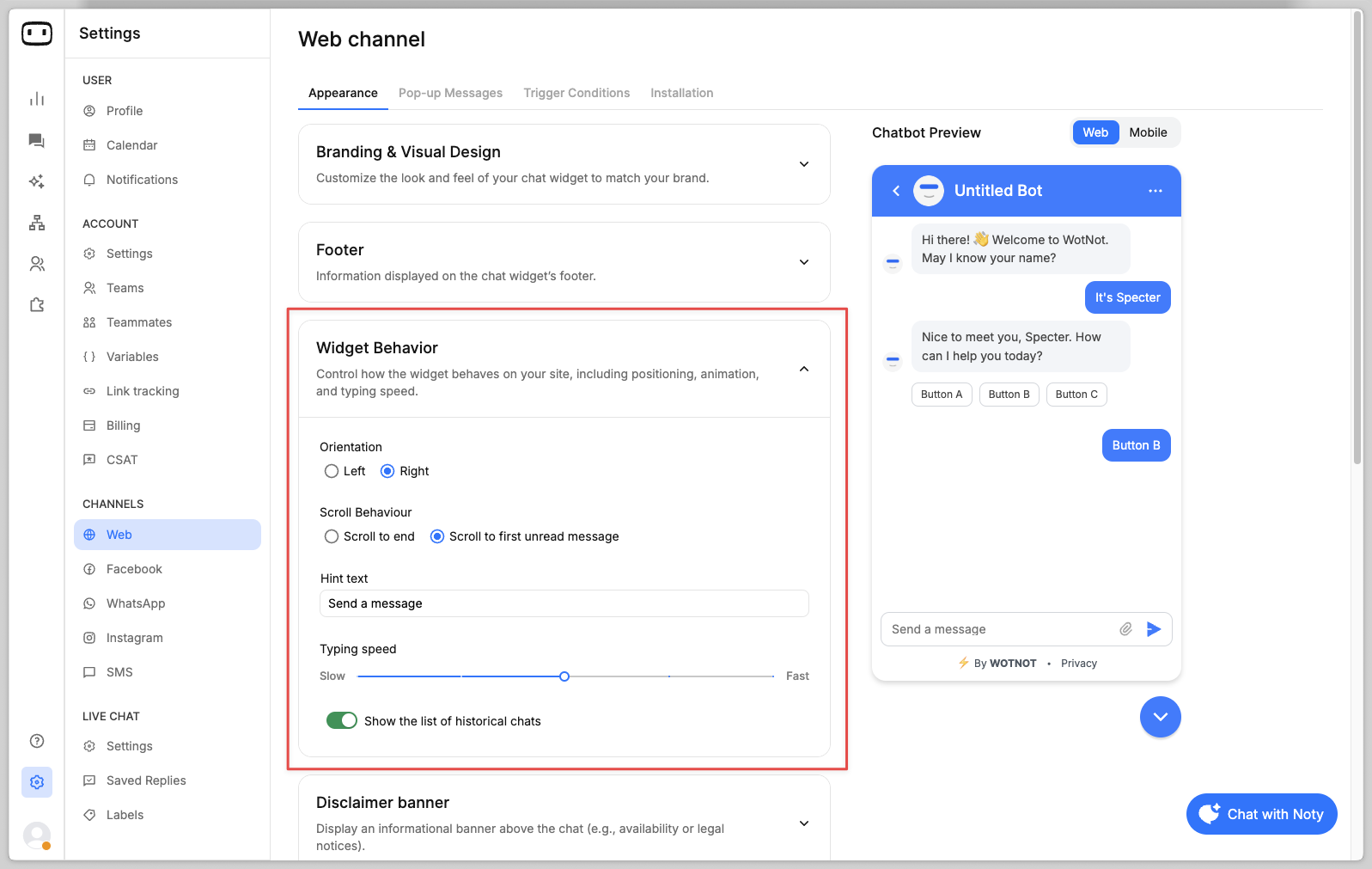
## Widget behaviour

Control how the widget behaves on your site, including positioning, animation and typing speed.

<figure><img src="https://360969599-files.gitbook.io/~/files/v0/b/gitbook-x-prod.appspot.com/o/spaces%2FsrMxU8nO3RjusUiYuXBB%2Fuploads%2FAVTYEdFkdrGap5wIreRh%2FCleanShot%202025-06-19%20at%2020.32.04.png?alt=media&#x26;token=12f4e179-9f30-44cb-b12e-eafd61a740e1" alt=""><figcaption></figcaption></figure>

<table><thead><tr><th width="196.17010498046875">Config</th><th>Description</th></tr></thead><tbody><tr><td>Orientation</td><td>Displays the chat widget on the bottom left corner OR the bottom right corner of the webpage.</td></tr><tr><td>Scroll behaviour</td><td><strong>Scroll to end</strong><br>Each new message from the bot, auto scrolls the page to that new page.<br><br><strong>Scroll to first unread message</strong><br>User position is not changed. Instead a "New messages" badge is displayed at the bottom, which when clicked takes the user to the first unread message.<br><img src="https://360969599-files.gitbook.io/~/files/v0/b/gitbook-x-prod.appspot.com/o/spaces%2FsrMxU8nO3RjusUiYuXBB%2Fuploads%2FRFH9HpVzU4su9Z3CCMJs%2Fimage.png?alt=media&#x26;token=5cfd9678-877e-40a7-8a7a-a5f08547c8e8" alt=""></td></tr><tr><td>Hint text</td><td>Placeholder text to be shown on the chat widget input box.</td></tr><tr><td>Typing speed</td><td>Adjust how quickly you want the bot to send its responses.</td></tr><tr><td>Show historical chats</td><td>Enabling this will show a back button next to the Header image, clicking on which will show all the historical chats of the user.</td></tr></tbody></table>

## **Disclaimer banner**

Display an informational banner above the chat (e.g. availability or legal notices)

Enabling this will allow user to define the message to be displayed.

<figure><img src="https://360969599-files.gitbook.io/~/files/v0/b/gitbook-x-prod.appspot.com/o/spaces%2FsrMxU8nO3RjusUiYuXBB%2Fuploads%2FqPbn5PDCehm8Mc7hMgPV%2FCleanShot%202025-06-19%20at%2020.39.33.png?alt=media&#x26;token=d37711c3-864f-4aa2-8382-eb71b92e7e03" alt=""><figcaption></figcaption></figure>

## Privacy banner

Displays a privacy banner at the start of the chat.

<figure><img src="https://360969599-files.gitbook.io/~/files/v0/b/gitbook-x-prod.appspot.com/o/spaces%2FsrMxU8nO3RjusUiYuXBB%2Fuploads%2FRIfemlk0iLx70ey3iPP2%2FCleanShot%202025-06-19%20at%2020.43.07.png?alt=media&#x26;token=511b3ee3-1c3f-4306-9af1-074b22e8c602" alt=""><figcaption></figcaption></figure>

## Chat session behaviour

### On page refresh

**Start new chat**\
Always start a new chat session when the page is reloaded.\
\
**Retain existing chat**\
Always retain the chat session where it was when reloaded, or when navigating to another page.\
\
\&#xNAN;*Note: Chat is retained only if the WotNot cookie is stored.*&#x20;

### Cookies

When using WotNot's chatbots on your website, a cookie is placed by default when users begin interacting.

You can disable automatic addition of the cookie by going to:

* **Always added** - this means the cookie is always added to the client when a chat session starts.
* **Manually added** - this means cookie is not automatically added until a JS method is fired.

{% code overflow="wrap" %}

```javascript
// JS method to manually add the cookie

wn.cookieSettings({“is_allowed”:true})

// "true" means the cookie is added, "false" the cookie is removed if any present. And if the JS method is not used, no cookies are added.
```

{% endcode %}

To check if a WotNot cookie is present in your browser:

* Goto Inspect -> Application -> Cookies
* Search for keyword "cuid" under domain "app.wotnot.io"

<figure><img src="https://help.wotnot.io/~gitbook/image?url=https%3A%2F%2F360969599-files.gitbook.io%2F%7E%2Ffiles%2Fv0%2Fb%2Fgitbook-x-prod.appspot.com%2Fo%2Fspaces%252FsrMxU8nO3RjusUiYuXBB%252Fuploads%252FbMFXxD7I57yhkwnFXyd2%252FCleanShot%25202024-11-18%2520at%252010.16.51.png%3Falt%3Dmedia%26token%3D3d4113d1-cf5f-4555-a1d7-462254348e3f&#x26;width=768&#x26;dpr=4&#x26;quality=100&#x26;sign=b7a533b8&#x26;sv=2" alt=""><figcaption></figcaption></figure>

## Sounds & animations

Control how the notification sounds and animation preferences are used.

<table><thead><tr><th width="196.17010498046875">Config</th><th>Description</th></tr></thead><tbody><tr><td>Play sound</td><td>Enabling this plays a sound for each message being sent/received in the chat screen.</td></tr><tr><td>Stop bouncing animation</td><td>Enabling this will stop the bouncing animation displayed on the chat widget icon before it is opened on the webpage.</td></tr></tbody></table>

## Advanced customization

To customize chat widget even further, you need to define the custom CSS code you want to apply to the chat widget styling and add it here.&#x20;

[Learn more](https://help.wotnot.io/deploy/web-chat-widget/custom-css)&#x20;