> For the complete documentation index, see [llms.txt](https://help.wotnot.io/llms.txt). Markdown versions of documentation pages are available by appending `.md` to page URLs; this page is available as [Markdown](https://help.wotnot.io/build/action-blocks/whatsapp-flow.md).
# WhatsApp flow
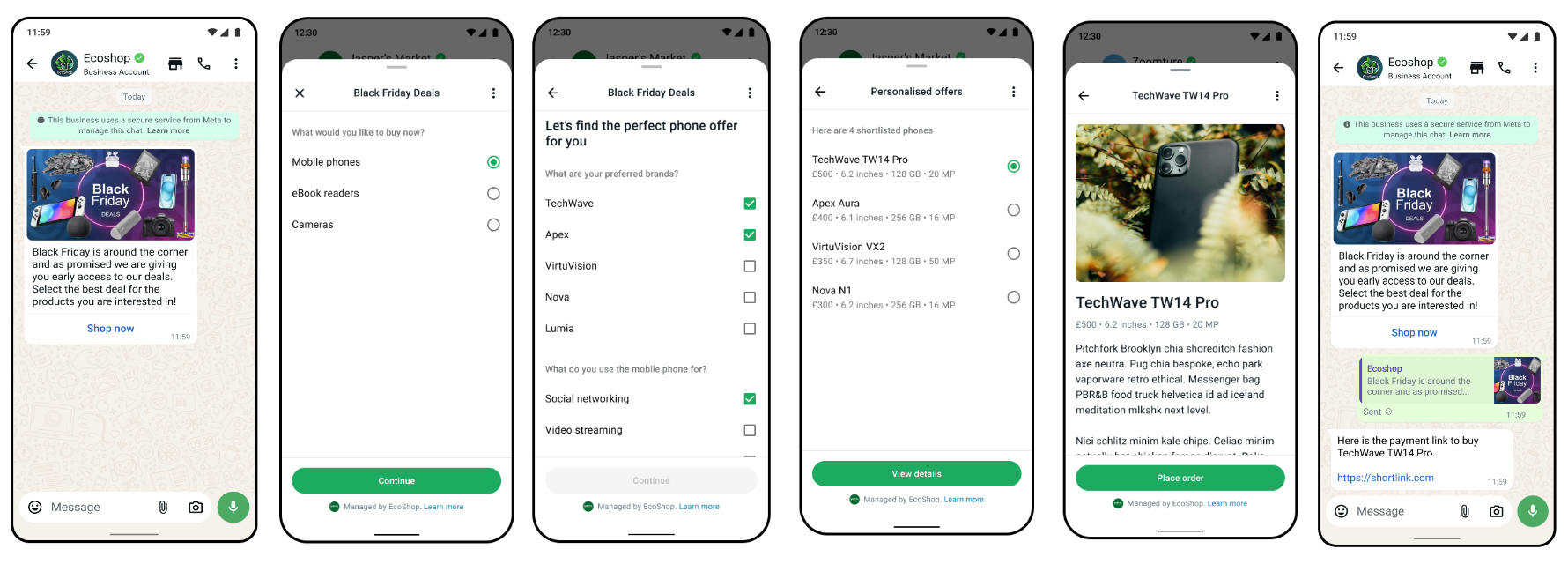
WhatsApp Flows is a way to build structured interactions for business messaging. With Flows, businesses can define, configure, and customize messages with rich interactions that give customers more structure in their communication.
[Learn more about flows](https://developers.facebook.com/docs/whatsapp/flows/)
To configure the Whatsapp flow action block:
## Step 1: Create a template
To initiate a WhatsApp flow, you must first create a flow on your Facebook account.
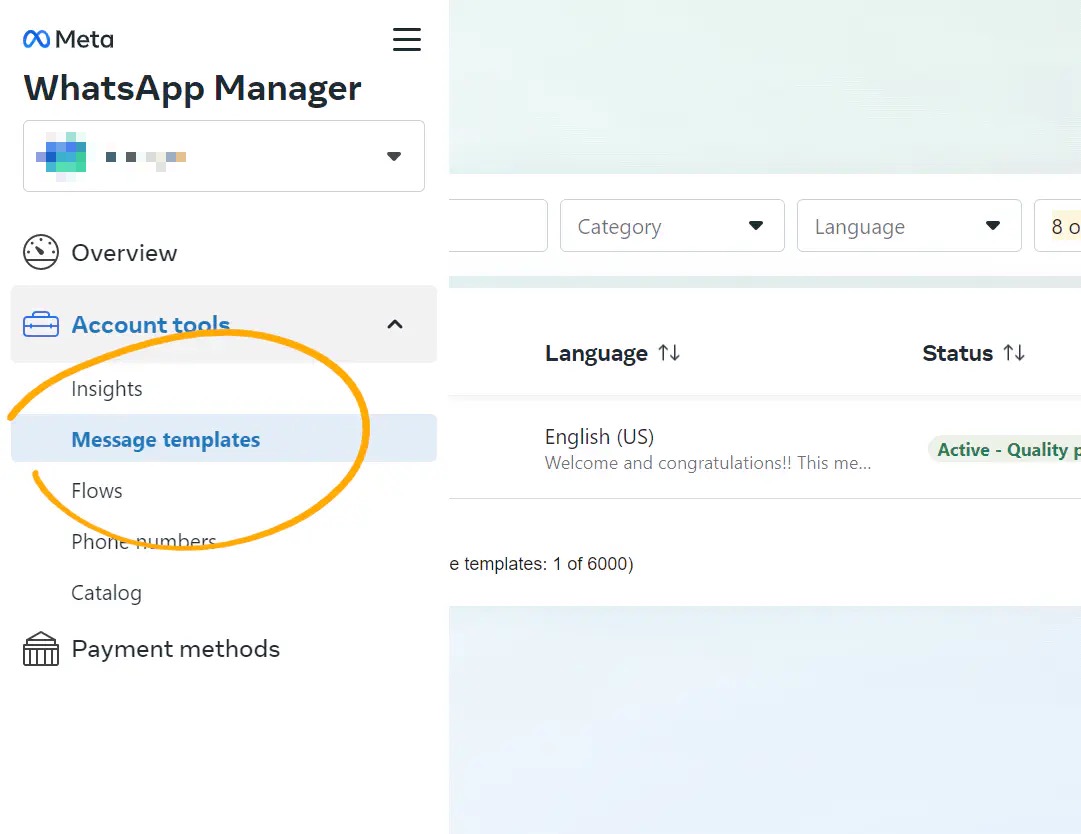
* Go to your **Facebook Business settings** → **WhatsApp Manager**, or click [**here**](https://business.facebook.com/wa/manage).
* Under Account tools → Select **Message Templates**.
This will allow us to use the drag-and-drop builder to create our WhatsApp Flow. You won’t have to submit a template at the end of this guide — we’re just using this to access the drag-and-drop Flow builder.
* Select **Create Template**.
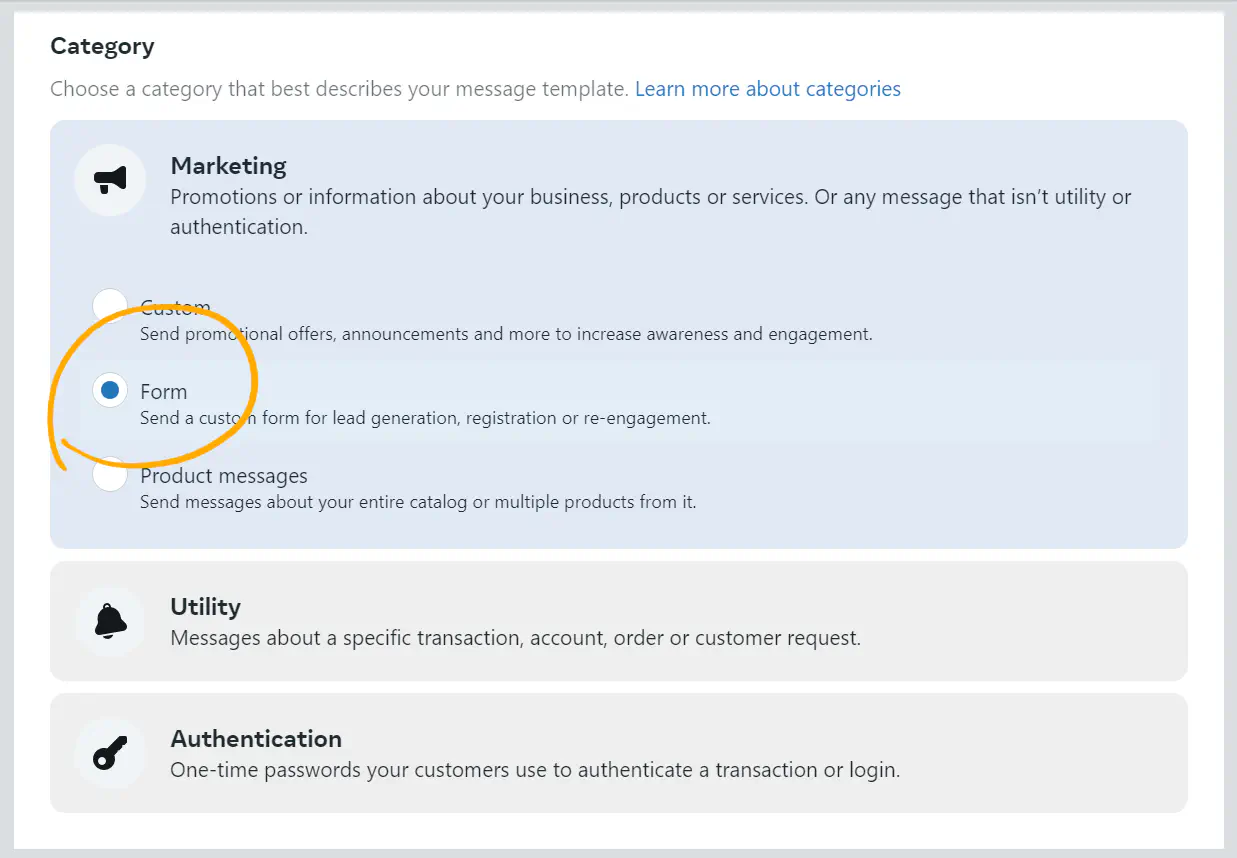
* Choose the category of the flow
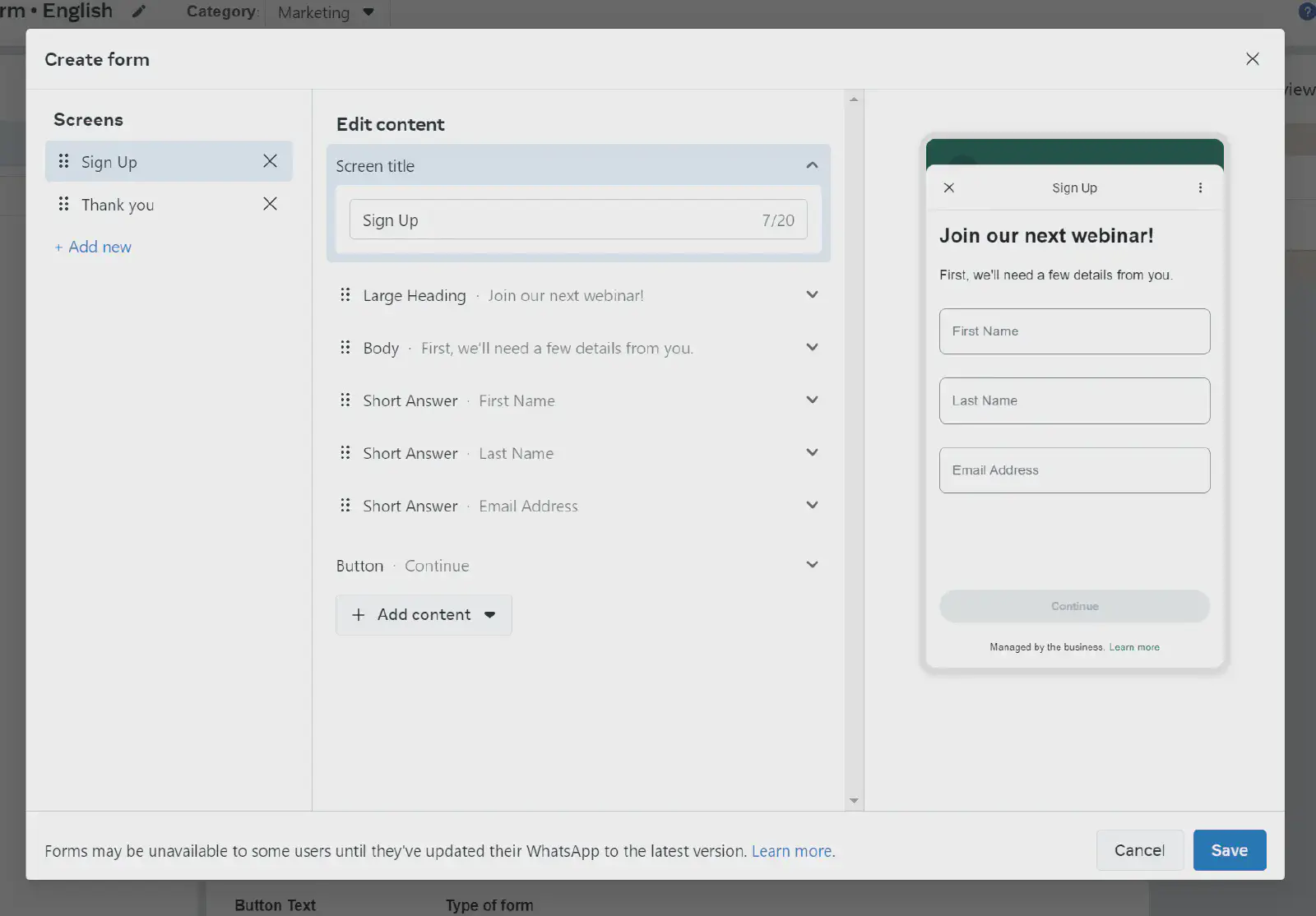
* Customize your flow details using the drag-and-drop builder for WhatsApp flows.
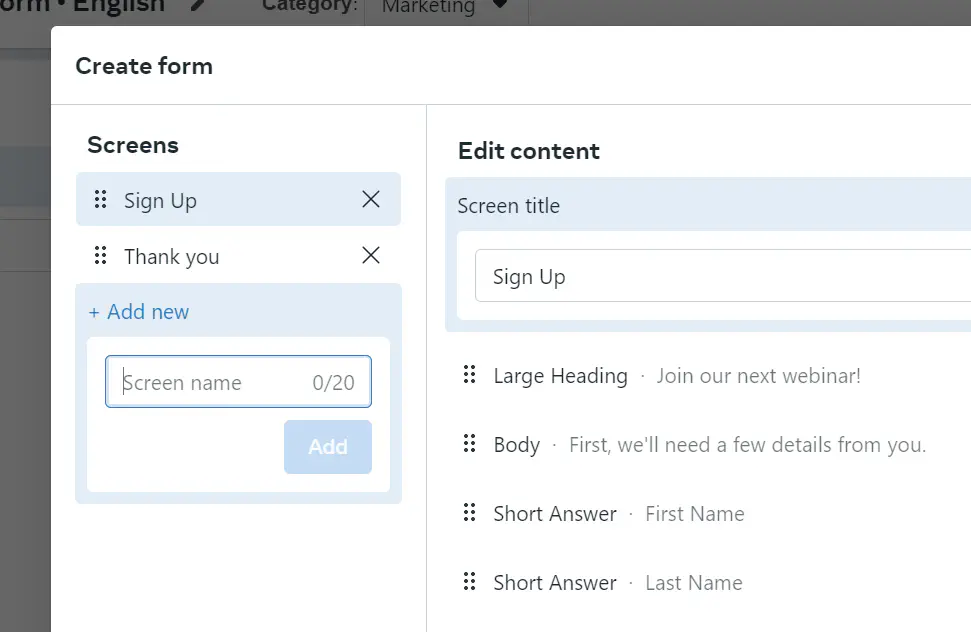
* You can add multiple screens as part of one flow by clicking on **+ Add new** on the left and giving your screen a name.
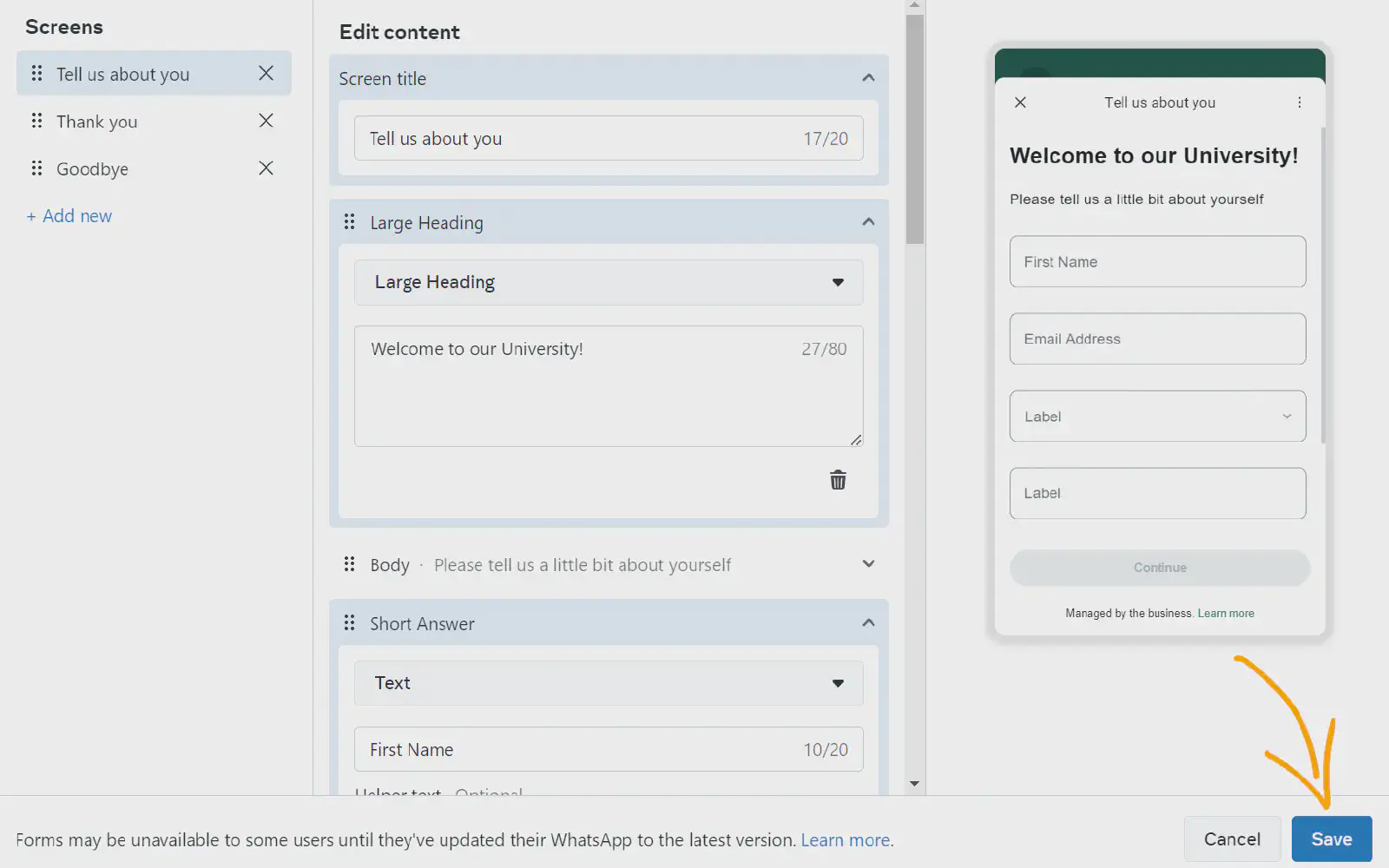
* Customize your flow screen by editing the components you add. You can choose to add radio, input, text input, dropdown, date picker, [and many more](https://developers.facebook.com/docs/whatsapp/flows/reference/flowjson/components/).
* When you’re done, click **Save**:
Your WhatsApp flow is now created and you can find it in the WhatsApp manager menu -> Account tools, select Flows:
### Restrictions
* You can add up to 8 components on every screen. A multiple-choice question is considered one component, regardless of the number of choices.
* The maximum number of screens per WhatsApp Flow is also 8.
## Step 2: Setup the "WhatsApp flow" action block
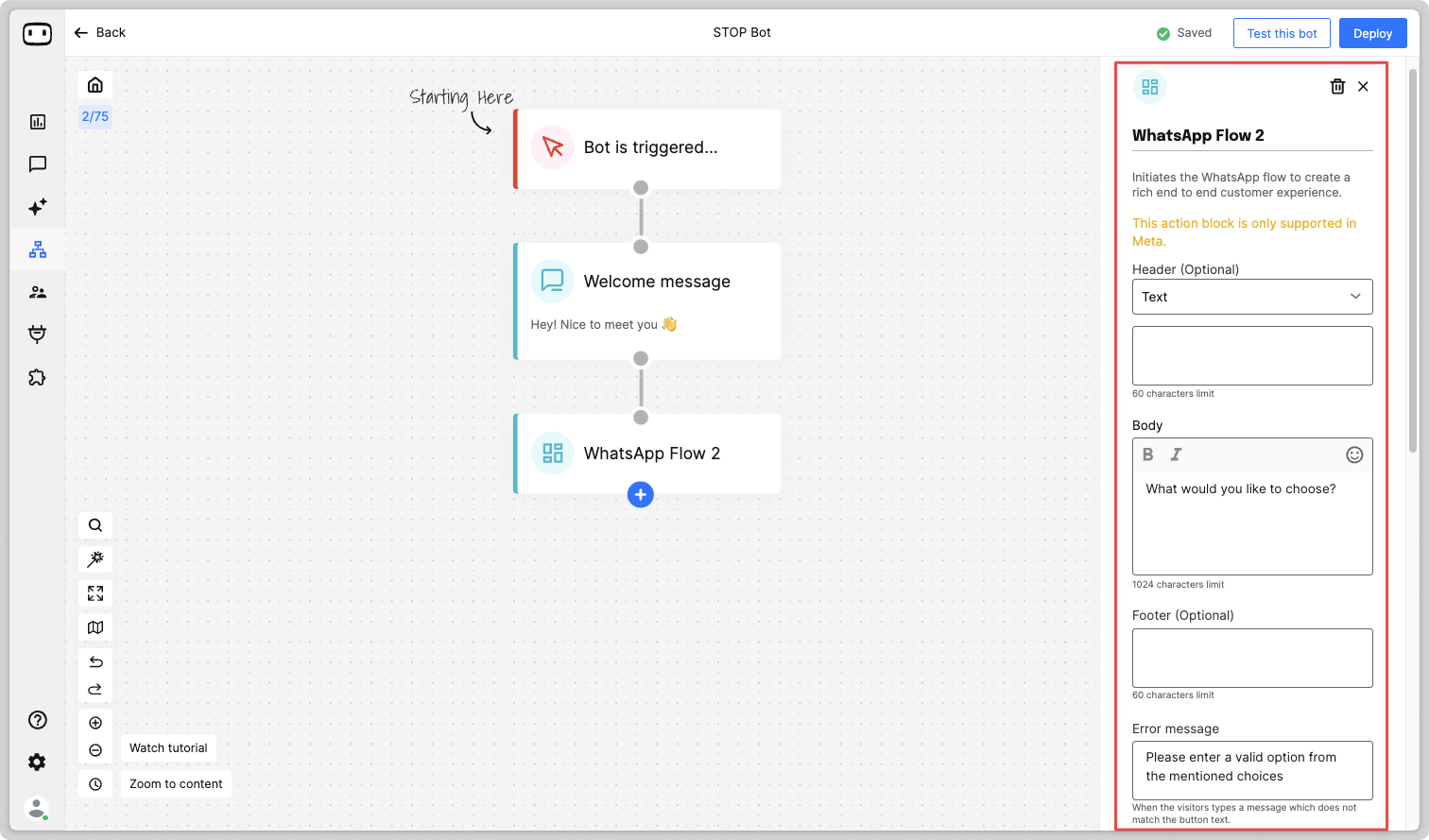
Add the "WhatsApp flow" action block on the bot builder and configure it.
#### Header
Shows the text in a bold format -- making it look like a title. It is an optional field.
#### Body
The text will be the question associated with showing the list of options.
For example, "Select the service you are interested in".
#### Footer
The text is displayed in a small grey color format. Mostly used to display a disclaimer to the user when selecting the option from the list.
#### Button name
Along with the above, a button will be displayed, on click of which we will show the list of options in a drawer format.
You can write the button's name here, such as 'Choose', 'Select', etc.
**Error message**
If the user types a random text instead of clicking the button, this error message will be sent.
## Step 3: Select and setup the WhatsApp flow
* Choose the flow from the dropdown
* And the starting screen you want to launch when the flow is executed.
{% hint style="info" %}
We will show the flows in the dropdown that are fetched from the phone number that you have connected for that bot on the "**Trigger**" action block.
{% endhint %}
* Next, select the data that you want to send from WotNot to the WhatsApp flow
* Map the fields fetched from the flow with the values/variables that you want to send
This is done to make the flow dynamic and contextual to the user's interactions.
## Step 4: Store the responses into variables
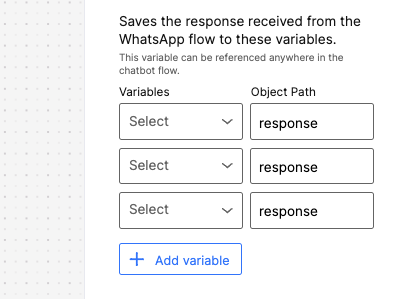
After the flow is executed and the user has completed interacting with it, choose the results that you want to store into variables for further use in the chat flow.
This could be things like dropdown selected, input added etc.
Map the response path with the variable that you want to store it in.